

Messenger Activity in Android
I am going to tell you what Messenger is and how to create a Messenger Activity in an application in Android.
Also how to work with it when we are on chat.
Messenger is a Java class and we use this in Android by extending the Activity class.
This class allows us to implement message-based communication between processes
by creating a Messenger pointing to the handler in one process and handing that Messenger in another process.
Step 1
Create a new project by "File" -> "New" -> "Android Application Project". Its name is MessengerActivity.

Step 2
Write the following code in "values/string.xml":
- <?xml version="1.0" encoding="utf-8"?>
- <resources>
- <string name="app_name">MessengerActivity</string>
- <string name="hello_world">Hello world!</string>
- <string name="menu_settings">Settings</string>
- <string name="title_activity_rotations_exercises">Rotations Exercises</string>
- <string name="message_prompt">Message:</string>
- <string name="font_size_prompt">Font size:</string>
- <string name="add_message_button_label">Send Messege</string>
- <string name="message_hint">Your Message</string>
- </resources>
Step 3
Write the following code in "activity_main.xml":
- <LinearLayout xmlns:android="http://schemas.android.com/apk/res/android"
- xmlns:tools="http://schemas.android.com/tools"
- android:id="@+id/mainLayout"
- android:layout_width="match_parent"
- android:layout_height="match_parent"
- android:orientation="vertical" >
- <LinearLayout
- android:layout_width="match_parent"
- android:layout_height="wrap_content" >
- <TextView
- android:layout_width="wrap_content"
- android:layout_height="wrap_content"
- android:text="@string/message_prompt"
- android:textAppearance="?android:attr/textAppearanceMedium" />
- <EditText
- android:id="@+id/message_field"
- android:layout_width="match_parent"
- android:layout_height="wrap_content"
- android:ems="10"
- android:hint="@string/message_hint" >
- <requestFocus />
- </EditText>
- </LinearLayout>
- <Button
- android:layout_width="match_parent"
- android:layout_height="wrap_content"
- android:text="@string/add_message_button_label"
- android:onClick="SendMessege" />
- </LinearLayout>
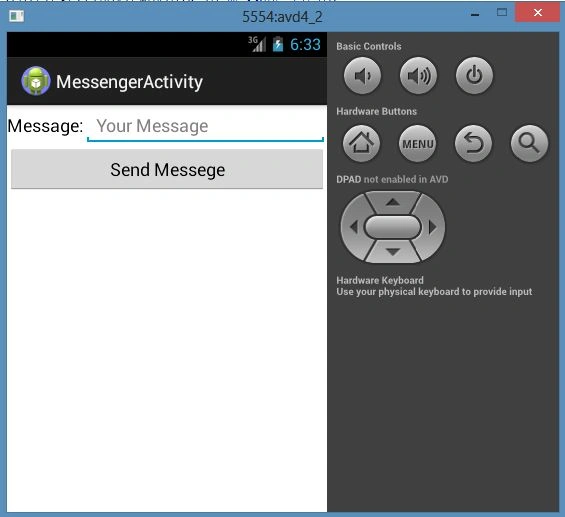

Sazid MauhammadeditedPosted Feb 5, 2013, 2:46 PMEdited Feb 5, 2013, 2:48 PM
i will post more helpful article
Sazid MauhammadPosted Feb 5, 2013, 2:44 PM
Thanks Mr K.K. Srinivasan
KK SrinivasanPosted Feb 5, 2013, 5:36 AM
Hi Sazid, Nice article, really helpful to me, Keep it up. I'm expecting this type of post on Android. Thanks :)