

Power Apps is a suite of apps, services, connectors, and data platforms that provides a rapid application development environment to build custom apps for your business needs. Please click here for more details.
A Microsoft list is a collection of data that you can share with your team members and people to who you've provided access. Microsoft lists help you organize, collaborate, and share the information you care about. You can create and share lists that help you track issues, assets, routines, contacts, inventory, and more. Start from the Microsoft Lists app, Microsoft Teams, or SharePoint using a template, Excel file, or from scratch.
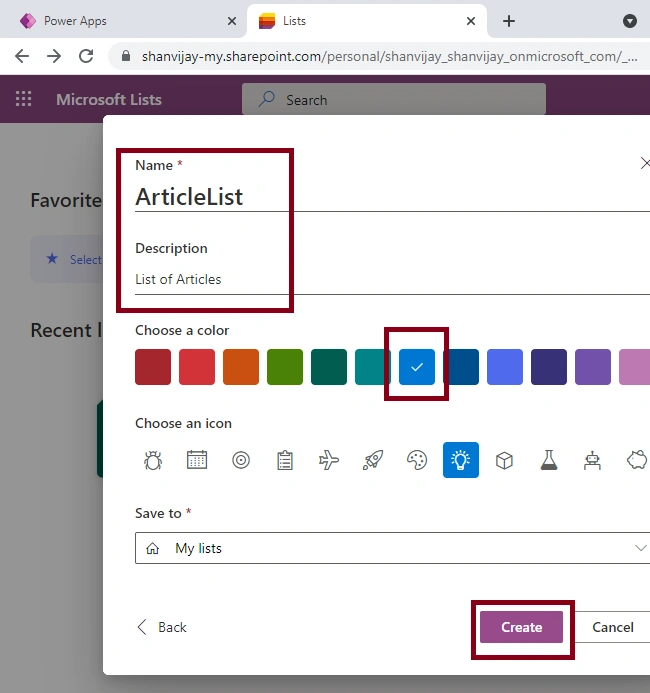
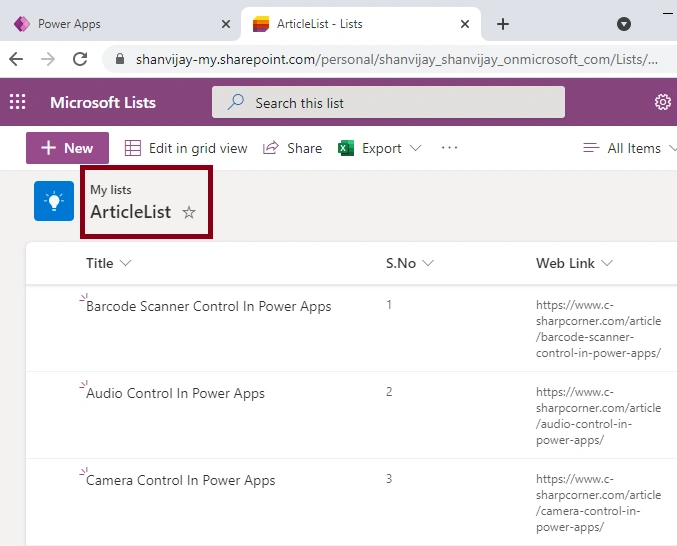
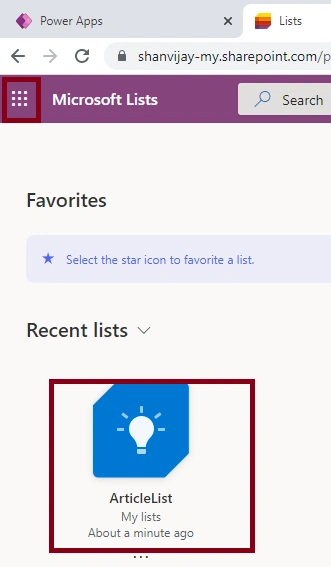
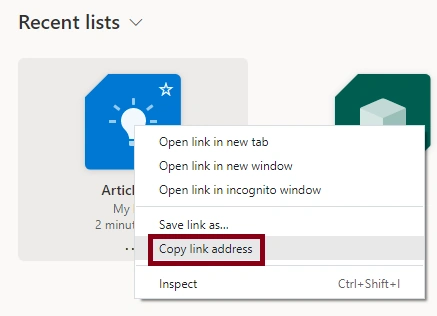
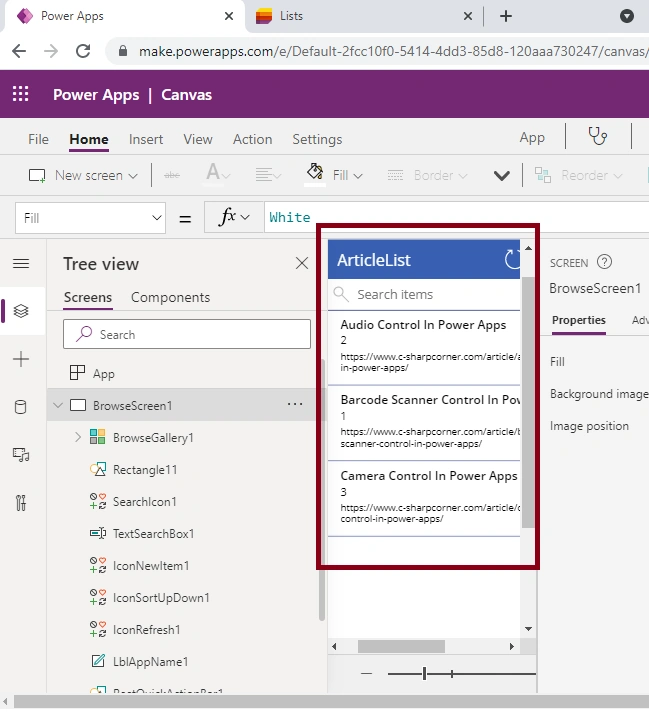
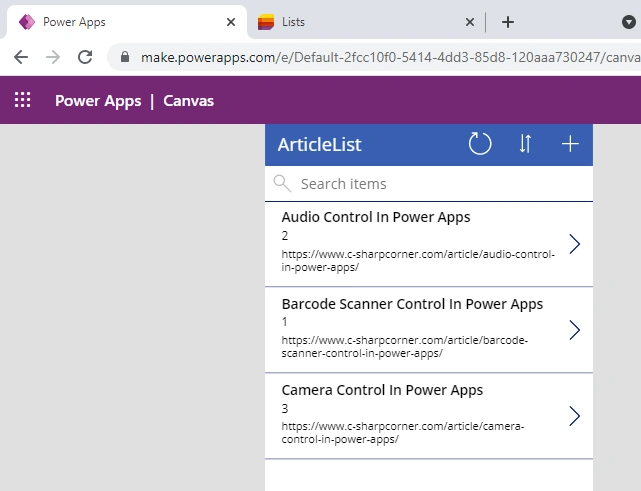
In this article, you can learn how to create and use Microsoft Lists with SharePoint in Microsoft Power Apps.
Step 1
Open the URL https://powerapps.microsoft.com/en-us/ in the browser for Power apps,
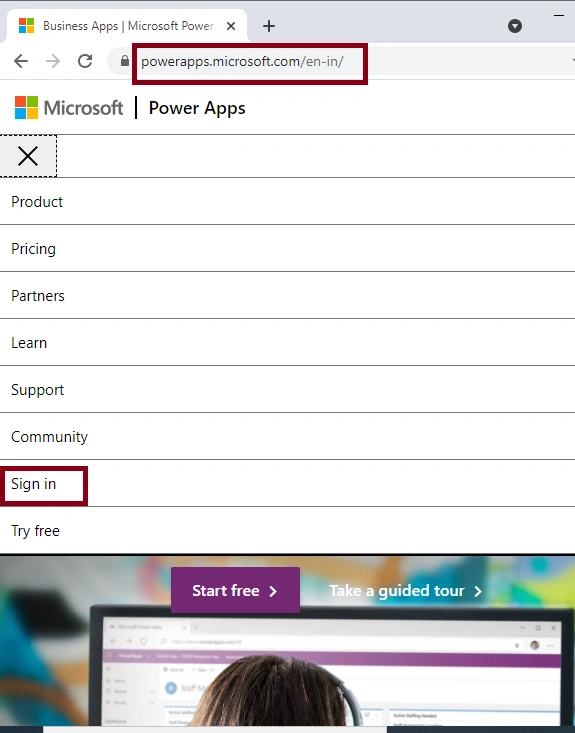
Create an account with your Organisation Mail ID and login it, after login your Power Apps account,
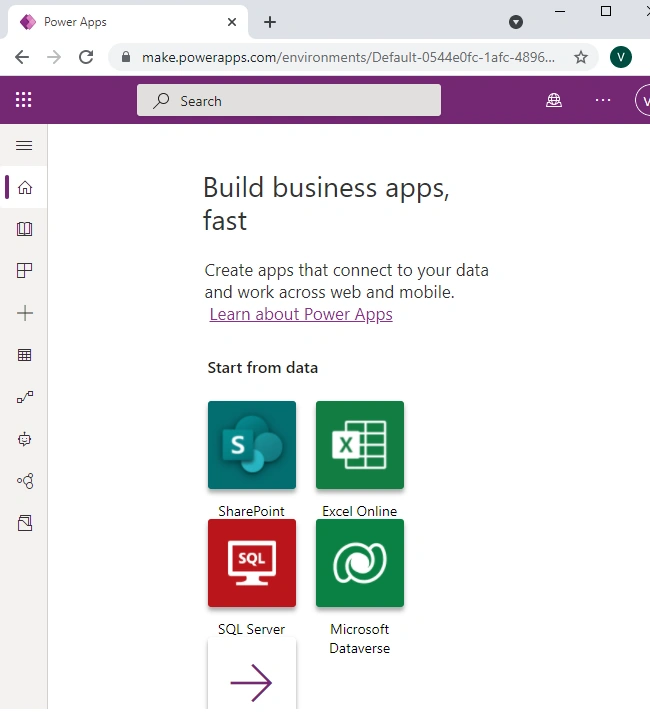
Step 2
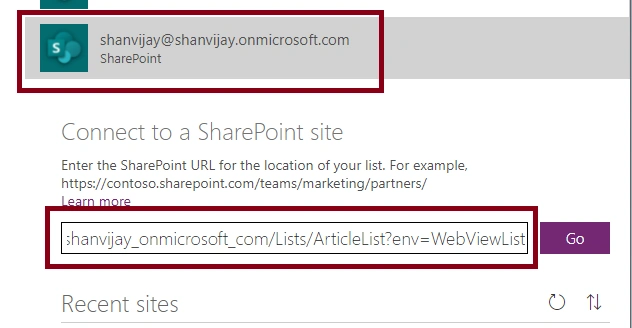
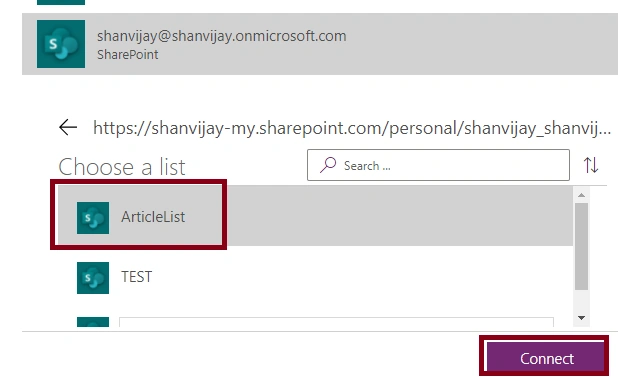
First, create a SharePoint Connection.
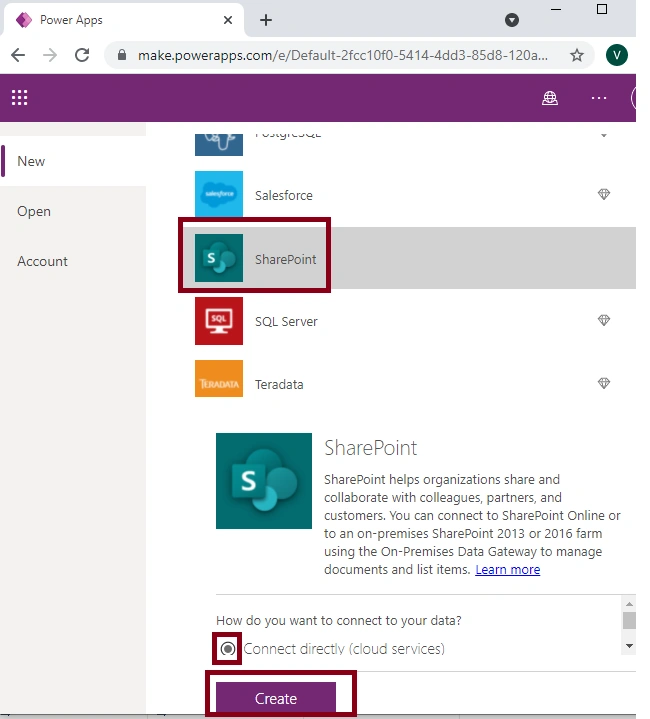
Click on Create (+ ), Start from data and select SharePoint and click New Connection,
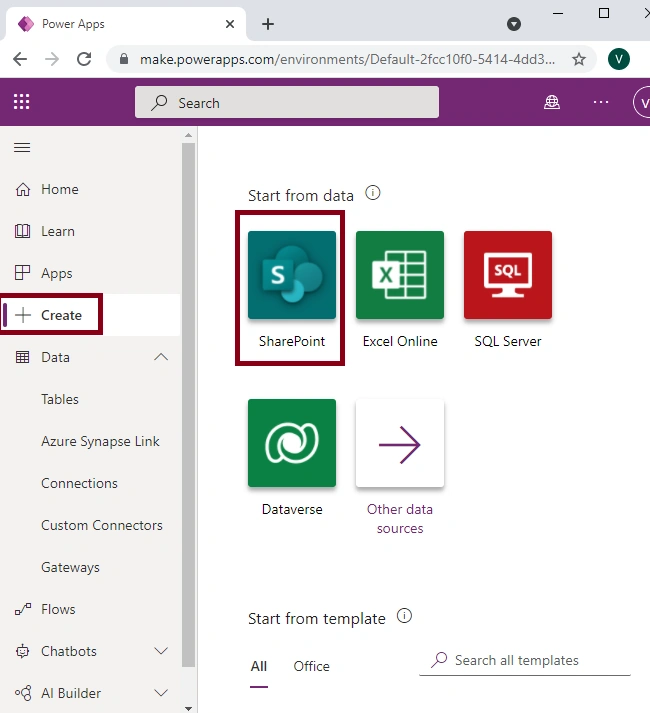
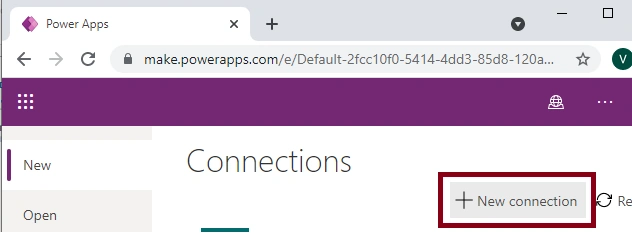
Next, again select SharePoint and click on Create and connection created.

Step 3
For creating an Excel file.
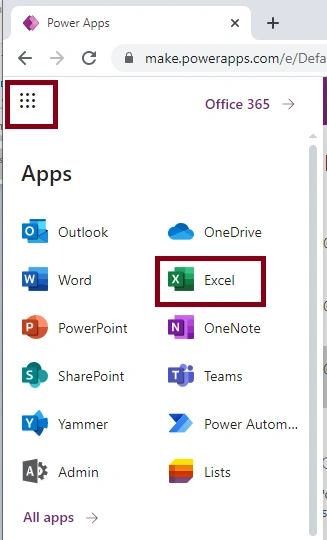
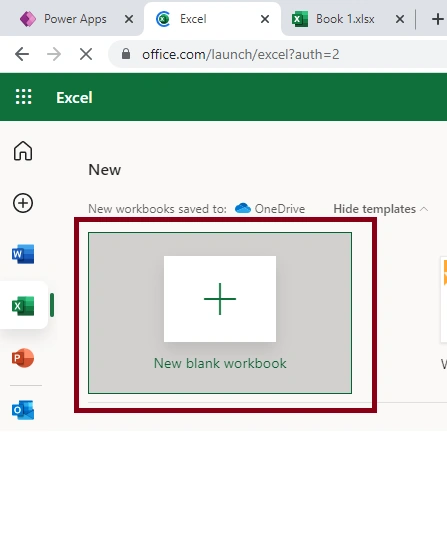
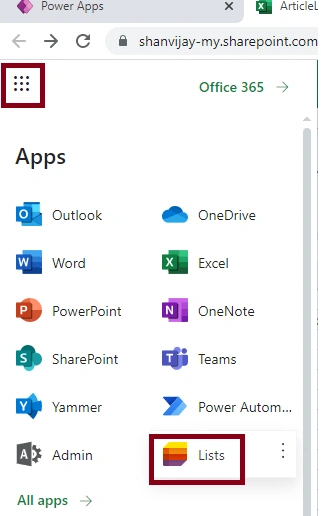
Click the App Launcher and select Excel, click on New Blank Workbook.
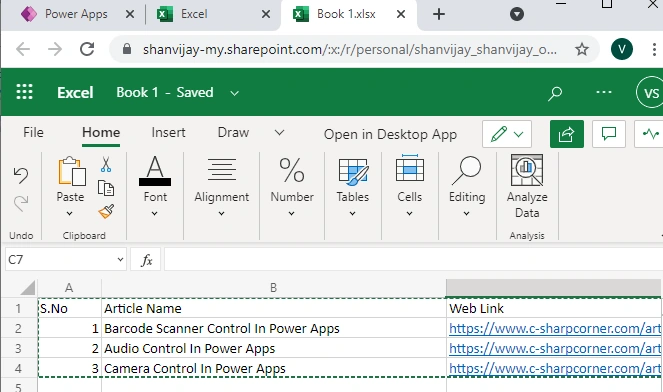
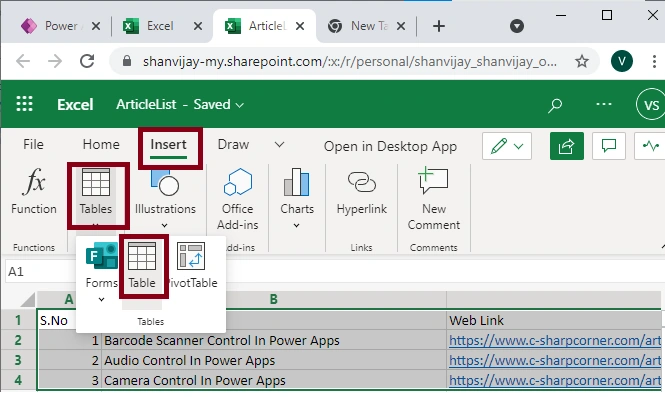
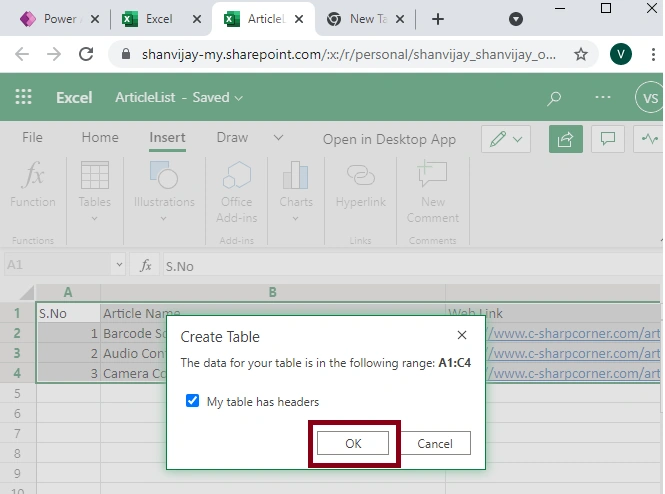
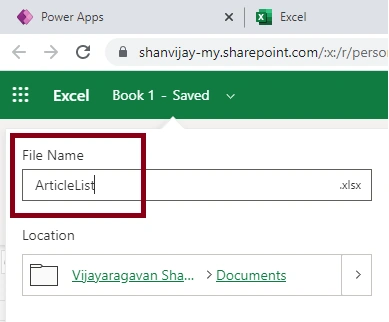
Add the list of article data in the Excel sheet.
Venkatasubbarao PolisettyPosted Aug 9, 2021, 9:13 AM
Useful, learnt something new today.