

This article describes various ways of model binding possible in MVC that has a magical power. This article is intended for the audience having at least a basic knowledge of request flow in MVC.
ASP.NET MVC model binding allows you to map and bind HTTP request data with a model. This is done automatically by MVC Model Binder. The mapping of the request with the model is done by comparison with the name attribute of controls.

When we call any Action Method, two important components play a vital role behind the scene and does some magic.
- ValueProviderDictionary
- DefaultModelBinder
Suppose I am considering as an example the saving of a magazine article. The following is my Action Method that returns a View.
Once I request for action method: http://localhost:64640/Articles/SaveArticle
The ValueProviderDictionary pulls out the values from the HTTP request and stores them as strings. The fetching is done in the following order:
- It checks for Request.Form["ArticleTitle"] where it finds for the control that is having name as ArticleTitle
- If not available it checks in RouteData.Values["ArticleTitle"] that can be specified in URL itself.
- If this too is not available then it checks for Request.QueryString["ArticleTitle"]
- If it still finds nothing then it returns null
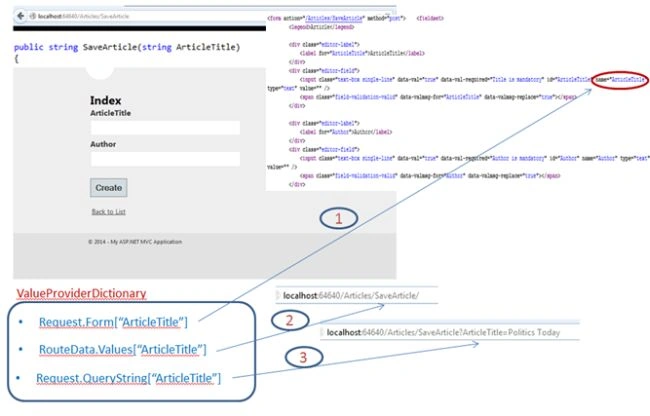
Once this data is fetched from the HTTP request, the DefaultModelBinder class takes the responsibility of converting this string object to actual .Net object. This class implements an IModelBinder interface.
Let's consider each way to do model binding.
- Binding using RouteData


As you can see, I had passed some value in the URL as a RouteData. This value is converted and made available to the parameter "ArticleTitle' in ActionMethod by ModelBinder.
Note: I modified the routing table for a better understanding as shown below:
- Binding using querystring data

The figure above shows how the querystring is converted to the required type and made available to the ActionMethod
- Binding form controls with string parameters
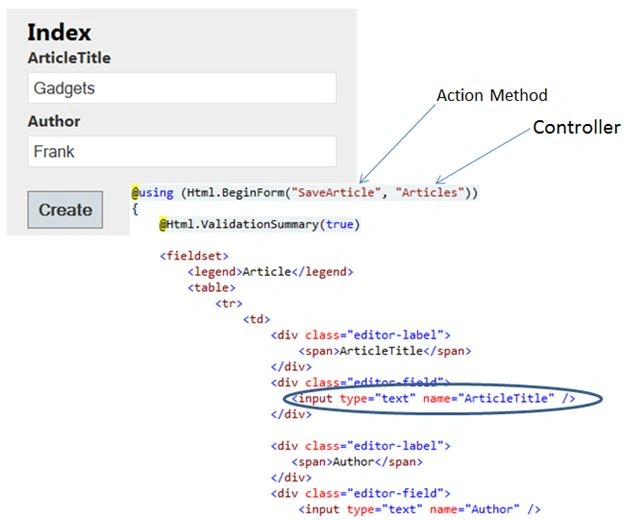

The figure above shows how the HTML control's name attribute is matched with the ActionMethod parameter and the values are made available in the parameter.
- Binding form control with Complex type object
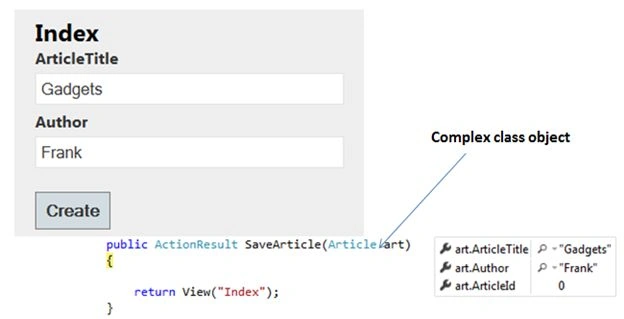
The figure above shows how HTML control names are matched with Class type and class properties are being set. If all HTML controls have the same name then all properties are set else the properties are set with default values.
- Binding with list of strings
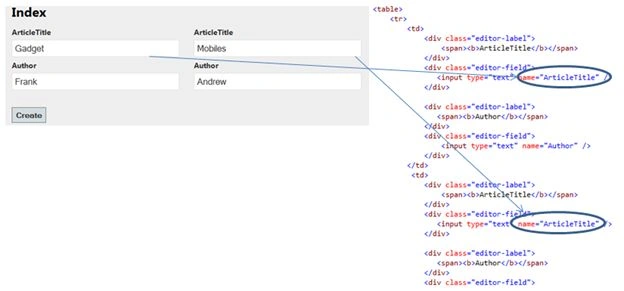
In the figure above I considered 2 TextBoxes for each Article Title having the same name.
The figure above shows how the model binder makes the values of each TextBox available to a string array in the Action Method.
- Binding with list of complex objects
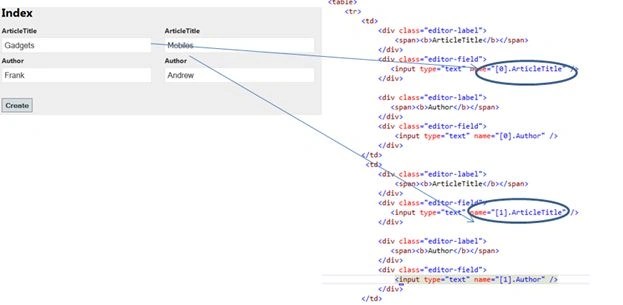
In the figure above, I considered 2 TextBoxes for each Article Title and the name of the text boxes start with an Index. For example:
[0].ArticleTitle & index [1].ArticleTitle
The model binder automatically makes it available for the properties of the respective Article class in a list of Articles.
- Binding with Custom Model Binder
So far I showed you how a Default Model Binder maps the request with the model. Similarly we can create our own custom Model Binder and map the request with a model in the Action Method.
For eg:
In the figure above I am capturing ArticleName and Author in a TextBox, but I wish to have the values in the model with upper case before processing. So I have created my own custom binder that will convert my values to upper before the Action Method is able to access it.
Use the following procedure to create a Custom Binder.
- I need to create a class that implements the IModelBinder interface.
- public class CustomBinder : IModelBinder
- {
- public object BindModel(ControllerContext controllerContext, ModelBindingContext bindingContext)
- {
- Article art = new Article();
- art.ArticleId = 1;
- art.ArticleTitle = controllerContext.HttpContext.Request.Form["ArticleTitle"].ToUpper();
- art.Author = controllerContext.HttpContext.Request.Form["Author"].ToUpper();
- return art;
- }
- }
- Register the custom binder in the global.asax file ModelBinders.
- Binders[typeof(Article)] = new CustomBinder();
- Decorate the Action Result parameter with the Custom ModelBinder.
That's it. Now I will be able to get the model properties in upper case.- public ActionResult SaveArticleToUpper([ModelBinder(typeof(CustomBinder))]Article art)
- {
- return View("Index");
}
Conclusion
This is how strongly the Model Binder is and helps to bind the request with the model. The builtin model binding capabilities automatically takes care of primitive types, class types and collections. I hope you liked this article. Please share your comments, it is valuable to me and keep sharing no matter what ;)
Reference
Dd JjPosted Aug 5, 2015, 2:56 PM
Awesome ...easy grasping
Saineshwar BageriPosted Aug 25, 2014, 4:45 AM
Nice article
sandip panditPosted Aug 5, 2014, 5:12 AM
good article...easy to understand
Mahesh AllePosted Jul 3, 2014, 6:12 AM
You done a great work. This article is very clear and easy to understand. Thank you for posting this article. I would suggest that the images used in this article is not clear or blur. Take care next time. Overall it is very excellent.