

I encountered a scenario where an InfoPath form was created based on an XSD schema. This schema changed frequently and the corresponding changes were to be made to the UI (InfoPath form template) accordingly.
One way would be to create a new InfoPath form every time the schema changed. Although this was fairly simple to do using the InfoPath Designer, it was not desirable since the formatting done on the form (colours /layouts and so on.) need to be redone again.
The following is the procedure for using the InfoPath Resource Files.
- Here is a simple InfoPath form created based on an XSD Schema called “ShipOrder.XSD”.
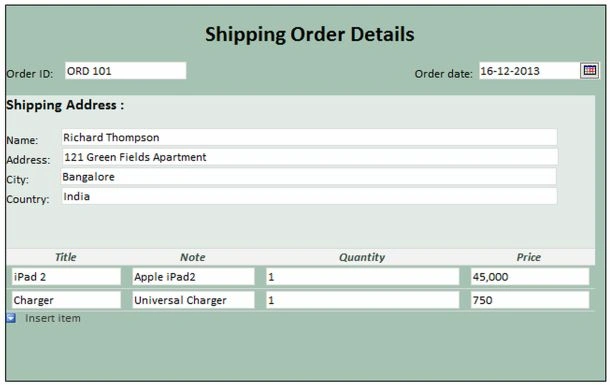
- The Schema File is as follows:
<?xml version="1.0" encoding="ISO-8859-1" ?>
<xs:schema xmlns:xs="http://www.w3.org/2001/XMLSchema">
<xs:element name="shiporder">
<xs:complexType>
<xs:sequence>
<xs:element name="orderdate" type="xs:date"/>
<xs:element name="shipto">
<xs:complexType>
<xs:sequence>
<xs:element name="name" type="xs:string"/>
<xs:element name="address" type="xs:string"/>
<xs:element name="city" type="xs:string"/>
<xs:element name="country" type="xs:string"/>
</xs:sequence>
</xs:complexType>
</xs:element>
<xs:element name="item" maxOccurs="unbounded">
<xs:complexType>
<xs:sequence>
<xs:element name="title" type="xs:string"/>
<xs:element name="note" type="xs:string" minOccurs="0"/>
<xs:element name="quantity" type="xs:positiveInteger"/>
<xs:element name="price" type="xs:decimal"/>
</xs:sequence>
</xs:complexType>
</xs:element>
</xs:sequence>
<xs:attribute name="orderid" type="xs:string" use="required"/>
</xs:complexType>
</xs:element>
- The underlying schema changes to add in an extra field, “State” that needs to be reflected in the Shipping Address area on the form.
- To accommodate the new changes in the Form, we will access the resource files for the InfoPath .xsn template.
- To extract resource files, go to "File" > "Publish" > "Export Source Files".


- On the prompt, browse for the location and save the files in a local folder.
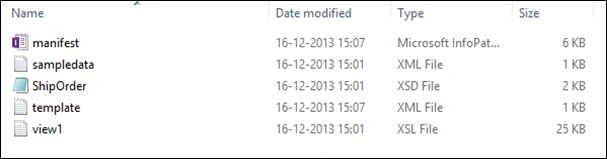
- Now replace the old XSD file with the new one in this local folder.
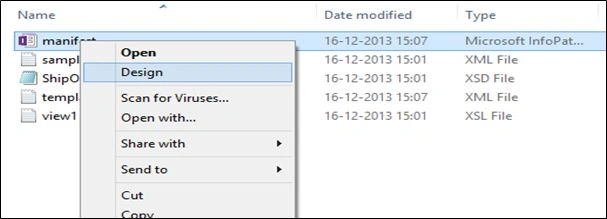
- After extracting the resource files and making the changes, we need to combine them back into a single .xsn file.
- To do so, right-click on the manifest file and click in the design menu.
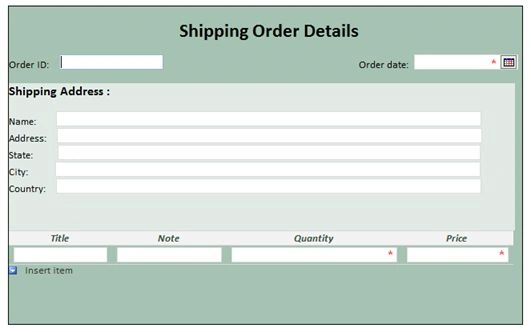
- The new field “State” is now available in the Fields section and can be easily dragged onto the UI. Once the field is added to the UI, save the changes. The ‘.xsn’ file type is automatically selected and the file will be saved back as an InfoPath form template.

- Hence we are able to accommodate the changes in the form without having to work again on the UI / page layout part.
George NelsonPosted Mar 11, 2014, 1:24 AM
Very clearly written and illustrated post. I'm fairly new to infopath and I have a question about this strategy. What's the advantage to using this method vs. just creating the source files to begin with, open the manifest file in design view, add the field/control where needed, then save as new infopath file? The layout still stays the same unless you change something other than adding fields. What am I not understanding. Thanks, George
Dinesh BeniwalPosted Dec 17, 2013, 7:09 AM
Welcome to the C# Corner Deepti.