

Multi-Factor Authentication (MFA)
Multi-Factor Authentication is one of the very common and very exciting features of Windows Azure AD. It means using more than one verification method to authenticate a user. Multi-Factor Authentication is also known as “2FA”. Here, I’m continuing with my previous articles on Windows Azure Active Directory. So, for understanding this article, you may follow my previous articles.
- Creating Azure Active Directory: Part One
- Accessing Application Through Microsoft Azure AD - Part Two
It requires verification methods, such as -
- A password
- A trusted device, say a phone.
So, here, I’m using previous Windows Azure Active Directory. We can see the nitinazuread directory in the Active Directory, which we created in the first article of this series. Go ahead and click on the NEW button at the bottom of the page.
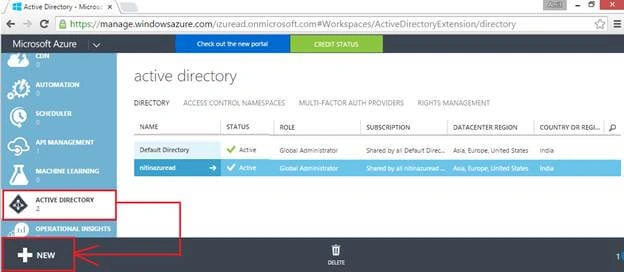
Here, we need to create multi-factor authentication provider. So, follow the screenshot.
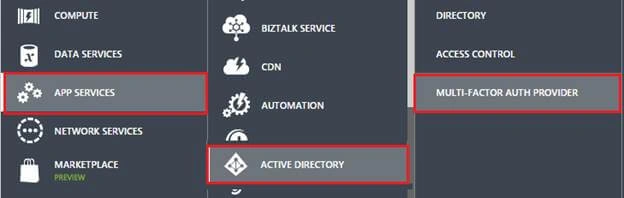
Click on Quick Create to create an Authentication provider.
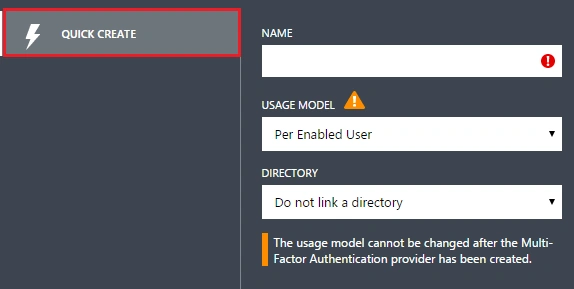
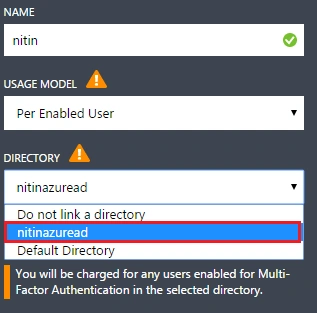
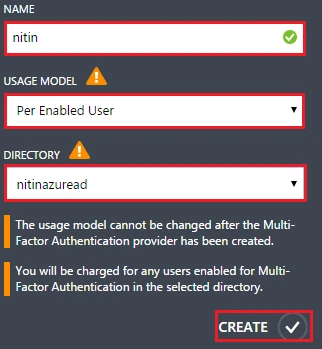
Give a name to it. You can give your directory name here as well. In the Model section, choose Per Enabled User if there is any user.
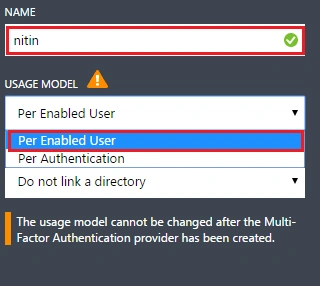
In the next step, it will ask for the directory where you want your authentication provider. It’s pretty simple. Select the appropriate directory.
All is set, now. Simply click on Create check mark.
So, your authentication provider has been successfully created.

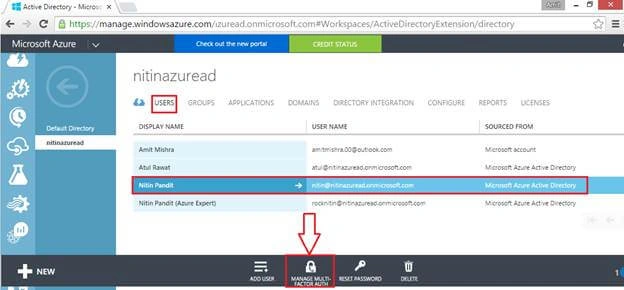
Now, I’m going to set up multi-factor authentication to the Nitin Pandit user in my directory. Select user and click on Manage Multi-Factor Auth at the bottom of the window.
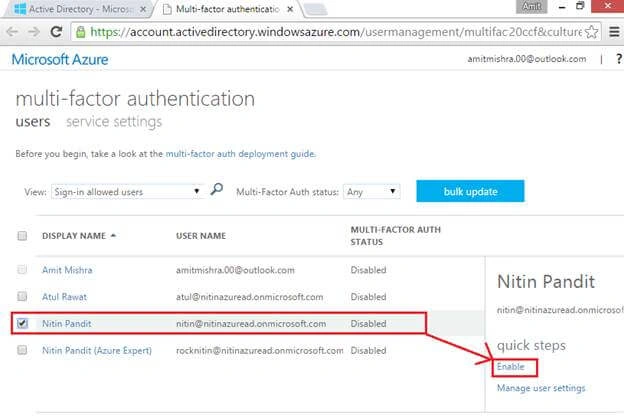
After clicking on it, you will be redirected to a new portal of Multi-Factor Authentication. Select Sign in for the allowed users from the dropdown list.
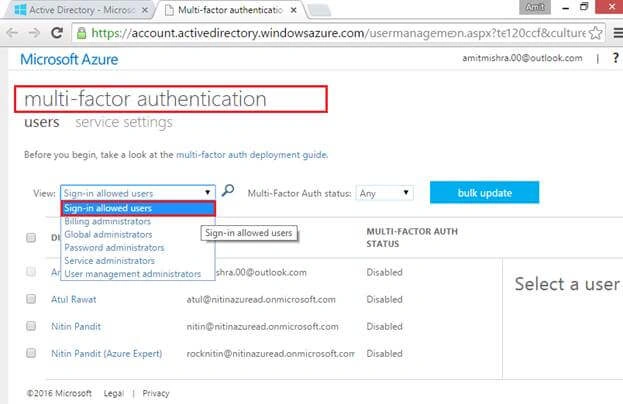
You can see a list of users, all having disabled status of authentication. I want to assign authentication to Nitin Pandit user. So, mark on it by clicking and click on Enable option at the right side of the portal.
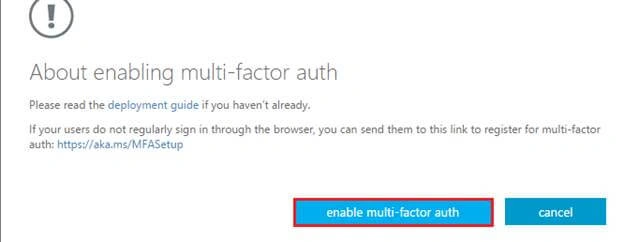
A popup will be generated. Click on enable multi-factor auth.
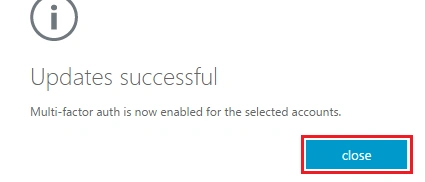
Now, the authentication is successfully enabled to the selected user.
Next, login with Nitin Pandit user name and password. There are a few things for you to keep in mind. Here, I'm using a new browser for this login and logging in with Nitin Pandit user name that we’ve created in previous articles (part 1).
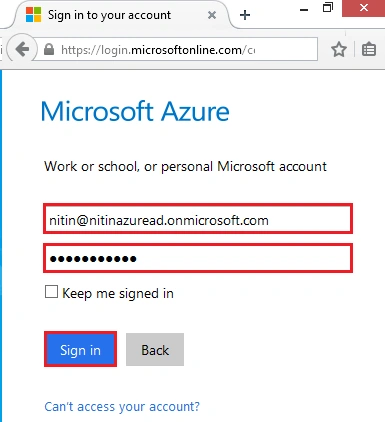
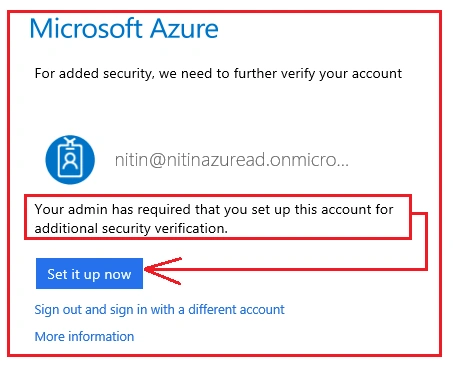
After clicking on Sign in button, you will be redirected to a new page. This page is for security purposes where you need to verify the account. Go ahead and click on Set it up now.
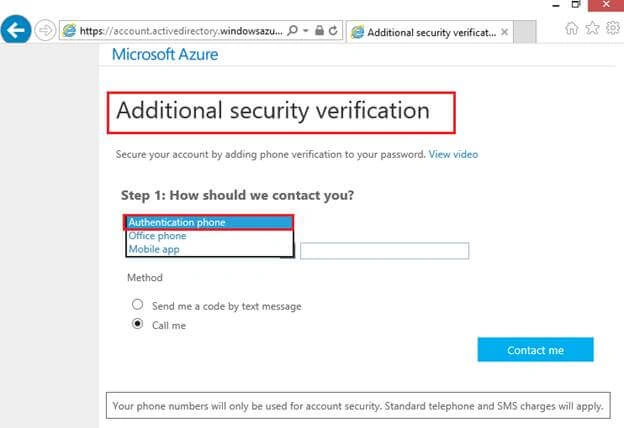
Here is the verification page for the user. Either provide a phone number or select another verification type, as shown in the following screenshot.
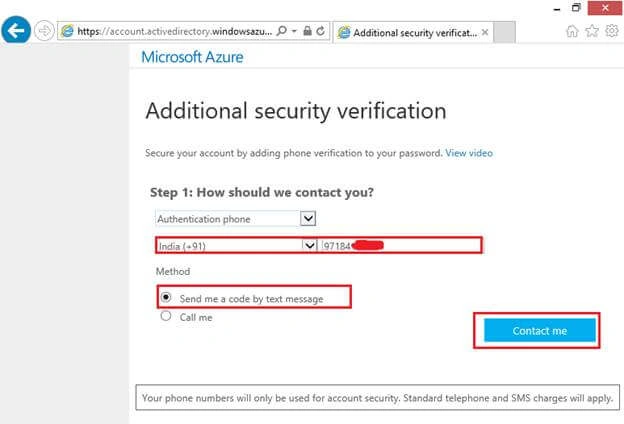
Choose your region, provide your appropriate phone number, and select the method whether you want a call or a text. Click on Contact me to proceed further.
It will send a text message on the number that you’ve provided.
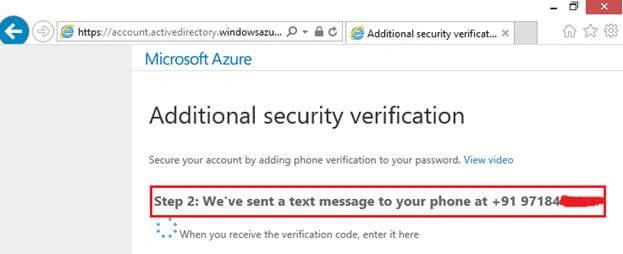
Enter the code and click on Verify button to verify it.
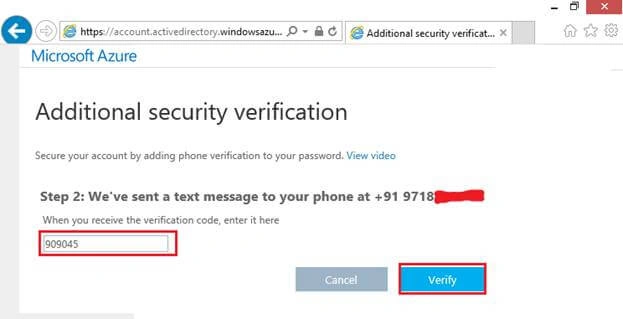
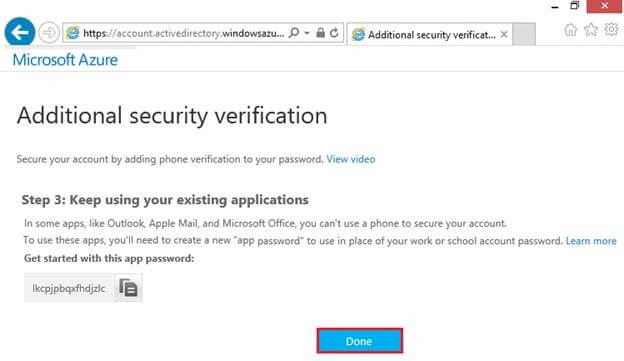
This is how the verification is done. Now, logout from the current portal.
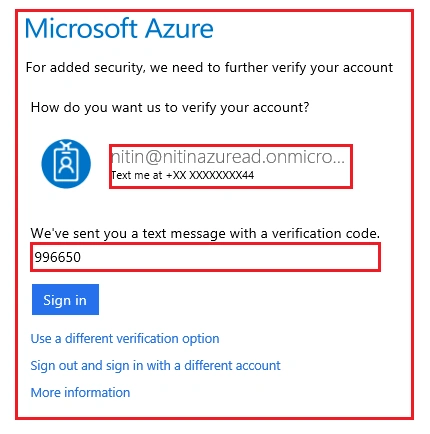
Again, log in with the same user name and password. You need to attempt the last verification again, here. It will again send a text message on the same number. Enter the received code and click on Sign in button.
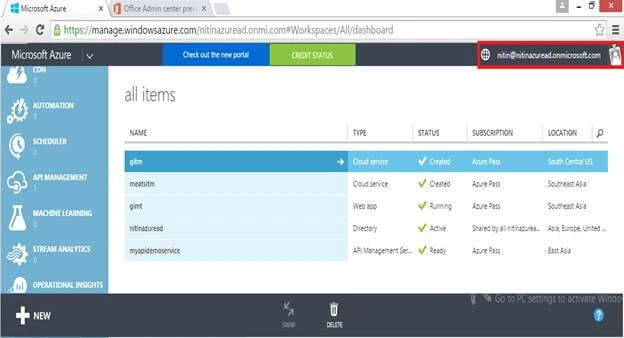
You have successfully logged in with your username into Windows Azure.
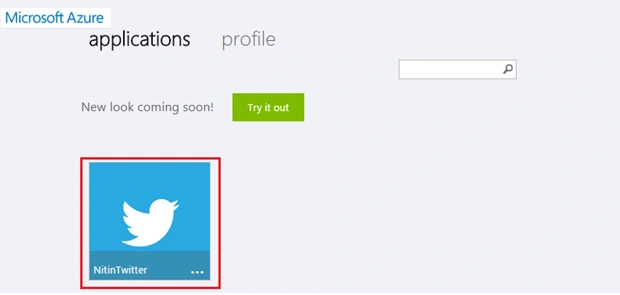
So, go to the application access panel and refresh the page. In my system, I find there a Twitter application as NitinTwitter display name. When I click on it, I am redirected to the Twitter Account page.
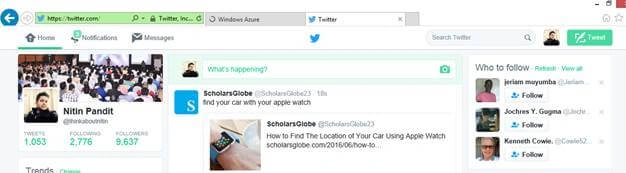
You can see that it successfully redirected to my Twitter page.
Thanks for reading this article. Stay tuned with me for new upcoming articles.
Connect (“Nitin Pandit”).
Bhushan GawalePosted Aug 25, 2016, 5:30 AM
Great writeup! keep it up!
Tarun DPosted Aug 7, 2016, 9:59 AM
Thanks for the nice share..
Prasanna MuraliPosted Aug 5, 2016, 11:42 AM
nice one
Vignesh ManiPosted Aug 5, 2016, 6:53 AM
Good One