

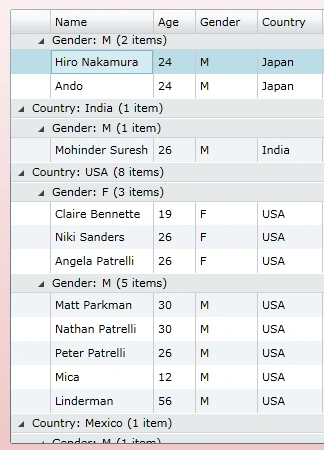
In this article we will see how Multi Grouping can be achieved in DataGrid in a Silverlight 3 application.
Creating Silverlight Project
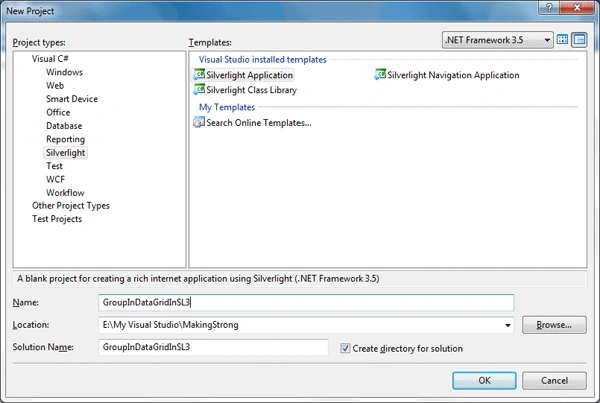
Fire up Visual Studio 2008 and create a Silverlight Application. Name it as GroupInDataGridInSL3.
This is how our application will look like if you design in Expression Blend 3:
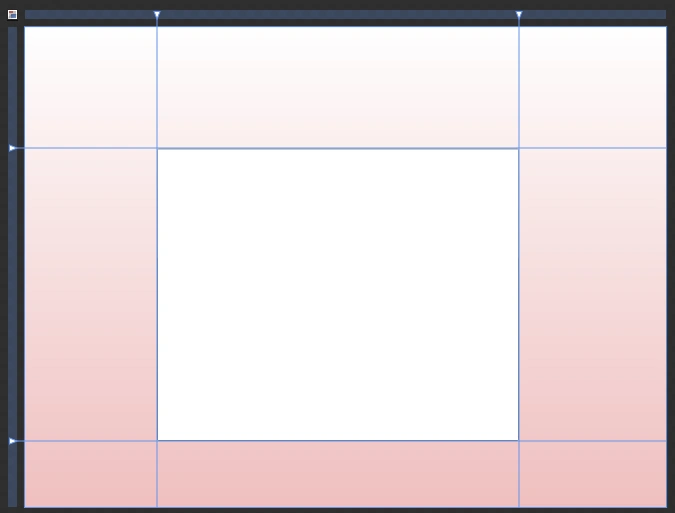
I have just added a DataGrid to the application.
For sample data add a class and define your properties in it. I have added a class and named it as Users.cs; I have defined the following properties.
public class Users
{
public string Name { get; set; }
public int Age { get; set; }
public string Gender { get; set; }
public string Country { get; set; }
}
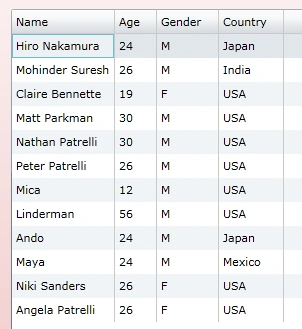
Now in MainPage.xaml.cs inside of constructor add some sample data and add it to the Item Source of the DataGrid.
public MainPage()
{
InitializeComponent();
List<Users> myList = new List<Users>
{
new Users{ Name="Hiro Nakamura", Gender="M", Age=24, Country="Japan"},
new Users{ Name="Mohinder Suresh",Gender="M", Age=26, Country="India"},
new Users{ Name="Claire Bennette", Gender="F",Age=19, Country="USA"},
new Users{ Name="Matt Parkman", Gender="M",Age=30, Country="USA"},
new Users{ Name="Nathan Patrelli", Gender="M",Age=30, Country="USA"},
new Users{ Name="Peter Patrelli", Gender="M",Age=26, Country="USA"},
new Users{ Name="Mica", Age=12, Gender="M",Country="USA"},
new Users{ Name="Linderman", Gender="M",Age=56, Country="USA"},
new Users{ Name="Ando", Age=24, Gender="M",Country="Japan"},
new Users{ Name="Maya", Age=24, Gender="M",Country="Mexico"},
new Users{ Name="Niki Sanders", Gender="F",Age=26, Country="USA"},
new Users{ Name="Angela Patrelli", Gender="F",Age=26, Country="USA"},
};
Join the conversation! Your thoughts help the community grow.