
Content
In this article I will describe the technique to convert a normal web application that can run in multiple mobile devices (Android, iPhone, WP7) by using ASP.Net MVC4 Features.
Description
Previously if we want to make a mobile enabled website then there are many details to do for mobile device support like separate pages, CSS, JavaScript etc.
Now MVC4 provides a very simple and easy way for doing this.
For doing this you need to install a mobile browser emulator. See the following download link location:
http://www.opera.com/developer/tools/mobile/
So we can run our web application in our desktop browser and in a mobile emulator.
So a very good new feature in ASP.NET MVC 4 is a simple mechanism that lets us override any view (including the layouts and partial views) for mobile browsers in general, for an individual mobile browser, or for any specific browser.
To provide our mobile-specific view, we can copy a view file and add ".Mobile" to the file name.
For example, to create a mobile Index view, copy Views\Home\Index.cshtml to Views\Home\Index.Mobile.cshtml.
Step 1
Now we have to create a mobile-specific layout file.
To start, copy Views\Shared\_Layout.cshtml to Views\Shared\_Layout.Mobile.cshtml. Open _Layout.Mobile.cshtml and change the title from like "Mobile View".
Please see the following image:
Step 2
Now Copy the Views\Home\Index.cshtml (you can choose your appropriate file also) to Views\Home\Index.Mobile.cshtml.
Open the new file ("Index.Mobile.cshtml ") and modify it by writing "Mobile Version").
Please see the following picture:
Step 3
Now Launch the Opera browser emulator and give the local host address and see the web site into the mobile like view.
Please see the following picture: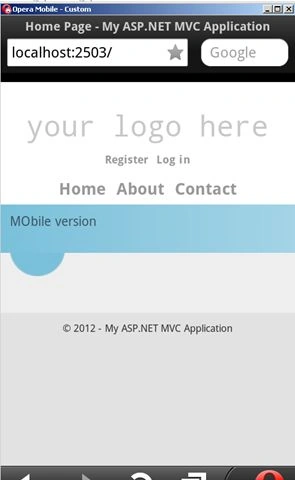
So we have seen that without changing any controller we just convert a view compatible in multiple devices by adding the suffix "mobile".
Conclusion
So in this article we have learned how to override Views, Layouts, and Partial Views to support a website to run in multiple Mobile Devices.

Multiple Mobile Devices Support Websites Using ASP.Net MVC4 Application
Join the conversation! Your thoughts help the community grow.
Sign in to leave a comment
It is the same account you read, post and publish with — and you will come straight back to this page.
Asma KhalidPosted Apr 28, 2016, 4:49 AM
my issue is resolve, it turns out that in my mobile device I was using "Desktop version", so, I switch to "Mobile version" and everything works like a charm. Great share
Asma KhalidPosted Apr 28, 2016, 3:23 AM
Can you guide me how I can achieve ".Mobile" methodology on server machine IIS 7? I am able to achieve this in development environment on localhost but on server no ".Mobile" change is being effected?
lavisha rastogiPosted Oct 5, 2012, 2:23 AM
The article is very knowledgeable and easy to understand .i will try to install in my mobile if I will find any problem i will ask you thanxs .