

Introduction
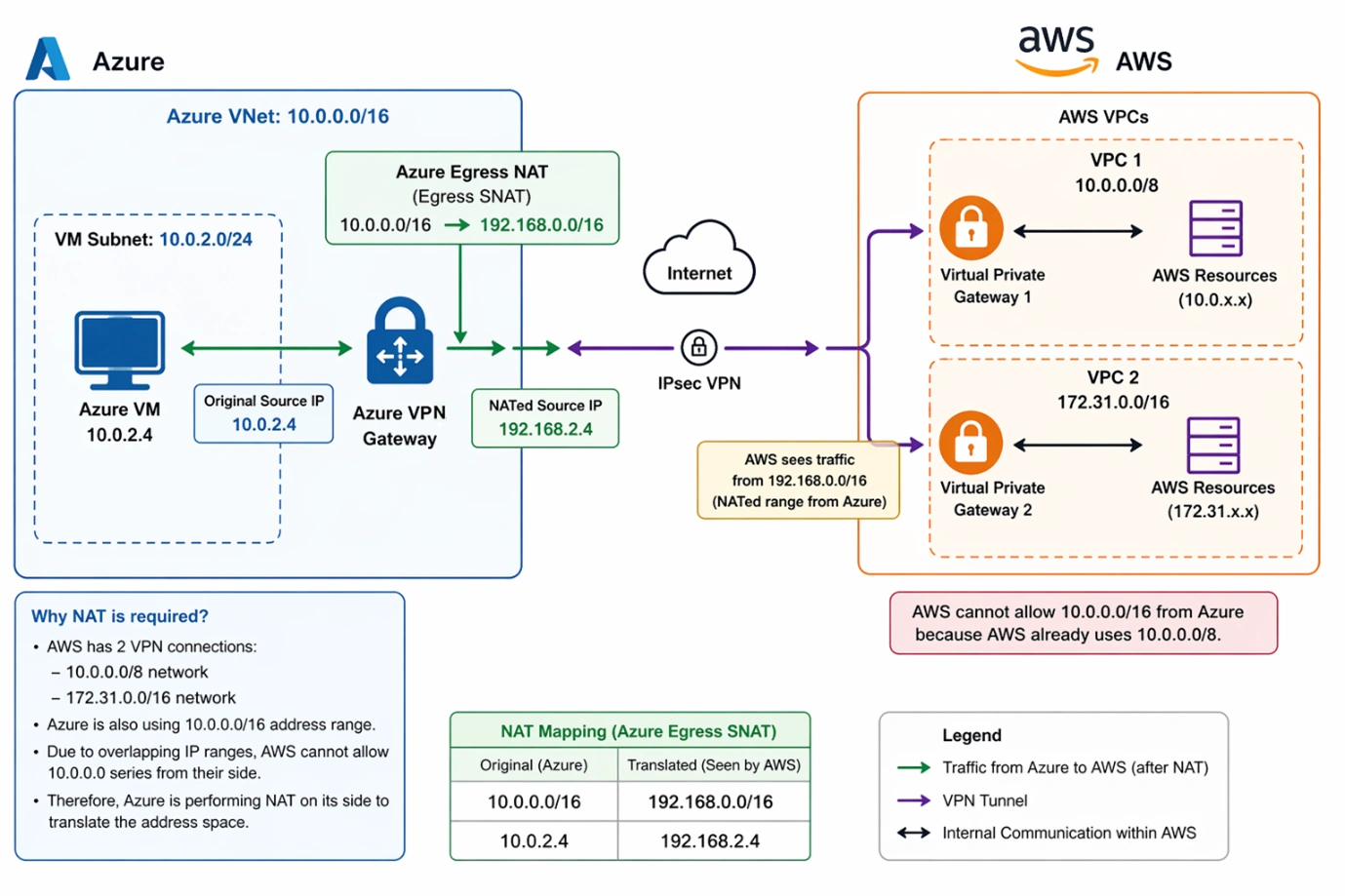
AWS currently maintains two VPN connections: one for the 10.0.0.0/8 network and another for the 172.31.0.0/16 network. At the same time, Azure’s Virtual Network is configured with the 10.0.0.0/16 address space. Because the 10.0.0.0 range overlaps between AWS and Azure, AWS cannot route traffic to Azure without ambiguity or conflict.
To resolve this, Azure implements Network Address Translation (NAT) on its VPN Gateway. With this approach, Azure translates its internal 10.0.0.0/16 address space into a non-overlapping range, such as 192.168.0.0/16, before sending traffic across the VPN tunnel. This translation ensures that AWS sees a unique, non-conflicting IP range, enabling proper routing, eliminating overlap issues, and allowing seamless communication between the two environments.
Note: Azure VPN Gateway NAT supports only Source NAT (SNAT) and does not support Destination NAT (DNAT). If DNAT is required, it must be implemented using Azure Firewall deployed behind the VPN Gateway.
Part 1: Azure Side Configuration
| Virtual Network | 10.0.0.0/16 |
| Virtual Machine | 10.0.2.4 |
| Virtual Network Gateway | 20.253.47.173 |
| Egress | Internal 10.0.0.0/16 - External 192.168.0.0/16 |
Step 1: Set Up the Azure Virtual Network
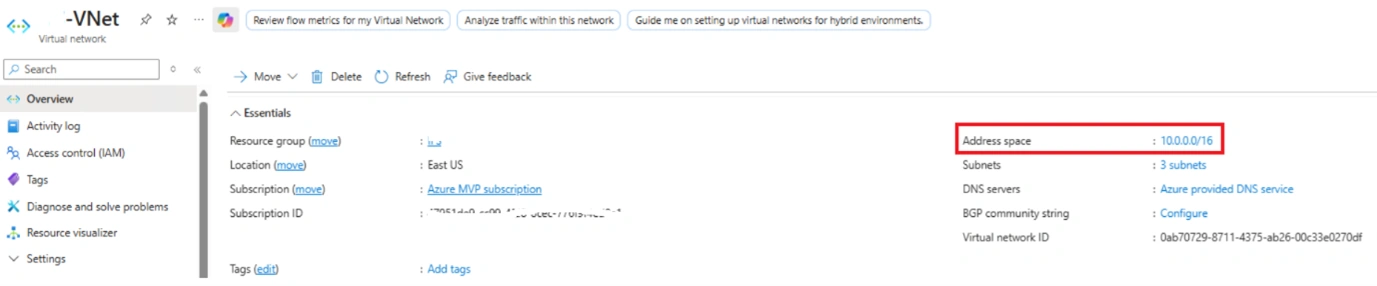
Create the Azure Virtual Network (e.g., IFS-VNet) with the address space 10.0.0.0/16. Ensure a dedicated GatewaySubnet exists within this VNet. This is mandatory for the VPN Gateway to function. No VMs or other resources should be placed in the GatewaySubnet.
Step 2: Create and Verify the Azure Virtual Machine
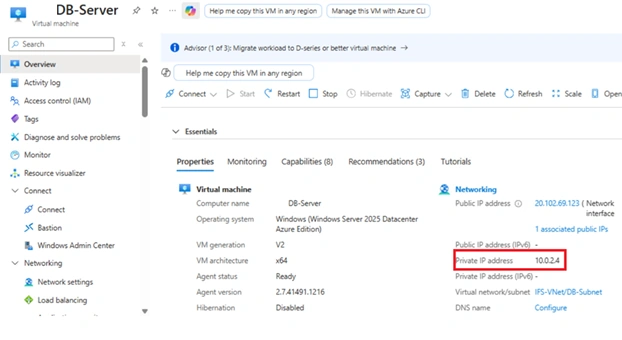
Create a Virtual Machine and confirm that the target VM (e.g., DB-Server) is deployed within the VNet at private IP 10.0.2.4. This is the internal Azure address that will be translated via NAT before it reaches AWS.
Step 3: Deploy the VPN Gateway
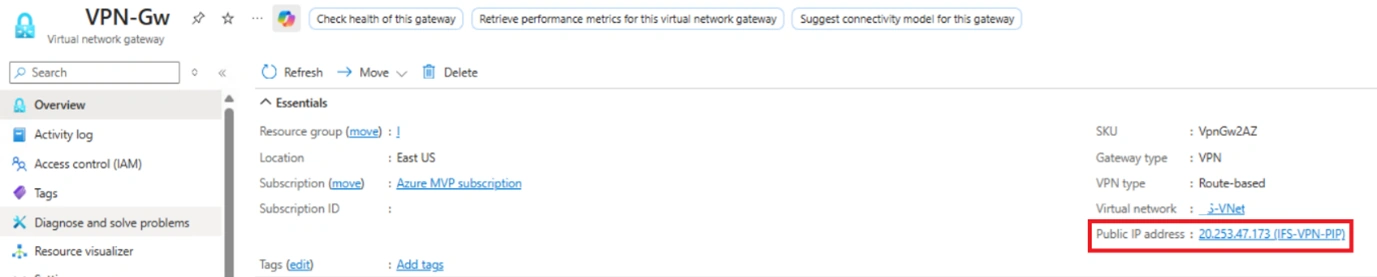
Deploy an Azure Virtual Network Gateway with a public IP of 20.253.47.173. Choose a VPN type of Route-Based and select a SKU that supports NAT rules (VpnGw2 or higher is recommended, as NAT is not available on VpnGw1)
Step 4: Configure NAT Rules on the VPN Gateway
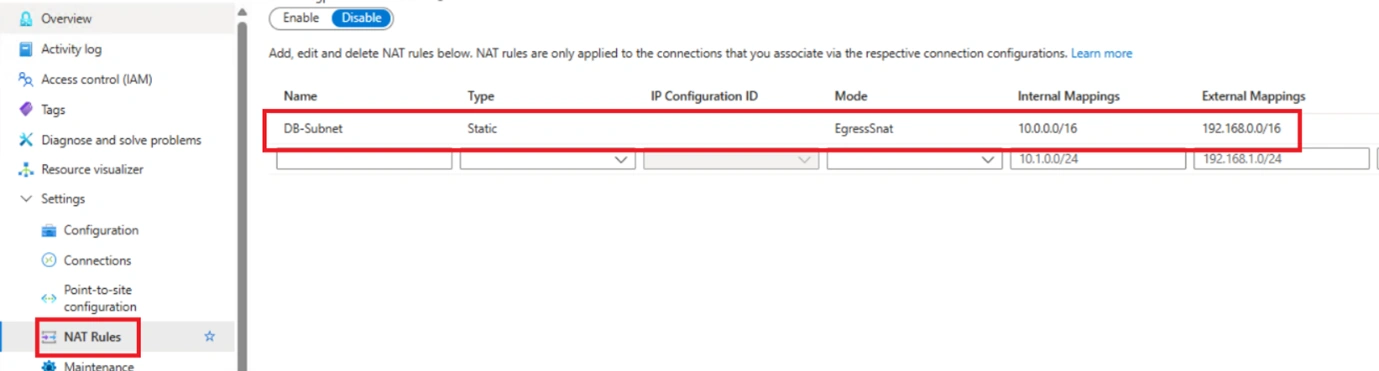
In the VPN Gateway, go to Settings → NAT Rules, create a new Egress NAT rule, and save the configuration. The changes typically take around 10 minutes to apply.
Type: Static (or Dynamic, based on your need)
Mode: Egress (translates Azure's internal traffic going out to AWS)
Internal Mapping: 10.0.0.0/16 (Azure VNet actual range)
External Mapping: 192.168.0.0/16 (the translated range visible to AWS)
This tells Azure: "When traffic leaves Azure through this gateway toward AWS, present 192.168.0.0/16 instead of 10.0.0.0/16."
Step 5: Configure the Local Network Gateway
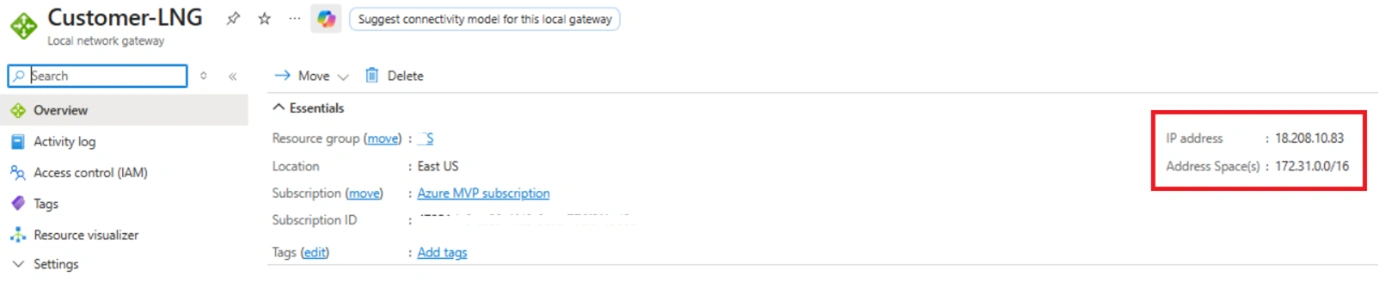
Create the Local Network Gateway representing the AWS side:
IP Address: 18.208.10.83 (AWS Virtual Private Gateway public IP)
Address Space: 172.31.0.0/16 (AWS VPC CIDR)
This object tells Azure where AWS is and what network to expect from the AWS side.
Step 6: Create the VPN Connection
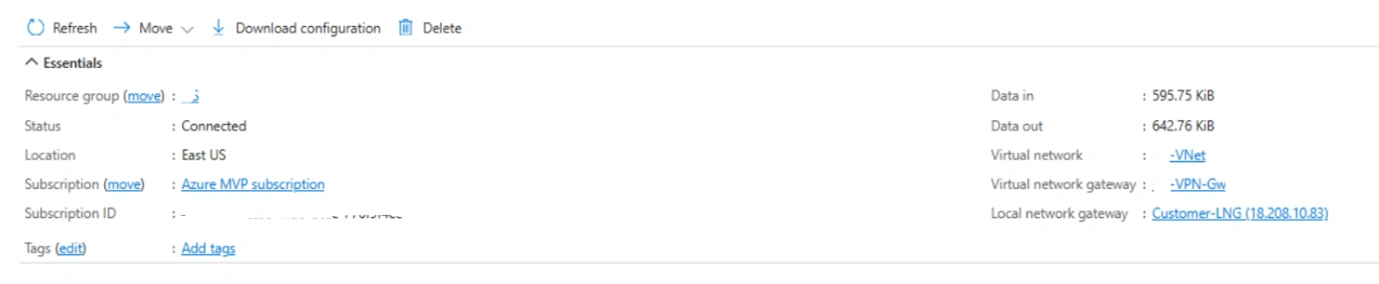
Create a Connection between the Azure VPN Gateway and the Local Network Gateway. Use:
Connection type: Site-to-Site (IPsec)
Shared key (PSK): Must match the one configured on the AWS side
Step 7: Apply NAT Rules to the Connection
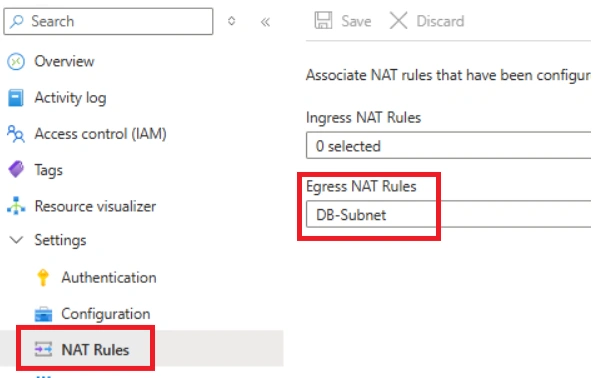
After the connection is created, navigate to the connection's NAT Rules settings and associate the Egress NAT rule. This links the NAT translation specifically to this VPN connection, so it only applies to AWS-bound traffic.
Summary
In Part 1 of this article, we covered how to configure NAT on the Azure side. In Part 2, we will look at the configurations required on the AWS side and review the results.
Join the conversation! Your thoughts help the community grow.