

Introduction
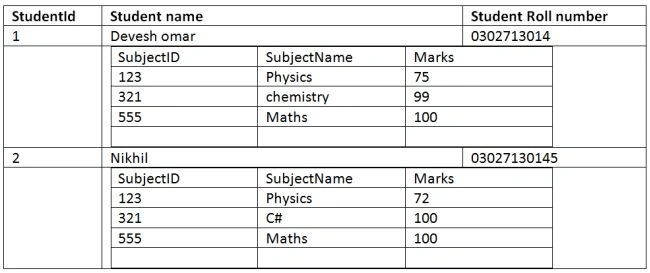
- First we need to create the master and child tables.
- To identify the relationship between tables we should have Primary and Foreign Keys in the tables.
- Here we are creating a datatable for the master and child tables.
- Master table (student)
- //Parent table
- DataTable dtstudent = new DataTable();
- dtstudent.Columns.Add("Student_ID", typeof(int));
- dtstudent.Columns.Add("Student_Name", typeof(string));
- dtstudent.Columns.Add("Student_RollNo", typeof(string));
- Child Table (Student Marks)
- //Child table
- DataTable dtstudentMarks = new DataTable();
- dtstudentMarks.Columns.Add("Student_ID", typeof(int));
- dtstudentMarks.Columns.Add("Subject_ID", typeof(int));
- dtstudentMarks.Columns.Add("Subject_Name", typeof(string));
- dtstudentMarks.Columns.Add("Marks", typeof(int));
- Understanding the relationship between the master and child tables.
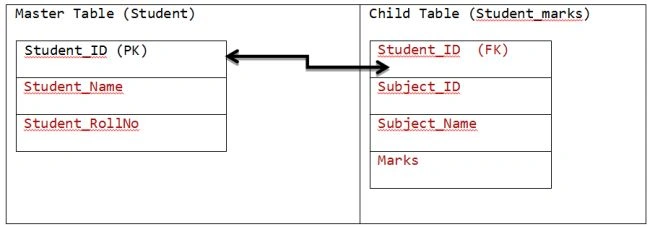
- In brief.
- dtstudent.StudentID = dtstudentMarks.StudentID
- Adding Rows to the master table (Student Table).
- //Adding Rows
- dtstudent.Rows.Add(111, "Devesh", "03021013014");
- dtstudent.Rows.Add(222, "ROLI", "0302101444");
- dtstudent.Rows.Add(333, "ROLI Ji", "030212222");
- dtstudent.Rows.Add(444, "NIKHIL", "KANPUR");
- Adding a row to the child table (Student Marks table).
- // data for devesh ID=111
- dtstudentMarks.Rows.Add(111, "01","Physics", 99);
- dtstudentMarks.Rows.Add(111, "02","Maths", 77);
- dtstudentMarks.Rows.Add(111, "03","C#", 100);
- dtstudentMarks.Rows.Add(111, "01","Physics", 99);
- //data for ROLI ID=222
- dtstudentMarks.Rows.Add(222, "01", "Physics", 80);
- dtstudentMarks.Rows.Add(222, "02", "English", 95);
- dtstudentMarks.Rows.Add(222, "03", "Commerce", 95);
- dtstudentMarks.Rows.Add(222, "01", "BankPO", 99);
- Adding the master and child tables to the dataset.
- DataSet dsDataset = new DataSet();
- dsDataset.Tables.Add(dtstudent);
- dsDataset.Tables.Add(dtstudentMarks);
- Defining the relationship between the master and child tables.
- DataRelation Datatablerelation = new DataRelation("DetailsMarks", dsDataset.Tables[0].Columns[0], dsDataset.Tables[1].Columns[0], true);
- dsDataset.Relations.Add(Datatablerelation);
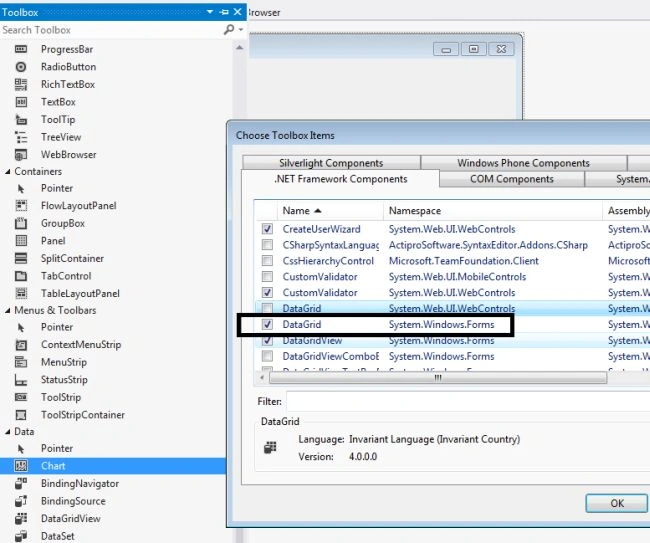
- The following describes adding a Datagrid control in Windows Forms.
As in the screen below we can add a datagrid to Windows Forms.Right-click in the toolbar then choose item.
- Binding data.
- dataGrid1.DataSource = dsDataset.Tables[0];
- All the code together.
- private void Form1_Load(object sender, EventArgs e)
- {
- //Parent table
- DataTable dtstudent = new DataTable();
- // add column to datatable
- dtstudent.Columns.Add("Student_ID", typeof(int));
- dtstudent.Columns.Add("Student_Name", typeof(string));
- dtstudent.Columns.Add("Student_RollNo", typeof(string));
- //Child table
- DataTable dtstudentMarks = new DataTable();
- dtstudentMarks.Columns.Add("Student_ID", typeof(int));
- dtstudentMarks.Columns.Add("Subject_ID", typeof(int));
- dtstudentMarks.Columns.Add("Subject_Name", typeof(string));
- dtstudentMarks.Columns.Add("Marks", typeof(int));
- //Adding Rows
- dtstudent.Rows.Add(111, "Devesh", "03021013014");
- dtstudent.Rows.Add(222, "ROLI", "0302101444");
- dtstudent.Rows.Add(333, "ROLI Ji", "030212222");
- dtstudent.Rows.Add(444, "NIKHIL", "KANPUR");
- // data for devesh ID=111
- dtstudentMarks.Rows.Add(111, "01","Physics", 99);
- dtstudentMarks.Rows.Add(111, "02","Maths", 77);
- dtstudentMarks.Rows.Add(111, "03","C#", 100);
- dtstudentMarks.Rows.Add(111, "01","Physics", 99);
- //data for ROLI ID=222
- dtstudentMarks.Rows.Add(222, "01", "Physics", 80);
- dtstudentMarks.Rows.Add(222, "02", "English", 95);
- dtstudentMarks.Rows.Add(222, "03", "Commerce", 95);
- dtstudentMarks.Rows.Add(222, "01", "BankPO", 99);
- DataSet dsDataset = new DataSet();
- //Add two DataTables in Dataset
- dsDataset.Tables.Add(dtstudent);
- dsDataset.Tables.Add(dtstudentMarks);
- DataRelation Datatablerelation = new DataRelation("DetailsMarks", dsDataset.Tables[0].Columns[0], dsDataset.Tables[1].Columns[0], true);
- dsDataset.Relations.Add(Datatablerelation);
- dataGrid1.DataSource = dsDataset.Tables[0];
- }
- Now to run the code.
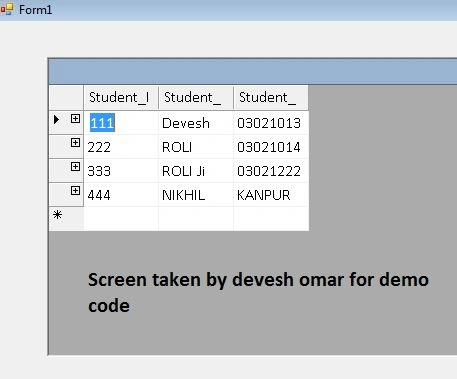
We will get the following screen having expandable rows in the DataGrid.
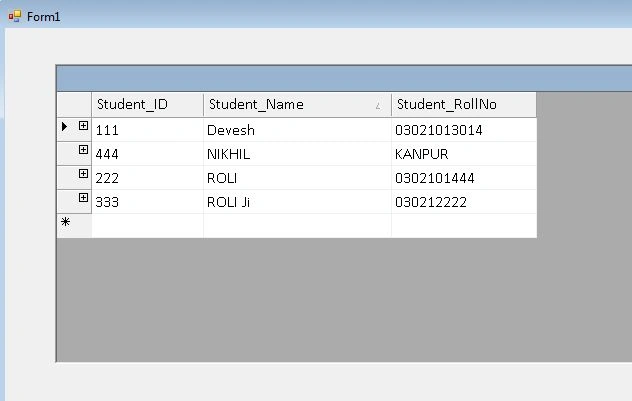 Expanding a row to see the details.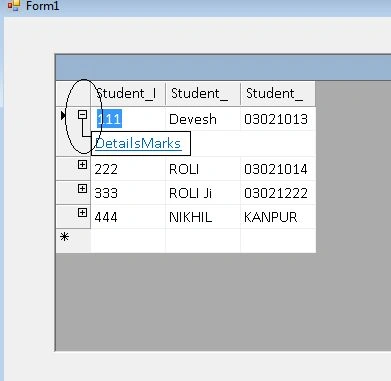
- Click on DetailsMarks to get the Marks details.
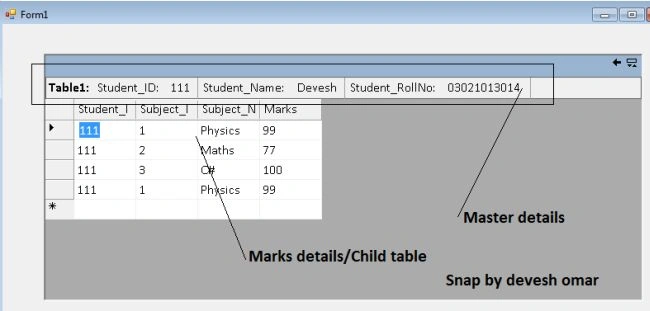
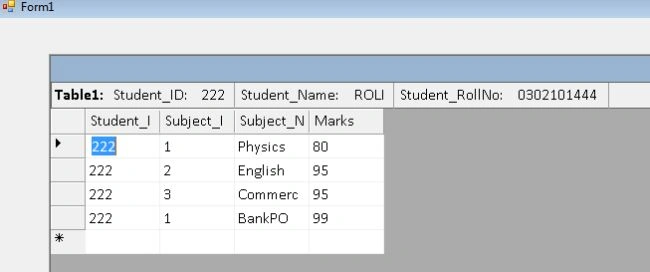
- Details screen for student_Id=222.
- Go back for the master details.
Click on the highlighted back button to go the master detail form.
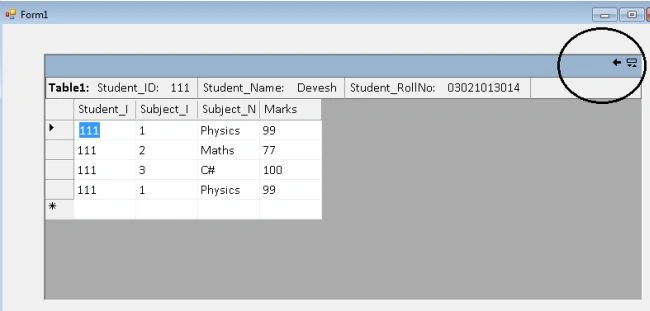
- Main form.
Conclusion
We have learned how to show data in a DataGrid with a master and child relationship.
MohamedPosted Nov 14, 2023, 2:26 AM
And more important , if those data tables are in Data Base so what we can do if columns are many ?
MohamedPosted Nov 14, 2023, 2:25 AM
Fine , How to make columns width fit ? I want to delete the free space in the right site after columns.
shahid bhatPosted May 16, 2019, 4:26 AM
I want to customize columns???
Nehal MalhotraPosted Jan 6, 2019, 12:35 PM
I want gridview that can expand and collapse on click. I tried your code but still not got the desired result. I am getting the Table which is at position we specified. For eg =====>; dataGrid1.DataSource = dsDataset.Tables[0]; here we get table 0 i.e dt_Employee plz help me out
Parth MehtaPosted Jul 9, 2018, 4:38 AM
Hello Devesh, If I need to rename column caption of the Child Table(Student Marks). For example Mark to Student mark.How can we achieve this ?
Vikash TiwariPosted Jul 26, 2017, 8:01 AM
Thanks devesh Omar
majedul islamPosted Sep 8, 2015, 1:21 PM
thanks Devesh Omar brother
Taimoor HassanPosted Oct 18, 2014, 2:08 PM
i want to expand child rows without link button like Detail Marks. how to do this?
Devesh OmarPosted Jun 18, 2014, 1:19 AM
Thanks Lakshmanan :)
Lakshmanan Sethu SankaranarayanPosted Jun 17, 2014, 9:28 AM
Nice one Devesh