Modern cloud-native applications rely on a rich ecosystem of supporting technologies databases, caches, message brokers, APIs, telemetry systems, and more. Building such an application involves more than writing business logic; it requires thoughtfully integrating these services in a way that’s scalable, observable, and maintainable.
.NET Aspire simplifies this complexity by offering a powerful application model that allows developers to compose, configure, and manage service dependencies with ease.
What do Aspire Integrations bring to the Table?
When you add an integration to an Aspire project, you get.
- Typed configuration and DI setup: Auto-wiring of client libraries with configuration via strongly typed options.
- Health checks: Automatic inclusion of health checks for critical dependencies.
- Connection string propagation: Seamless sharing of connection strings across projects using Aspire's service discovery.
- Dashboard visibility: Integrated resources are visible and traceable through the Aspire Dashboard.
- Simplified Dev Experience: You don’t have to manually set up service bindings or write boilerplate configuration.
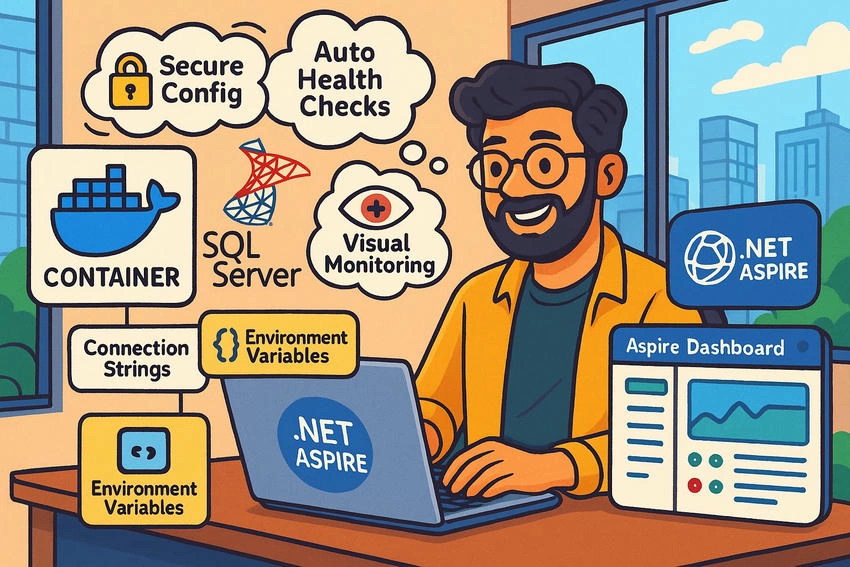
These integrations promote a cloud-native design, while also making local development and testing smoother and more predictable.
Common Integrations in .NET Aspire
.NET Aspire comes with official and community-supported packages that make integrating third-party services a breeze. Below is a curated list of popular tools and services across different categories that work seamlessly with Aspire.
Databases
| Service |
Integration Package |
Notes |
| SQL Server |
Aspire.Hosting.SqlServer |
Connection string, health check, and discovery are handled automatically. |
| PostgreSQL |
Microsoft.Extensions.Hosting.PostgreSql |
Community-supported; connection string injection. |
| MySQL |
Microsoft.Extensions.Hosting.MySql |
Similar benefits to PostgreSQL. |
Caching & Data Store
| Service |
Integration Package |
Notes |
| Redis |
Microsoft.Extensions.Caching.StackExchangeRedis.Aspire |
Adds Redis as a resource, injects connection string, auto configures. |
| MongoDB |
MongoDB.Driver.Aspire (community) |
Mongo client setup via Aspire DI. |
Messaging & Eventing
| Service |
Integration Package |
Notes |
| RabbitMQ |
Tye.Hosting.RabbitMQ.Aspire (community) |
Easy messaging setup. |
| Azure Service Bus |
Microsoft.Azure.ServiceBus.Aspire (planned) |
Advanced integration expected in future releases. |
Observability & Monitoring
| Tool |
Integration Package |
Notes |
| OpenTelemetry |
Microsoft.Extensions.Telemetry.Aspire |
Auto-wires tracing/metrics. |
| Grafana + Prometheus |
Community Templates |
Can export Aspire metrics here. |
External Services & APIs
| Type |
Example |
Aspire Support Notes |
| HTTP APIs |
REST, GraphQL, gRPC APIs |
Use .WithEndpoint() to define upstream APIs. |
| Cloud SDKs |
Azure, AWS |
Aspire config + DI bindings are supported manually. |
.NET Aspire SQL Server integration
Let’s see in action how to get an Aspire Integrations with SQL Server.
If you are new here, I would highly recommend checking out all the previous chapters for a better understanding.
- How to Get Started with .NET Aspire
- .NET Aspire: Setting Up Your Environment
- Core Concepts of .NET Aspire
- Enhancing Real-World Microservices with Resiliency in .NET Aspire
- Understanding Resiliency in .NET Aspire
- Service Orchestration in .NET Aspire
- Observability with the Aspire Dashboard
- .NET Aspire Service Discovery and Environment Configuration
When building distributed applications, a database is often a critical component.
.NET Aspire simplifies integrating SQL Server into your project by providing first-class support through its Aspire.Hosting.SqlServer package.
This integration focuses on,
- Spinning up SQL Server instances (locally or containerized) during development.
- Managing connection strings automatically.
- Sharing database endpoints across your application components.
- Adding health checks for SQL Server availability.
- Visualizing the SQL Server resource in the Aspire Dashboard.
Setting Up SQL Server Integration
Step 1. Install the SQL Server Aspire Package.
In your AppHost project, run.
dotnet add package Aspire.Hosting.SqlServer
Or simply visit to manage NuGet Packages and “Aspire.Hosting.SQLServer” in App Host.
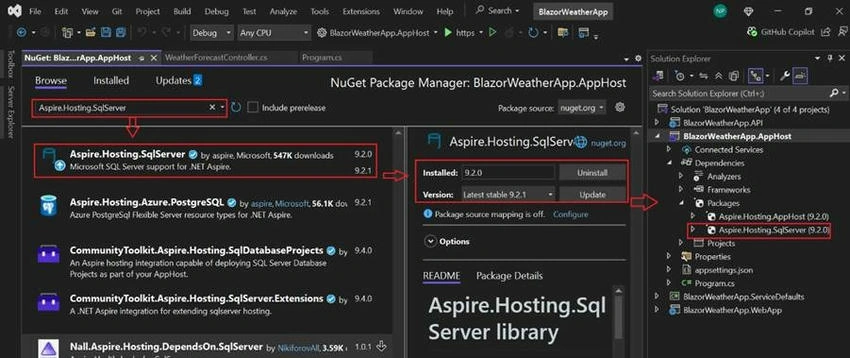
This package brings in the AddSqlServer extension method that makes adding SQL easy.
Step 2. Define the SQL Server Resource.
In your Program.cs inside the AppHost project.
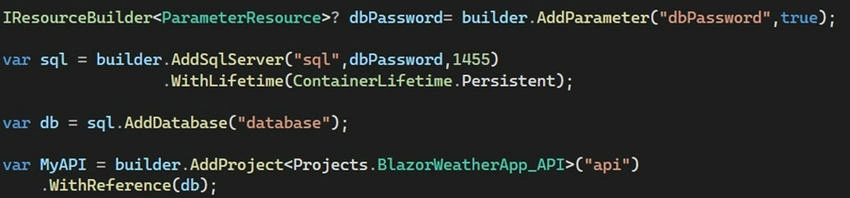
Here is what this code does.
- Define a parameter for the SQL Server password.
IResourceBuilder<ParameterResource>? dbPassword =
    builder.AddParameter("dbPassword", true);
- Add a SQL Server resource with custom port and lifetime settings.
var sql = builder.AddSqlServer("sql", dbPassword, 1455)
    .WithLifetime(ContainerLifetime.Persistent);
- Define a database inside the SQL Server instance.
var db = sql.AddDatabase("database");
- Add the API project and link it to the database.
var MyAPI = builder.AddProject<Projects.BlazorWeatherApp_API>("api")
    .WithReference(db);
Key Points in This Setup
- AddParameter("dbPassword", true): Securely prompts for the database password if it's not already configured.
- AddSqlServer("sql", dbPassword, 1455): Adds a SQL Server resource running on custom port 1455 and uses the provided password.
- .WithLifetime(ContainerLifetime.Persistent): Ensures the SQL Server container persists between runs.
- AddDatabase("database"): Defines a database inside SQL Server for use by the application.
- .WithReference(db) and .WithReference(MyAPI): Links services together by passing resources like connection strings automatically.
Step 3. Configure Parameters Securely.
Instead of hardcoding sensitive information like database passwords in your code, Aspire encourages you to use Parameters.
In your appsettings.json, define the SQL Server password under the Parameters section.
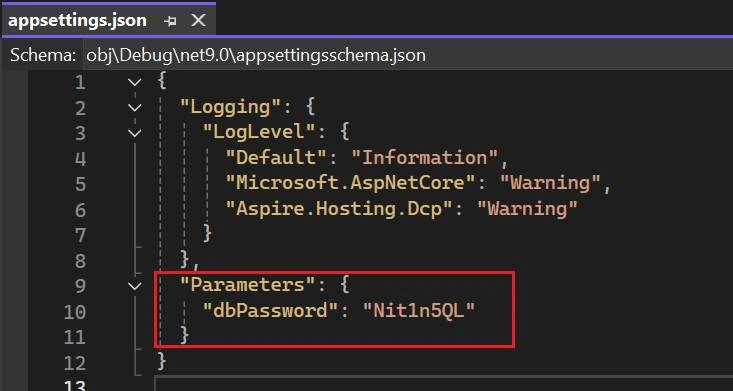
- dbPassword is injected at runtime into the SQL Server resource.
- You can also override it using environment variables or secret managers for production.
- This keeps your applications secure, configurable, and environment-agnostic.
Important. If the “dbPassword” is not found in your settings or environment, Aspire will prompt you to enter it at startup (because of the true flag in AddParameter("dbPassword", true)).
Pro Tip. Managing Sensitive Parameters in .NET Aspire Applications.
Aspire Dashboard View
When you run the application, the Aspire Dashboard will show your SQL Server alongside your services, making the architecture and dependencies crystal clear.
Example
[SQL Server] <--- connected to ---> [Web API]
Step 1. SQL Server and Database Creation Verification.
- Open your application in the Aspire Dashboard (localhost:17010).
- In the Resources tab, you will see a list of services.
- Notice two services.
- SQL (SQL Server): Running state with the source pointing to mcr.microsoft.com/mssql/server2022-latest.
- Database: Running state.
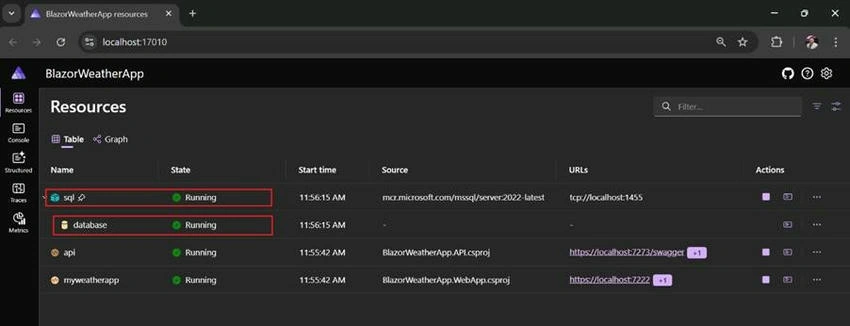
- These were automatically created based on the definitions provided in your Program.cs file.
- The SQL Server service is configured to expose on tcp://localhost:1455, as per the given port number.
Step 2. Verifying API Environment Variables
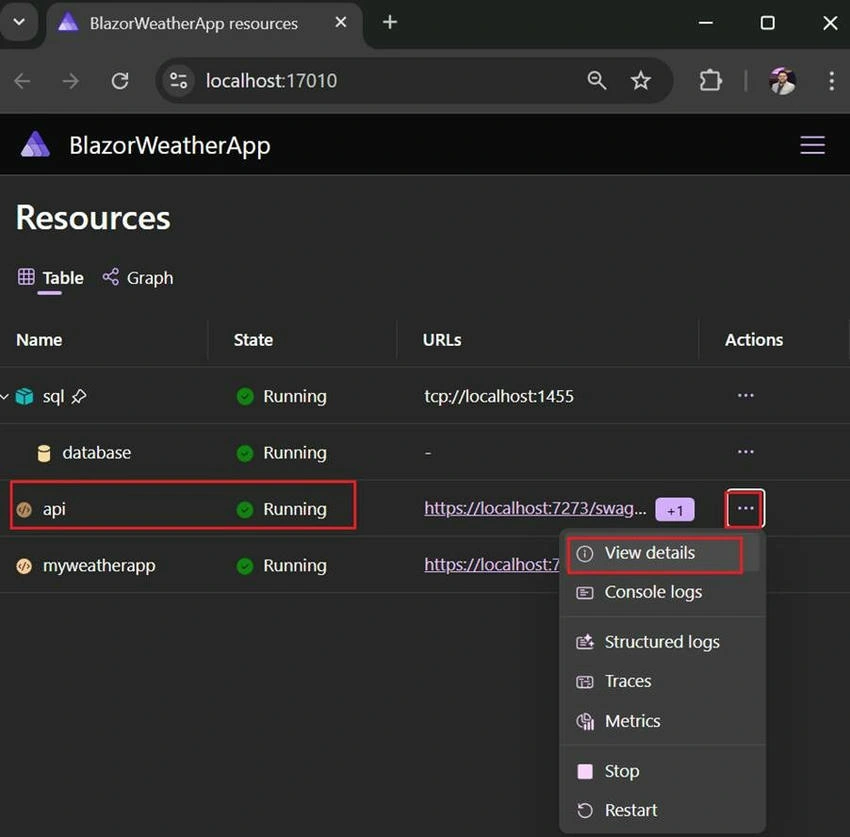
- In the Aspire Dashboard, under Resources, locate the API service.
- Click the three dots (...) next to the API service.
- Select View details from the dropdown menu.
Step 3. Checking the Database Connection String.
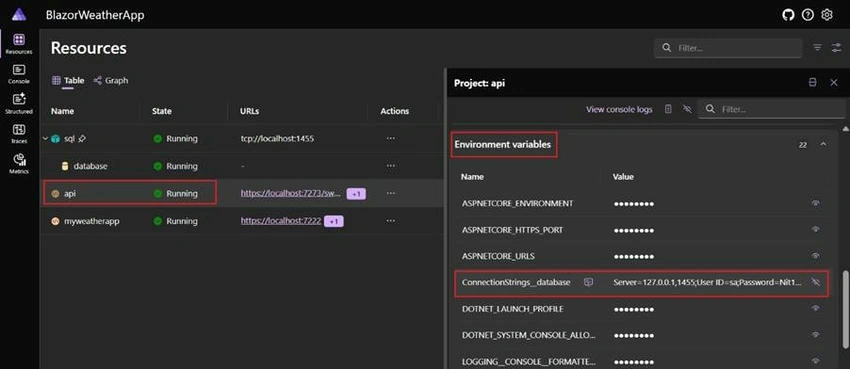
- In the Project: API details view, scroll to the Environment Variables section.
- Look for the environment variable named: ConnectionStrings__database.
- You will find the database connection string, such as Server=127.0.0.1,1455;User ID=sa;Password=Nit1n5QL;
- This confirms that the API service has the database connection string injected correctly through environment variables.
Step 4. Aspire Action Reflected in Docker (Local).
You can see the side effects of Aspire's local work in Docker Desktop.
- Images: An image mcr.microsoft.com/mssql/server:2022-latest is pulled into Docker.
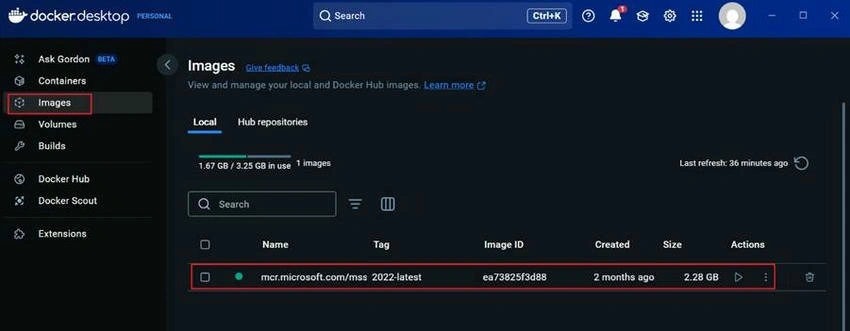
- Containers: A container sql-xxx is running, exposing the SQL Server on port 1455.
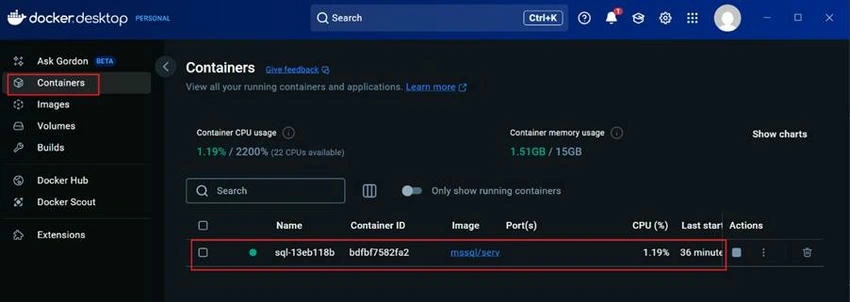
Result: Aspire used Docker to spin up the local SQL server dynamically for your app.
| Area |
Action by Aspire |
Result Seen Where |
| Database Server |
SQL Server container created on port 1455 |
Docker Desktop (Containers tab) |
| Database Resource |
Database initialization or setup done |
Aspire Dashboard - Resources |
| API Env Setup |
Database connection string injected automatically |
Aspire Dashboard - API - Environment Variables |
| Docker Image |
MSSQL Image pulled if not present |
Docker Desktop (Images tab) |
Debugging the Connection String: Verify reading the environment variables
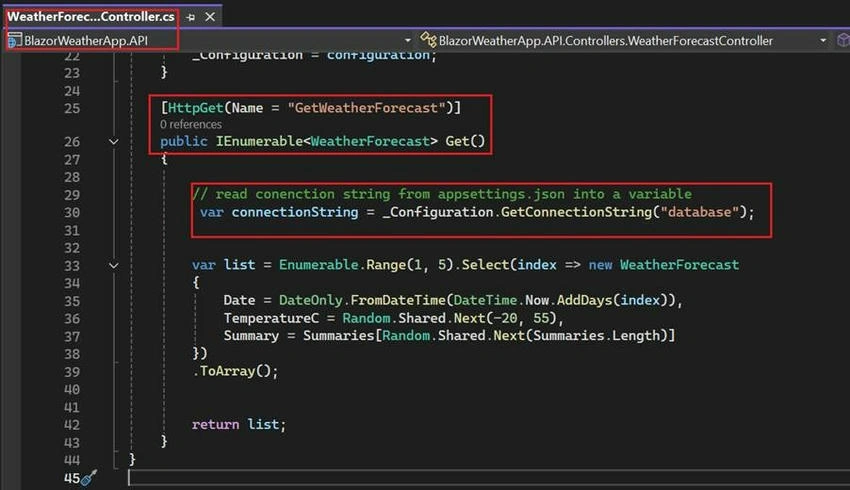
Let’s try reading the Connection string from the environment variables, As we have added the reference of SQL Server database to the Weather API Project from App host with Aspire Hosting.
To do that I have added a code to read the connection string from application configuration variables with the name “database” in my API Controller’s Get method “GetWeatherForecast”:
Run the solution and open API swagger to hit the API End Point for debugging the code with a breakpoint on the same line.
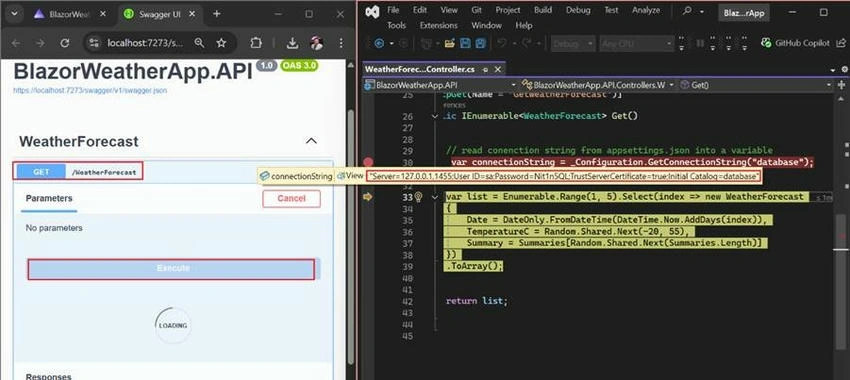
You can see the connection string is available for the API Project from the application configurations even though we don’t have any local parameter the name of “database”.
Here is the connection string we got.
Server=127.0.0.1,1455;User ID=sa;Password=Nit1n5QL;TrustServerCertificate=true;Initial Catalog=database
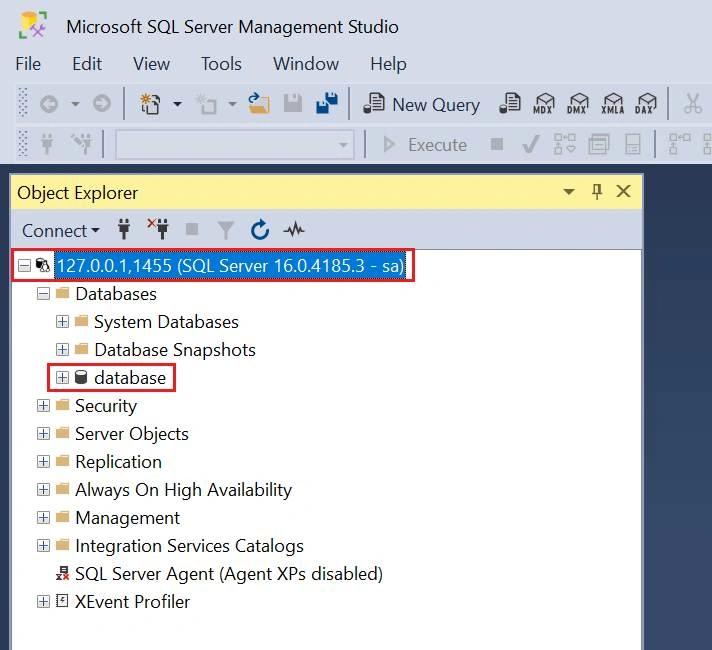
Testing in SSMS
If you want you can use the same connection string in the SQL Server Management Studio to check this Database and its table, which may help you inthe future.
Paste the same connection String in the last tab “Additional Connection Parameters” and hit connect.
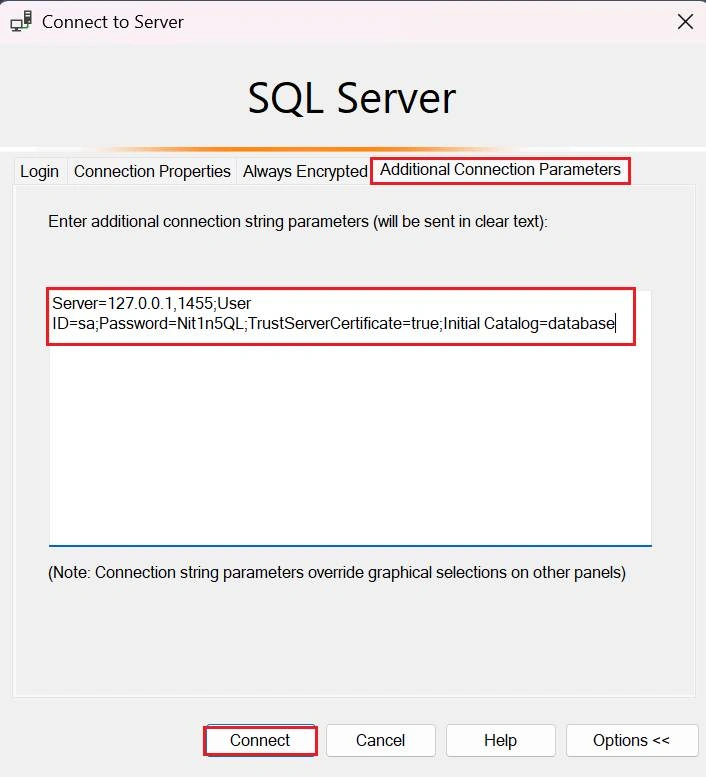
I am sure you must be able to see the connected Server and Database in SSMS’s Object Explorer.
Why Use SQL Server Integration with Aspire?
| Benefit |
Description |
| Fast Setup |
No manual container configuration is needed. |
| Secure Connection Management |
Credentials and connection strings are injected safely. |
| Automatic Health Monitoring |
Built-in health checks for SQL Server connectivity. |
| Easy Switching |
Easily swap local dev SQL Server with Azure SQL for production. |
Similarly, you can use Aspire Immigrations for Databases and other tools.


Join the conversation! Your thoughts help the community grow.