

A Tale Of Three Widgets
For this program, I created three custom widgets, each with some sort of measurement unit attached to it as well as other properties and methods. The first Widget has three Lengths as properties and the user needs the units to be in inches. Well easy enough, slap a text tag "Inch(es)" after the values the user enters and done. Well, not really. What if the user needs to see what the values are in Metric or what if the person entering the values only has the values in feet, and is very bad at multiplication...
Now, we have a challenge - how to assign a unit of measurement to something that will automatically update when the user switches measurement units, like inches to feet; or even toggling between English (US) and Metric (SI) measurement systems.
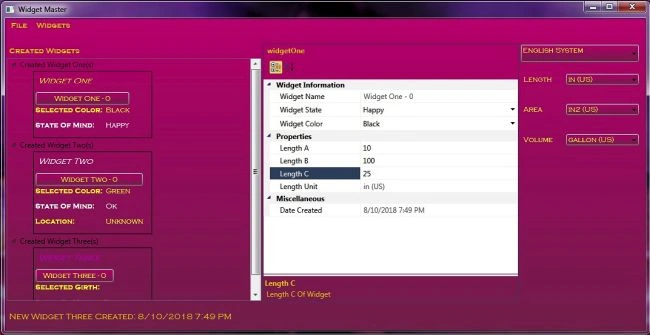
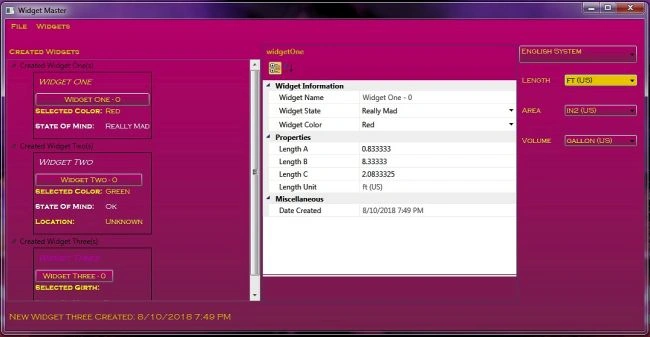
In the following screenshot, we have updated Widget One's State Of Mind and Color which are both reflected in the Widget One TreeView Item. The Length units have also been changed from the default inches - "in (US)" to feet - "ft (US)".
Length will be the first measurement unit to incorporate into our application. For Length, inches, feet - for English units; centimeters, millimeters, and meters will be supported for Metric units. We need an object, a container for our units. We will call this container a Bucket. The Bucket will hold any type of measurement that we need, it will become our class to deal with the Measurement Systems. Looking forward we also want to support Area with square inches, centimeters, and millimeters as values; and Volume with gallons, liters, cubic - feet, meters, centimeters, and millimeters.
In order to support changing units, we need to maintain a "control" value. The control value will be stored in the default units - for Length that would be inches. Using the control value, a display value of any unit is created and maintained. We will call the control value the "RealBucket" and the value the user sees in the selected units is the "DisplayBucket". So we know we need two values for Length - LengthRealBucket and LengthDisplayBucket, same for Volume and Area - VolumeRealBucket, VolumeDisplayBucket, AreaRealBucket, and finally AreaDisplayBucket.
There is a relationship between the units of measurement. For example, the default Length unit will be inches; from this, we know that there are .08333 inches per foot, 2.54 centimeters per inch, 25.4 millimeters per inch and so on. From this, we can define our Bucket as a formulaic relation to one another. The Bucket will have the following properties to encapsulate a measurement unit,
- Units it represents - Length, Area, Volume
- Measurement system of the Bucket - (US or SI)
- Conversion value - numeric conversion from the default unit - (Inches = 1.00, Feet = .08333)
- Shift value if needed that will through addition or subtraction will adjust the overall quantity
An example of a measurement unit that would need the shift would be Temperature. Degrees Celcius would be defined as a new Bucket ("Celcius", "Degrees Celcius", 1.0, 0.0, BucketType.Temperature) and Fahrenheit relation to Celcius is Temp(celsius) * 1.8 + 32. So the formula would be as follows: new Bucket ("Fahrenheit", "Degrees Fahrenheit", 1.8, 32.0, BucketType.Temperature).
So our measurement units class is taking shape. Below is the definition for Length Units. Area and Volume are very similar, they can be viewed in the source. Note however; that any type and any number of measurement types can be added - such as Mass, Velocity, Temperature, etc...
- // Define Length
- LengthBuckets = new[]
- {
- new Bucket("in", "US", 1.0, 0.0, BucketType.Length),
- new Bucket("ft", "US", 0.0833333, 0.0, BucketType.Length),
- new Bucket("cm", "SI", 2.54, 0.0, BucketType.Length),
- new Bucket("mm", "SI", 25.4, 0.0, BucketType.Length),
- new Bucket("m", "SI", 0.0254, 0.0, BucketType.Length)
- };
- // Set to default
- LengthDisplayBucket = LengthBuckets[0];
- LengthRealBucket = LengthBuckets[0];
Note the Bucket Type, since we have Area, Length, and Volume we need to k now which bucket we are dealing with. Definition of our Buckets is only one step, now we have to convert these when the user changes them so we need an event mechanism - the Property Changed Event Handler. Each unit property will have a name associated with it, for Length we assigned the property names of "LengthRealBucket" and "LengthDisplayBucket". The name of the property gets pushed via the property changed event,
- /// <summary>
- /// Event handler to notify when a property has changed and passes the changed property up the stack
- /// </summary>
- public event PropertyChangedEventHandler PropertyChanged;
- internal void Changed(string id)
- {
- PropertyChangedEventHandler eventhandler = PropertyChanged;
- if (null != eventhandler)
- eventhandler(this, new PropertyChangedEventArgs(id));
- }
Using the Bucket definition we can create a calculate routine that will handle conversion between compatible types of units. In other words, the routine can switch between all length units, all volume units, and all area units by using the conversion values we associated with each Bucket.
- internal static double
- Calculate(Bucket bucket_before, Bucket bucket_after, double value)
- {
- if (bucket_before.BType != bucket_after.BType) throw
- new InvalidOperationException("Conversion Between Incorrect Types!");
- if ((bucket_before.BucketShift == bucket_after.BucketShift) &&
- (bucket_before.BucketScale == bucket_after.BucketScale)) return value;
- double retVal = (value - bucket_before.BucketShift) / bucket_before.BucketScale;
- return (retVal * bucket_after.BucketScale + bucket_after.BucketShift);
- }
Two routines are needed that will call the Calculate method. The first is to calculate the display bucket from the real bucket as shown here. Note that the other units of Area and Volume have been included and are controlled by the Bucket Type. Don't worry about copying these code fragments, just follow along. I'll make the code for the complete classes available at the end of the article. I can't give out the whole source since I'm using the Property Grid from the Xceed Library. It's a license issue.
- internal double
- CalcFromRealBucket(BucketType btype, double value)
- {
- switch(btype)
- {
- case BucketType.Area:
- return Calculate(AreaRealBucket, AreaDisplayBucket, value);
- case BucketType.Length:
- return Calculate(LengthRealBucket, LengthDisplayBucket, value);
- case BucketType.Volume:
- return Calculate(VolumeRealBucket, VolumeDisplayBucket, value);
- default:
- throw new
- InvalidOperationException("Error! Bucket Types Supported Are Area, Length, And Volume");
- } // End switch
- } // End CalcFromRealBucket()
A quick tidbit on WPF before we look at the actual Widget that will use the Units class. As you can see from the screen shot WPF is really great for making the UI look like something more than the plain old app. Even applying a linear gradient to the combo boxes makes them look like something special, something different from the same old plain combo box. Yeah, it is great, until the user puts the focus on the control - then YUK!!
If you do any customization of the GUI, then be prepared for having to deal with GotFocus / LostFocus events to force things to look pretty. In the case of the button and the window background I used a LinearGradient to define the color scheme. I won't go into how to use a LinearGradient since there is a lot on the web about it. The GotFocus event is used to override the highlight colors by defining a new foreground and background. We also capture the LinearGradient of the current background before switching. Define a public variable to hold the LinearGradient background. Then in the GotFocus event we save the LinearGradient background before setting it to Gold with a foreground of black for visibility.
- // Combo box Linear Gradient variable to store the current Background
- public static LinearGradientBrush lgb_ComboBackground;
- .
- .
- .
- /// <summary>
- /// Next two routines handle the glamour for the Bucket System Combo Box
- /// </summary>
- /// <param name="sender"></param>
- /// <param name="e"></param>
- private void
- cmbBucketSystem_GotFocus(object sender, RoutedEventArgs e)
- {
- // Store the current glamour to make it easy to restore at lostfocus()
- lgb_ComboBackground = (LinearGradientBrush) cmbBucketSystem.Background;
- cmbBucketSystem.Background = Brushes.Gold;
- cmbBucketSystem.Foreground = Brushes.Black;
- }
- private void cmbBucketSystem_LostFocus
- (object sender, RoutedEventArgs e)
- {
- cmbBucketSystem.Foreground = Brushes.Gold;
- cmbBucketSystem.Background = lgb_ComboBackground;
- }
The Measurement Unit class Buckets is done, now it needs to be utilized. A custom Widget will be created that will need Length measurements. The Widget will contain three lengths associated with it, why three - just decided at random to have three different lengths. Each will update when the units or the measurement system changes. Below are the protected property variables that Widget One will have. The Properties are Name, Color, State Of Mind, Length A, Length B, Length C, and Date Created.
There are two other Widgets, one has Area as a measurement unit and the other uses Volume. The set up for each is very similar to Widget One, but I included them in the code to show some more complexity and versatility as well.
- // Declare the vars needed - These are the properties of Widget One
- // Widget Name
- private string _widget_name = string.Empty;
- // Widget Color
- private string _widget_color = string.Empty;
- // Widget State of mind... ;)
- private string _widget_state = string.Empty;
- // Store the date and time the widget was created
- private DateTime _widget_created = DateTime.Now;
- // Length A
- private double _widget_length_A = 0.0;
- // Length B
- private double _widget_length_B = 0.0;
- // Length C
- private double _widget_length_C = 0.0;
- // Stores the current unit of measurement
- private string _widget_length_bucket = string.Empty;
For each length the Widget will need to maintain two values as discussed earlier.
- // Length A of Widget One - Control value
- public double RealLengthA
- {
- get { return _widget_length_A; }
- set
- {
- if (value != _widget_length_A)
- {
- _widget_length_A = value;
- PropChanged("RealLengthA");
- PropChanged("DisplayLengthA");
- }
- }
- }
- // Widget Length A
- public double DisplayLengthA
- {
- get { return
- Buckets.Instance.CalcFromRealBucket(BucketType.Length, _widget_length_A); }
- set
- {
- double len_val = Buckets.Instance.CalcToRealBucket(BucketType.Length, value);
- if (len_val != _widget_length_A)
- {
- _widget_length_A = len_val;
- PropChanged("RealLengthA");
- PropChanged("DisplayLengthA");
- }
- }
- }
For each, real and display; if the value changes we want both to be in sync so we raise the Property Changed on both values: "RealLengthA" and "DisplayLengthA". We need to attach the PropertyChanged event to the Widget as well as the routine that will handle the event. The Buckets class will take care of knowing how to update the values via routines just mentioned Buckets.Instance.CalcFromRealBucket and Buckets.Instance.CalcFromDisplayBucket.
- /// <summary>
- /// Widget One definition
- /// </summary>
- public class widgetOne
- {
- public widgetOne()
- {
- Buckets.Instance.PropertyChanged += BucketsChanged;
- EnumBinding = SystemType.UnitedStates;
- }
- void BucketsChanged(object sender, PropertyChangedEventArgs e)
- {
- PropChanged("RealLengthA");
- PropChanged("DisplayLengthA");
- PropChanged("RealLengthB");
- PropChanged("DisplayLengthB");
- PropChanged("RealLengthC");
- PropChanged("DisplayLengthC");
- PropChanged("LengthBuckets");
- }
- .
- .
- .
Now the code for PropChanged which declares the Property Changed Event Handler and passes the changed Property Name to the handler. The other portion needed for this mechanism is the Enumeration Binding which assigns the correct units when the system of measurement changes from English to Metric and vice versa. It will call the support routine TypeChanged to assign the correct default value.
- /// <summary>
- /// Controls switching between measurement systems
- /// </summary>
- private SystemType _enumBinding;
- public SystemType EnumBinding
- {
- get
- {
- return _enumBinding;
- }
- set
- {
- if (_enumBinding != value)
- {
- if (value == SystemType.UnitedStates)
- {
- _enumBinding = SystemType.UnitedStates;
- TypeChanged();
- }
- else
- {
- _enumBinding = SystemType.InternationalSystem;
- TypeChanged();
- }
- if (PropertyChanged != null)
- PropertyChanged(this, new
- PropertyChangedEventArgs("EnumBinding"));
- }
- else
- {
- if (value == SystemType.UnitedStates)
- {
- //_enumBinding = SystemType.InternationalSystem;
- _enumBinding = SystemType.UnitedStates;
- TypeChanged();
- }
- else
- {
- //_enumBinding = SystemType.UnitedStates;
- _enumBinding = SystemType.InternationalSystem;
- TypeChanged();
- }
- if (PropertyChanged != null)
- PropertyChanged(this, new
- PropertyChangedEventArgs("EnumBinding"));
- }
- }
- } // End EnumBinding
- /// <summary>
- /// Handles switching between measurement systems United States and International
- /// </summary>
- public void TypeChanged()
- {
- // United States System Of Measurement
- if (EnumBinding.Equals(SystemType.UnitedStates))
- {
- // Set to Inches
- Buckets.Instance.LengthDisplayBucket = Buckets.Instance.LengthBuckets[0];
- }
- // International System Of Measurement
- else
- {
- // Set to Centimeters
- Buckets.Instance.LengthDisplayBucket = Buckets.Instance.LengthBuckets[2];
- }
- }
Now that we have all the code we need for Widget One, be sure to add using System.Collections.ObjectModel so that we can use the ObservableCollection to define our list of Widget Ones(s).
- /// <summary>
- /// Define the Observable Collection for Widget One
- /// </summary>
- public class widgetOneList : ObservableCollection<widgetOne>
- {
- public widgetOneList()
- : base()
- { }
- }
In the main program we can utilize our new Widget.
- // Observable collection list for all Widget One creations
- public static widgetOneList list_WidgetOne = new widgetOneList();
The following routine creates a new Widget and adds it to the TreeView. In the XAML we define a Data Template for Widget One so the Treeview knows how we want the widget to be displayed as well as what data to use. A label will be used for the name, text boxes for Color and State of Mind as well as a button. The button will be for the user to select the Widget from the list of Widgets in the TreeView. Once selected the Xceed PropertyGrid will be assigned the data context of the selected Widget. The Data Template will be defined under the TreeView.Resources tag.
Ankur MistryPosted Jun 9, 2019, 11:05 PM
Nice share, learn something new today.