

Introduction
This article shall describe an approach to using Windows Management Instrumentation (WMI) calls to obtain system information. As you'll see, obtaining information from WMI based calls is trivial; it seems the hardest part of doing it at all is finding out what is available from within WMI. Fortunately, Microsoft provides some tools which also make WMI discovery pretty simple too.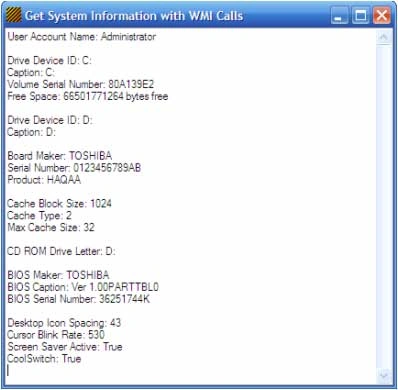
Figure 1: Using WMI Calls to Obtain System Information.
Microsoft WMI Code Creator
The Microsoft WMI Code Creator application is available for free from Microsoft; it may be downloaded from this URL:
http://www.microsoft.com/downloads/details.aspx?FamilyID=2cc30a64-ea15-4661-8da4-55bbc145c30e&DisplayLang=en.
Per Microsoft, "The WMI Code Creator tool allows you to generate VBScript, C#, and VB .NET code that uses WMI to complete a management task such as querying for management data, executing a method from a WMI class, or receiving event notifications using WMI."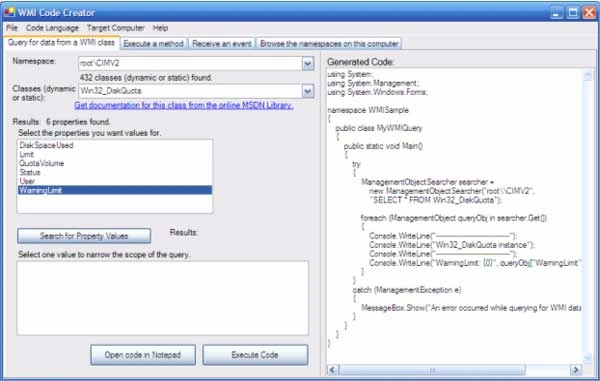
Figure 2: The WMI Code Creator Interface (Generating Code).
Getting Started
The solution contains a single project. The project is called "UsingWMI". The project is provided to demonstrate querying against and obtaining information from the WMI. Since there are literally hundreds of bits of information you can access through this interface, the demonstration only shows how to retrieve nineteen different things. The approaches shown in the first two methods used to access information through the WMI could be altered and used to access any of the information in the WMI. The project contains only a single form and this form contains all of the code necessary to perform the tasks described.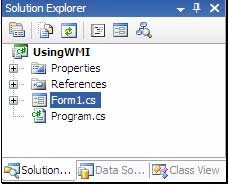
Figure 3: Solution Explorer with the Project Visible.
Code: Using WMI
This project is used to test different calls against the information exposed through the WMI interface. The project contains a single Windows form. The form contains a single textbox which is used to display the information gathered through a series of method calls.
The code for this form begins as follows:
using System;
using System.Collections;
using System.ComponentModel;
using System.Data;
using System.Drawing;
using System.Text;
using System.Windows.Forms;
using System.Management;
namespace UsingWMI
{
public partial class Form1 : Form
{
public Form1()
{
The class starts out with the default imports; I added System.Collections and System.Management to the defaults and dropped the generics. Following the namespace and class declaration, the forms load event executes all of the methods defined in the class and loads the results into the textbox for display:
public Form1()
{
InitializeComponent();
// Get System Information using WMI Calls
this.textBox1.Text += GetAccount() + Environment.NewLine;
this.textBox1.Text += Environment.NewLine;
this.textBox1.Text += GetHardDisks();
this.textBox1.Text += GetBoardMaker() + Environment.NewLine;
this.textBox1.Text += GetBoardSerNo() + Environment.NewLine;
this.textBox1.Text += GetBoardProductId() + Environment.NewLine;
this.textBox1.Text += Environment.NewLine;
this.textBox1.Text += GetCacheBlockSize() + Environment.NewLine;
this.textBox1.Text += GetCacheType() + Environment.NewLine;
this.textBox1.Text += GetCacheMaxSize() + Environment.NewLine;
this.textBox1.Text += Environment.NewLine;
this.textBox1.Text += GetCdRomDrive() + Environment.NewLine;
this.textBox1.Text += Environment.NewLine;
this.textBox1.Text += GetBIOSmaker() + Environment.NewLine;
this.textBox1.Text += GetBIOScaption() + Environment.NewLine;
this.textBox1.Text += GetBIOSserNo() + Environment.NewLine;
this.textBox1.Text += Environment.NewLine;
this.textBox1.Text += GetWinIconSpace() + Environment.NewLine;
this.textBox1.Text += GetWinCursorBlinkRate() +
Environment.NewLine;
this.textBox1.Text += GetWinScreenSaverActive() +
Environment.NewLine;
this.textBox1.Text += GetWinCoolSwitch() + Environment.NewLine;
this.textBox1.SelectionStart = textBox1.Text.Length;
}
The remaining code in the application is used to define the methods called during form load; in the following methods, there are examples of getting things such as the hard drive serial number, BIOS information, Windows Desktop information, and user information:
public string GetHardDisks()
{
ManagementObjectSearcher searcher = new
ManagementObjectSearcher("root\\CIMV2", "SELECT * FROM Win32_LogicalDisk");
StringBuilder sb = new StringBuilder();
foreach (ManagementObject wmi in searcher.Get())
{
try
{
sb.Append("Drive Device ID: " +
wmi.GetPropertyValue("DeviceID").ToString() +Environment.NewLine);
sb.Append("Caption: " + wmi.GetPropertyValue("Caption").ToString() + Environment.NewLine);
sb.Append("Volume Serial Number: " + wmi.GetPropertyValue("VolumeSerialNumber").ToString()
+ Environment.NewLine);
sb.Append("Free Space: " + wmi.GetPropertyValue("FreeSpace").ToString() + "
bytes free" + Environment.NewLine + Environment.NewLine);
}
catch
{
return sb.ToString();
}
}
return sb.ToString();
}
public string GetBoardMaker()
{
ManagementObjectSearcher searcher = new ManagementObjectSearcher("root\\CIMV2", "SELECT * FROM
Win32_BaseBoard");
foreach (ManagementObject wmi in searcher.Get())
{
try
{
return Environment.NewLine + "Board Maker: " + wmi.GetPropertyValue("Manufacturer").ToString();
}
catch { }
}
return "Board Maker: Unknown";
}
public string GetBoardSerNo()
{
ManagementObjectSearcher searcher = new ManagementObjectSearcher("root\\CIMV2", "SELECT * FROM
Win32_BaseBoard");
foreach (ManagementObject wmi in searcher.Get())
{
try
{
return "Serial Number: " + wmi.GetPropertyValue("SerialNumber").ToString();
}
catch { }
}
return "Serial Number: Unknown";
}
public string GetBoardProductId()
{
ManagementObjectSearcher searcher = new ManagementObjectSearcher("root\\CIMV2", "SELECT * FROM
Win32_BaseBoard");
foreach (ManagementObject wmi in searcher.Get())
{
try
{
return "Product: " + wmi.GetPropertyValue("Product").ToString();
}
catch { }
}
return "Product: Unknown";
}
public string GetCacheBlockSize()
{
ManagementObjectSearcher searcher = new ManagementObjectSearcher("root\\CIMV2", "SELECT * FROM
Win32_CacheMemory");
foreach (ManagementObject wmi in searcher.Get())
{
try
{
return "Cache Block Size: " + wmi.GetPropertyValue("BlockSize").ToString();
}
catch { }
}
return "Cache Block Size: Unknown";
Raghav MehraPosted Sep 10, 2014, 1:28 AM
Very useful. Lovely Article :)