

Introduction
Nowadays, there are lots of applications available that require .NET framework installed to run, including SQL Server. When trying to install .NET framework 3.5 on a computer running with Windows Server 2012 (R2) or 2008 (R2), you might receive the following error message.

In this article, we will see how to install .NET Framework 3.5 offline on a machine that has Windows Server 2012 R2.
Offline Install .NET Framework 3.5 on Windows Server 2012 R2
First, open the Server Manager in Windows Server 2012 R2. Click "Add roles and features".
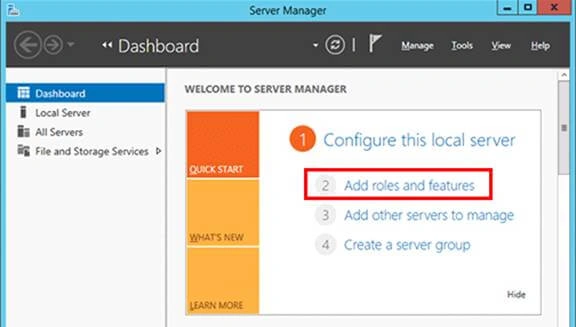
Click on "Next".

Then, select the "Installation Type" screen as Role-based or feature-based installation and click "Next".

Then, select the local server you want to install the .NET 3.5 Framework onto and click the "Next" button.

Select the "Server roles" page; do not select any role and just click on the "Next" button.

After that, select the "Features" screen and check .NET Framework 3.5 features and click "Next".

On the Confirmation page, you will get a warning “Do you need to specify an alternate source path? One or more installation selections are missing source files on the destination server.”

Here are the choices.
If your computer has an internet connection, just ignore this warning and click "Install". The wizard will try to connect to Microsoft’s online server and download the missing files from Windows Update.
If your computer has no internet connection, you must specify the alternate source path. Click the "Specify an alternate source path" link at the bottom of the above screenshot. Then, enter the path of the source files from Windows Server 2012 R2 installation CD.

In my example, it’s E:\sources\sxs, where E: is the drive letter of my installation media. Click "Okay" and then click "Install" to begin the installation
Once .NET Framework 3.5 has been installed, the screen will tell you about the successful installation.

Click "Close" to exit the wizard. That’s it!
Haziq AbbasiPosted Apr 20, 2023, 8:15 AM
Where i can find sources folder
Sana KamalPosted Jul 22, 2019, 12:42 AM
Easy way....