

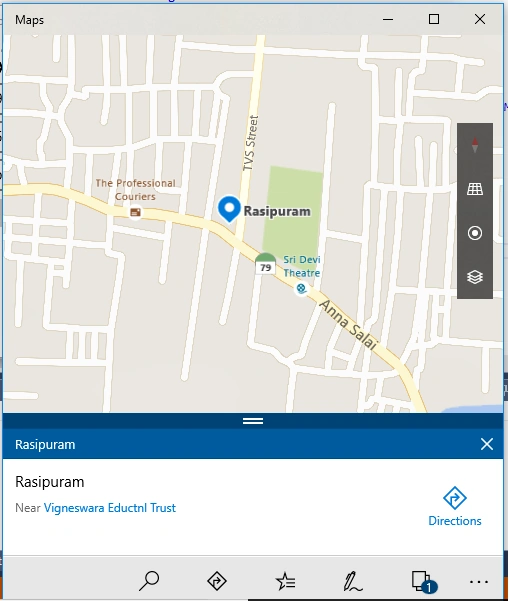
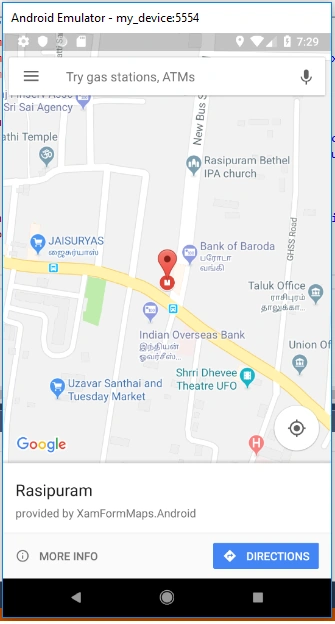
The Maps class is available in Xamarin.Essentials API. It is used to open the installed Maps application to a specific location or placemark. Android, iOS, and UWP offer unique operating systems and platform APIs that developers can have access to all in C# leveraging Xamarin. Xamarin.Essentials provides a single cross-platform API that works with any Xamarin.Forms, Android, iOS, or UWP application that can be accessed from shared code no matter how the user interface is created.
Reading this article, you can learn how to open the installed Maps application to a specific location or placemark in Xamarin.Forms application using Xamarin Essentials for Android and Universal Windows Platform with XAML and Visual C# in cross-platform application development.
The following important tools are required for developing Xamarin Forms App,
- Windows 10 (Recommended)
- Visual Studio 2017
- Android API 19 or higher and UWP 10.0.16299.0 or higher.
Now, we can discuss step by step App development.
Step 1
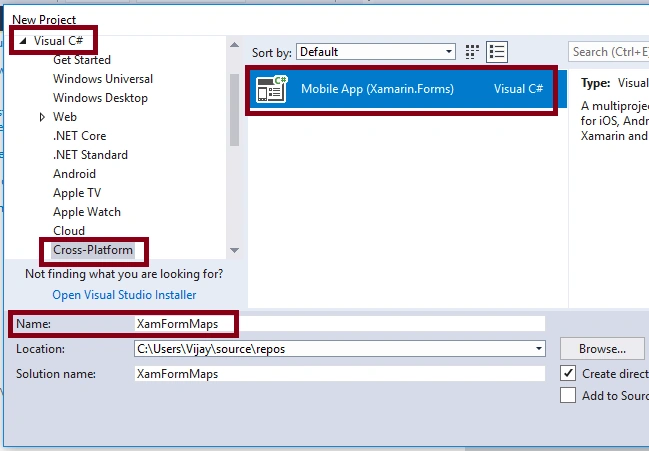
Open Visual Studio 2017 -> Start -> New Project-> Select Cross-Platform (under Visual C#-> Mobile App (Xamarin.Forms)-> Give the Suitable Name for your App (XamFormMaps) ->OK.
Step 2
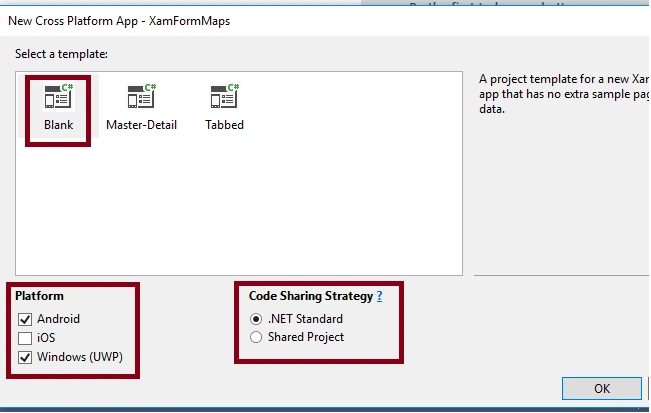
Select the Cross-Platform template as a Blank APP ->Set Platform as Android and UWP and code sharing strategy as .NET standard. Afterward, Visual Studio creates 3 projects (Portable, Android, UWP).
Step 3
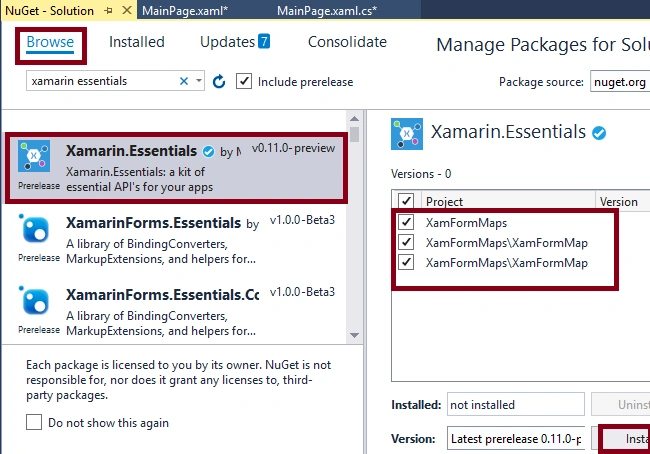
For adding a reference, right-click your solution (XamFormMaps) and select "Manage NuGet Packages".
For adding Xamarin.Essentials reference, choose Browse and search for Xamarin.Essentials. Select the package and select all the projects (portable, Android, UWP) and install it.
Step 4
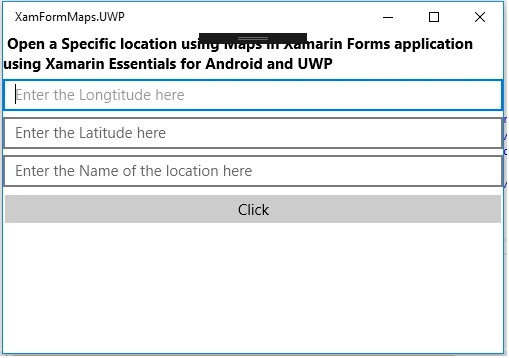
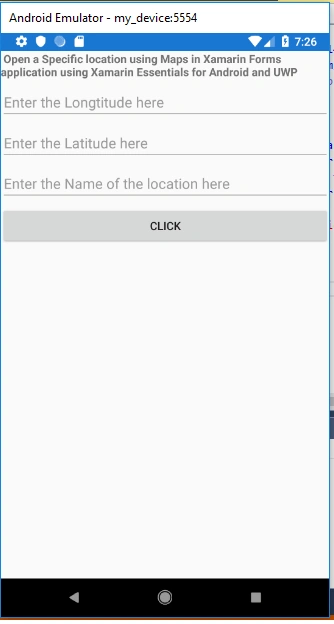
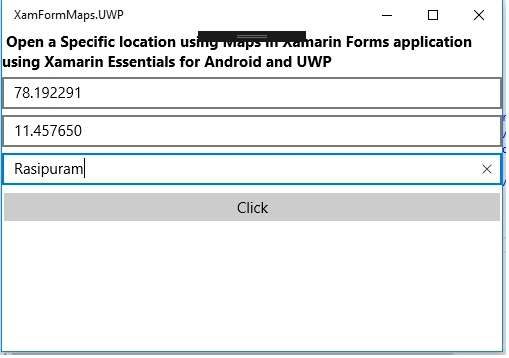
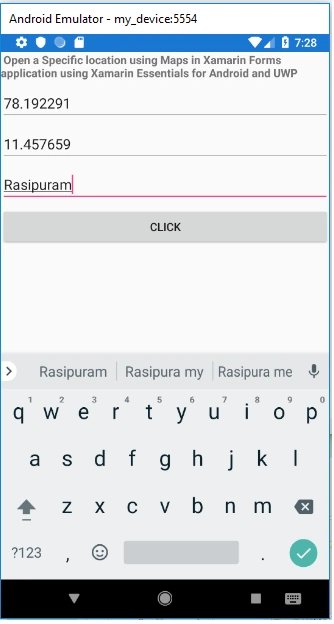
Add the Label, Entry, and Button controls in Mainpage.Xaml for Title, Latitude, Longtitude, and Name.
- <Label FontAttributes="Bold" Text=" Open a Specific location using Maps in Xamarin Forms application using Xamarin Essentials for Android and UWP" VerticalOptions="Center" HorizontalOptions="Center" />
- <Entry x:Name="entLong" Placeholder="Enter the Longtitude here" />
- <Entry x:Name="entLat" Placeholder="Enter the Latitude here" />
- <Entry x:Name="entName" Placeholder="Enter the Name of the location here" />
- <Button x:Name="btnclick" Text="Click" Clicked="btn_clicked" />
Step 5
Add the following code in MainActivity.cs in XamFormMaps.Android project.
In onCreate() method.
- Xamarin.Essentials.Platform.Init(this, savedInstanceState);
Also, add the below method.
Bruno Henrique De PaulaPosted Mar 22, 2019, 3:40 PM
Hi, A quick note. -MapsLaunchOptions changed to MapLaunchOptions. -Maps changed to Map.
Vijayaragavan SPosted Dec 13, 2018, 5:05 AM
Great question .... Will try and let you know... thanks
Mark DevPosted Dec 9, 2018, 2:17 AM
Hi thanks for your example ,what about if I wanted to show all the restaurants in my area (multiple pins on a map) can you do that with xamarin essentials.thanks