

Introduction
This article shall describe an approach that may be used to extract Jar files. Jars are merely files compressed using zip compression; the primary difference between a standard trash zip file and a jar file is that the jar file includes a manifest; also a true jar files can be run as an executable on a machine equipped with the java runtime. Jars typically contain java class files; if you have some need to extract a jar and view its contents, it is no more difficult to do that than it is to unzip a normal zip file.
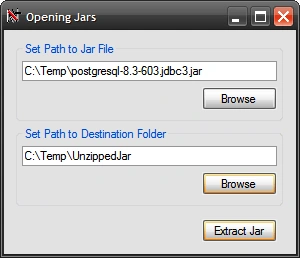
Figure 1: Extracting a Jar File
Since the task of extracting a jar is really the same as it is to extract a zip file, the demo application will rely upon the free SharpZipLib libraries to perform the extraction; these libraries may be downloaded from this location: http://www.icsharpcode.net/OpenSource/SharpZipLib/
In addition to handling jar and zip files, the library also handles tar, gzip, and bzip2 compression.
The Solution
The solution contains a single project (Jars). The example is provided in the form of a single Windows Forms project; the project contains a single main form; the references are all in the default configuration with the exception being that the SharpZipLib DLL has been added (first item in the reference list). Having downloaded the DLL from the www.icsharpcode.net web, the download was installed into the local file system and was adding by using the "Add Reference" dialog's Browse option. All of the code necessary to drive the application is included in the main form's code file.
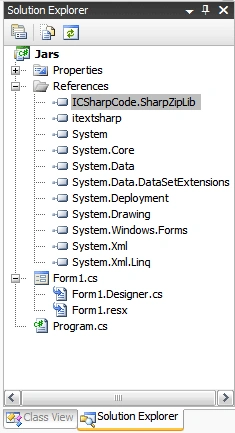
Figure 2: The Solution Explorer Showing the Project
The Code: Jars - Form1
The Jars project is a Windows Forms project containing a single form. All UI and code required by the project are contained in the single main form.
The only references added to the project, aside from the defaults, were those necessary to support the use of the SharpZipLib in the project. The imports, namespace, and class declarations are as follows:
using System.Collections;
using System.ComponentModel;
using System.Data;
using System.Drawing;
using System.Linq;
using System.Text;
using System.Windows.Forms;
using ICSharpCode.SharpZipLib.Zip;
using System.IO;
namespace Jars
{
public partial class Form1 : Form
{
// set variables to hold
// the paths to the jar file and
// to destination folder
private string mSourceJar;
private string mDestinationFolder;
// default constructor
public Form1()
{
InitializeComponent();
}
/// <summary>
/// Extracts the jar file to a specified
/// destination folder.
/// </summary>
private void ExtractJar(string pathToJar, string saveFolderPath)
{
string jarPath = pathToJar;
string savePath = saveFolderPath;
try
{
// verify the paths are set
if (!String.IsNullOrEmpty(jarPath) &&
!String.IsNullOrEmpty(saveFolderPath))
{
try
{
// use the SharpZip library FastZip
// utilities ExtractZip method to
// extract the jar file
FastZip fz = new FastZip();
fz.ExtractZip(jarPath, saveFolderPath, "");
// Success at this point, tell the user
// we are done.
MessageBox.Show("Jar File: " + jarPath + " was
extracted to " +
saveFolderPath, "Finished");
// open the destination folder in explorer
System.Diagnostics.Process.Start("explorer",
saveFolderPath);
}
catch (Exception ex)
{
// something went wrong
MessageBox.Show(ex.Message, "Extraction Error");
}
}
else
{
// the paths were not, tell the user to
// get with the program
StringBuilder sb = new StringBuilder();
sb.Append("Set the paths to both the jar file and " +
Join the conversation! Your thoughts help the community grow.