

Dealing with Frames : Opening Webpage in Frame application
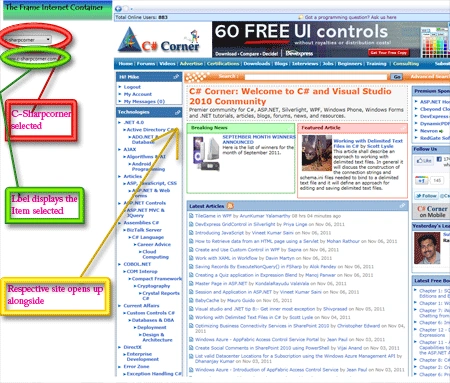
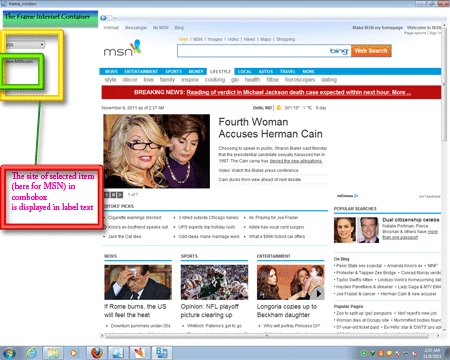
Hi guys with this article I have come up with an interesting and fun to do application created in Expression Blend. Here in this article you will learn how to create an application in which a simple combo box items are used to open up a webpage in frame contained in the application, also the Label tells that Which webpage the frame is going to open.
So here we go through this beautiful application. Just follow along the following steps with little and simple coding:
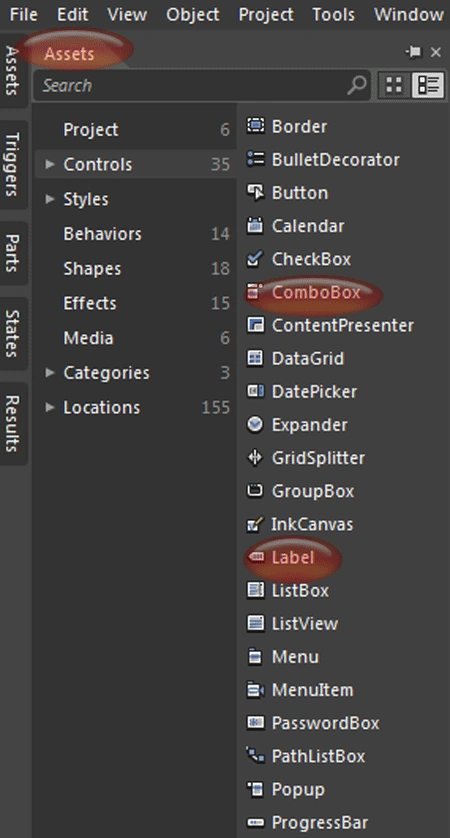
Step 1 : First of all create a WPF application and name it as Frame browsing. After this you are exposed to a white designing window which is called the artboard. This artboard is ready to accept controls and designs. so we start by adding tools such as:
- Combobox
- Heading Label
- Label for showing web address
- Frame
Adding these controls to the artboard by
dragging them from the toolbox.
Step 2 : After you add the controls to
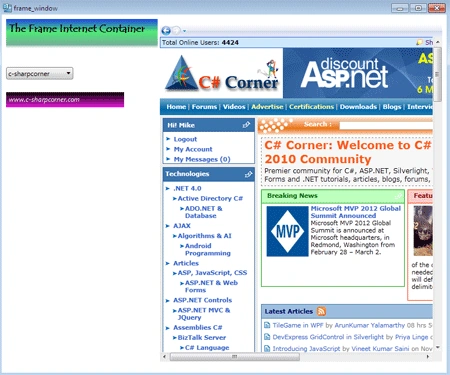
the artboard arrange the tools as shown below. Here Label1 is used for the
Heading and second label is treated as web address holder while the combo box
acts as a drop down control for providing list of web pages.

Step 3 : Now add combo box items first, this is done by doing right click on the combo box and then go to add combo box item. The fig below how is combo box items added here.
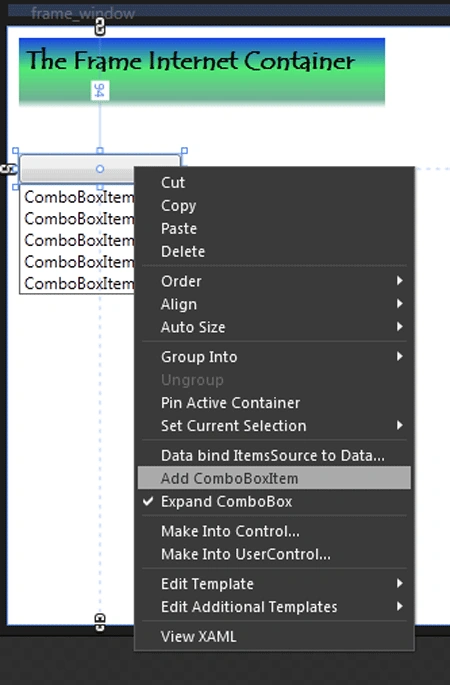
Step 4 : Next job is naming the combo box items. Its again very simple but important task because Whatever name you give to the combo box item a webpage related to that page will only be opened so be careful while naming the combo box items.

Step 5 : Then select a frame from the assets library and drag it on the artboard. For this Goto asset library then type the name "Frame" in the search box to quickly access the frame control.

Step 6 : Now double click on the label
and delete the default name "Label" displayed on the label. similarly remove the
default names of Frame also.
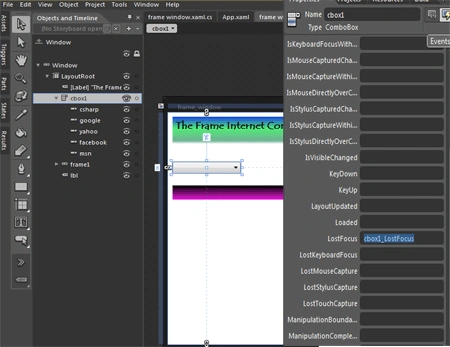
After this Select the combo box tool through the selection tool and goto the
Event palette, there find the "Lost Focus" Event and type the name you want to
give to your application and press Enter.
Step 7 : This opens up the C# coding window in front of you,but you need not fear with the coding part. Its very simple coding with this application. The code window that opens up looks like this.
using
System;
using
System.Collections.Generic;
using
System.Text;
using
System.Windows;
using
System.Windows.Controls;
using
System.Windows.Data;
using
System.Windows.Documents;
using
System.Windows.Input;
using
System.Windows.Media;
using
System.Windows.Media.Imaging;
using
System.Windows.Shapes;
using
System.Windows.Navigation;
namespace
page_to_page_navigation
{
///
<summary>
///
Interaction logic for frame_window.xaml
///
</summary>
public
partial
class
frame_window : Window
{
public
frame_window()
{
this.InitializeComponent();
// Insert
code required on object creation below this point.
}
private
void
cbox1_LostFocus(object
sender,System.Windows.RoutedEventArgs e)
{
// TODO: Add
event handler implementation here.
}
}
}
Step 8 : Name the second label here I have named it as "lb1". Now what we intend to do is display the web address corresponding to the name of the combobox item for this you have to add this line in the method of the name that you typed in the Lost Focus event.
private
void
cbox1_LostFocus(object
sender,System.Windows.RoutedEventArgs e)
{
//
In this label accepts the name from the combobox item and displays it as a
complete web address
lbl.Content ="www." + cbox1.SelectionBoxItem +".com";
}
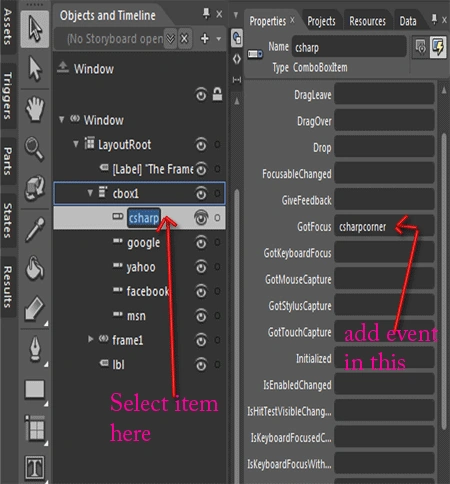
Step 9 : Now the next and most important job is displaying the entire web content or open the webpage in the frame. For this select the comboboxitems one by one from the object and timeline window and goto the event palette, there in the GotFocus Event of the combobox item type the name you would like to give to this event method and press enter.
Step 10 : This brings up the coding part. here type the following line of code :
Manoj Singh PanwareditedPosted Nov 24, 2011, 4:11 PMEdited Nov 24, 2011, 4:11 PM
For your appreciation.
Mahesh ChandPosted Nov 10, 2011, 8:46 AM
Good work!