

Introduction
Xamarin is a platform to develop cross-platform and multi-platform apps (for example, Windows phone, Android, iOS).
In Xamarin platform, the code sharing concept is used. In Xamarin Studio, Visual Studio is also available.
Prerequisites
- Visual Studio 2015 Update 3.
The steps, given below are required to be followed in order to navigate one page to another page in Xamarin Android app, using Visual Studio 2015.
Step 1
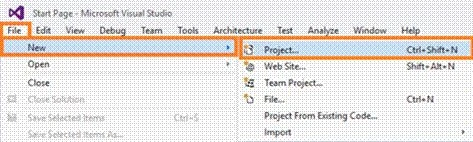
Click File--> select New--> select Project. The project needs to be clicked after opening all the types of projects in Visual Studio or click (Ctrl+Shift+N).
Step 2
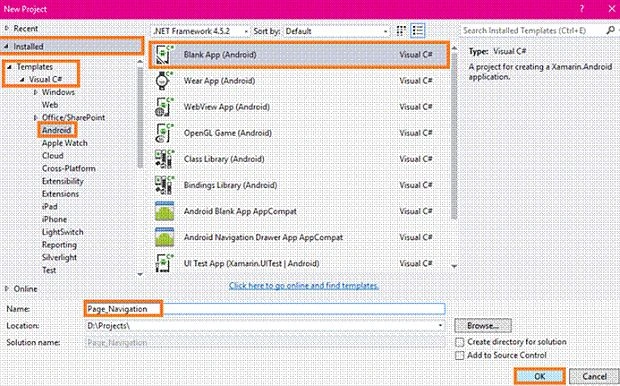
After opening the New Project, select Installed-->Templates-->Visual C#-->Android-->choose the Blank app (Android).
Now, give your Android app; a name (Ex:sample) and give the path of your project. Afterwards, click OK.
Step 3
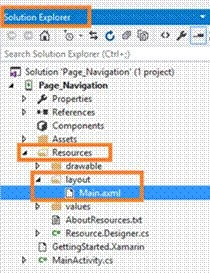
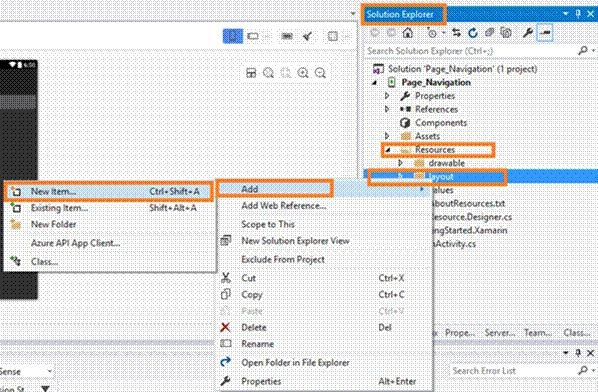
Now, go to Solution Explorer. In Solution Explorer, get all the files and source in your project.
Now, select Resource-->Layout-->double click to open main.axml page. To write XAML code, you need to select the source.
Choose the Designer Window, if you want design and you can design your app.
Step 4
After opening main.axml, file will open the main page designer. You can design this page, as per your desire.
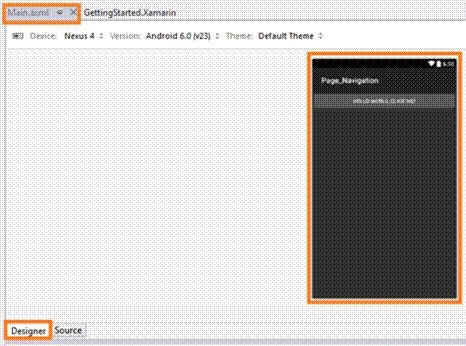
Now, delete the Default hello world button, go to the source panel and you can see the button coding. You need to delete it.
After deleting XAML code, now delete C# button action code.
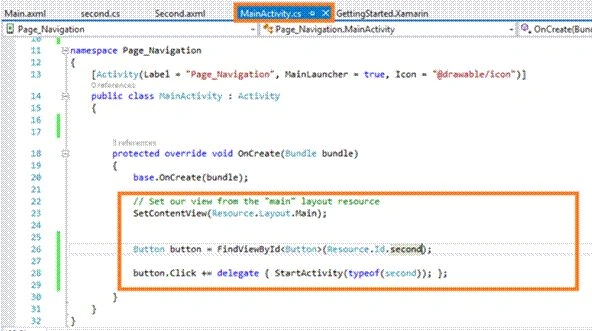
Go to MainActivity.cs page. You need to delete the button code.
Step 5
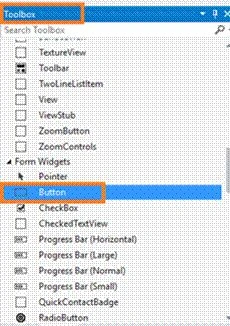
Now, go to the toolbox Window. In the toolbox Window, get all the types of the tools and controls.
You need to go to the toolbox Window and scroll down. You will see all the tools and controls.
You need to drag and drop the button.
Step 6
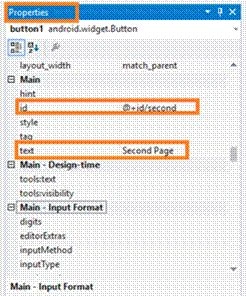
Now, go to the properties Window. You need to edit the Button's Id value and Text Value (EX: android:id="@+id/second" android:text="Second Page").
Step 7
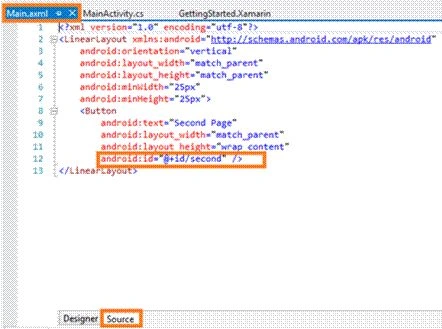
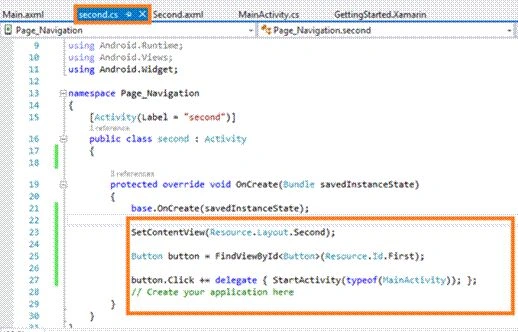
In this step, go to the Main.axml page Source Panel. Note, the Button's Id value.
Main.axml
- <LinearLayout xmlns:android="http://schemas.android.com/apk/res/android" android:orientation="vertical" android:layout_width="match_parent" android:layout_height="match_parent" android:minWidth="25px" android:minHeight="25px">
- <Button android:text="Second Page" android:layout_width="match_parent" android:layout_height="wrap_content" android:id="@+id/second" /> </LinearLayout>



Ahmed ShomanPosted Apr 2, 2020, 5:04 AM
Thanks, it is very helpful,but How do I access the text property of an Entry in MainPage.xaml to MainActivity.cs in Xamarin forms?
Антон БернадскийPosted May 9, 2019, 5:57 PM
Thank you, I started learnning Xamarin and c# 3 days ago, and this article helped me great!
Gabriel XavierPosted Nov 22, 2017, 7:37 AM
Awesome dude, really its very need full, Thank you so much.