

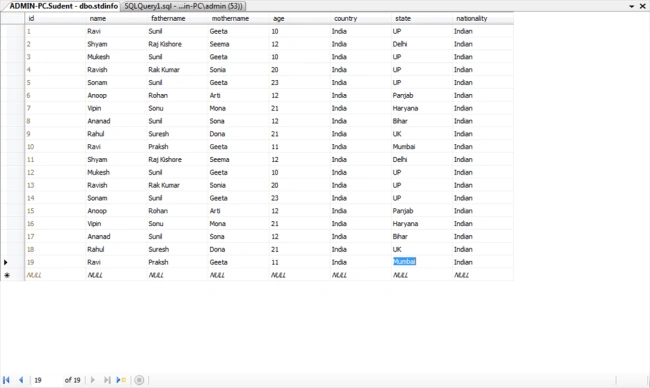
In this article, we will learn how to use paging in ASP.NET MVC 4, using PagedList. First, show the Table script.
What is PagedList.mvc?
PagedList.mvc is a package for paging and sorting for ASP.NET MVC. PagedList package installs a PagedList collection type and extension methods for IQueryable and IEnumerable collections.

Table Data
Open a New Project.
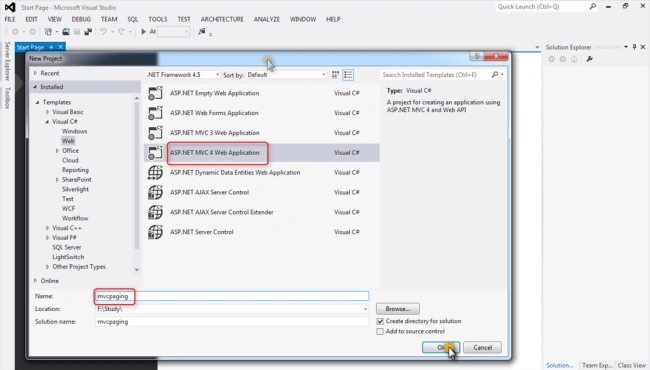
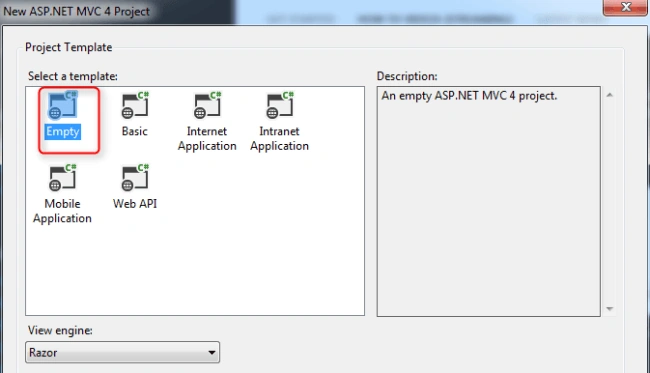
Click on OK button.
After opening the project, go to Solution Explorer and right click on References. Click on Manage NuGet Packages and type PagedList.mvc in the top right corner for search.
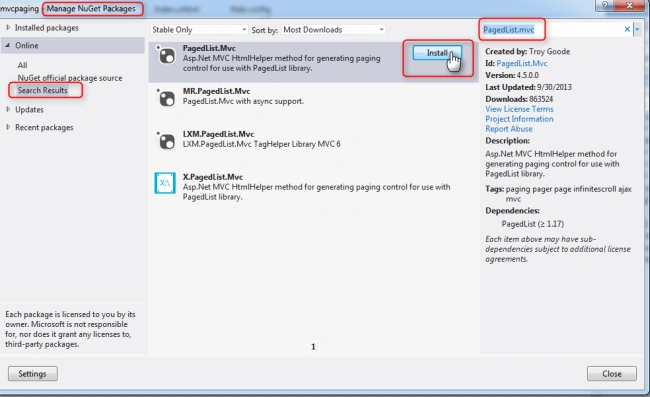
Click on Install button.
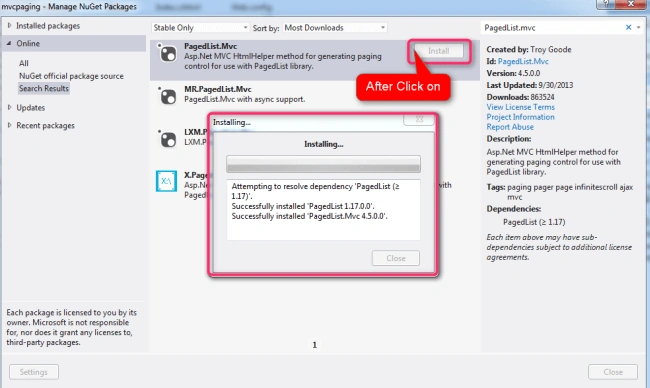
Now, it is installing. After the installation, the page will look like the following:
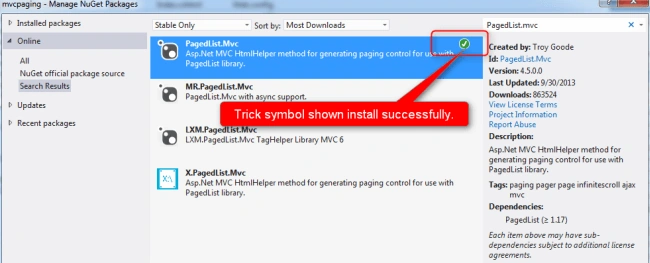
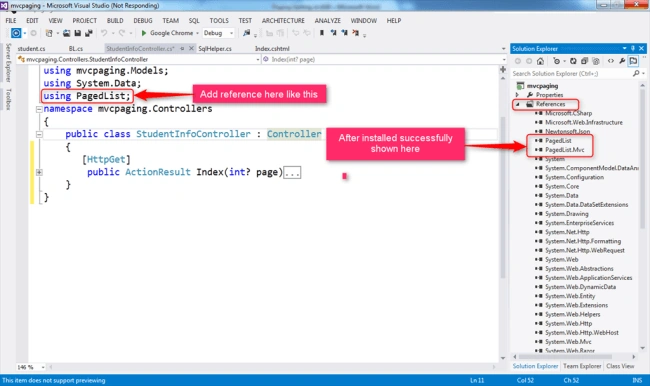
Close this window. Now, you can see that PagedList.mvc is installed in our project. We add its reference in our controller show, as shown below:
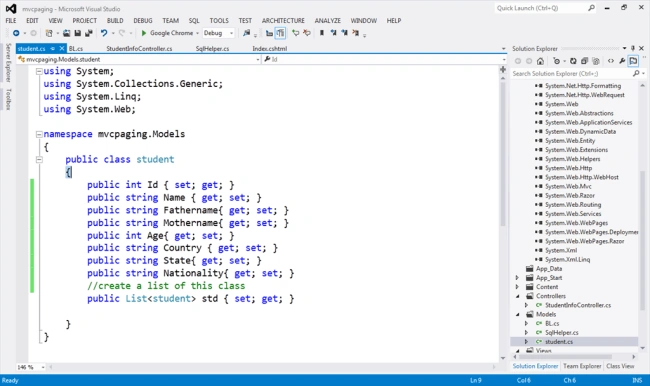
Add a student.cs class in Models folder.
Without using PagedList.mvc my controller code :
[HttpGet]
public ActionResult Index(int? page)
{
    BL buisnessLogic = new BL();
    student objStudent = new student();
    List<student> objStudentList = new List<student>();
    objStudentList = buisnessLogic.studentListBind();
    objStudent.std = objStudentList;
    return View(objStudent);
}
Simple output without paging will look like:

After successfully adding the references and creating student.cs class, we will write the Controller code, as shown below:

Business logic
using System;
using System.Collections.Generic;
using System.Linq;
using System.Web;
using System.Data;
using System.Data.SqlClient;

namespace mvcpaging.Models
{
    public class BL
    {
        SqlHelper sql1 = new SqlHelper();
        public List<student> studentListBind() {
            DataTable dt = new DataTable();
            SqlParameter[] GetBalance_Parm = new SqlParameter[]
            {
            };
            DataSet _DS = SqlHelper.GetDataSet(SqlHelper.mainConnectionString, CommandType.StoredProcedure, "[GetStdInfo]", GetBalance_Parm);
            List<student> lst = new List<student>();
            if (_DS.Tables[0].Rows.Count > 0)
            {
                foreach (DataRow  item in _DS.Tables[0].Rows)
                {
                    lst.Add(new student
                    {
                        Id=Convert.ToInt32(item["id"]),
                        Name =Convert.ToString(item["name"]),
                        Fathername = Convert.ToString(item["fathername"]),
                        Mothername = Convert.ToString(item["mothername"]),
                        Age = Convert.ToInt32(item["age"]),
                        Country = Convert.ToString(item["country"]),
                        State = Convert.ToString(item["state"]),
                        Nationality = Convert.ToString(item["nationality"])
                    });
                }
            }
            return lst;
        }
    }
}
Add View
@using PagedList.Mvc
@model  PagedList.IPagedList<mvcpaging.Models.student>

@{
    ViewBag.Title = "Student Details";
}

<style>
    .ul.pagination
    {
        display: inline-block;
        padding: 0;
        margin: 0;
    }

    ul.pagination li
    {
        display: inline;
    }

        ul.pagination li a
        {
            color: black;
            float: left;
            padding: 8px 16px;
            text-decoration: none;
            transition: background-color .3s;
        }

            ul.pagination li a.active
            {
                background-color: #4CAF50;
                color: white;
            }

            ul.pagination li a:hover:not(.active)
            {
                background-color: #ddd;
            }
</style>
@using (Html.BeginForm())
{
    <center>
         <h2>Student Details</h2>
    <div  style="border:1px solid red; margin-left:25%; margin-right:20%">
    <table style="width:100%" border="1">
        <tr>
            <th style="width:10%; text-align:left"> @Html.Label("Student ID")</th>
            <th style="width:10%; text-align:left">@Html.Label("Name")</th>
            <th style="width:15%; text-align:left">@Html.Label("Father Name")</th>
            <th style="width:15%; text-align:left">@Html.Label("Mother Name")</th>
            <th style="width:5%; text-align:left">@Html.Label("Age")</th>
            <th style="width:15%; text-align:left">@Html.Label("Country")</th>
            <th style="width:15%; text-align:left">@Html.Label("State" )</th>
            <th style="width:15%; text-align:left">@Html.Label("Nationality")</th>

        </tr>

   @for (int i = 0; i < Model.Count; i++)
   {
       <tr style="border:1px solid red">
           <td>@Model[i].Id</td>
           <td>@Model[i].Name</td>
           <td>@Model[i].Fathername</td>
           <td>@Model[i].Mothername</td>
           <td>@Model[i].Age</td>
           <td>@Model[i].Country</td>
           <td>@Model[i].State</td>
           <td>@Model[i].Nationality</td>
       </tr>

   }
 </table>


    </div>
          </center>
    <div id="container" style="margin-left: 20px">
        <p></p>
        <p></p>
        <div class="pagination" style="margin-left: 400px">
            Page @(Model.PageCount < Model.PageNumber ? 0 : Model.PageNumber)
            of @Model.PageCount   @Html.PagedListPager(Model, page => Url.Action("Index", new { page }))
        </div>
    </div>

}
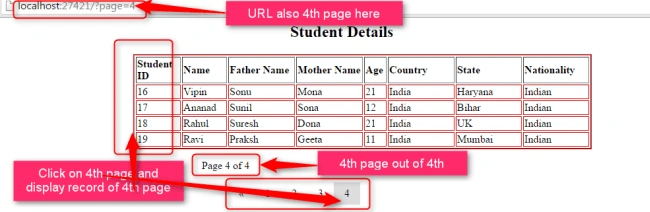
After executing this application, the default first page (1) will open. Every page contains 5 records and the total number of records is 19 in the database.

After click on 2nd page records will be show of 2nd page.

In this article, we learned how to use paging in ASP.NET MVC 4.0, using PagedList . In the next article, we will learn how to use paging with sorting in ASP.NET MVC 4.0, using PagedList.
sankeerth mPosted Jan 20, 2020, 12:30 PM
I have a query in these it load whole data and then it works or when it will hit to database when click on page 2 or page 3
Francisco GomezPosted Mar 29, 2019, 10:54 AM
Hola me puedes pasar el scrip de la base de datos ya que cuando la bajo no me deja abrir el achivo
Suresh RautPosted Mar 13, 2019, 1:36 AM
It should filter records in database itself. Fetching millions of records from database and then just showing say 5 records on front end is bad idea.
Amitt PalPosted Dec 1, 2018, 6:14 AM
You are firing query in database at every request of paging it is bad and it will might crash the database
Shamson APosted Aug 30, 2018, 12:34 PM
WHY sudent.bak is unrestorable?
Balamurugan RPosted Jul 4, 2018, 7:24 AM
Nice article..Very clearly explained :)
Bhanu KorremulaPosted Apr 25, 2018, 9:26 AM
Would be nice if the code sample is in GitHub...
Thiyagarajan BPosted Apr 28, 2017, 2:26 AM
If I would like to export the data, how can I export the complete data? it only exports the html content that has been rendered, say here it is only 5 records. If I would like to export the entire data how would I export it from this pagedlist?
Ramesh PalaniappanPosted Aug 22, 2016, 1:51 AM
Good One
Humayun Kabir MamunPosted Aug 21, 2016, 2:21 AM
Nice...
RajaPosted Aug 20, 2016, 1:01 AM
Nice Share..