

There are various tools that can be used in MVC, one of them is an extended and more featured drop-down list i.e PanelBar which provides a facility of having more than one drop-down list in the single drop-down list that is called PanelBar. If a user wants to show multiple data and more option with them then they must use a PanelBar for this purpose. Say there is one item like Mail which contains various item like inbox, sent, draft and another item like Notes that will contain items like note1, note2 and note3 hence for that purpose to show these item we can use a PanelBar for it.
To do so you have to follow some simple steps
Step 1: First create a new APS.NET MVC empty web application
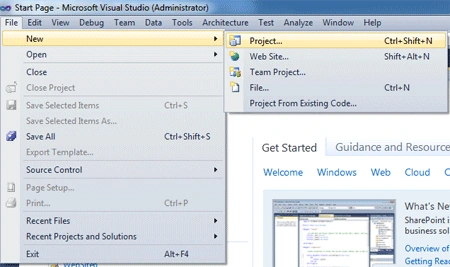
- Open Visual Studio
- Choose new>project
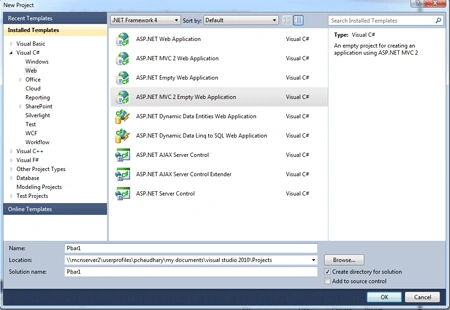
- After that choose ASP.NET MVC empty application
Step 2: Now add controller to it.
- Right click on the controllers folder and choose controller
![n3].gif](https://cdn.c-sharpcorner.com/uploadfile/15812c/panelbar-in-asp-net-mvc/images/n3-.webp)
- Name the controller
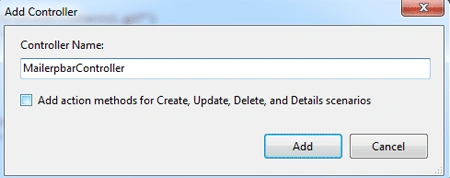
Now code the controller as per the requirements of the user.
using
System;
using
System.Collections.Generic;
using
System.Linq;
using
System.Web;
using
System.Web.Mvc;
{
public class MailerpbarController : Controller
{
//
// GET: /Mailerpbar/
public ActionResult FirstLook(string expandMode)
{
ViewData["expandMode"] = expandMode ?? "Multiple";
return View();
}
}
}
Step 3: Now to get the view add view to the action method.
- Right click on action method in controller
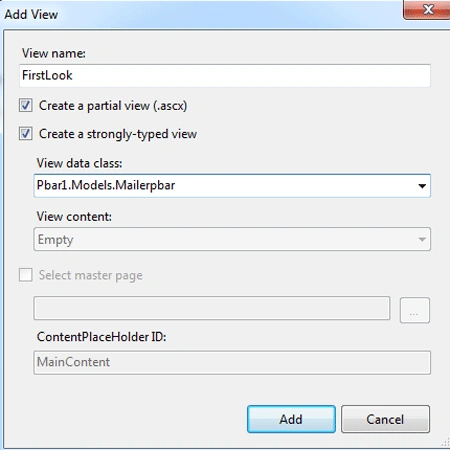
- Choose add view
- Name the view of your choice
Now copy images to the content folder so that we
can give the url for the required image in the view.
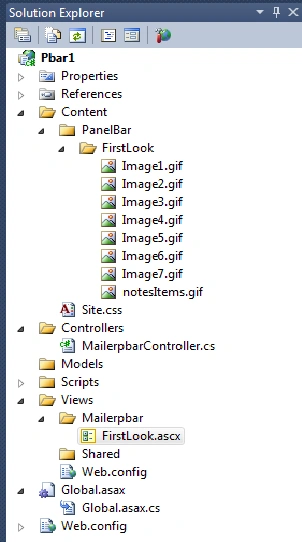
Now code the view to get the required output.
<%@ Control Language="C#" Inherits="System.Web.Mvc.ViewPage>" %>
<asp:Content ID="Content1" contentPlaceHolderID="MainContent" runat="server"><% Html.PanelBar()
.Name("PanelBar")
.HtmlAttributes(new { style = "width: 300px; float: left; margin-bottom: 30px;" })
.ExpandMode((PanelBarExpandMode)Enum.Parse(typeof(PanelBarExpandMode),
(string)ViewData["expandMode"]))
.SelectedIndex(0)
.Items(item =>
{
item.Add()
.Text("Mail")
.ImageUrl("~/Content/PanelBar/FirstLook/mail.gif")
.ImageHtmlAttributes(new { alt = "Mail Icon" })
.Items(subItem =>
{
subItem.Add()
.Text("Personal Folders")
.ImageUrl("~/Content/PanelBar/FirstLook/Image1.gif")
.ImageHtmlAttributes(new { alt = "Personal Folders Icon" });
subItem.Add()
.Text("Deleted Items")
.ImageUrl("~/Content/PanelBar/FirstLook/Image2.gif")
.ImageHtmlAttributes(new { alt = "Deleted Items Icon" });
subItem.Add()
.Text("Inbox")
.ImageUrl("~/Content/PanelBar/FirstLook/Image3.gif")
.ImageHtmlAttributes(new { alt = "Inbox Icon" }).Enabled(false);
subItem.Add()
.Text("My Mail")
.ImageUrl("~/Content/PanelBar/FirstLook/Image4.gif")
.ImageHtmlAttributes(new { alt = "My Mail Icon" });
subItem.Add()
.Text("Sent Items")
.ImageUrl("~/Content/PanelBar/FirstLook/Image5.gif")
.ImageHtmlAttributes(new { alt = "Sent Items Icon" });
subItem.Add()
.Text("Outbox")
.ImageUrl("~/Content/PanelBar/FirstLook/Image6.gif")
.ImageHtmlAttributes(new { alt = "Outbox Icon" });
subItem.Add()
.Text("Search Folders")
.ImageUrl("~/Content/PanelBar/FirstLook/Image7.gif")
.ImageHtmlAttributes(new { alt = "Search Folders Icon" });
});
item.Add()
.Text("Contacts")
.ImageUrl("~/Content/PanelBar/FirstLook/contacts1.gif")
.ImageHtmlAttributes(new { alt = "Contacts Icon" }).Enabled(false)
});
item.Add()
.Text("Notes")
.ImageUrl("~/Content/PanelBar/FirstLook/notes.gif")
.ImageHtmlAttributes(new { alt = "Notes Icon" })
.Items((subItem) =>
{
subItem.Add()
.Text("My Notes")
.ImageUrl("~/Content/PanelBar/FirstLook/notesItems.gif")
.ImageHtmlAttributes(new { alt = "Note Icon" });
subItem.Add()
.Text("Notes List")
.ImageUrl("~/Content/PanelBar/FirstLook/notesItems.gif")
.ImageHtmlAttributes(new { alt = "Note Icon" });
subItem.Add()
.Text("Shared Notes")
.ImageUrl("~/Content/PanelBar/FirstLook/notesItems.gif")
.ImageHtmlAttributes(new { alt = "Note Icon" });
subItem.Add()
.Text("Archive")
.ImageUrl("~/Content/PanelBar/FirstLook/notesItems.gif")
.ImageHtmlAttributes(new { alt = "Note Icon" });
});
})
.Render();
%>
</style>
</asp:Content>
Now press F5 and see the effect.
Only Mail item and sub items are open. 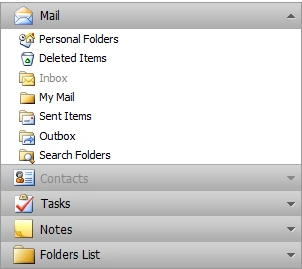
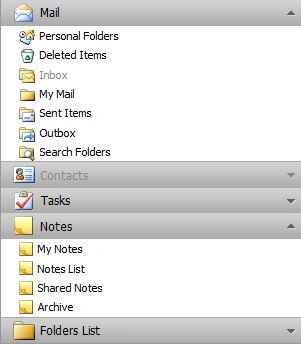
Now by clicking on Notes it will explore the sub items of notes.
kevin MitchellPosted Jun 6, 2012, 12:48 PM
this is actually copied straight from the telerik demo project. just added a few of his own screenshots... sad...
pel pelPosted Apr 16, 2012, 2:18 PM
This article bases on telerik panelbar controls but its nowhere mentioned... nothing more than a commercial add. *Downvote*
Vijay PrativadiPosted Dec 14, 2011, 2:44 AM
Good Work Prashant