

Introduction
This article explains Forms Authentication and how to generate the encrypted password for Forms Authentication.
Forms Authentication
With Forms Authentication you create a login page containing the credentials from the user and that includes code to authenticate the credentials. Forms Authentication provides you with a way to handle authentication using your own custom logic. ASP.Net leverages it's framework to support cookies and establishes the security context for each web request; this is called a Form Authentication.
- <authentication mode="Forms">
- <forms name="GenratePwd.aspx">
- <credentials passwordFormat="SHA1">
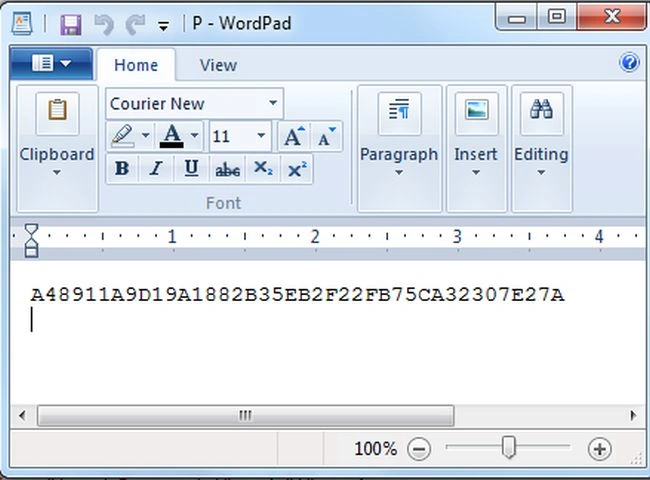
- <user name="Admin" password="A48911A9D19A1882B35EB2F22FB75CA32307E27A"/>
- </credentials>
- </forms>
- </authentication>
In a <authentication> tag we validate the username and password, here the user tag contains the two attributes "name" and "password". In a password attribute you need to copy the encrypted password from the text file and paste it here. One <User> tag stores only one username and password. If you want to use multiple usernames and passwords then you need to use another user tag.
HashPassowordForStoringInConfigFile Method
The "HashPasswordForStoringInConfigFile" method creates a hashed password value that can be used when storing Forms Authentication credentials in the configuration file. You may want to store passwords securely in a Web.config file. You can use the "FormsAuthentication" class utility function named "HashPasswordForStoringInConfigFile" to encrypt the password before you save it in a configuration file.
- string ns = FormsAuthentication.HashPasswordForStoringInConfigFile("Your Password", "SHA1");
The password that is encrypted by the "FormsAuthentication.HashPasswordForStoringConfigFile" method using the Secure Hash Algorithm (SHA1).
- public GenratePwd()
- {
- //Pankaj is the password for the admin that is encrypted by HasPasswordForStoringInConfigFile method.
- string ns = FormsAuthentication.HashPasswordForStoringInConfigFile("Pankaj", "SHA1");
- //Password is encrypted in a text file P.txt
- StreamWriter s = File.CreateText("C:\\Pankaj\\P.txt");
- s.WriteLine(ns);
- s.Close();
- }
When you will compile this program it will generate an encrypted code in a text file. Just specify the path where you want to save this file then copy this code and paste in the password attribute. Let's see that as in the following figure.
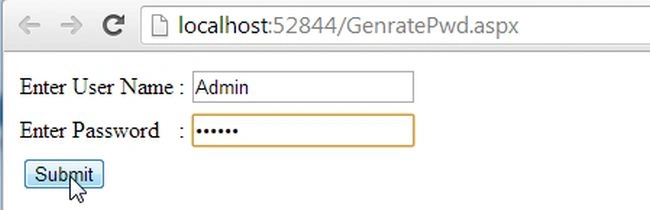
Now I will show you how to generate the password for the Admin user in Forms Authentication. Use the following procedure to do that.
Create Database and Table in SQL-SERVER
- create database UserLoginDetails
- use UserLoginDetails
- create table UserLogin
- (
- UserName nvarchar(max),
- Password nvarchar(max)
- )
Use the following procedure to insert the values in a table:
- insert into UserLogin values('[email protected]','1234')
- insert into UserLogin values('[email protected]','123456')
Step 1
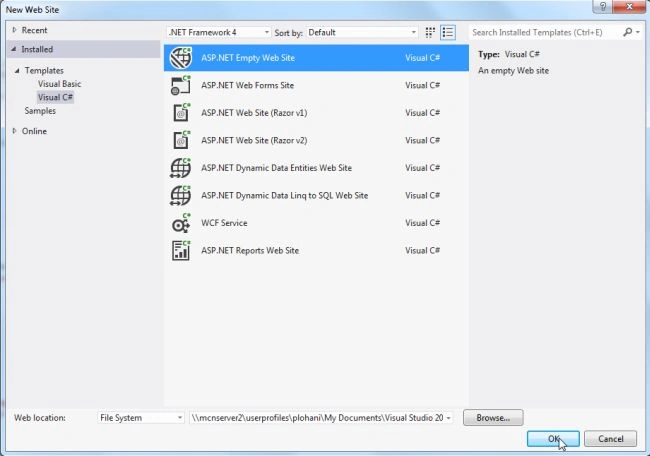
Open Visual Studio then select "Create New Website" --> "ASP.NET Web Site".
Step 2
Now go to the Solution Explorer to the right side of the application and use the procedure in the following figure.

Step 3
Add a new Web form in the empty web application as in the following figure.

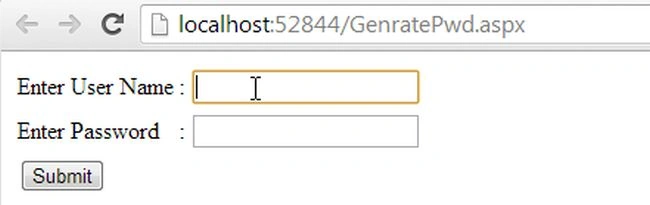
Use the following code in the "GenratePwd.aspx" page:
Step 4
- <%@ Page Language="C#" AutoEventWireup="true" CodeFile="GenratePwd.aspx.cs" Inherits="GenratePwd" %>
- <!DOCTYPE html>
- <html xmlns="http://www.w3.org/1999/xhtml">
- <head runat="server">
- <title></title>
- </head>
- <body>
- <form id="form1" runat="server">
- <div>
- <table border="0">
- <tr>
- <td>
- Enter User Name
- </td>
- <td>:</td>
- <td>
- <asp:TextBox ID="txtuser" runat="server"></asp:TextBox>
- </td>
- </tr>
- <tr>
- <td>
- Enter Password
- </td>
- <td>:</td>
- <td>
- <asp:TextBox ID="txtpwd" runat="server" TextMode="Password"></asp:TextBox>
- </td>
- </tr>
- <tr>
- <td colspan="2">
- <asp:Button ID="btnsumit" runat="server" Text="Submit" OnClick="btnsumit_Click"/>
- </td>
- </tr>
- </table>
- </div>
- </form>
- </body>
- </html>



Zaid AnsariPosted Dec 12, 2014, 2:21 AM
Very Use Full Dear Thank,s Pankaj Lohani Brother