

Revolutionizing ML with Automated Machine Learning
Machine learning is powerful, but it often requires data scientists to manually test and tune models—a process that can take weeks or even months. What if this entire process could be automated, allowing AI to do the heavy lifting? That’s exactly what Automated ML (AutoML) in Azure Machine Learning (AzureML) does.
With AutoML, you can:
- ✅ Automatically select the best ML model for your dataset.
- ✅ Optimize hyperparameters without manual intervention.
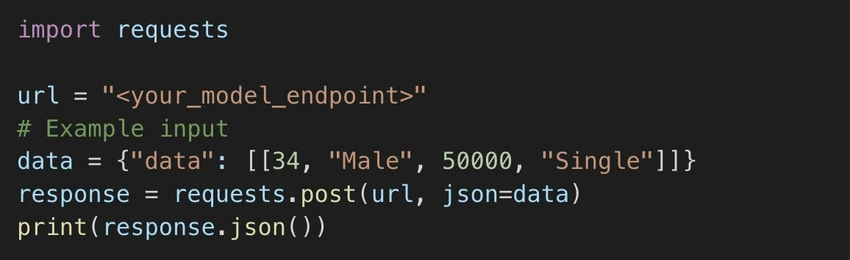
- ✅ Deploy models quickly with minimal coding.
Let's explore how AutoML in AzureML simplifies machine learning workflows and how you can start using it today.
Getting Started with AutoML in AzureML
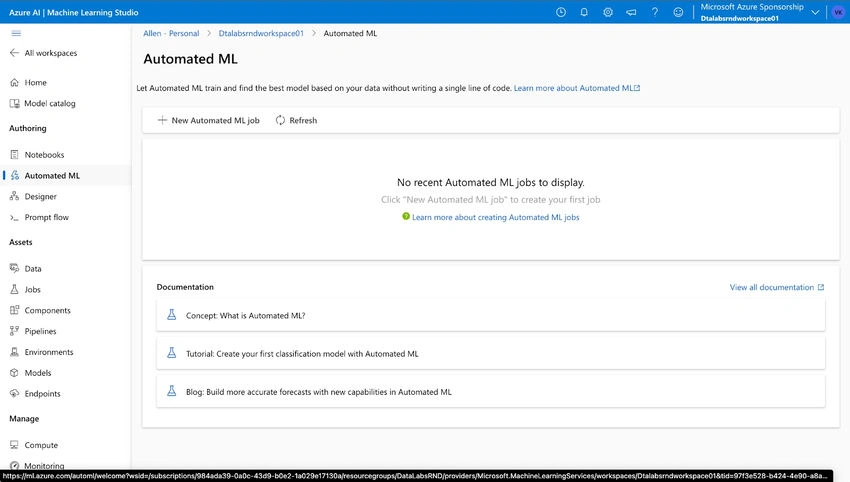
Unlike traditional ML development, where you manually build and train models, AutoML in AzureML allows you to train models through a no-code UI inside the AzureML workspace.
Here's how it works:
- Upload your dataset (CSV, Parquet, or linked Azure storage).
- Define your prediction goal (classification, regression, or forecasting).
- Let AutoML analyze multiple models and find the best one.
- Deploy the selected model with just a few clicks.
Unlike traditional model training, where you need to manually choose algorithms and tune hyperparameters, AutoML automates this selection, providing results faster and more accurately.
How Does AutoML Work?
Behind the scenes, AutoML uses machine learning pipelines to:
- Preprocess data (handling missing values, encoding categorical variables).
- Select and test multiple ML models (XGBoost, LightGBM, Neural Networks, etc.).
- Optimize hyperparameters using Bayesian optimization.
- Provide explainability metrics, so you know why a model was chosen.
Once AutoML completes the training process, it ranks the models based on key performance metrics like accuracy, RMSE (root mean squared error), or AUC (area under the curve), depending on the task.
AutoML in Action: Training a Model
To get hands-on, let’s walk through training a model using AutoML in AzureML.
1️⃣ Upload Your Dataset
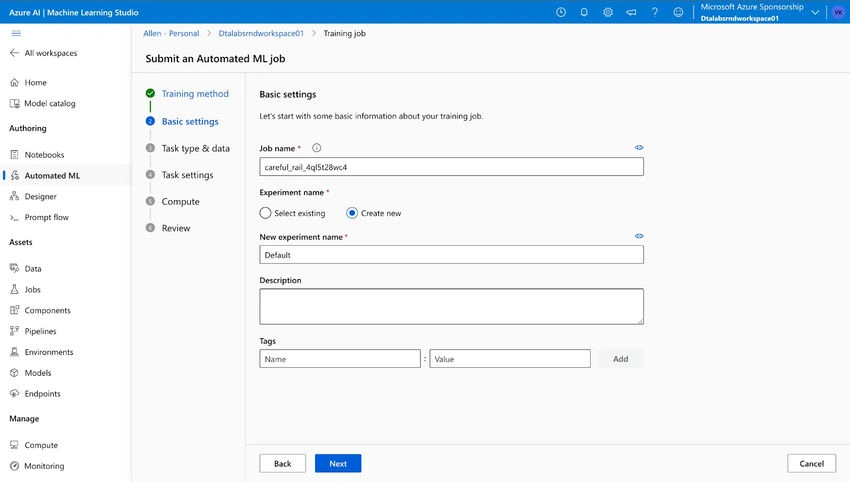
Navigate to the AzureML workspace → Open the Automated ML tab → Click + New AutoML Run.
Select your dataset (e.g., customer churn data, loan default prediction, or sales forecasting).
Join the conversation! Your thoughts help the community grow.