

Introduction
The Ignite UI Video Player is an HTML 5 Video Player which renders video on a web page with a robust, cross-browser user interface. It supports H264/AVC video, Ogg/Theora video, and WebM video formats. Ignite UI Video control has many feature like volume control, screenshot, related videos can be added, bookmarks of video can be created, we can set banner ads as well as commercial ads, and more. If you rbrowser does not support HTML 5 then the you can set Microsoft Silverlight media control to enable playback.
Creating Demo
Let's create a demo project by just simply rendering the Ignite UI Video Player control in Angular.
For this Demo project we are using Visual Studio code and Angular. In case you need to set Angular first, you can find help here.
Open Visual Studio code and enter the following command.
ng new (Project Name)
This will create a new blank project for our demo. Now change the directory to the newly-created project and install the angular wrapper by using the following command.
npm install igniteui-angular-wrappers
This will install all the required packages and dependency in the project.
Let's import the required module in src/app/app.module.ts file.
- import { IgVideoPlayerComponent } from "igniteui-angular-wrappers";
And also put “IgVideoPlayerComponent ” in the declaration. Refer to Figure 1.
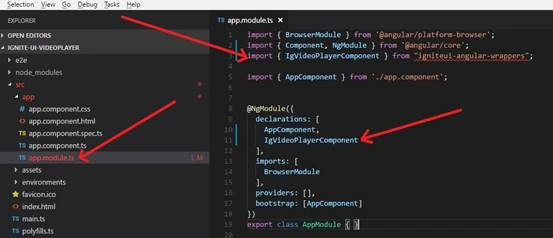
Figure 1
Now let's replace the html to our video player html tag in src/app/app.component.html
<ig-video-player widgetId="videoPlayer" [options]="videoPlayer.options"></ig-video-player>
Now open the src/app/app.component.ts file and add the variable which holds the properties of Video Player and initialize that in constructor.
- public videoPlayer: any;
- constructor() {
- this.videoPlayer = {
- options: {
- width: '100%',
- sources: ['https://dl.infragistics.com/pg/2011-1/web/shared/videoplayer/videos/Infragistics_Presentation_lowRes_1.h264.mp4',
- 'https://dl.infragistics.com/pg/2011-1/web/shared/videoplayer/videos/Infragistics_Presentation_lowRes_1.webmvp8.webm',
- 'https://dl.infragistics.com/pg/2011-1/web/shared/videoplayer/videos/Infragistics_Presentation_lowRes_1.theora.ogv']
- }
- };
- }
The last step is to add the CSS files and Java Scripts file to the project which is provided by Infragistics.
Go to the src/index.html and add the following under the head section.
- <!-- Ignite UI Required Combined CSS Files -->
- <link href="https://cdn-na.infragistics.com/igniteui/latest/css/themes/infragistics/infragistics.theme.css" rel="stylesheet"
- />
- <link href="https://cdn-na.infragistics.com/igniteui/latest/css/structure/infragistics.css" rel="stylesheet" />
- <script src="https://code.jquery.com/jquery-1.11.3.min.js"></script>
- <script src="https://code.jquery.com/ui/1.11.1/jquery-ui.min.js"></script>
- <!-- Ignite UI Required Combined JavaScript Files -->
- <script src="https://cdn-na.infragistics.com/igniteui/latest/js/infragistics.core.js"></script>
- <script src="https://cdn-na.infragistics.com/igniteui/latest/js/infragistics.lob.js"></script>
- <script src="https://cdn-na.infragistics.com/igniteui/latest/js/infragistics.dv.js"></script>
Save all files and open the terminal. To test the project hit the command
ng server --open
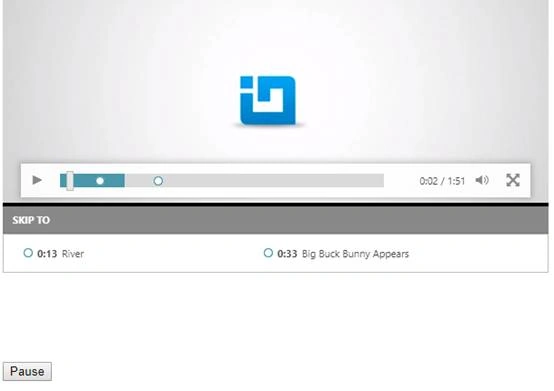
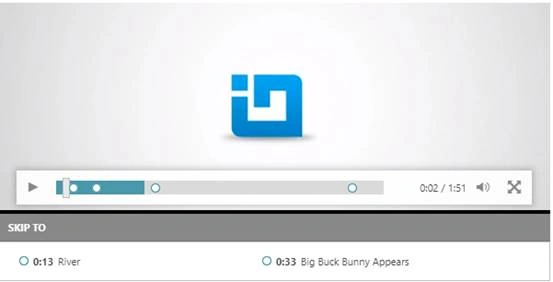
This will build the project and open the default browser and show the output of the project. Refer to Figure 2.

Figure 2
Ignite UI Video Player has the following features,
- Video Player Controls
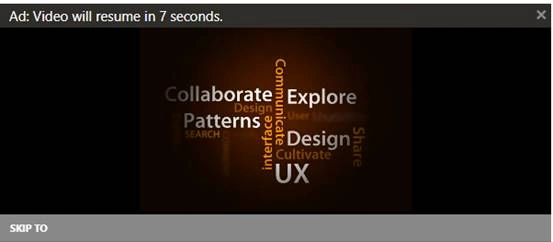
- Commercial Ads
- Bookmarks
- Banners
- Related Videos
To perform Ignite UI Video player actions manually (I e Play, Pause, Add Screen shot etc), go to the app.component.ts file and import “ViewChild” in header from “@angular/core”
Go to the app.componet .Html file and update the video player tag like this:
“<ig-video-player widgetId="videoPlayer" [options]="videoPlayer.options" #vp1></ig-video-player>”
Notice the # tag in the video control which help us to find the control in component.ts file. We set the value to vp1.
Add another button which is used to play/pause the video:
- <button (click)="playPause($event.target)" id="btnPlay" class="buttons" type="button">
- Play
- </button>
Go back to the app.component.ts file and make the function after constructor as follows:
- playPause(e) {
- if (this.isVpPlaying) {
- this.vp1.pause();
- this.isVpPlaying = false;
- e.textContent = ''Play'';
- } else {
- this.vp1.play();
- this.isVpPlaying = true;
- e.textContent = Pause;
- }
- }
This is a simple function in which we are passing a button to function and changing the text accordingly. We also declare a simple bool called “isVpPlaying” which controls the play/pause action. Save the changes and go back to the browser. Refer to Figure 3:

Join the conversation! Your thoughts help the community grow.