
The article "Playing with DATAGRID" gives a user the overview to show the importance and versatility of the DATAGRID control.
Introduction
Accessing data has become a major programming task for modern software programming, both for standalone applications and for web-based applications. Microsoft's ADO.NET technology offers a solution to many of the problems associated with data access. Among the important part of ADO.NET, DATAGRID control holds an important stature. Below is presented an article on DATAGRID and other related classes and how the user can play with them.
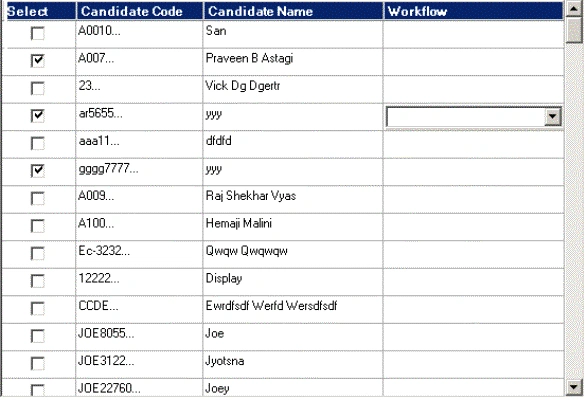
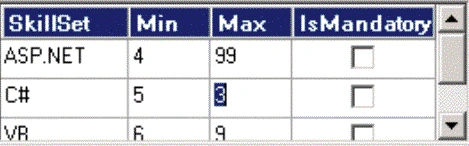
The versatile DataGrid control displays tabular data and supports selecting, sorting, and editing the data. Each data field is displayed in a separate column in the order it is stored in the database.
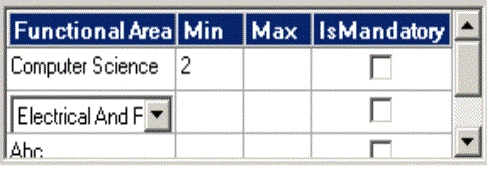
Adding Rows, columns and controls to the DataGrid dynamically
//include all the required namespaces
using System;
using System.Drawing;
using System.Collections;
using System.ComponentModel;
using System.Windows.Forms;
using System.Data;
using System.Text;
using System.Xml;
namespace Test
{
public class TestDataGrid : System.Windows.Forms
{
/// <summary>
/// Required designer variable.
/// </summary>
private System.Windows.Forms.ComboBox cmbFunctionArea;
private DataTable dtblFunctionalArea;
private DataGrid dgdFunctionArea;
}
/// <summary>
/// public constructor
/// </summary>
public frmInitialShortListing()
{
//automatically generated by the VS Designer
//creates the object of the above designer variables
InitializeComponent();
PopulateGrid();
}
private void PopulateGrid()
{
//Declare and initialize local variables used
DataColumn dtCol = null;//Data Column variable
string[] arrstrFunctionalArea = null;//string array variable
System.Windows.Forms.ComboBox cmbFunctionArea; //combo box var
DataTable dtblFunctionalArea;//Data Table var
//Create the combo box object and set its properties
cmbFunctionArea = new ComboBox();
cmbFunctionArea.Cursor = System.Windows.Forms.Cursors.Arrow;
cmbFunctionArea.DropDownStyle=System.Windows.Forms.ComboBoxStyle.DropDownList;
cmbFunctionArea.Dock = DockStyle.Fill;
//Event that will be fired when selected index in the combo box is changed
cmbFunctionArea.SelectionChangeCommitted += new EventHandlercmbFunctionArea_SelectedIndexChanged);
//Create the String array object, initialize the array with the column
//names to be displayed
arrstrFunctionalArea = new string [3];
arrstrFunctionalArea[0] = "Functional Area";
arrstrFunctionalArea[1] = "Min";
arrstrFunctionalArea[2] = "Max";
//Create the Data Table object which will then be used to hold
//columns and rows
dtblFunctionalArea = new DataTable ("FunctionArea");
//Add the string array of columns to the DataColumn object
for(int i=0; i< 3;i++)
{
string str = arrstrFunctionalArea[i];
dtCol = new DataColumn(str);
dtCol.DataType = System.Type.GetType("System.String");
dtCol.DefaultValue = "";
dtblFunctionalArea.Columns.Add(dtCol);
}
//Add a Column with checkbox at last in the Grid
DataColumn dtcCheck = new DataColumn("IsMandatory");//create the data //column object with the name
dtcCheck.DataType = System.Type.GetType("System.Boolean");//Set its //data Type
dtcCheck.DefaultValue = false;//Set the default value
dtblFunctionalArea.Columns.Add(dtcCheck);//Add the above column to the //Data Table
//Set the Data Grid Source as the Data Table createed above
dgdFunctionArea.DataSource = dtblFunctionalArea;
//set style property when first time the grid loads, next time onwards it //will maintain its property
if(!dgdFunctionArea.TableStyles.Contains("FunctionArea"))
{
//Create a DataGridTableStyle object
DataGridTableStyle dgdtblStyle = new DataGridTableStyle();
//Set its properties
dgdtblStyle.MappingName = dtblFunctionalArea.TableName;//its table name of dataset
dgdFunctionArea.TableStyles.Add(dgdtblStyle);
dgdtblStyle.RowHeadersVisible = false;
dgdtblStyle.HeaderBackColor = Color.LightSteelBlue;
dgdtblStyle.AllowSorting = false;
dgdtblStyle.HeaderBackColor = Color.FromArgb(8,36,107);
dgdtblStyle.RowHeadersVisible = false;
dgdtblStyle.HeaderForeColor = Color.White;
dgdtblStyle.HeaderFont = new System.Drawing.Font("Microsoft Sans Serif", 9F, System.Drawing.FontStyle.Bold, System.Drawing.GraphicsUnit.Point, ((System.Byte)(0)));
dgdtblStyle.GridLineColor = Color.DarkGray;
dgdtblStyle.PreferredRowHeight = 22;
dgdFunctionArea.BackgroundColor = Color.White;
//Take the columns in a GridColumnStylesCollection object and set //the size of the
//individual columns
GridColumnStylesCollection colStyle;
colStyle = dgdFunctionArea.TableStyles[0].GridColumnStyles;
colStyle[0].Width = 100;
colStyle[1].Width = 50;
colStyle[2].Width = 50;
colStyle[3].Width = 80;
}
//To add the combo box dynamically to the data grid, you have to take the // Text Box that is present (by default) in the column where u want to add //this combo box (here it is first column i.e. Functional Area).From the //tablestyles of the data grid take the grid column styles of the column //where you want to add the combo box respectively.
DataGridTextBoxColumn dgtb = (DataGridTextBoxColumn)dgdFunctionArea.TableStyles[0].GridColumnStyles[0];
//Add the combo box to the text box taken in the above step
dgtb.TextBox.Controls.Add (cmbFunctionArea);
Note:-//After these add the code to fill the details in the grid by //establishing
// connection to the server and writing necessary steps:
}//end of the class
}//end of the namespace
Edgar RenzlerPosted Oct 9, 2008, 4:24 PM
Nothing to play with. Generates the message:"Object reference not set to an instance of an object." What to do? [email protected]