

Basically this article would demonstrate in a step by step manner - how to
populate a dropdown list in ASP.NET MVC2 using Entity Framework 4.0 using View
Models and Repository Pattern.
Over the course of this article we will see how to Create View Model classes to
make strongly typed Views and how to use Repository pattern in Models - to
specify all the Querying methods required in the application.
1. Start by Creating a new Visual Studio Solution - Open a new instance of
Visual Studio 2010.
Select File -> New -> Project and from the new project dialog select ASP.Net MVC
2 Web Application -> Name it -> PopulatingDDLusingEF
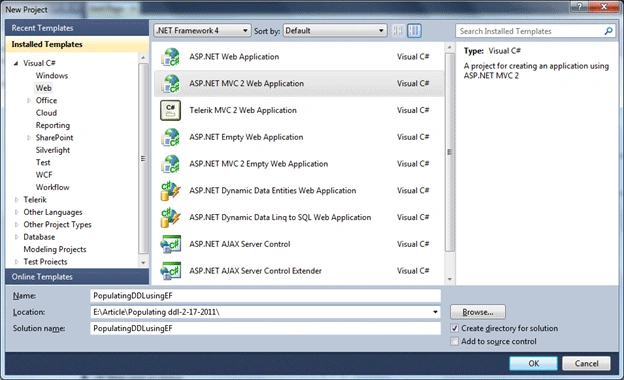
Click Ok – and for this sample application -> Select -> "No, Do not create a
unit Test Project"
2. Create ViewModel
- ViewModel can be thought as a Model - which is responsible to supply information to a View.
- We will later see while creating the Views that how ViewModels helps us to create Strongly Typed Views.
- Go to solution Explorer -> Right Click -> PopulatingDDLusingEF -> Add New Folder ViewModels -> This folder can be used for placing all the ViewModel classes.
- Right Click ViewModels -> Add Class -> IndexViewModel.cs
- Open IndexViewModel.cs
- Add the following using statement
using System.Web.Mvc;
- IndexViewModel.cs
using System;
using System.Collections.Generic;
using System.Linq;
using System.Web;
using System.Web.Mvc;namespace PopulatingDDLusingEF.ViewModels
{
public class IndexViewModel
{
//DDL ID
public string ddlStateId
{
get;
set;
}//DropDownList Values
public List<SelectListItem> StateValue
{
get;
set;
}
}
}
3. Database Part
- Here basically we will create a sample SQL Server database and table and insert some sample data which would be reflected in our dropdown list.
- For this sample application - Let us
create table by
- Right Click the App_Data folder -> Add -> New Item -> Select SQL Server database and give it some name- SampleDB.mdf - Click Add.
- Double Click SampleDB.mdf to open the Server Explorer.
- Right Click Table - Add New Table -tblState(StateId(int)-primary key , StateName(varchar(30) )
- Save- (CTRL+S) -> Give Table Name -> tblState
- Insert Sample Data - Right-click the tblState table and select option Show Table Data- Here you can enter sample data.
4. Setting up the Models
Adding Entity Framework classes
- Entity Framework is an ORM(object
relational mapper ) that ships as part of .Net 4
- From the Solution explorer -> Go to Models
folder -> Right Click Models -> Add New Item -> Select ADO.Net Entity Data
Model -> Name it -> SampleDBModel.edmx -> Click Add
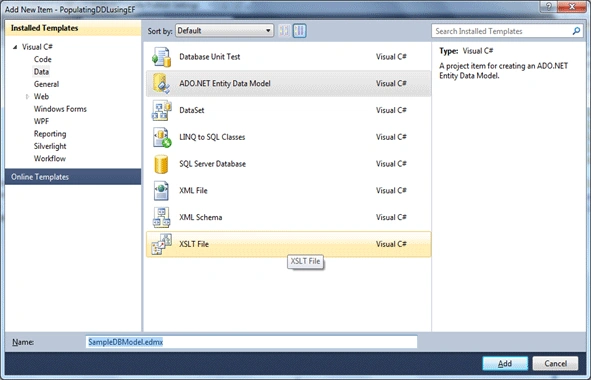
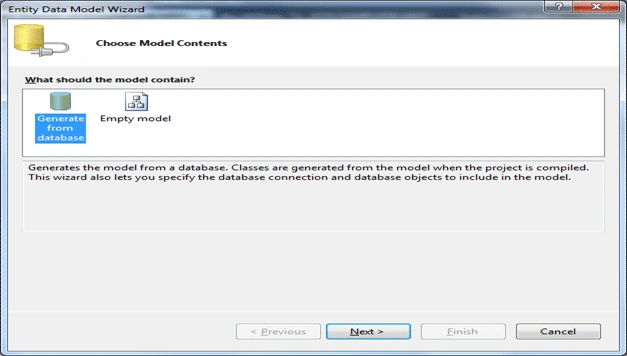
- Choose Model Contents -> Generate from
database -> Click Next
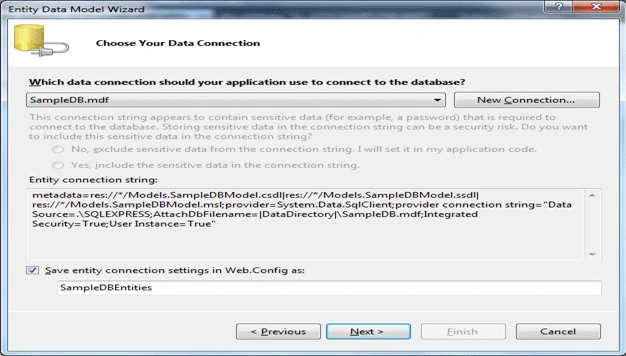
- Choose your Data Connection -> From the
dropdown you can select your database (SampleDB.mdf) -> Select Next
- Choose your database object -> Here you
can choose which all database objects you need to include in your
Models(Tables, Views, Stored Procedures)
- For this sample application - select one
table( tblState ) which we have created -> and Click Finish
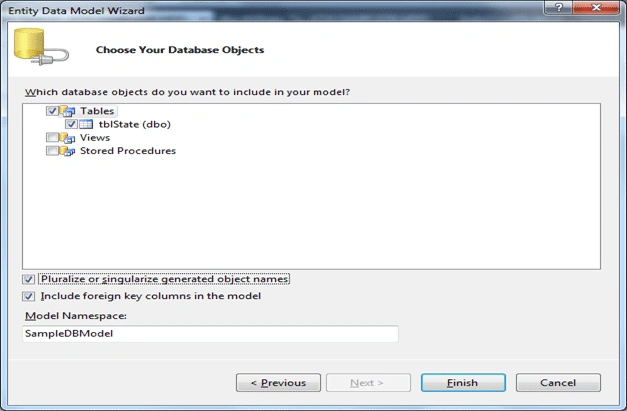
- With this our Entity Data Model is created.
Creating a Repository Class
- We will see here how to use a Repository Pattern.
- This approach using Repository class helps encapsulate data querying and persistence logic.
- In this class we can specify all the Querying methods required in our application
- Right Click Models-Add Class - DataRepository.cs
- Open DataRepository.cs
- Add the following using statement
using System.Web.Mvc;
using PopulatingDDLusingEF.ViewModels;
- DataRepository.cs
using System;
using System.Collections.Generic;
using System.Linq;
using System.Web;
using System.Web.Mvc;
using PopulatingDDLusingEF.ViewModels;namespace PopulatingDDLusingEF.Models
{
public class DataRepository
{
//Create an instance of SampleDBEntities
public SampleDBEntities entities = new SampleDBEntities();
//Fetching data from table
public List<SelectListItem> GetStateName()
{
var vStateName = (from tblState in entities.tblStates
select new SelectListItem
{
Text = tblState.StateName,
Value = tblState.StateName
});
return vStateName.ToList();
}
}
}
5. Views
- From the solution explorer -> Go to Views folder -> Home -> and Open Index.aspx
- We can strongly type this View to the
ViewModel(IndexViewMode ) - we created using the following @Page directive
<%@ Page Language="C#" MasterPageFile="~/Views/Shared/Site.Master" Inherits="System.Web.Mvc.ViewPage<PopulatingDDLusingEF.ViewModels.IndexViewModel>" %>
- This gives you benefit of a strongly typed
View(including Type Checking, Intellisense, and freedom from having to cast
Untyped ViewDataDictionary objects)
- Include a label and a DropDown List in the
View
<p>
<%:Html.Label("States:") %>
<%:Html.DropDownListFor(m=>m.ddlStateID,Model.StateValue) %>
</p>
6. Controllers
- From the solution explorer -> Go to Controllers folder -> and Open HomeController.cs
- Add the following using statement
using PopulatingDDLusingEF.ViewModels;
using PopulatingDDLusingEF.Models;
- Create an instance of Repository Class
DataRepository objRepository = new DataRepository();
- Create an instance of IndexViewModel
IndexViewModel objIndexViewModel = new IndexViewModel();
- HomeController.cs
using System;
using System.Collections.Generic;
using System.Linq;
using System.Web;
using System.Web.Mvc;
using PopulatingDDLusingEF.ViewModels;
using PopulatingDDLusingEF.Models;
namespace PopulatingDDLusingEF.Controllers
{
[HandleError]
public class HomeController : Controller
{
//Create the object of the Repository Class
DataRepository objRepository = new DataRepository();
public ActionResult Index()
{
//Creating an instance of IndexViewModel
IndexViewModel objIndexViewModel = new IndexViewModel();
objIndexViewModel.StateValue = objRepository.GetStateName();
ViewData["Message"] = "Welcome to ASP.NET MVC!";
//Pass the instance of ViewModel to the View
return View(objIndexViewModel);
}public ActionResult About()
{
return View();
}
}
}
7. Compile and run the Project (F5)
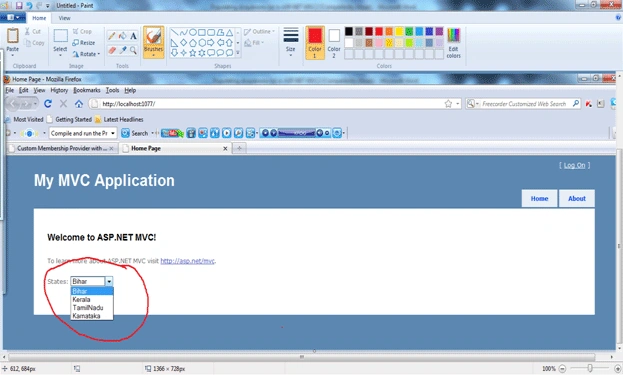
In this tutorial you have seen how to populate a dropdownlist in ASP.NET MVC by
taking the advantage of Microsoft Entity Framework, ViewModel class and
Repository pattern.
I have attached the Code for this Sample application.
Happy Learning!!
vineet sharmaPosted Nov 1, 2014, 8:21 AM
awesome bhai.
zakir hossanPosted Oct 24, 2013, 12:02 AM
Thanks, But I want to save the data which in the drop down list into another Table of same database through Create view . How Can I do That? Please help...
Tshering PhuntshoPosted Jan 26, 2012, 12:45 AM
the article thatou have posted has really helped me a lot. now my problem is that how can i retrive the id or value from the selected item from dropdowlist and store it in the database.
sanu palPosted Sep 6, 2011, 4:00 AM
Kumar Saurabh your article helps me to shortout my problem, i m new in mvc . Thanks
JoePosted Aug 13, 2011, 3:24 AM
Hi, Can you write about how to fill dropdown in controller? instead of '<%:Html.DropDownListFor(m=>m.ddlStateID,Model.StateValue) %>' fill Dropdownlist in controller. Thanks.
saul aquinoPosted Aug 2, 2011, 11:11 AM
solve it, all you needed was to add: <PopulatingDDLusingEF.ViewModels.IndexViewModel> to the master page, would look like: <%@ Page Language="C#" MasterPageFile="~/Views/Shared/Site.Master" Inherits="System.Web.Mvc.ViewPage<PopulatingDDLusingEF.ViewModels.IndexViewModel>" %> a good tutorial, thanks =)
saul aquinoPosted Aug 2, 2011, 10:49 AM
Hello friend, sorry for the inconvenience, but I get error at the hearing, the line to add: <%: Html.DropDownListFor (m => m.ddlStateID, Model.StateValue)%> error StateValue Could you please help me.
Sahil JaniPosted Mar 7, 2011, 12:24 AM
Thanks for giving this article. Its realy very help-full.
ashutosh kumarPosted Feb 18, 2011, 1:29 AM
Thanks, it helped