

Introduction
Power Apps provides modern layout controls to build responsive and professional user interfaces with minimal effort. One of the most powerful layout controls is the Grid Container, which helps developers design structured, flexible, and responsive screens without complex formulas.
In this article, we will explore the Grid Container in Power Apps, understand its properties, and learn how to use it step by step.
What Is a Grid Container in Power Apps?
A Grid Container is a layout control that arranges child controls in rows and columns, similar to a table or CSS grid. It automatically adjusts spacing and alignment, making apps responsive across different screen sizes.
Key Benefits
Responsive layout design
Clean and structured UI
Step 1: Create a New Power Apps Canvas App
Click Create
Select the Canvas app from the blank
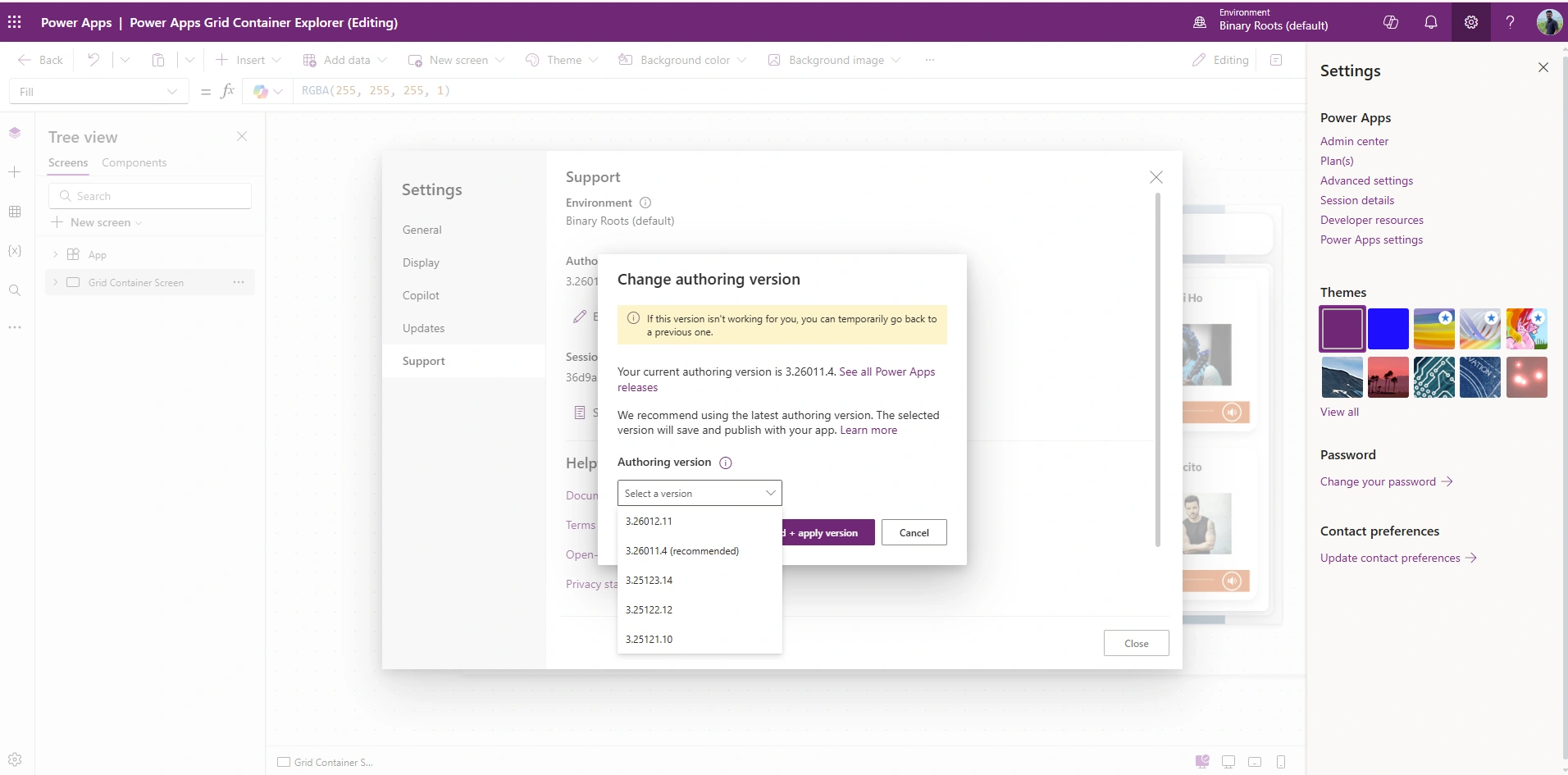
Authoring Version Latest
Step 2: Insert a Grid Container
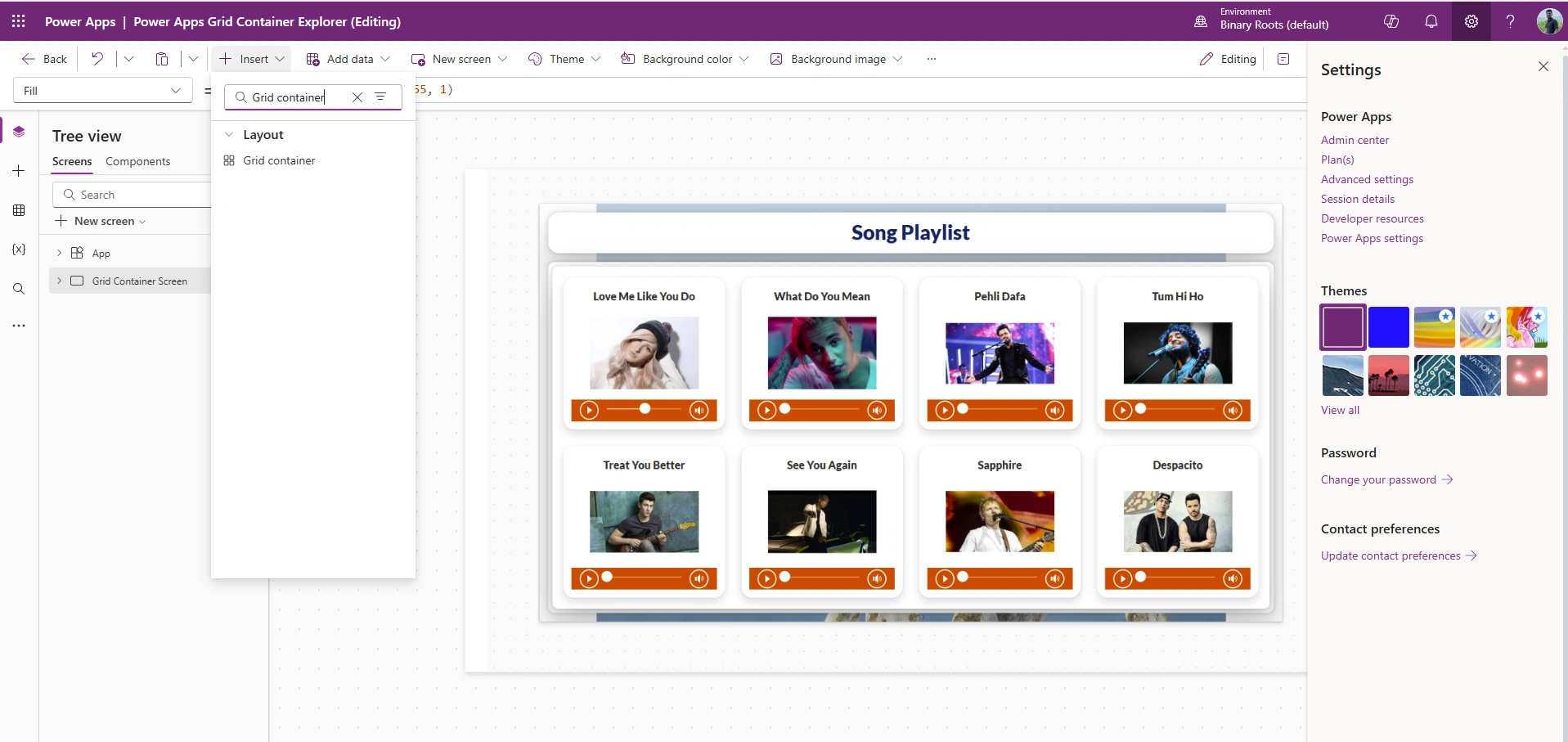
Open the Insert menu
Search Grid container
The Grid Container will be added to the screen
Step 3: Configure Grid Properties
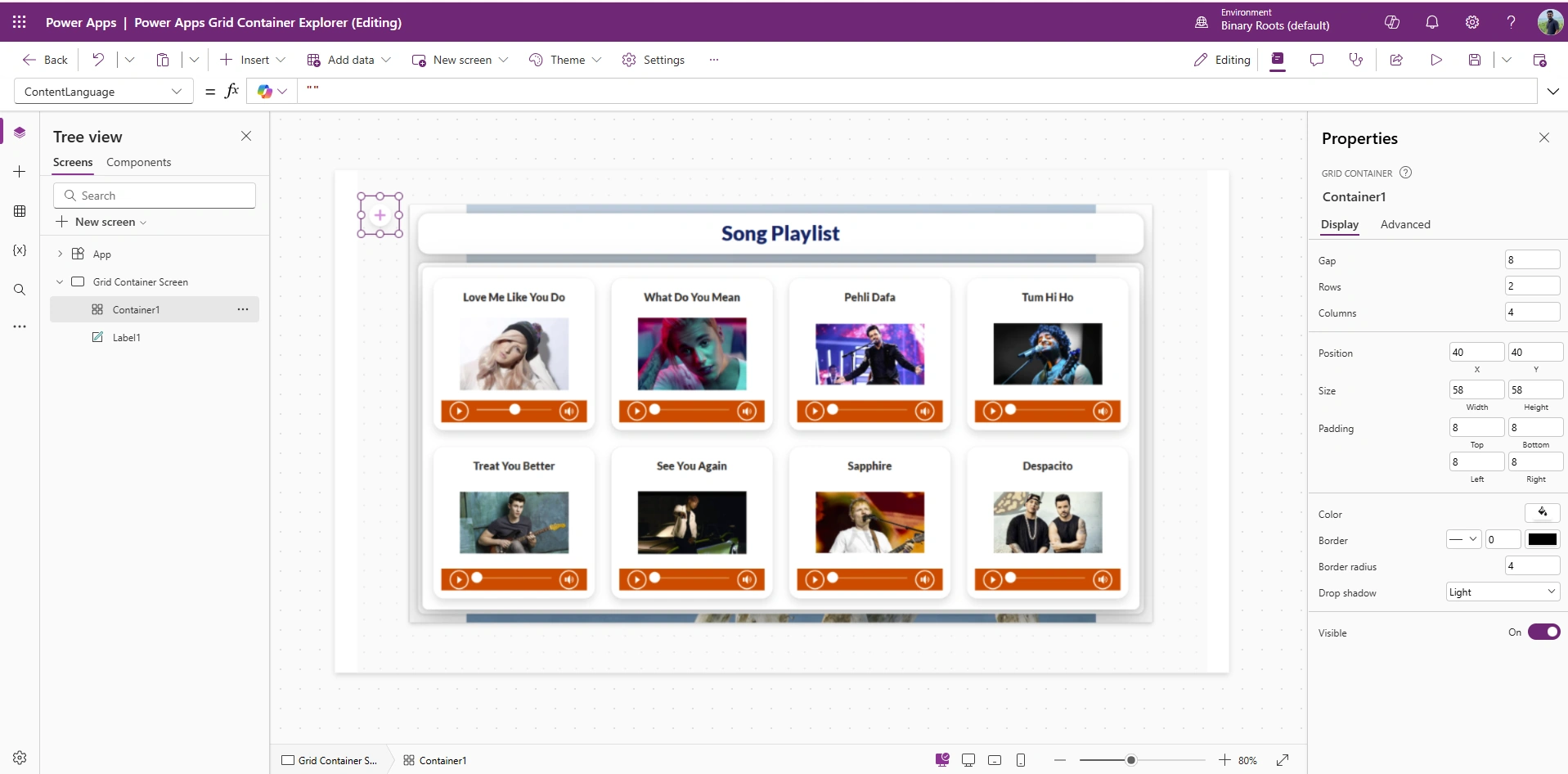
Select the Grid Container and set the following properties from the Properties pane:
| Property | Value | Description |
|---|---|---|
| Columns | 4 | Number of columns |
| Rows | 2 | Automatically adjusts rows |
| Gap | 8 | Space between controls |
| Width | 58 | Width |
| Height | 58 | Height |
Step 4: Add Controls Inside the Grid
Select the Grid Container
Insert controls such as:
Label
Image
Audio
Each control automatically occupies a grid cell
Step 5: Adjust Column and Row Behavior
You can fine-tune layout behavior by:
Changing column widths
Reordering controls
Adjusting alignment (Start, Center, End, Stretch)
This allows precise UI control without using X and Y positions.
Step 6: Make the Grid Responsive
To ensure responsiveness:
Set Width = Parent.Width
Set Height = Parent.Height
Use Auto height for text-based controls
Avoid fixed pixel values where possible
The Grid Container automatically adjusts on different devices.
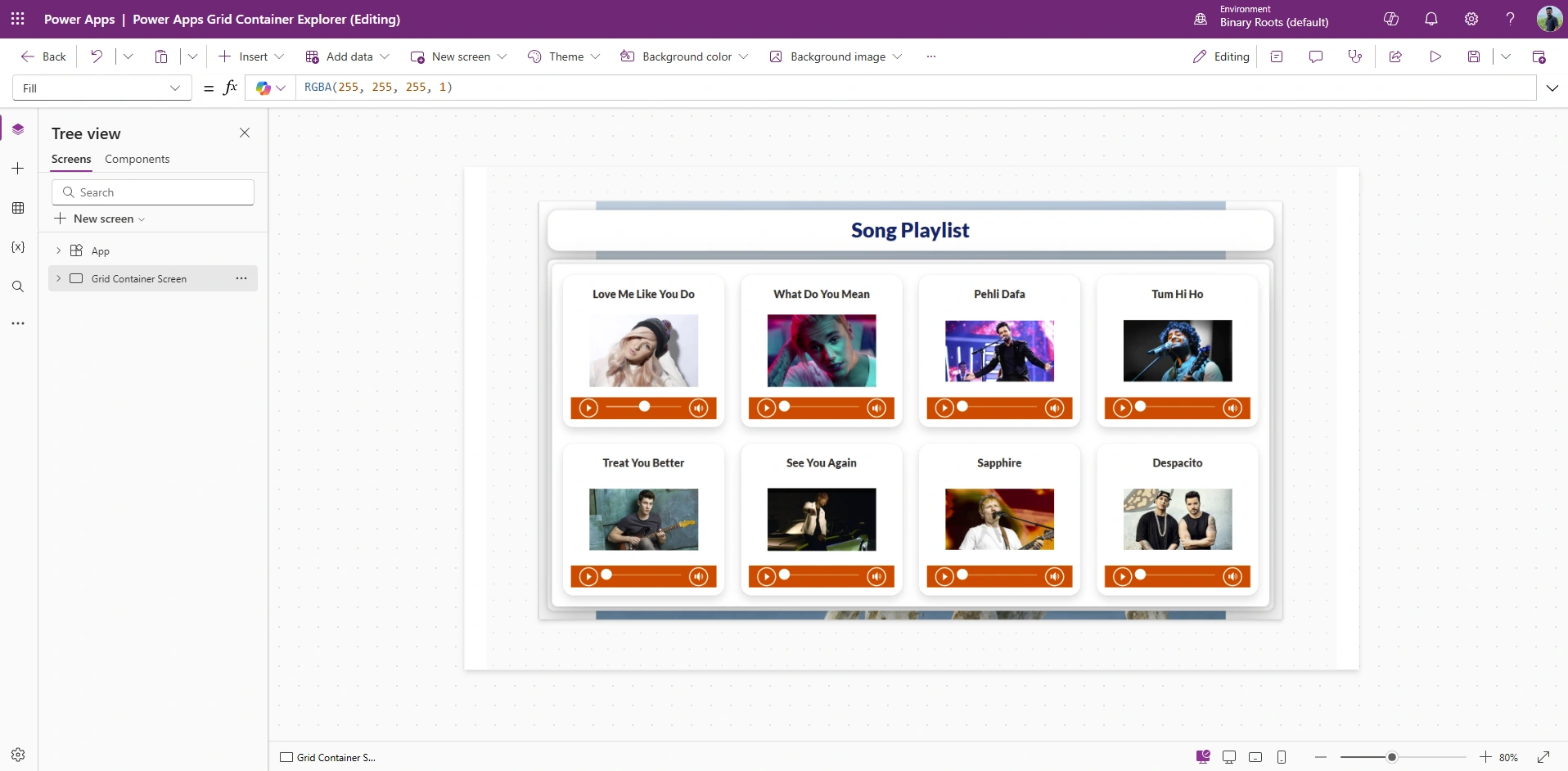
Step 3: Demo- Song Playlist
Conclusion
The Grid Container in Power Apps simplifies layout management and ensures responsive design. By using it effectively, developers can create clean, scalable, and professional apps with minimal effort.
Join the conversation! Your thoughts help the community grow.