

When working with systems—or even with people—the quality of the input plays a crucial role in determining the output.
Just like giving vague instructions to someone and expecting perfect results is unrealistic, providing unclear or poorly structured input to a system will lead to inaccurate or subpar outcomes.
Whether you're dealing with a human or an AI, the principle is the same: clear, well-formatted input leads to reliable and high-quality output.
Why Prompts Are Important in Enterprise Automation:
Accurate Prompts = Accurate Result
Inconsistent or vague prompts can lead to incorrect data, confused conversations, or automation failures. Precise prompts reduce the risk of errors and increase confidence in the automation system.
Prompts Drive Personalized Experiences
Good prompts can help the AI respond in a context-aware and personalized manner. For example, a prompt can instruct the AI to greet the user by name, reference prior interactions, or adjust responses based on user roles.
Consistency Across Departments
When teams use standardized prompts (especially in Copilot Studio), they ensure consistent messaging and workflow logic across HR, IT, Finance, and Customer Service.
How to create a prompt library in your Org:
Microsoft provides a way to create and store prompts related to your org and share them within Teams.
To create a prompt library in Microsoft Copilot Studio, go to the Power Automate app. Click on “More” in the left-hand navigation pane, and you'll see an option called “Prompts.”
From there, you can create and store multiple reusable prompts that can be used across different flows and Copilot agents within your organization. This helps ensure consistency, efficiency, and standardization in how your AI assistants interact.
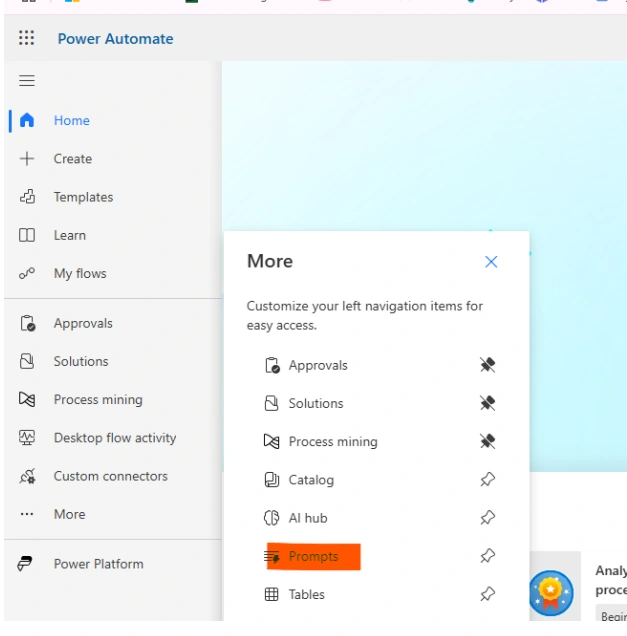
Same list of prompts you can also use in Copilot Studio for agents or in Microsoft 365 Copilot.
How to use prompts for Copilot:
If you are using Copilot studio you might be thinking that all those prompts you can see by default by Microsoft that is true but you can customize that and add your own. Click on see more buttons below chat box.
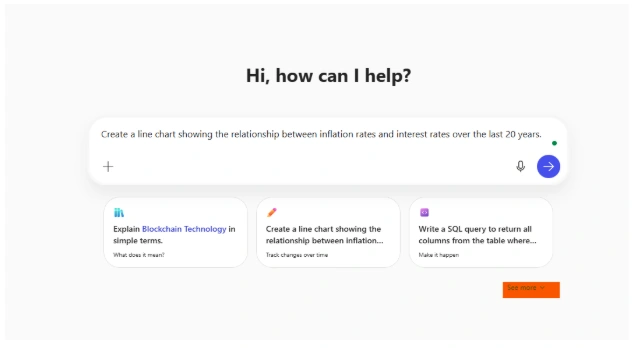
You will then see the Prompt Gallery, which gives you access to Microsoft’s collection of ready-to-use prompts. You can also create your own custom prompts and share them within your organization, making it easy to maintain consistency and reuse across teams and solutions.
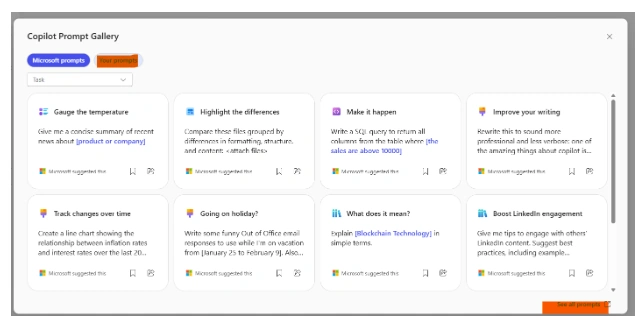
Once you create prompts, they will be visible everywhere within the organization.
How do I take a prompt and make it my own?
The Prompt Gallery is like a toolbox filled with ready-made ideas, you don’t have to start from scratch. Microsoft gives you editable prompts with clear placeholders like [file] or [your title] that act as your starting points. But the real magic? You’re not limited to just filling in the blanks.
You can reshape the entire prompt, weak the goal, adjust the context, set different expectations, or even change the source to perfectly match your business scenario. It’s flexible by design, so your AI speaks your language, not just Microsoft’s.
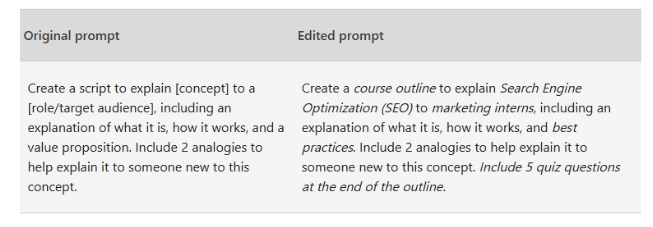
Cooking up a great prompt:
1. Be Clear About What You Need
Copilot works best when you give it a clear and specific instruction. Instead of saying "Summarize this," try “Give me a concise summary of recent news about [Product X].” Treat it like a smart teammate—clarity is key.
2. Use the 4 Key Ingredients
Great prompts include:
Goal – What should Copilot do?
Context – Background info to guide it
Source – File or content to use
Expectation – Format or tone you want
This makes the output more accurate and useful.
3. Keep the Conversation Going
Don’t stop at one prompt. Ask follow-ups, request changes in tone, or go deeper into a topic. This helps refine the response just like you would with a human assistant.
4. Smart Prompting Tips
Provide enough context
Use clear grammar and punctuation
Put quotes around exact text
Type "new topic" when changing tasks
These habits lead to better and faster results.
Conclusion
Prompts are the key to getting the best results from Microsoft Copilot Studio. Clear, goal-driven instructions help the AI deliver accurate, useful responses. Using tools like the Prompt Library and Prompt Gallery, teams can create, reuse, and share effective prompts. With the right input, Copilot becomes a powerful assistant—boosting productivity and consistency across your organization
Join the conversation! Your thoughts help the community grow.