

Introduction
In this article, we will see how we can deploy Power Platform components like Apps and Flows, along with connection references and environment variables with Solutions. What are some real-life issues and challenges in deploying Power Platform Solutions, and how to handle these challenges?
What is a Solution?
As per Microsoft's definition, “Solutions are used to transport apps and components from one environment to another or to apply a set of customizations to existing apps. A solution can contain one or more apps as well as other components such as site maps, tables, processes, web resources, choices, flows, and more. Solutions are the mechanism for implementing application lifecycle management (ALM) in Power Apps and other Power Platform products, such as Power Automate.”
Types of Solution
There are 2 types of solutions (managed and unmanaged). Unmanaged solutions are used in Development environments where you can edit the components like apps, flows, and environment variables within the solution. Managed solutions are used in UAT (User acceptance testing) and Production environments where editing of solution components is not allowed.
Solution structure.
When you create a solution, you can see the following fields. Display name (This can be changed later), Name (internal name), Created (Date when created), Version (the current version of solution), Managed (shows whether the solution in the current environment is managed or unmanaged. It is No in Development environment)

Solution components
We can have all our components like Power Apps app, Power Automate flow, connection references, and environment variables inside a solution.
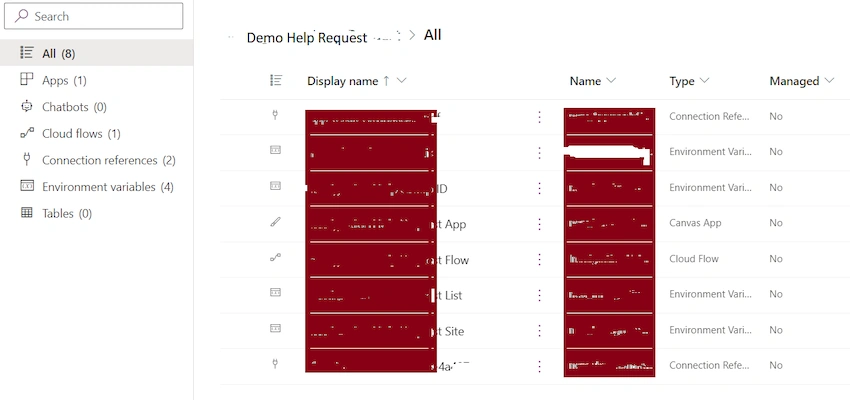
Below is the image of our Demo Help Request solution where we have 1 canvas app, 1 cloud flow, 2 connection references, and 4 environment variables.
It has the Display name of components, Name (internal name), Type, and Managed property. In the Development environment, Managed is No, but it will show Yes in a Production environment.
Environment variables
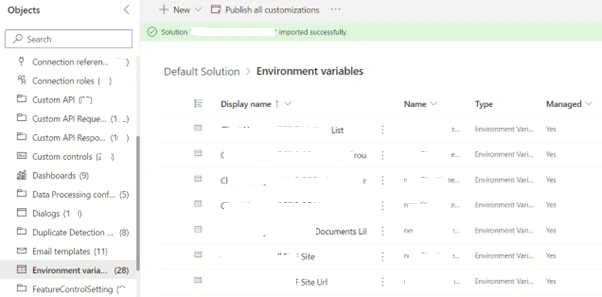
For passing dynamic variables from one environment to another, we use environment variable. For example, SharePoint site, list, site URL, group ID, etc.
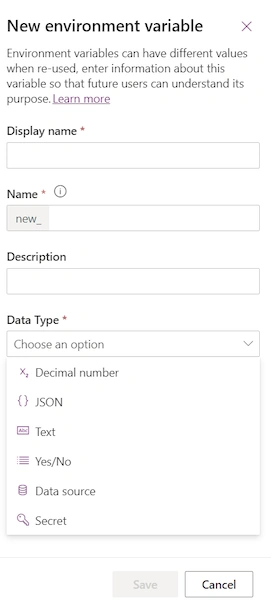
When you create a new environment variable, you get the following Data Types:
- Decimal Number: If you want to pass any numeric value through environment variables, use this data type. For example, if you are using SharePoint group ID in your flow and it is different in different environments, then you can use this type of variable.
- JSON: If you want to pass any dynamic JSON value between environments.
- Text: If you want to pass any dynamic string value between environments. For example, SharePoint site URL is different for different environments.
- Yes/No: If you want to pass any dynamic Yes/No value between environments.
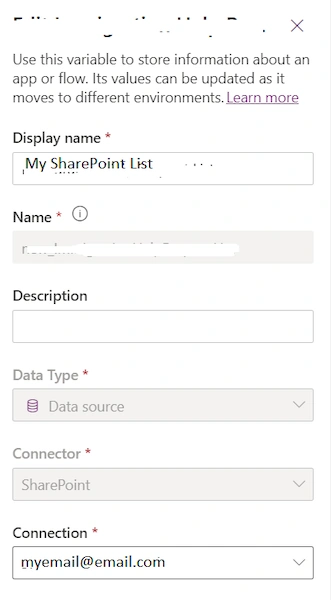
- Data Source: When you are passing data sources like SharePoint as variables. We will cover it in detail in the next section.
- Secret: For passing passwords etc.
Data Source Environment variables
This is a special type of environment variable. Here we get 3 predefined data sources.
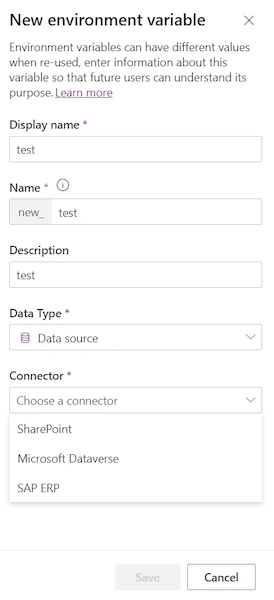
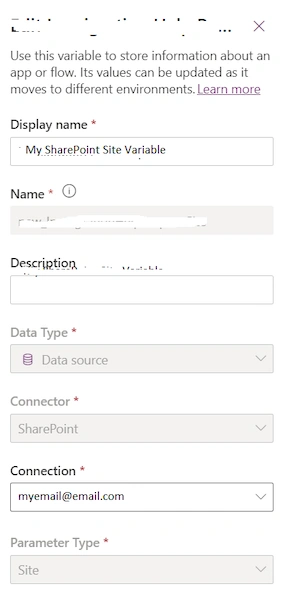
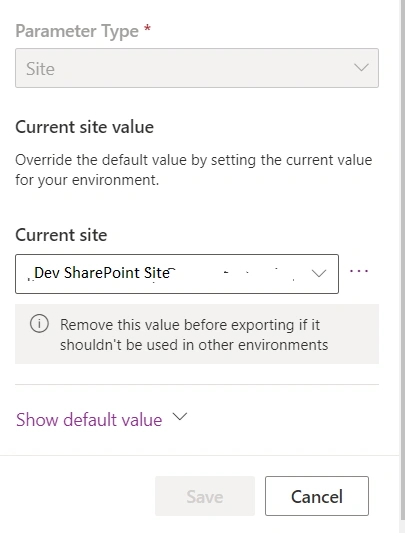
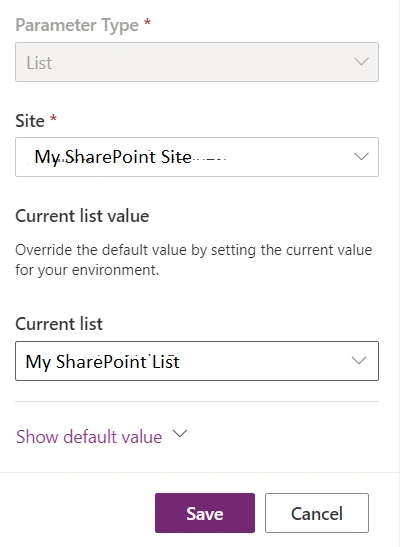
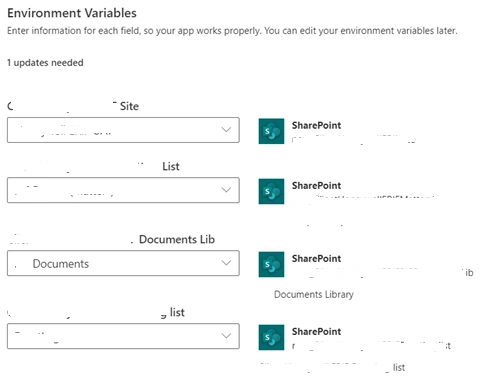
SharePoint, Microsoft Dataverse, and SAP ERP. I am going to give more information about SharePoint data source here. For SharePoint, you can add a variable of type Site where you can set the current value to the site of your current environment. Second, you can add a variable of type List where you can set the current value to list or library inside your SharePoint site.
Join the conversation! Your thoughts help the community grow.