

Introduction
It is an interesting concept to create nested galleries in PowerApps. Nested galleries are replacements of groups by the feature of SharePoint. Two levels of galleries will be built inside one another which could also be expanded and shrinked.
Scenario
We will look at how to create nested galleries that could shrink, expand, and populate data on the same screen. We could navigate from data to open details on the form.
Objective
Power Apps may transform table data from a collection or data source into an Excel-openable CSV file.
In this article, I'll show you how to create nested galleries, populate the date, open the data details in the form, highlight the gallery items, and expand/shrink the gallery item.
To proceed with this solution, we would need 4 controls which are given below.
- Blank Flexible Height Gallery: Instructor.
- Vertical Gallery: Status.
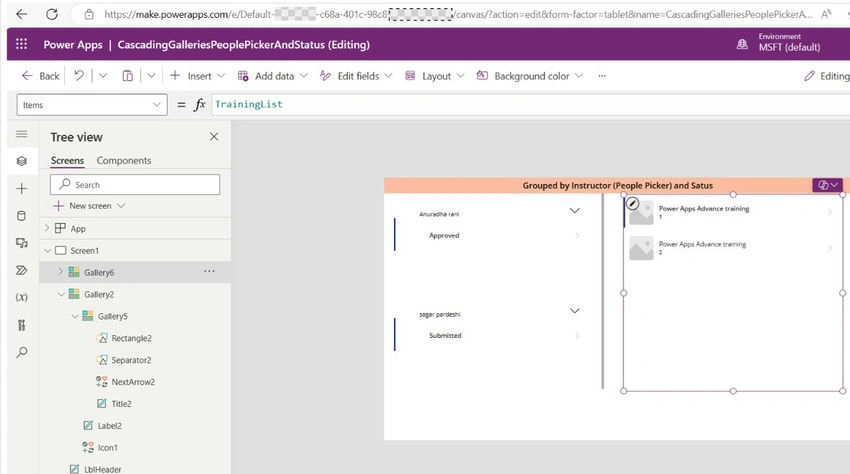
- Gallery to represent Data.
- Icons and Labels.
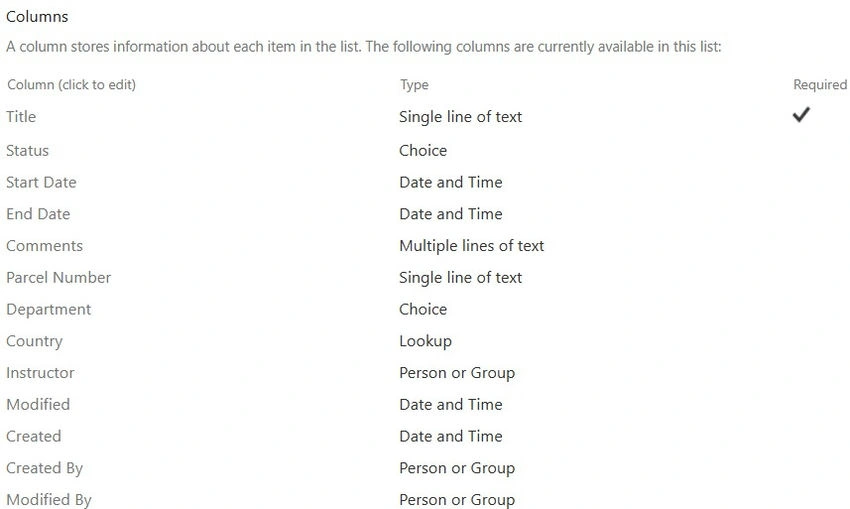
Step 1. A SharePoint list is created.
Make a new SharePoint list to hold the training information.
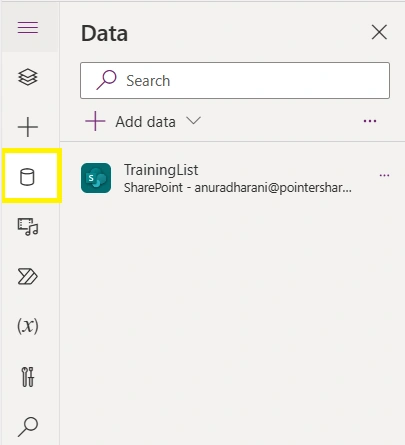
Step 2. Connect to Data Source.
Include the datasource TrainingList, which is a SharePoint list.
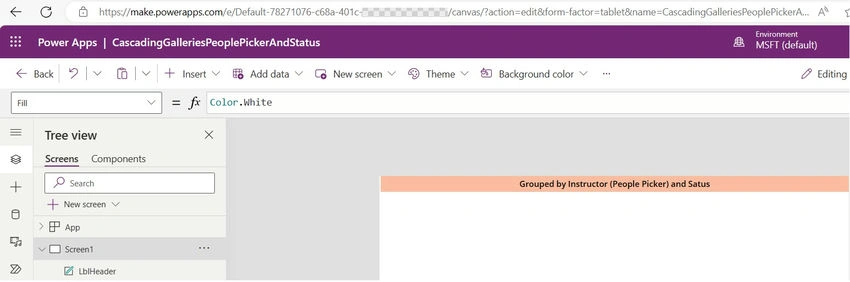
Step 3. Design the screen and Build the First Gallery.
Add a label and its title, as shown in the screenshot below.
Add a Blank flexible height gallery.
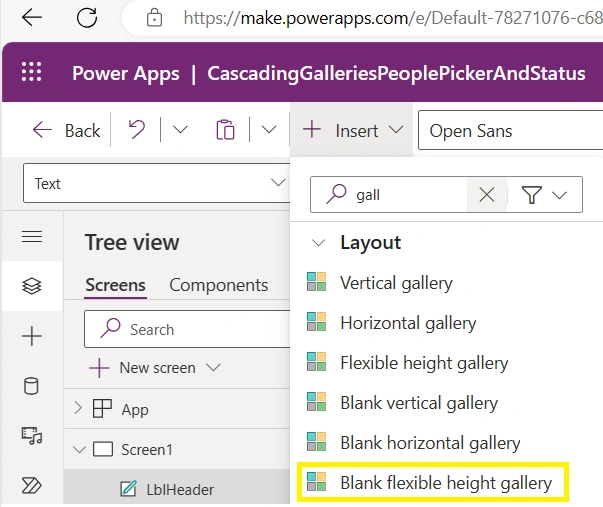
When we add the gallery, the Gallery prompts us to add its data source.
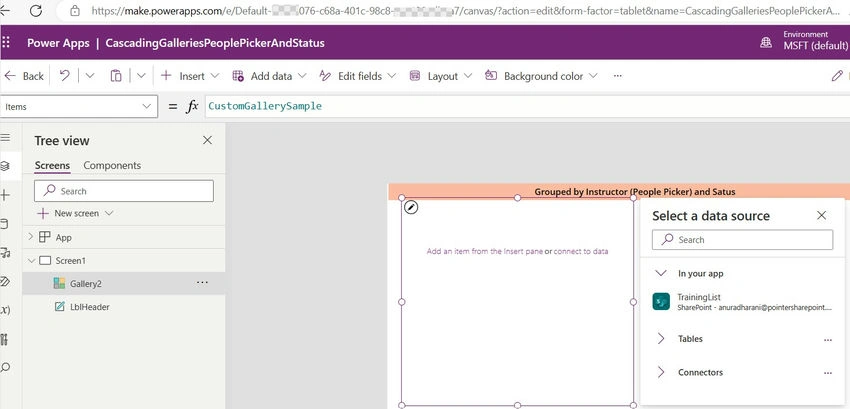
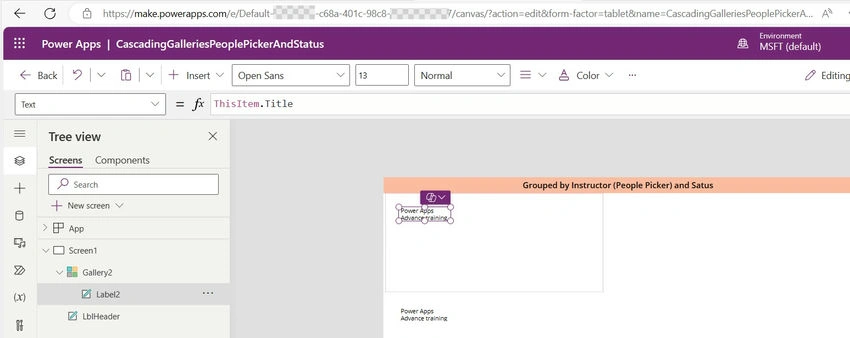
After selecting the data source the gallery will be blank as shown below. It will not add anything because it is a blank gallery. To show data we would need to add labels. To add labels first select the gallery. Once we add labels, title or any other column will be linked by default. The screen will look like as shown below. In below screen two of the values on the gallery label are shown which are coming from the list Title column value.
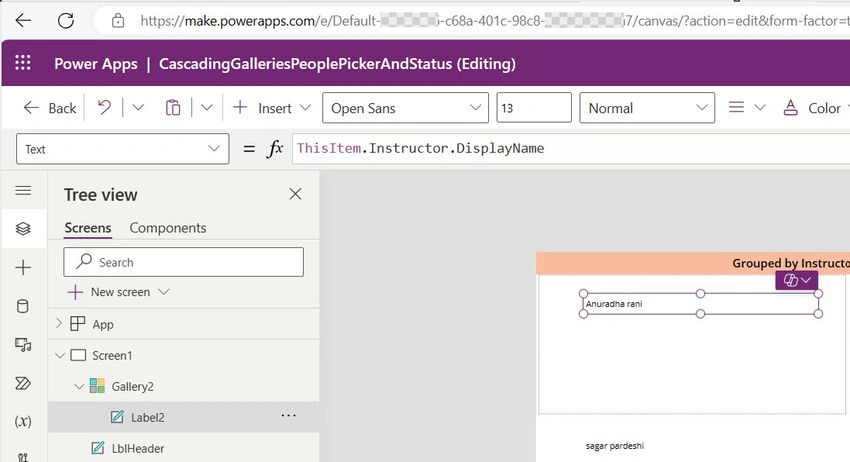
Step 4. Make the first Group by People picker, which is the Instructor column.
Since My first level of group should be from the people picker column, I shall be making the reference to that column which is in this case is Instructor column.
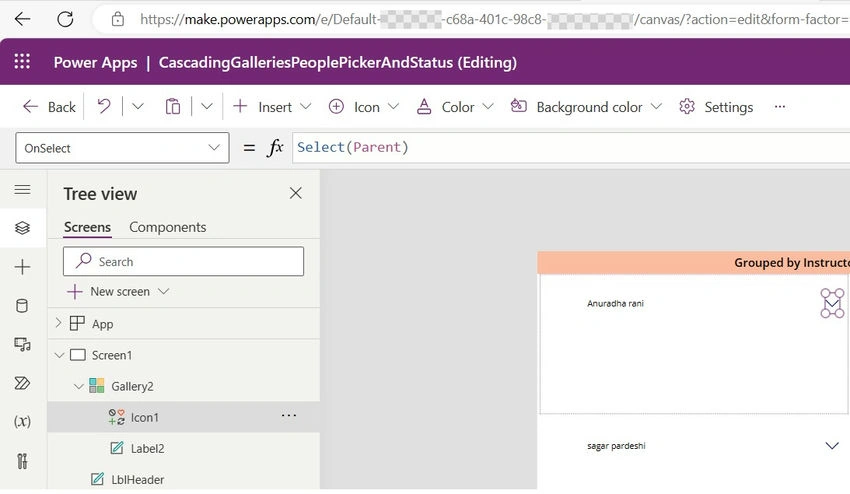
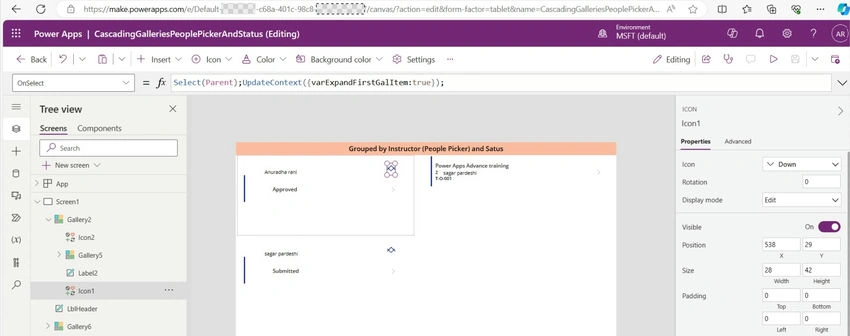
Step 5. Add Down Arrow.
Step 6. Add a second gallery.
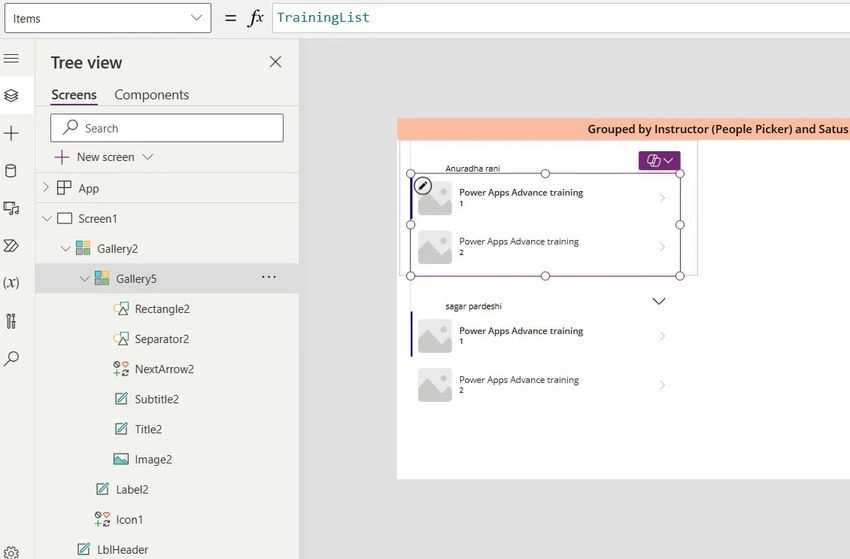
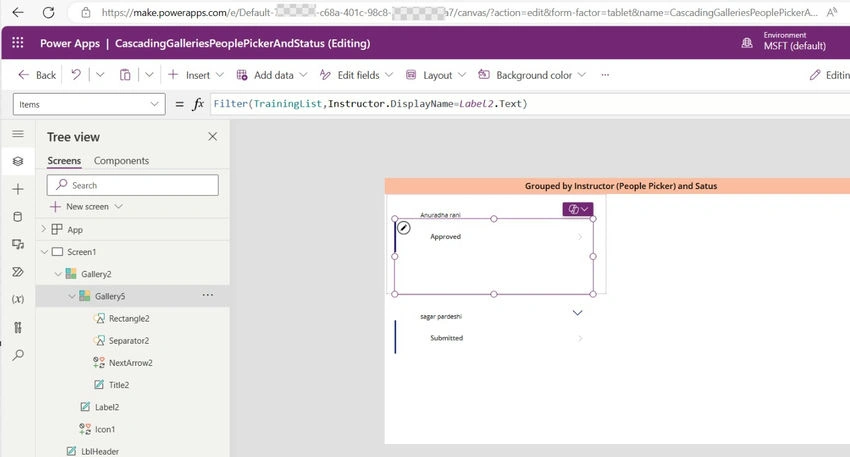
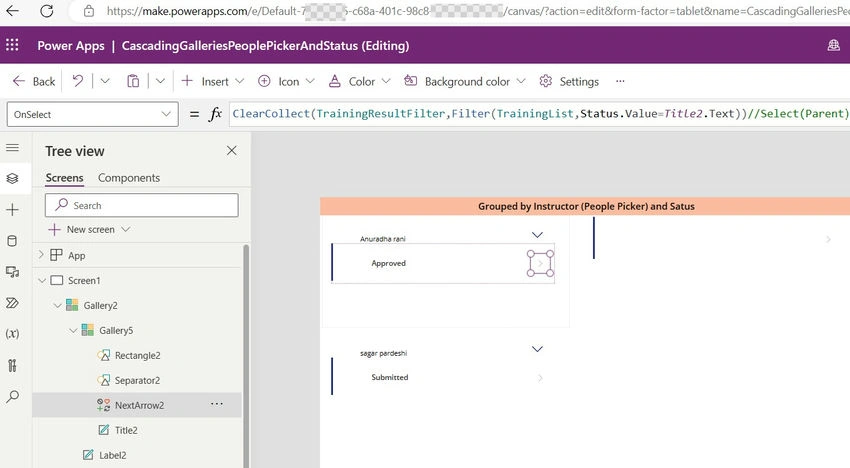
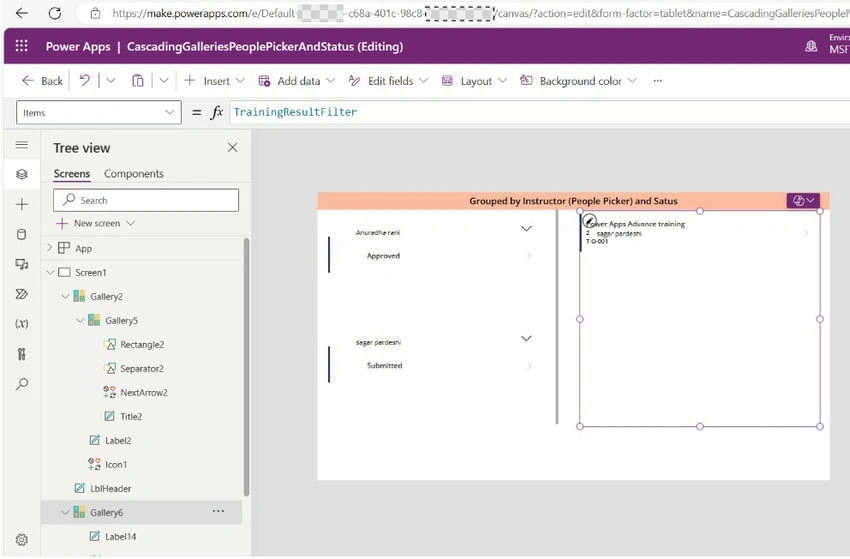
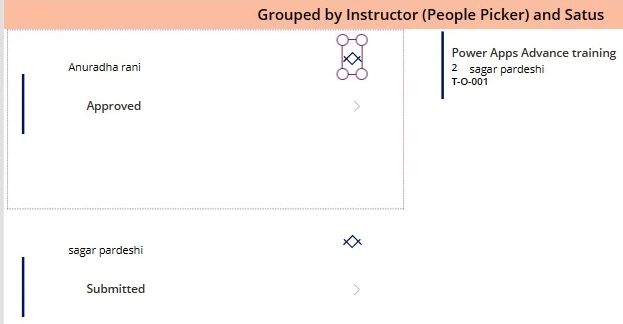
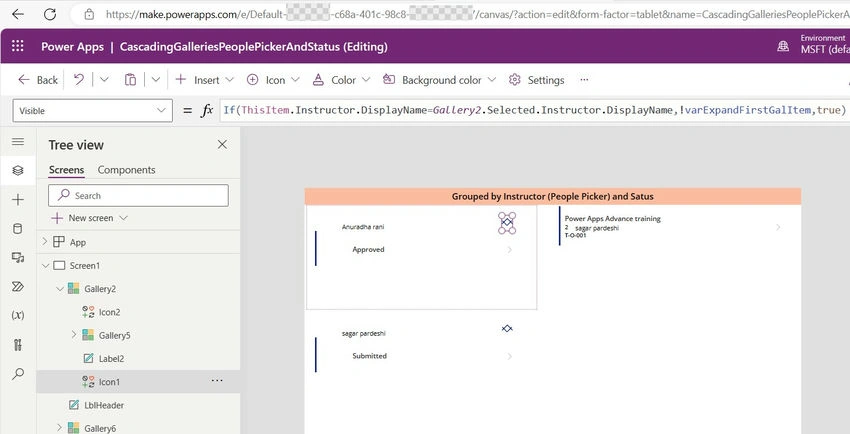
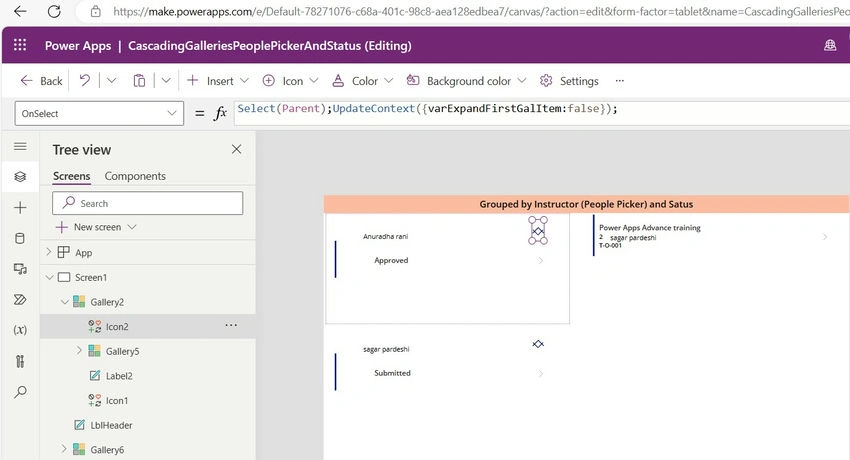
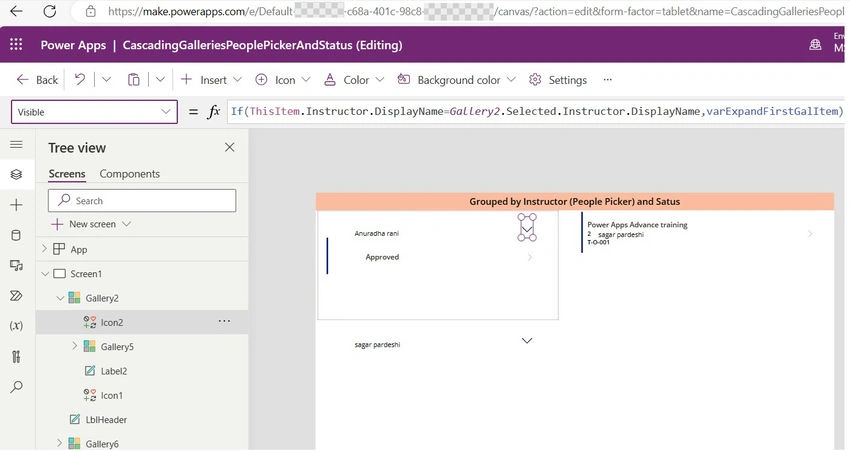
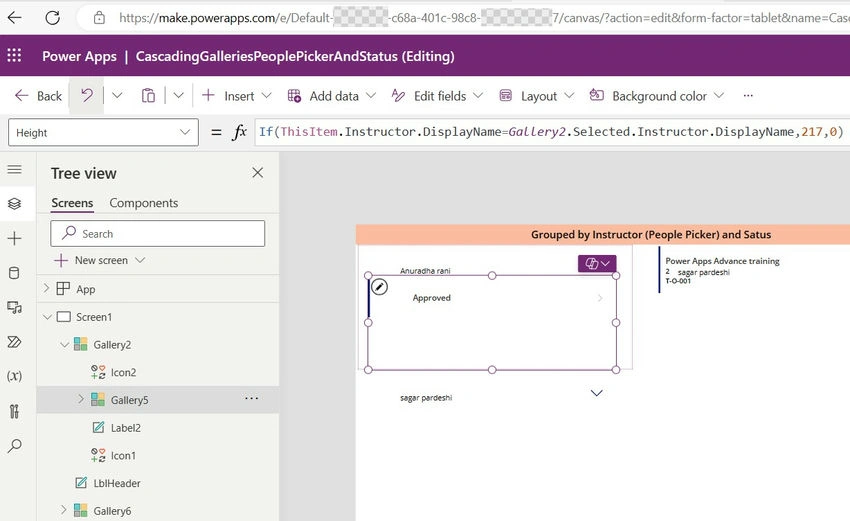
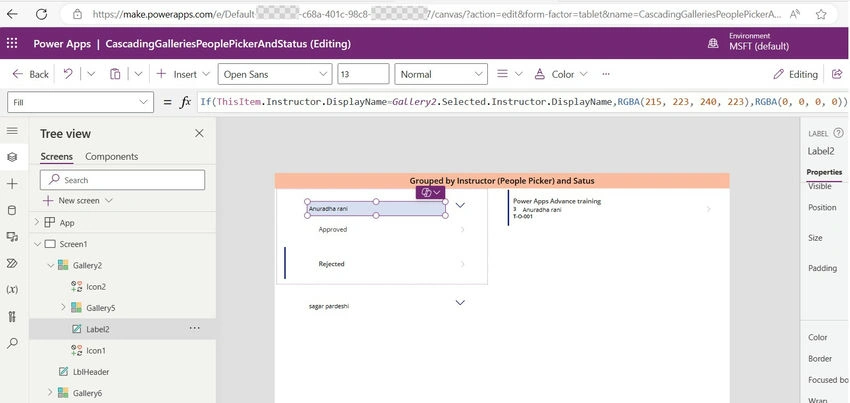
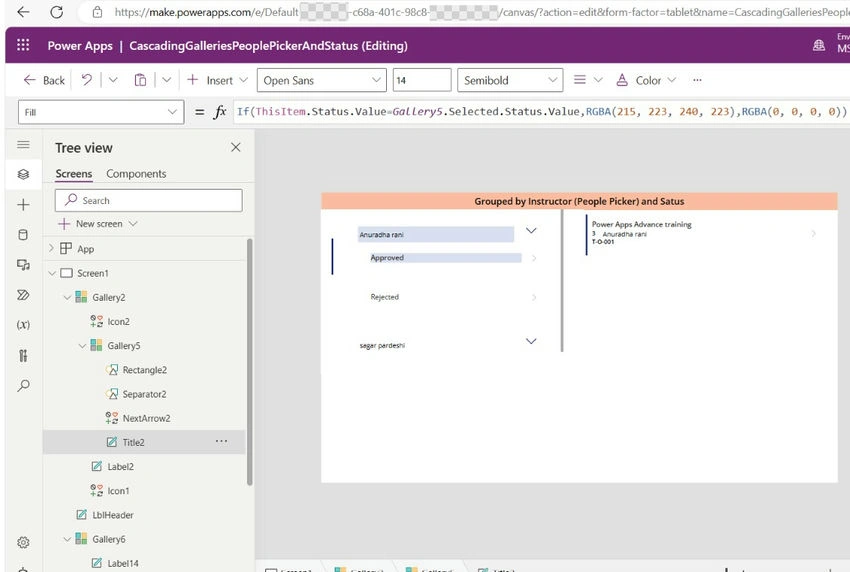
The second gallery will be a vertical gallery which will be inside the first gallery. The second gallery will be inside the first gallery which will make it a nested gallery. After adding the second gallery align the arrow and pull the second gallery width according to the need so that as required we can see both gallery scroll bars. In the screenshot below we can see the light dotted line of the first gallery and the second gallery is selected.
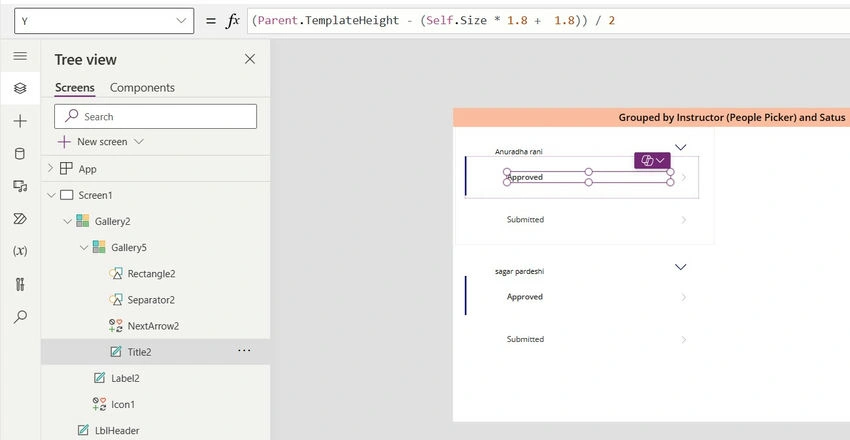
Similarly like the first gallery data source needs to be added in the second Gallery. Since it is a vertical gallery, the label will be added automatically and we would need to populate the desired column value. Here in my case, I will be populating status values which would look like below.


Join the conversation! Your thoughts help the community grow.