

Introduction
This article explains MVC in ASP.Net. I will only show the practical (programmatic) approach of learning ASP.Net MVC. In this article I am not paying much attention to the theory.
The first question is, what is ASP.Net MVC?
“The Model-View-Controller (MVC) architectural pattern separates an application into three main components: the model, the view and the controller. The ASP.NET MVC framework provides an alternative to the ASP.NET Web Forms pattern for creating Web applications.” Microsoft
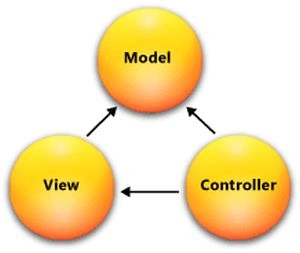
The image above shows the graphical representation of the MVC architecture. For more information click here.
Installing MVC in our machine
Before installation we first need to check which version of MVC is already installed in our machine because if you install Visual Studio then some version of MVC is already installed. To determine the version of MVC installed on your machine use the following procedure.
Go to "Control Panel" then click on "Programs and Features" then scroll and search Microsoft MVC. I hope you get something like the following image.
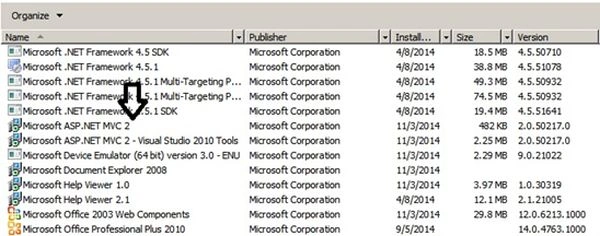
That indicates that only MVC 2 has been installed on that machine. Click the following links to download and install MVC4 and MVC5 templates.
Click here to download MVC4
Click here to download MVC5
Create MY First MVC application
Open Visual Studio (in this example I am working with Visual Studio 2013) then go to the New Project under the web tab then select ASP.NET MVC 4 web application. Provide a proper name and click OK.
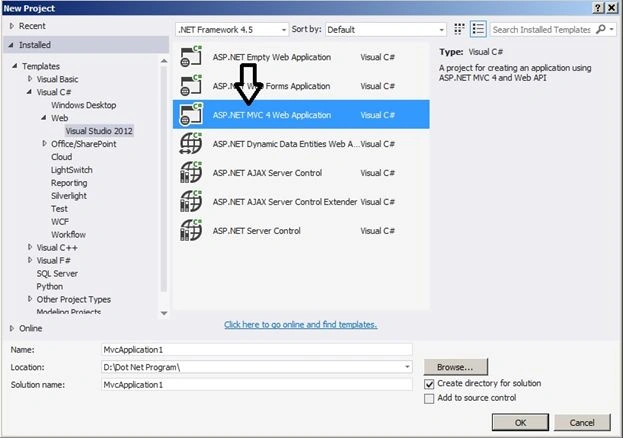
After clicking OK the following window appears.
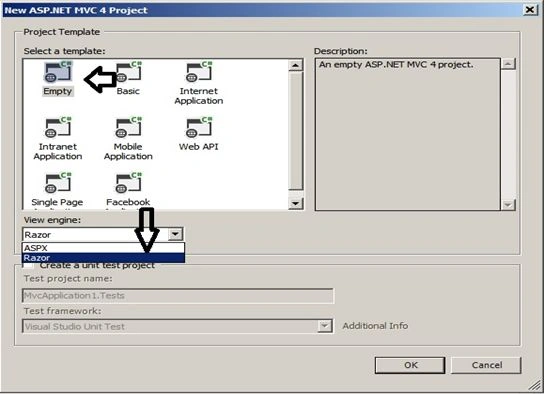
Select Empty template and view engine as Razor. Razor is preferred by most MVC developers. We will discuss the Razor View Engine in detail in a later part of this tutorial. By default there are two view engines, ASPX and Razor, supported by MVC. If you want you can install other view engines also and use those engines.
Now click on Ok. Then our project solution will look as in the following:
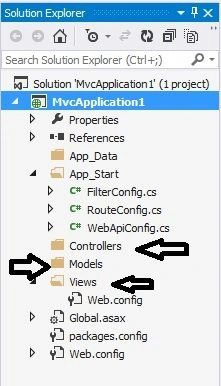
As our solution is showing there are three main folders, Models, Views and Controllers. The MVC architecture is based on this folder. The Views contains the UI code that we need to show to our end user.
The controller is supposed to be the handler that executes the view request depending on the needs of the user.
The Models folder contains mainly the code that communicates the database or other services.
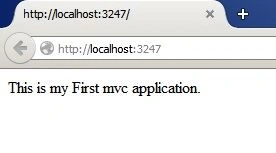
Our solution is now ready. We will create our first MVC application. This application will just show the static message with the version of MVC we are using.
Right-click on the Controllers folder then click on Add => Controller then the following window appears. Provide the proper controller name, say “Home”. Select Empty MVC Controller. Click on OK.
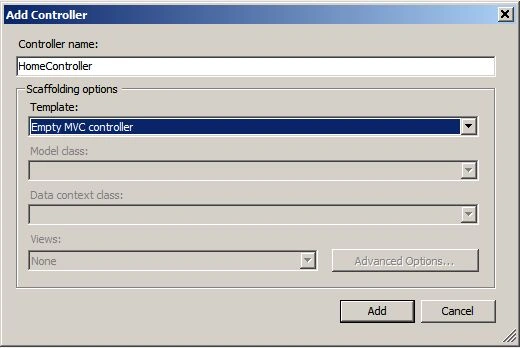
Don't worry about the other the things, we will discuss them in future sessions. The following code will be generated automatically:
- namespace MvcApplication1.Controllers
- {
- public class HomeController : Controller
- {
- //
- // GET: /Home/
- public ActionResult Index()
- {
- return View();
- }
- }
- }
Nilesh MorePosted Dec 23, 2016, 5:37 AM
Its really very nice start for beginners.. Thank You
SubashPosted Sep 8, 2016, 12:58 AM
Thanks sir easy for beginners
Manish Kumar ChoudharyPosted Jan 13, 2015, 12:22 AM
Thanks Venkat Kumar sir.
Venkat KumarPosted Jan 13, 2015, 12:18 AM
This is very good article for beginners.... Keep on posting continuation articles
Manish Kumar ChoudharyPosted Dec 10, 2014, 2:02 AM
Thanks Joginder Banger sir..
Joginder BangerPosted Dec 10, 2014, 2:00 AM
Good job sir