

Let's return to the ASP.NET tips and trick series. We are once again going to learn a new trick related to GridView. Previously I posted the following articles related to GridView.
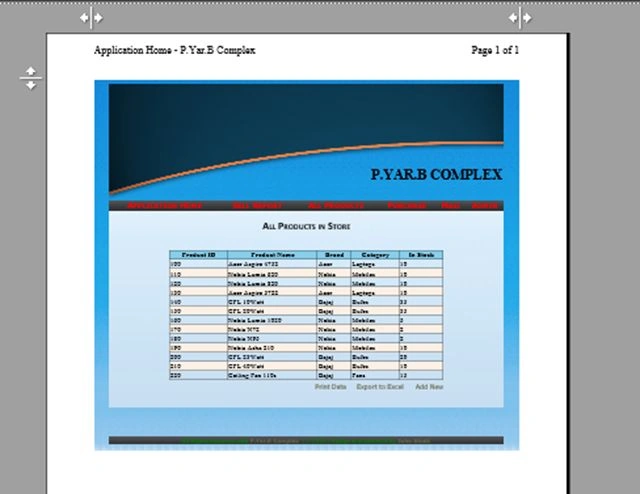
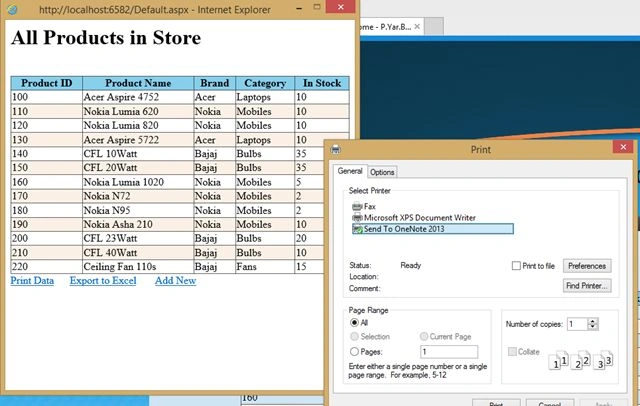
Suppose you have a page where you are displaying some data to the user. You want to add functionality to print these records. But the problem with the Browsers Default Print options (Ctrl+P) is that, it will print an entire page. All header images, footers, sidebars and colors will be printed, which is not required. You have two options, either create a new page for a print view and redirect the user to that page or just print the required area, in our case it is the GridView.
Most developers working in a web applications have a MasterPage for their web application. A MasterPage is similar to templates in normal HTML having some advanced functionality and customized code for maintaining an easier and common look of a website or application.
Let's have a look at the following screen to make our requirements more clear.
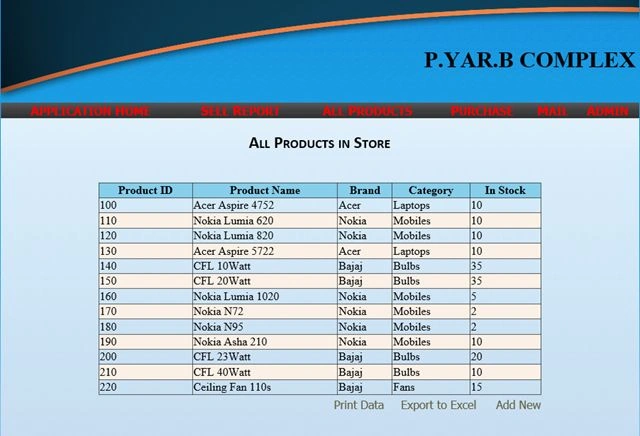
Code for Default.aspx
This is the code for the GridView.
- <asp:GridView runat="server" ID="gvProducts" AutoGenerateColumns="false" AllowPaging="false"
- AlternatingRowStyle-BackColor="Linen" HeaderStyle-BackColor="SkyBlue" Width="100%"
- OnPageIndexChanging="gvProducts_PageIndexChanging" EmptyDataText="Sorry! No Products to List. First Add from Add Product Link.">
- <Columns>
- <asp:TemplateField HeaderText="Product ID">
- <ItemTemplate>
- <asp:Label ID="lblProductID" runat="server" Text='<%#Eval("ProductID")%>' ToolTip="ID of Product as stored in Database."></asp:Label>
- </ItemTemplate>
- </asp:TemplateField>
- </Columns>
- <Columns>
- <asp:TemplateField HeaderText="Product Name">
- <ItemTemplate>
- <asp:Label ID="lblProductName" runat="server" ToolTip="Name of Product" Text='<%#Eval("ProductName")%>'></asp:Label>
- </ItemTemplate>
- </asp:TemplateField>
- </Columns>
- <Columns>
- <asp:TemplateField HeaderText="Brand">
- <ItemTemplate>
- <asp:Label ID="lblBrandName" runat="server" ToolTip="Brand of Product" Text='<%#Eval("BrandName")%>'></asp:Label>
- </ItemTemplate>
- </asp:TemplateField>
- </Columns>
- <Columns>
- <asp:TemplateField HeaderText="Category">
- <ItemTemplate>
- <asp:Label ID="lblProductCat" runat="server" ToolTip="Category of Product" Text='<%#Eval("CategoryName")%>'></asp:Label>
- </ItemTemplate>
- </asp:TemplateField>
- </Columns>
- <Columns>
- <asp:TemplateField HeaderText="In Stock">
- <ItemTemplate>
- <asp:Label ID="lblProductinStock" runat="server" ToolTip="Quantity available in Stock"
- Text='<%#Eval("UnitsInStock")%>'></asp:Label>
- </ItemTemplate>
- </asp:TemplateField>
- </Columns>
- </asp:GridView>
Code for Default.aspx.cs
We do not have much more at the backend, we are just going to bind data to the GridView.
AnilPosted Jul 3, 2018, 1:26 AM
In javascript function, what does "All records", "print panel" attributes mean, which you mentioned in window.open()
BeginnerPosted Oct 19, 2016, 7:00 AM
Hi john, i have gridview with edit and delete button. but i dont need these buttons on print version..please give me a solution..thanks in advance
ElayarajanPosted Sep 1, 2015, 7:00 AM
Thanks.......
Santhakumar MunuswamyPosted May 26, 2015, 12:40 AM
Welcome
Santhakumar MunuswamyPosted May 26, 2015, 12:40 AM
Good Start
M SKPosted Sep 21, 2014, 10:24 AM
This article helped me thanks :)
Abhay ShankerPosted Mar 19, 2014, 1:25 AM
Ver nice step by ste explanation.also very helpful.