

Prerequisites:
- Microsoft Azure Account: If you do not have Azure account, open a free Azure account. It comes with one-month free trial.
- Office 365 subscription
- Visual Studio 2013/2015: You need to have Visual Studio installed on your machine.
- Install the Azure SDK for Visual Studio 2015 or the Azure SDK for Visual Studio 2013.
Let’s start:
Create Azure Web application:
- Login to Azure portal with your Azure Account.
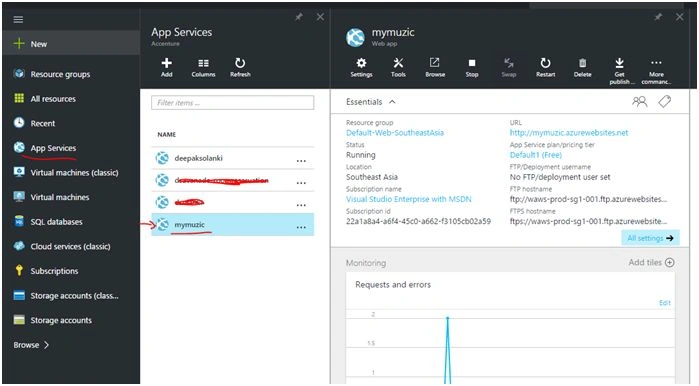
- Go to New, Web + Mobile, then Web App. Provide a unique name, and click Create.
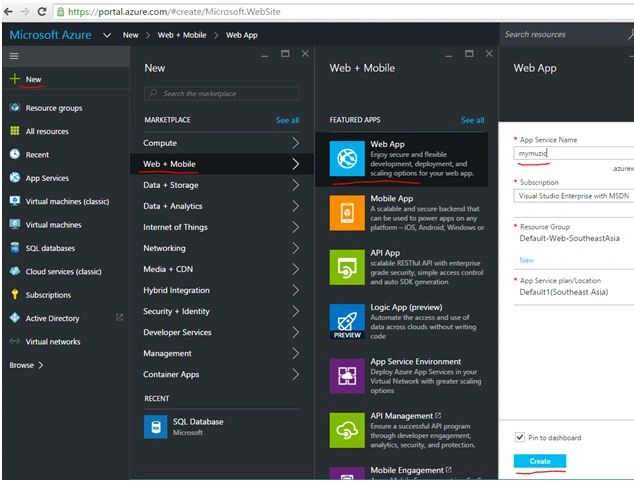
- It will take a moment to create app web and display details.
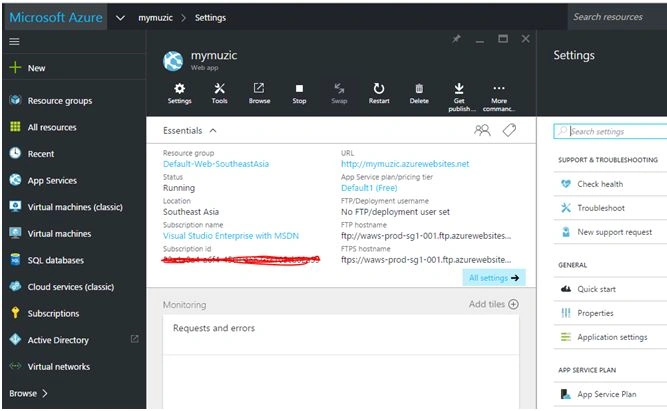
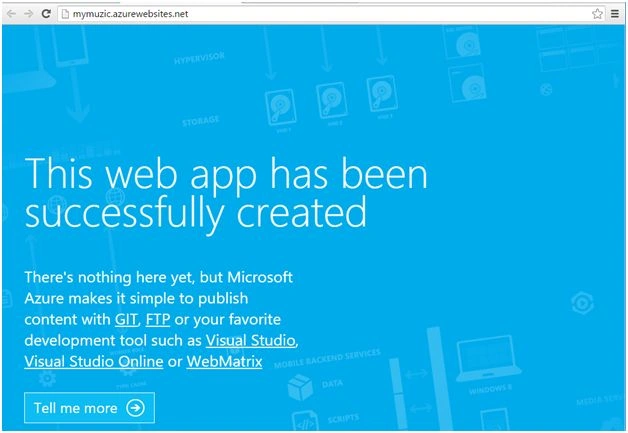
- If you click on URL, it will open empty web app. We’ll use this app later to host add-in.
Create SQL Database in Azure
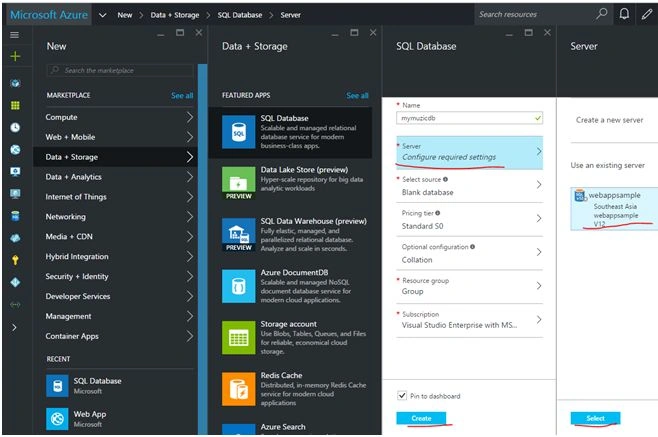
- In Azure portal, Go to New, Data + Storage, then SQL Database. Provide DB Name.
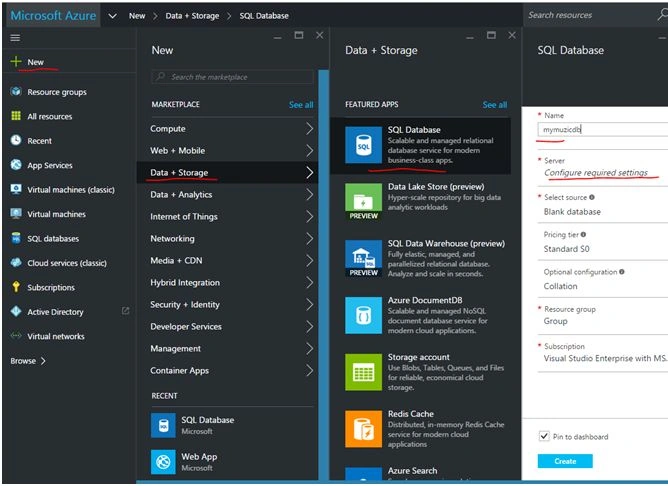
- In server configuration - You can either select an existing server OR select ‘Create a new server’. In this project I am using an existing Database Server I created earlier. Now select database, and then click Create.
For new server: Server name can be any unique name, user name & password – a new user name and password to connect to DB server, Location as south-east Asia.
Select source – ‘Blank database’, Pricing – leave it to default ‘Standard S0’, Resource Group – create new as ‘webappsample’. Click ‘Create’.
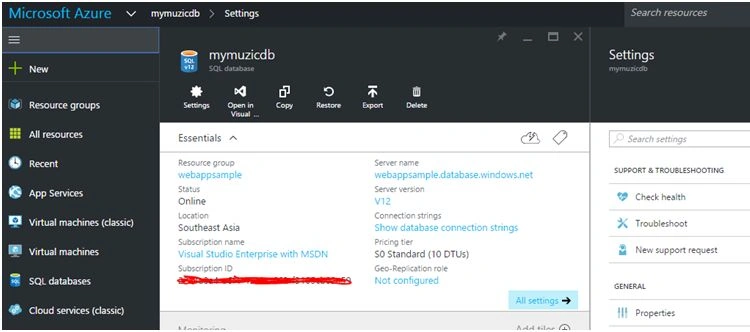
- It will take few minutes to create the DB and it will be visible in SQL Databases where you can see the properties and manage settings.
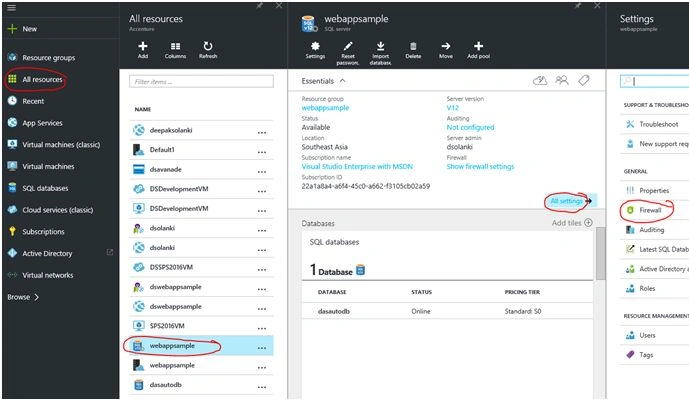
- Now we need to allow Client IP address to connect to SQL DB server. In left navigation, click on All resources, then select the SQL DB server we created, click all settings and select Firewall.
- You can see client IP address there. Click on ‘Add Client IP’ link, IP will be added in the panel below. Now click Save.
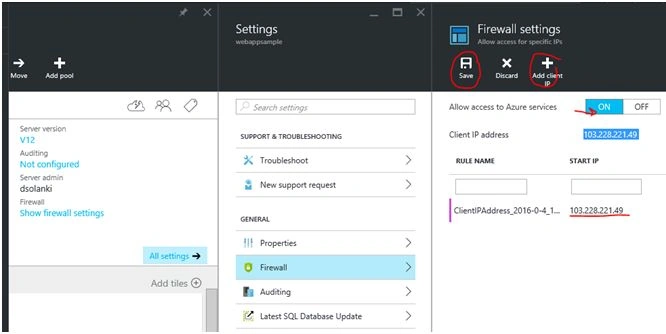
- We are all set here.
Create Tables in Database
- Open Visual Studio 2013/2015. In server explorer, select SQL Server Object Explorer.

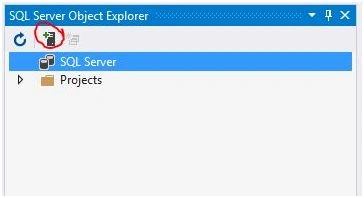
- Click on Add SQL Server button.
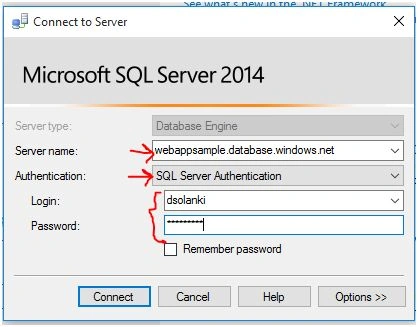
- Provide the SQL server name you’ve already created. Select ‘SQL Server Authentication’ and enter user name & password you provided while creating database server in Azure, click Connect.
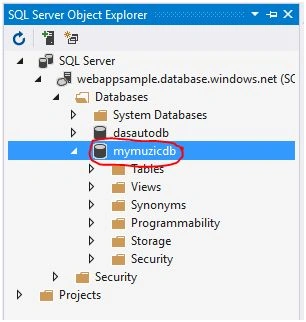
- Once connected, you can see the ‘mymuzicdb’ in explorer. Navigate to Table, right click and create new table.
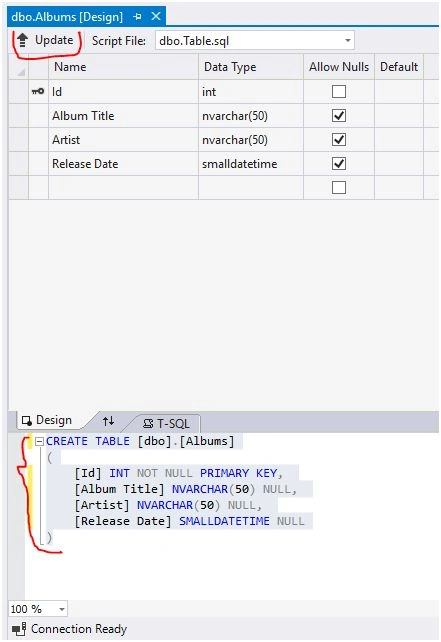
- Create table ‘Albums’ with 4 columns as given in snapshot. Use ‘Update’ button to update database.
- Now table is ready to use.
Create provider hosted SharePoint add-in
- Open Visual Studio, from file menu, click New, then Project.
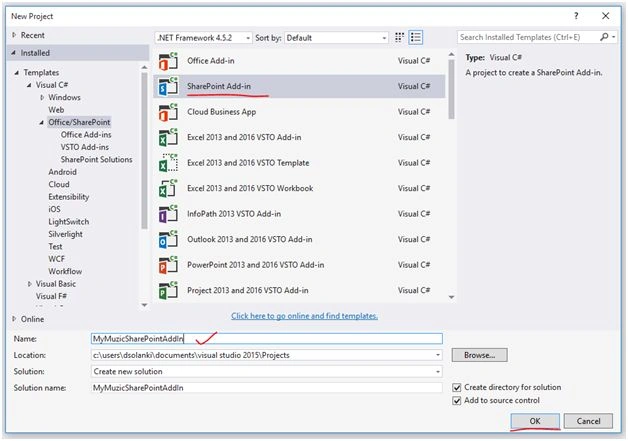
- Under templates, select Visual C#, Office/SharePoint, then SharePoint Add-in.
- Provide an appropriate project name, in my case its ‘MyMuzicSharePointAddIn’, click OK.
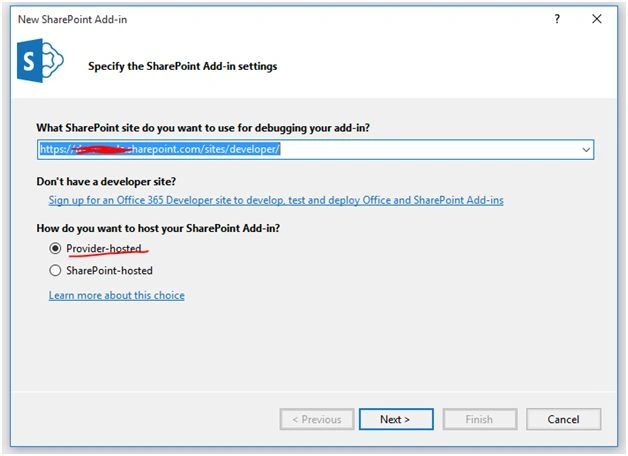
- Provide your SharePoint developer site URL for debugging, select ‘Provider-hosted’ radio button, click Next.
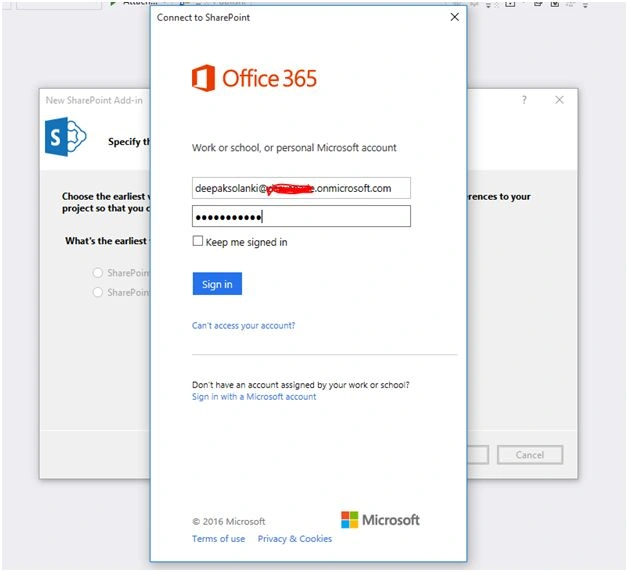
- Login with your Azure credentials to connect to SharePoint site.
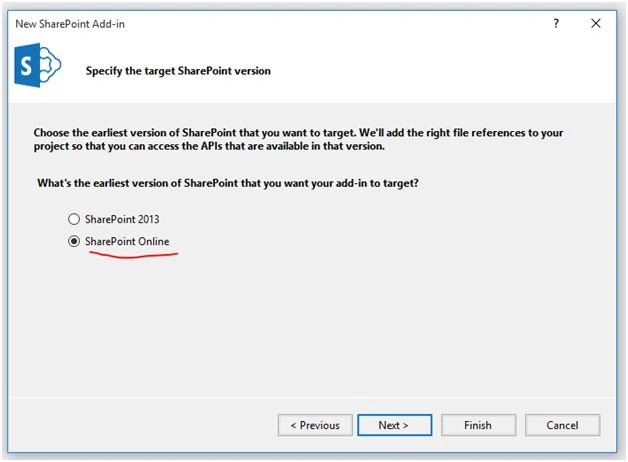
- Select SharePoint online as add-in target, click NEXT.
- Chose project type as ASP.NET MVC Web application, click NEXT.

- For Authentication, chose Windows Azure Access, click Finish.

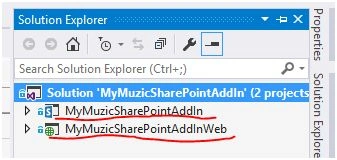
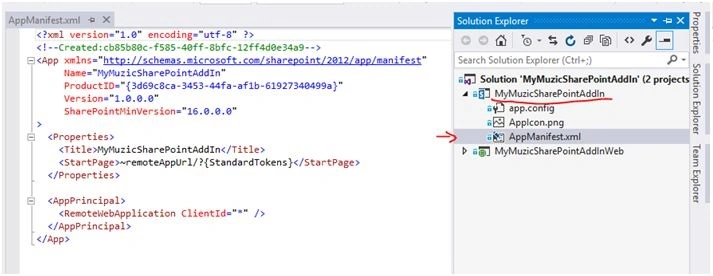
- In the solution, you can find two projects,
1. MyMuzicSharePointAddIn – This is SharePoint add-in and will be deployed in SharePoint farm.
2. MyMuzicSharePointAddInWeb – This is web application and will be deployed in Azure. Build the solution.
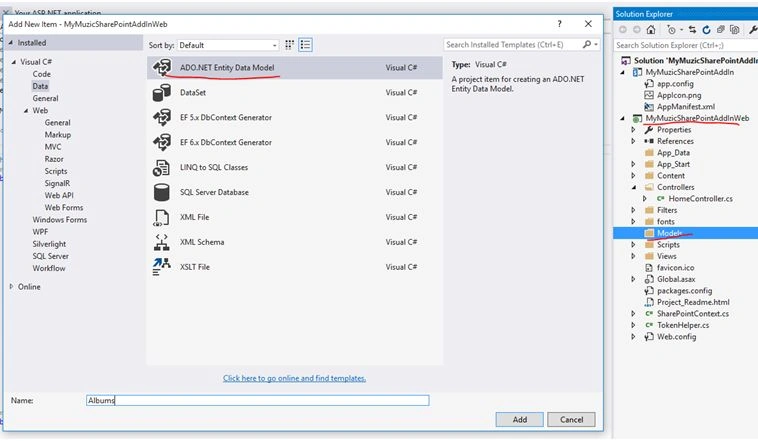
- Now, create a new ADO.NET entity model: Go to Project, Models, Right click on Models, Add -> New Item. Select ‘ADO.NET entity data model’ from Data, give some name, and click Add.
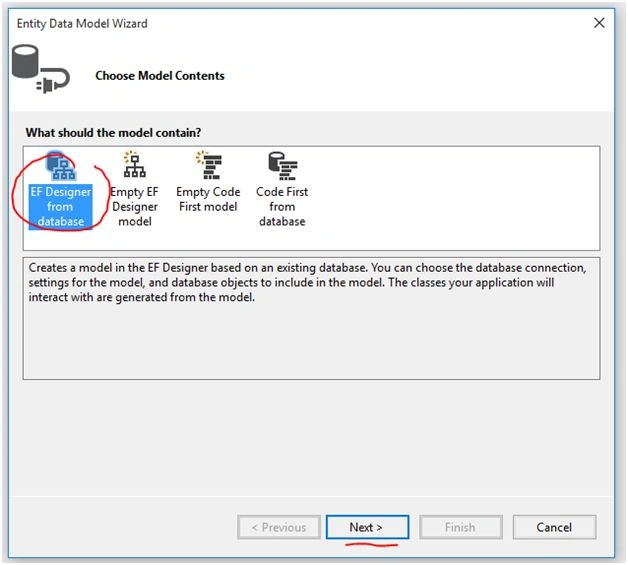
- Select ‘EF Designer from Database’ on next screen, click Next.
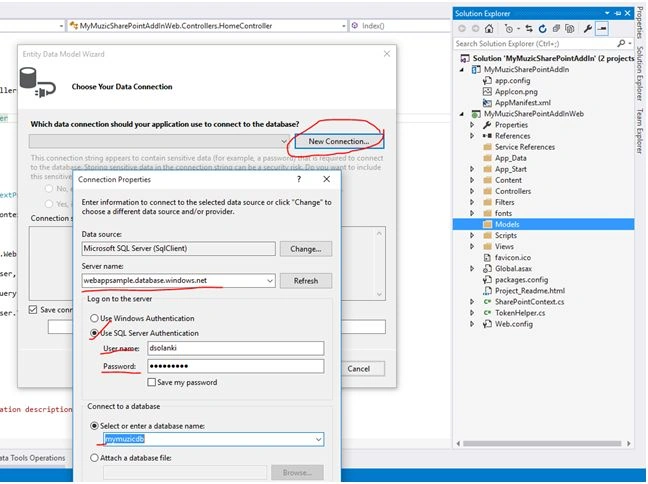
- On next screen, create a new data connection; click ‘New Connection’. Provide correct Azure database server name. Select ‘SQL Server authentication’ and provide valid user name & password. It will take few seconds to load databases in this server, once loaded, select mymuzicdb. Click Ok.
- On next screen select ‘Yes Include the sensitive‘ radio button, click Next.
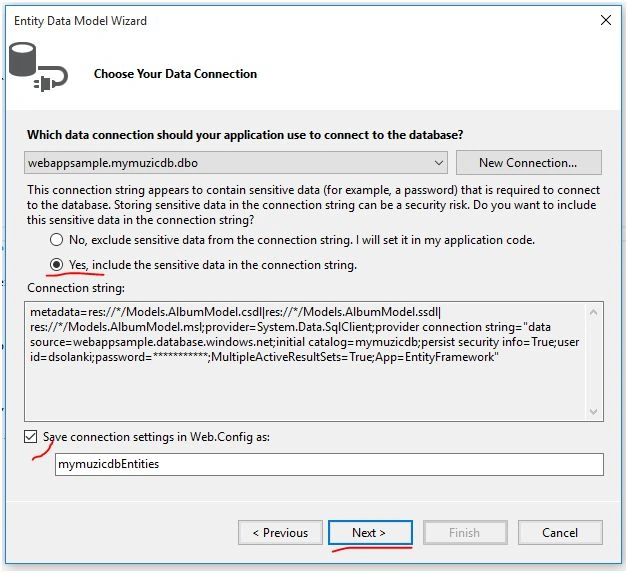
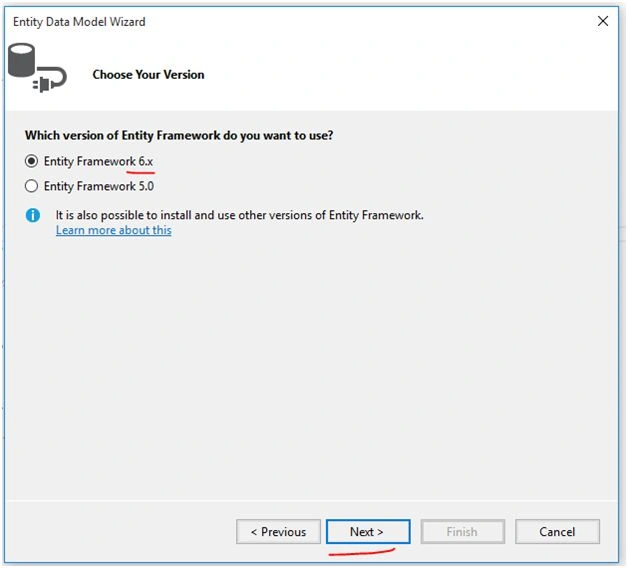
- Keep the entity framework version as it is.
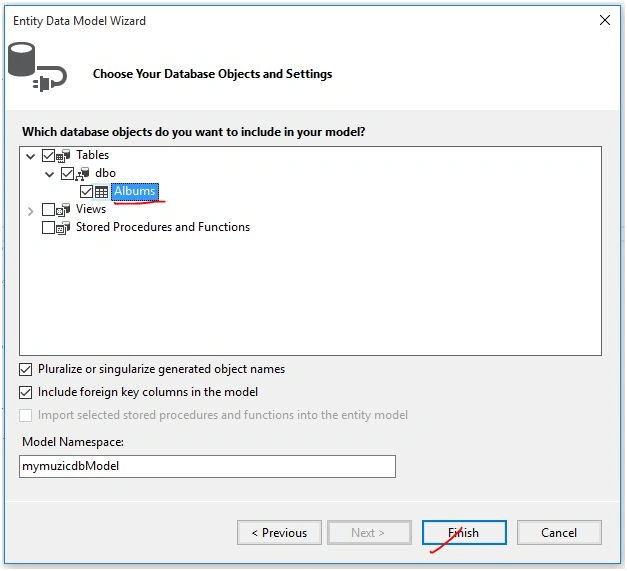
- On next screen, select ‘Albums’ table and click finish
- Entity Model will be created.

- Build the project.
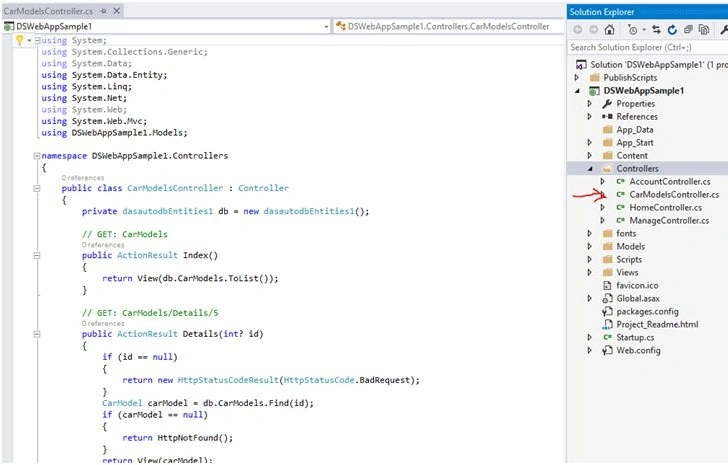
- Now to create Controller; Go to Controllers folder, right click, Add-> Controller.
• Select ‘MVC 5 Controller with views using Entity Framework’ controller template, click Add.
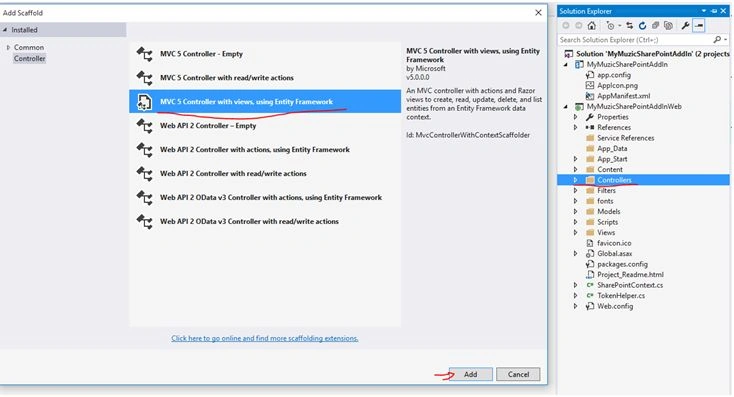
- On next screen- In Model class drop down, select Album. Select ‘mymuzicdbEntities’ from Data context drop down. Ensure all 3 views check boxes are selected, click Add.
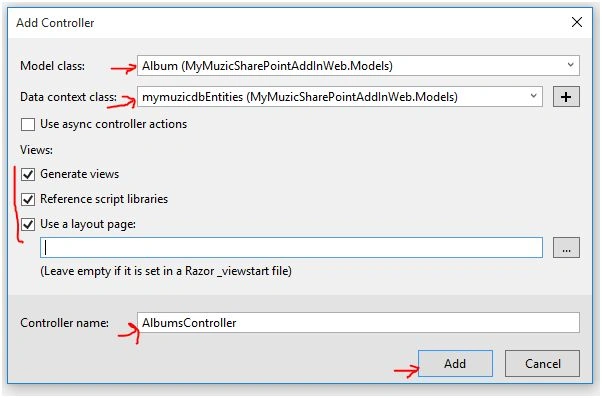
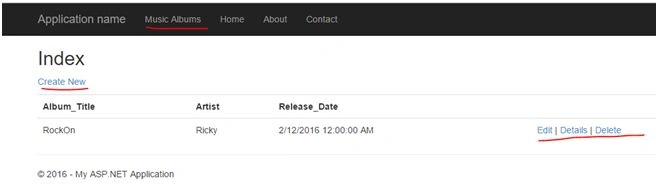
- It will add a controller class ‘AlbumsController’. Do not change anything in this class as it’s already generated by entity framework with all required actions.
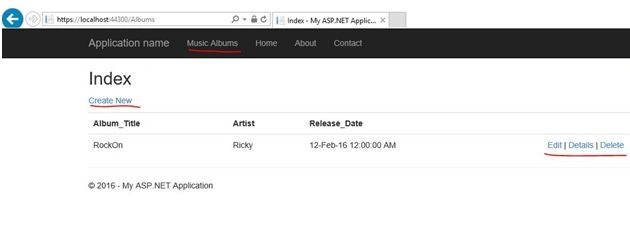
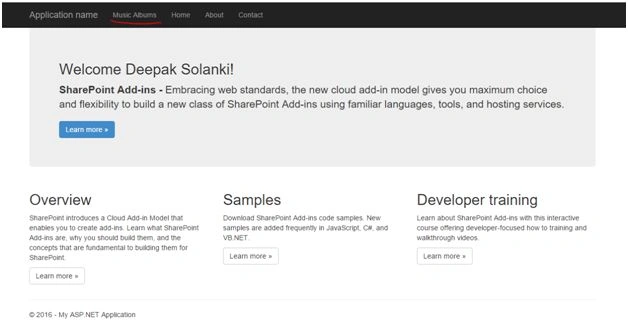
- Now we need to modify view to link. Navigate to Project, Views, then Shared. Open _Layout.cshtmal and add one <li> as given in snapshot below.

- Build the project & we are ready to deploy.
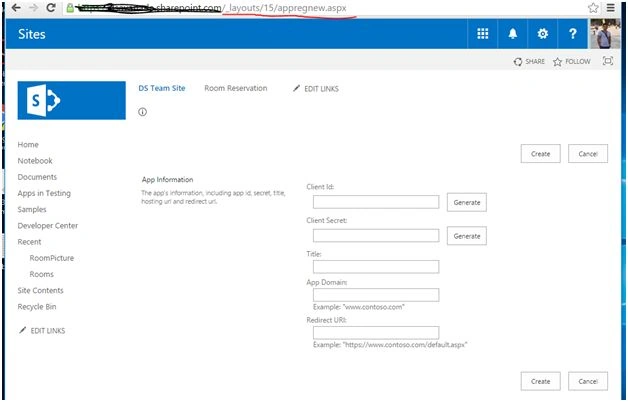
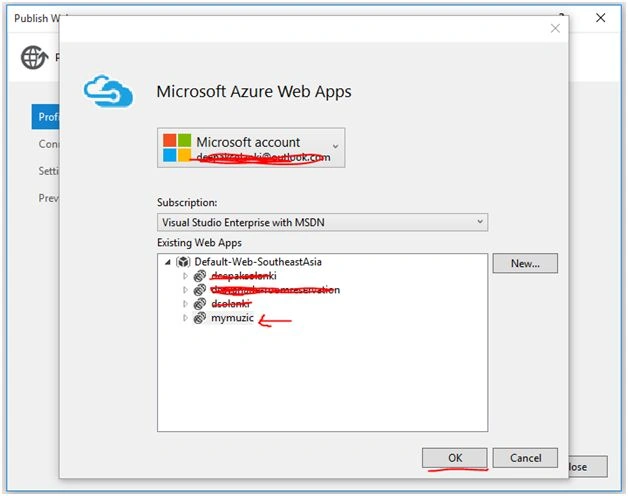
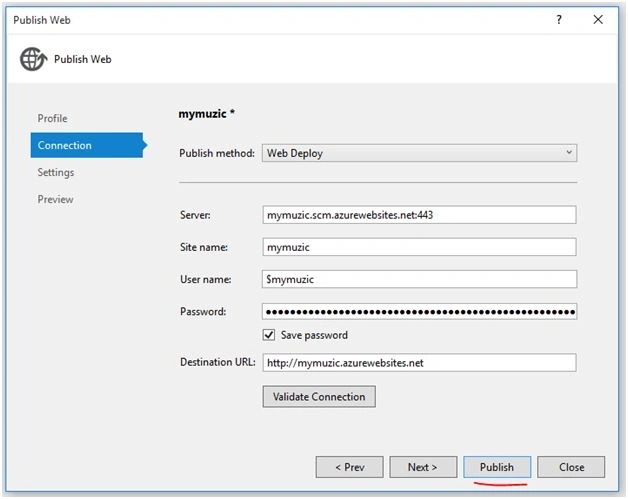
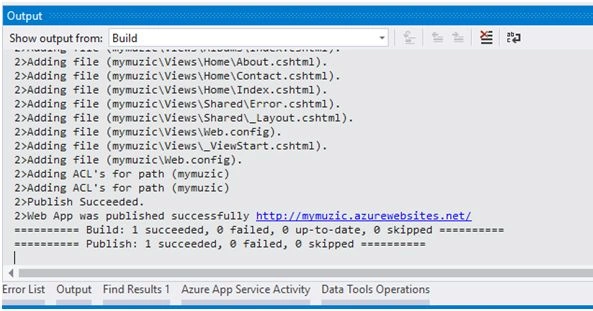
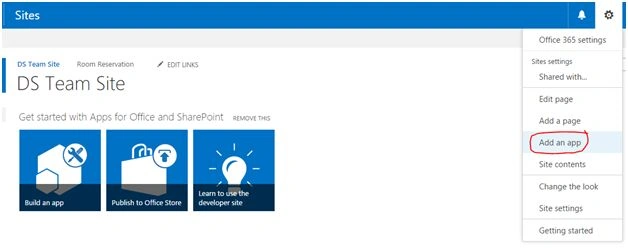
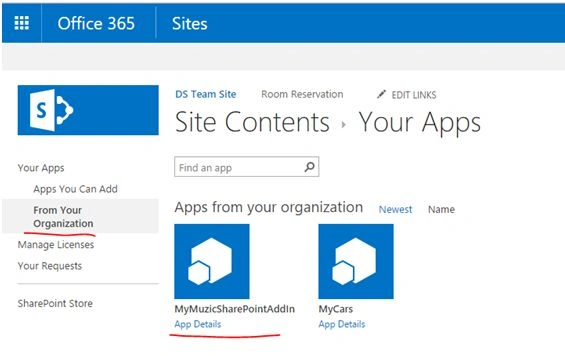
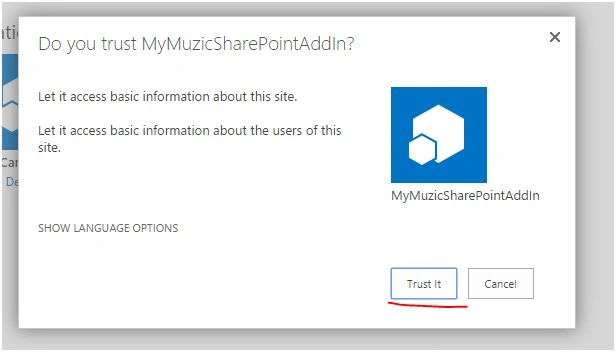
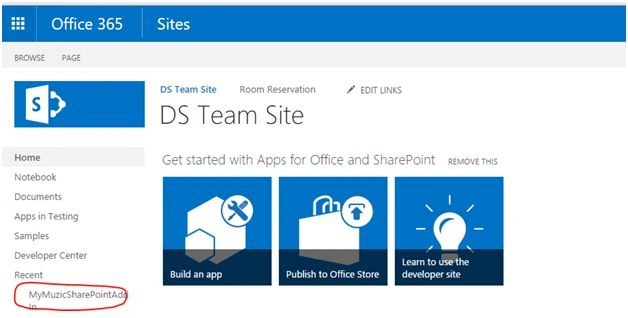
- You can hit F5 to deploy locally to test or can go ahead with Azure deployment.


M DeveloperPosted Dec 6, 2018, 2:51 PM
I followed all steps till end but when I ran the project (hit F5) i got "Object reference not set to an instance of an object" error. couldn't figure out why i got that error.
Ganesh AkurathiPosted Feb 7, 2017, 12:01 PM
Good article.thanks a lot
Douglas CradayPosted Feb 2, 2017, 2:55 PM
Nice. Could you add a bit to it to have the app look like it's in SharePoint? Also setting Userid and password in code would be nicer.
Humayun Kabir MamunPosted Feb 6, 2016, 10:57 PM
Nice...
Abhay ShankerPosted Feb 6, 2016, 12:06 PM
Nice Share.
Santhakumar MunuswamyPosted Feb 5, 2016, 3:38 PM
Thanks for nice article
Mohammed IbrahimPosted Feb 5, 2016, 1:14 PM
nice
Nanddeep NachanPosted Feb 5, 2016, 7:35 AM
Nice share
Sibeesh VenuPosted Feb 5, 2016, 7:09 AM
Nice Share