

SharePoint Framework is the new development model in which lots of work has been going on in the past year. It went to General Availability on Feb 23, 2017. It is a page and web part model that provides full support for client-side SharePoint development, easy integration with SharePoint data and support for open source tooling. With the SharePoint Framework, you can use modern web technologies and tools in your preferred development environment to build productive experiences and apps in SharePoint.
In a previous article, we saw how to set up the development environment for SharePoint Framework. We also saw the basic Hello World webpart creation and how to retrieve and display list items using SharePoint Framework. In this article, we will see how to Provision Custom SharePoint List using SharePoint Framework.
Create the Web part Project
We can create the directory, where we will be adding the solution, using the command given below.
md CustomList
Let’s move to the newly created working directory, using the command.
cd CustomList

We will then create the client Web part by running the Yeoman SharePoint Generator.
yo @microsoft/sharepoint
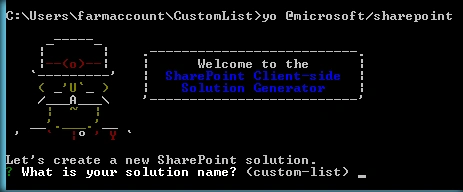
This will display the prompt, which we must fill up, to proceed with the project creation.
- What is your solution name? : Set it to ‘CustomList’.
On pressing enter, we will be asked to chose the working folder for the project.
- Where do you want to place your files- Use current folder.
- What framework would you like to start with- Select “No javaScript web framework” for the time being, as this is a sample Web part.
- What is your Webpart name- We will specify it as ‘CustomList ‘and press Enter
- What is your Webpart description- We will specify it as ‘Custom List Created using SharePoint Framework’
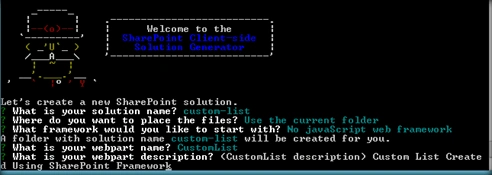
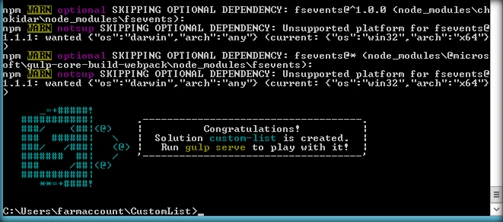
Yeoman has started working on the scaffolding of the project. It will install the required dependencies and scaffold the solution files for the ‘CustomList’ Web part, which will take some time to complete. Once completed, we will get a congratulations message.
Run Code to create the scaffolding and open the project in Visual Studio Code
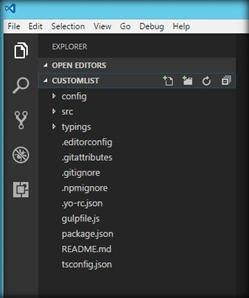
Edit the web part
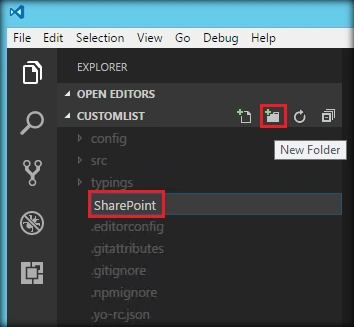
Now let’s add the folder named ‘SharePoint’ to maintain the SharePoint files that will be deployed as a package.
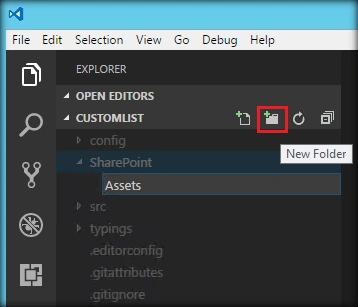
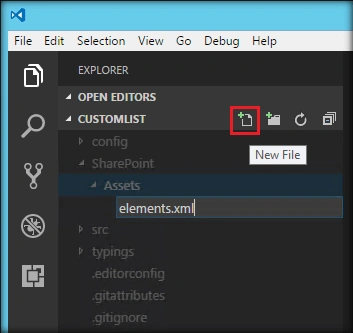
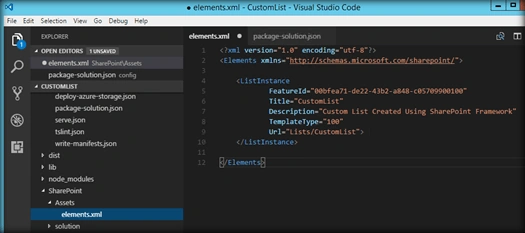
Within the SharePoint folder lets add another sub folder named Assets.
Tarun DPosted May 17, 2017, 5:55 AM
Adding the details of assets folder in package-solution.json fixed the issue please check the msdn link https://dev.office.com/sharepoint/docs/spfx/web-parts/get-started/provision-sp-assets-from-package
Tarun DPosted May 16, 2017, 12:35 AM
Hi Priyaranjan. Thanks for the nice article. I tried the above sample and was not Working as expected. Do we need any modifications in package-solution.json regarding the Assests folder and elements.xml