

☕︎ Introduction
In modern cloud-native application development, infrastructure provisioning and application development are closely connected. Automating infrastructure not only improves consistency but also reduces operational overhead.
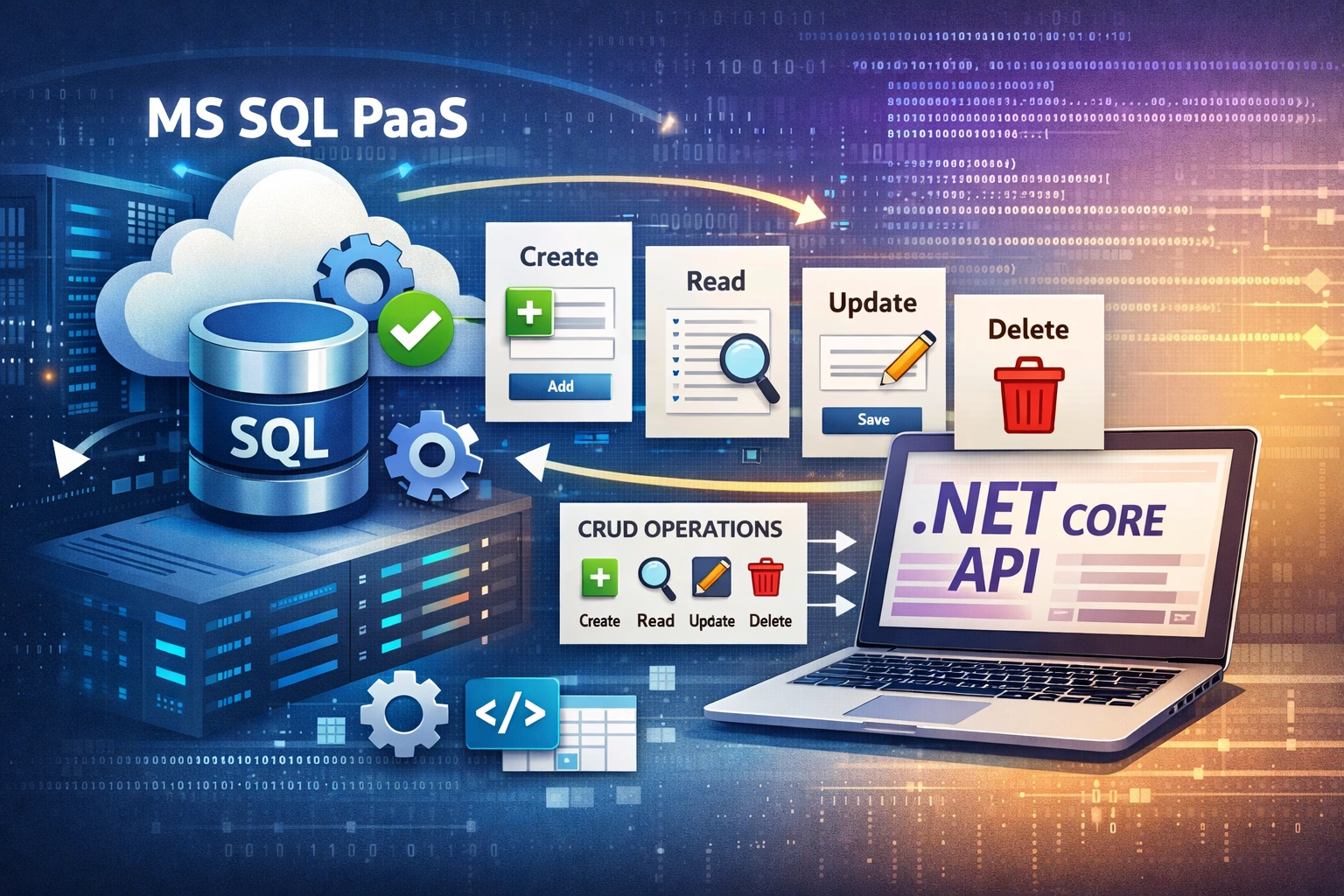
In this article, I demonstrate how to provision an Azure SQL Database (PaaS) using Terraform and integrate it with a .NET Core Web API using Entity Framework Core to perform CRUD operations. Organizations often prefer PaaS databases in Microsoft Azure over IaaS because responsibilities such as patching, backups, and high availability are handled by the platform itself.
🛠️ Provision SQL PaaS with Terraform
Terraform enables Infrastructure as Code (IaC), allowing us to create and manage cloud resources in a repeatable manner. In this section, we provision:
Azure SQL Server
Azure SQL Database (Basic/S0 tier – 5 GB)
Firewall rule to allow access from Azure services
Note: Terraform configuration files use the .tf extension.
Terraform Configuration
Below is the main.tf file used to create the SQL Server, database, and firewall rule. Configuration values are stored in variables.tf and referenced here.
provider "azurerm" {
  features {}
   subscription_id = var.subscription_id
}

resource "azurerm_mssql_server" "sql_server" {
  name                         = var.sql_server_name
  resource_group_name          = var.resource_group_name
  location                     = var.location
  version                      = "12.0"
  administrator_login          = var.sql_server_username
  administrator_login_password = var.sql_server_password

  identity {
    type = "SystemAssigned"
  }
}

resource "azurerm_mssql_database" "sql_db" {
  name               = var.sql_server_dbname
  server_id          = azurerm_mssql_server.sql_server.id
  sku_name           = "S0"
  collation          = "SQL_Latin1_General_CP1_CI_AS"
  max_size_gb        = 5
  zone_redundant     = false
}

resource "azurerm_mssql_firewall_rule" "allow_azure_services" {
  name             = "AllowAzureServices"
  server_id        = azurerm_mssql_server.sql_server.id
  start_ip_address = "0.0.0.0"
  end_ip_address   = "0.0.0.0"
}
After running terraform apply, the SQL Server and database are created successfully.

Compute & storage for SQL database

⛃ Accessing SQL Database
Once the database is provisioned, it can be accessed using SQL Server Management Studio (SSMS). The connection string is available in:
Azure SQL Database → Settings → Connection strings
To allow public access, an IPv4 firewall rule must be added. Once the rule is configured, the database becomes accessible from the allowed network.

To enable public access, Firewall rule needs to added. IPV4 address range should be allowed. Database is accessible once rule is added.

Now database setup is complete. The next step is to setup .NET CORE API to perform CRUD operations.
🌐 .NET CORE API with EF Core CRUD
With the database ready, the next step is integrating it with a .NET Core Web API.
Required NuGet Packages
Microsoft.EntityFrameworkCore
Microsoft.EntityFrameworkCore.SqlServer
I am using the Database-First approach, where the database schema already exists and entity models are created to match it.

Entity Model - StudentRegistration :
namespace API.Models
{
    [Table(name: "student_registration", Schema = "dbo")]
    public class StudentRegistration
    {
        [Key]
        [Column("id")]
        public Int64 ID { get; set; }

        [Column("name")]
        public string Name { get; set; }

        [Column("mobileNumber")]
        public string MobileNumber { get; set; }

        [Column("emailID")]
        public string EmailID { get; set; }
    }
}
DbContext :
 public class ApplicationDBContext : DbContext
 {
     public ApplicationDBContext(DbContextOptions<ApplicationDBContext> options) : base(options)
     {
     }
     public DbSet<API.Models.StudentRegistration> StudentRegistrations { get; set; }
 }
Database Connection String
Add the connection string to appsettings.json:
"ConnectionStrings": {
"DefaultConnection": "Server=tcp:sqlserver-azwebapp-00.database.windows.net,1433;Initial Catalog=sql-demo001-dev;Persist Security Info=False;User ID=sqluser;Password={usrpwd};MultipleActiveResultSets=False;Encrypt=True;TrustServerCertificate=False;Connection Timeout=30;"}
Repository Pattern & Swagger
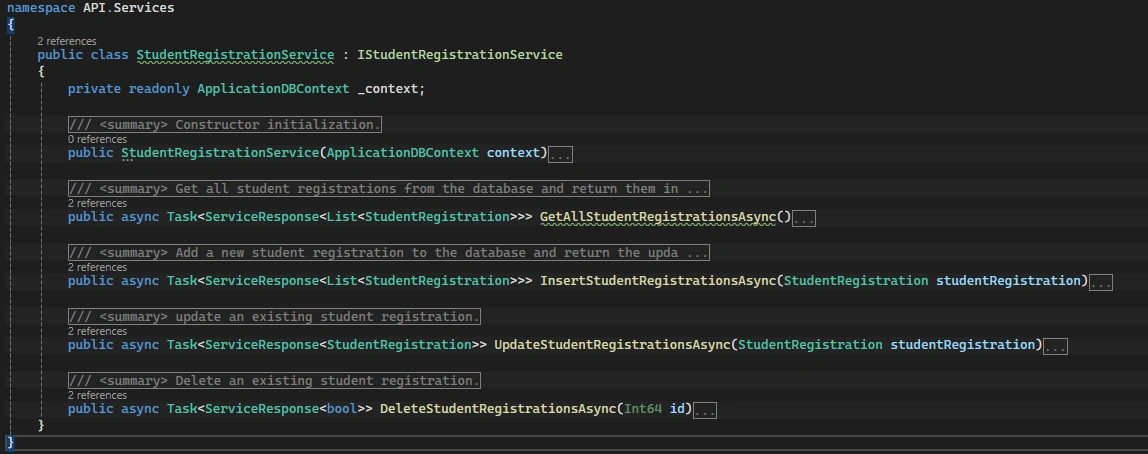
To keep the codebase clean and maintainable, I implemented the repository pattern, isolating all database operations within the service layer.
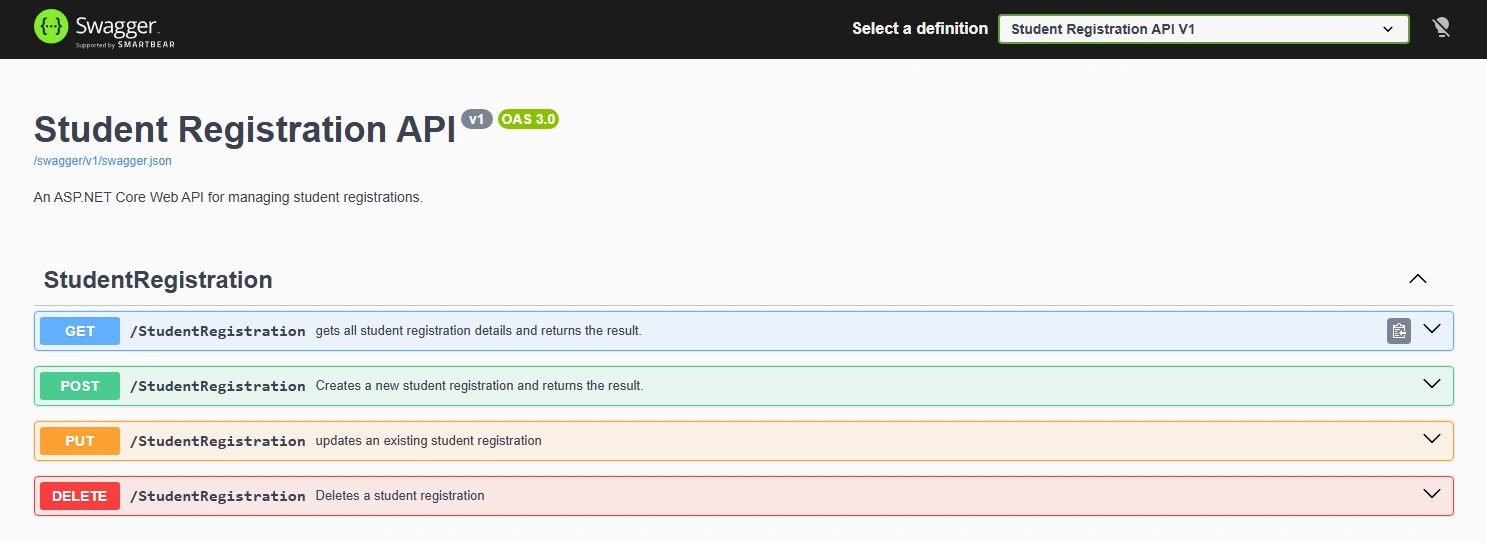
Swagger UI is integrated to easily test and validate the API endpoints during development.
Inject the dependencies.

👨🏼💻Learnings
Infrastructure provisioning using Terraform
Azure SQL Database (PaaS) setup and access
Entity Framework Core integration with .NET Core API
Clean architecture using repository pattern
🎯 Summary
In this article, we provisioned an Azure SQL Database using Terraform, accessed it securely, and integrated it with a .NET Core Web API using Entity Framework Core to perform CRUD operations. This approach enables scalable, maintainable, and production-ready cloud-native application development.
Join the conversation! Your thoughts help the community grow.