

Introduction
This article will help you to publish your Microsoft Bot Application on Azure, using Visual Studio.
Note - Work on my previous article to create a Bot Application before moving on to this one. Referto the links, given below-
Important Links
- Click here to know about Bot Framework and to build your first Bot Application.
- Click here to know how to run your Bot Application in Bot Framework Channel Emulator.
Pre-requisites to work on this demo
- Visual Studio 2015 with Bot Framework Template.
- An active Azure Account..
(Click here to get a free trial account on Azure).
Follow the below steps to publish your Bot Application on Azure.
Step 1 - Run Visual Studio 2015 and open your Bot Application, which we have built in previous demos.
Step 2 - In your Solution Explorer on Visual Studio 2015, right click on your solution name.
Here “samplebotdemo” is my solution name.
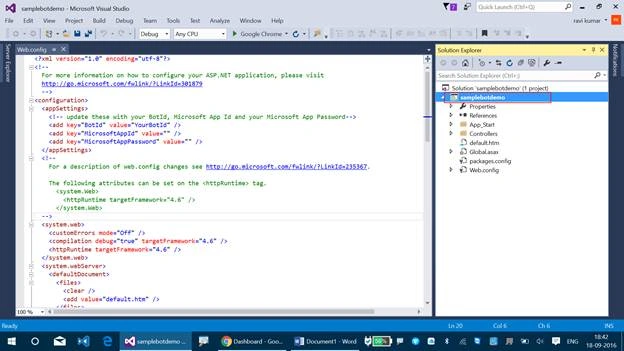
Right click on the solution name and go to Publish.
Samplebotdemo - Publish.
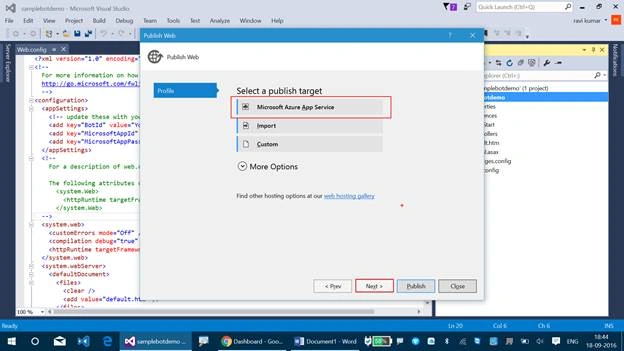
Step 3 - Select Microsoft Azure app Services and click Next.
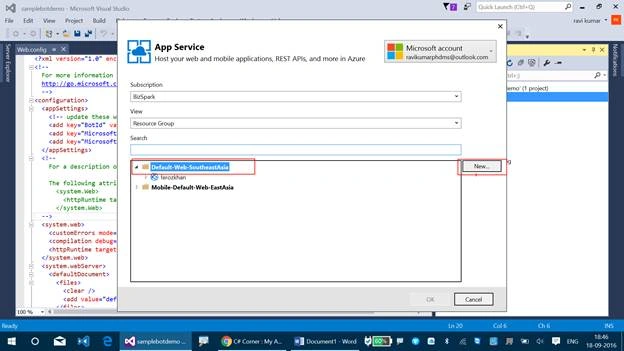
Step 4 - Select your Subscription, View as Resource Group and click on Default-Web-SouthEastAsia, followed by New.
Step 5 - Select the App Service Plan, create a new one and click Create.
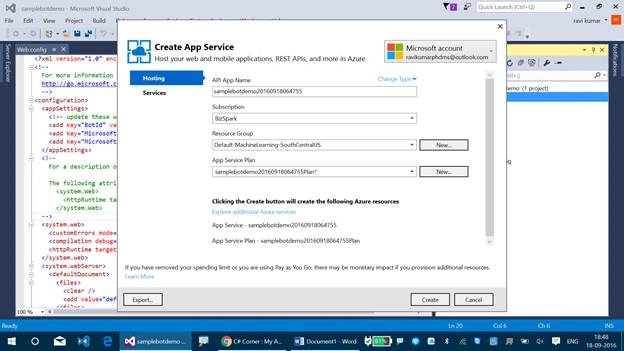
Step 6 - All the credentials, given below, will be automatically created on your Microsoft Azure portal. Your Bot Framework Application gets published in the destination URL of the one, which has been displayed.
Click Next now.
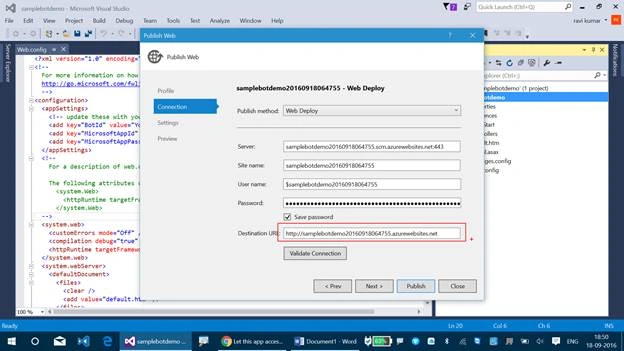
Step 7 - Once again, click Next.
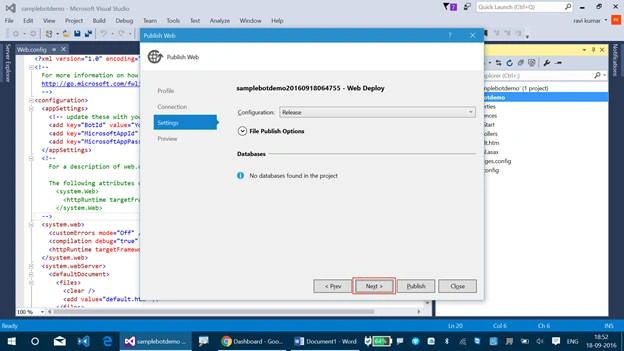
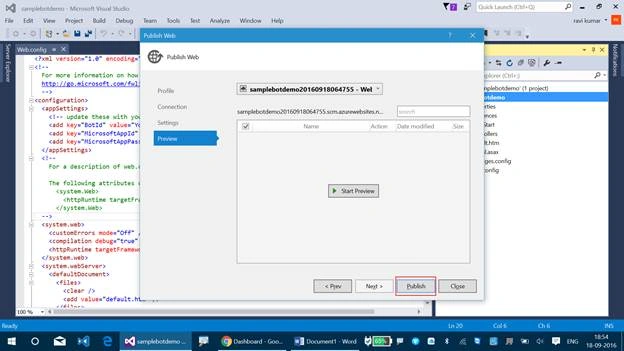
Step 8 - This pane will help you to undergo a preview on the Bot Framework Application. Click “Start Preview, if you wish to have a view on it. Here, I will click “Publish”.
Now, you can find the Bot Application is getting published on your Azure portal at the output status pane in Visual Studio 2015.
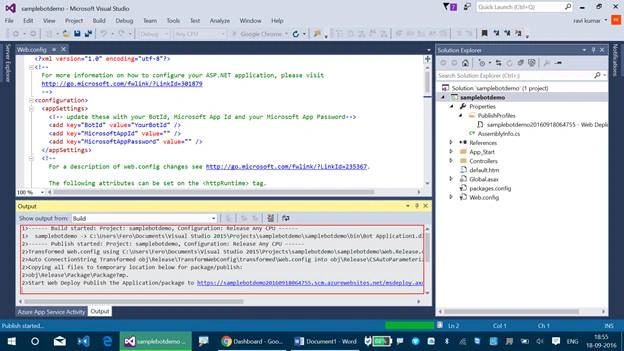
Finally, the Bot Application has been published as a Web app in Microsoft Azure.
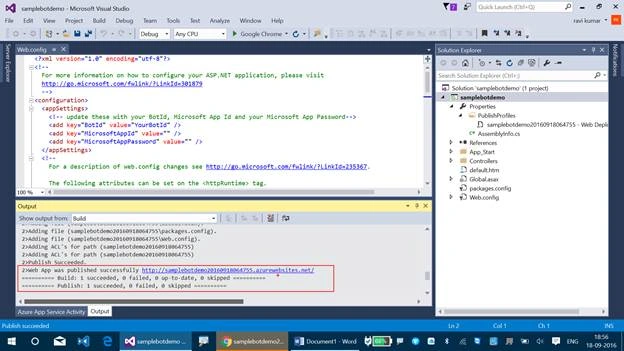
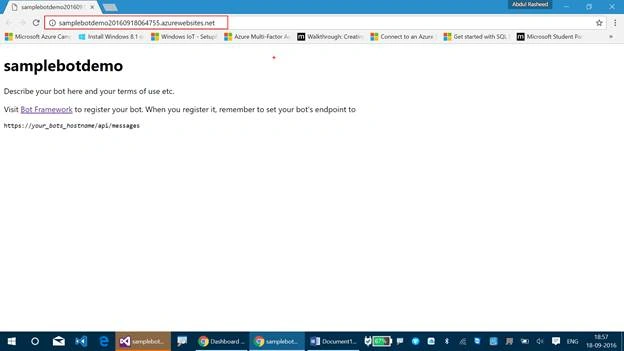
The URL, given above, http://samplebotdemo20160918064755.azurewebsites.net/ is the address, where your Bot Application has been hosted and it gets reflected with the default HTML page, which we gave in our project, when we created the Bot Application in Visual Studio 2015.
Follow my next article to register your Bot Application with the Microsoft Bot Framework.
Giorgio UrsuPosted Dec 5, 2017, 6:08 PM
Thanks a lot! was very usefull.