

Read the first part of this article from the following link.
Introduction
One Signal notification is one hundred percent free and gives unlimited access for mobile and web applications. One Signal offers cross-platform support and is a secure and reliable push notification delivery service.
In this article, I will show you how to deliver push notifications using One Signal in Android application. Android is a kernel-based operating system in which users can modify the GUI components and source code.
Requirements
- Android Studio
- A little knowledge of XML and Java.
- Android Emulator (or) Android mobile
- Stable internet connection during execution.
- Download link (Android Studio)
Steps to be followed
Carefully follow the below steps to enable push notification delivery using One Signal in your Android application. I have included the source code too for download.
Step 1
Go to app, open build.gradle, and add the below lines in your dependencies.
- compile 'com.android.support:appcompat-v7:25.3.1'
- compile 'com.android.support.constraint:constraint-layout:1.0.2'
- compile 'com.google.android.gms:play-services:8.1.0'
- compile 'com.google.android.gms:play-services-ads:8.1.0'
- compile 'com.google.android.gms:play-services-identity:8.1.0'
- compile 'com.google.android.gms:play-services-gcm:8.1.0'
- compile 'com.onesignal:OneSignal:2.+@aar'
- compile 'com.google.android.gms:play-services-analytics:8.1.0'
- compile 'com.google.android.gms:play-services-location:8.1.0'
- testCompile 'junit:junit:4.12'
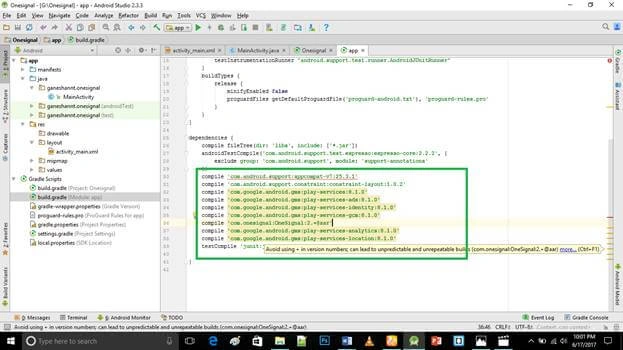
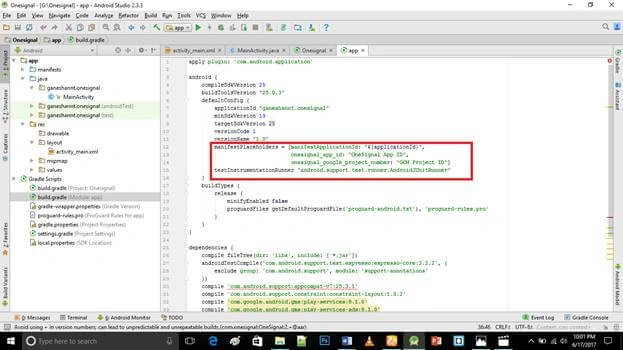
Then, add the below lines to you defaultconfig in build.gradle below the versionName.
- manifestPlaceholders = [manifestApplicationId: "${applicationId}",
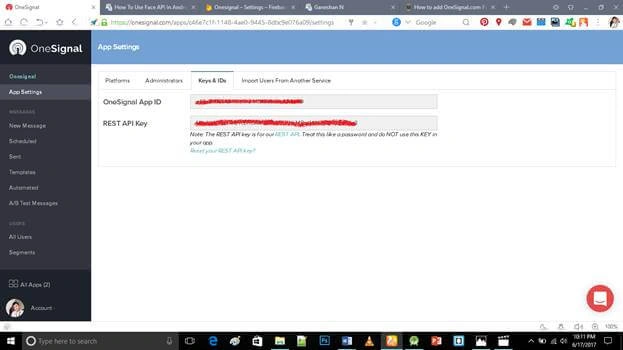
- onesignal_app_id: "OneSignal App ID",
- onesignal_google_project_number: "GCM Project ID"]
- estInstrumentationRunner "android.support.test.runner.AndroidJUnitRunner"
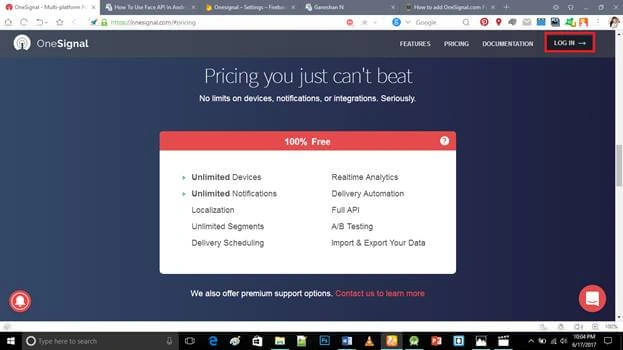
Go to the below link and click Login button.
Link: https://onesignal.com/#pricing
 Step 4
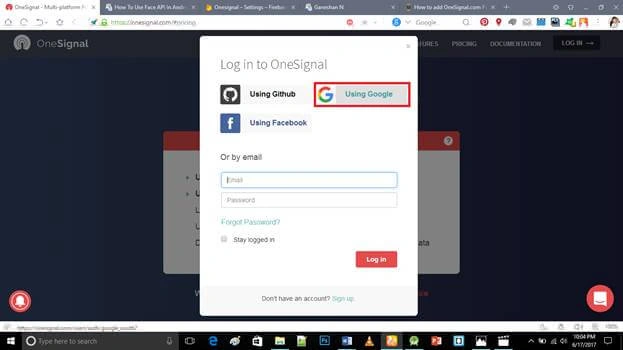
Login via your Gmail Id.
 Step 5
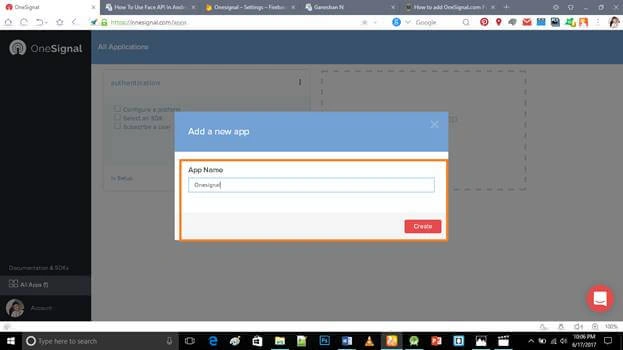
Type your app and click "Create".
 Step 6
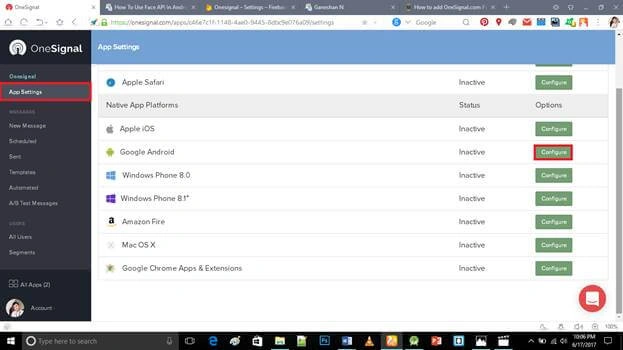
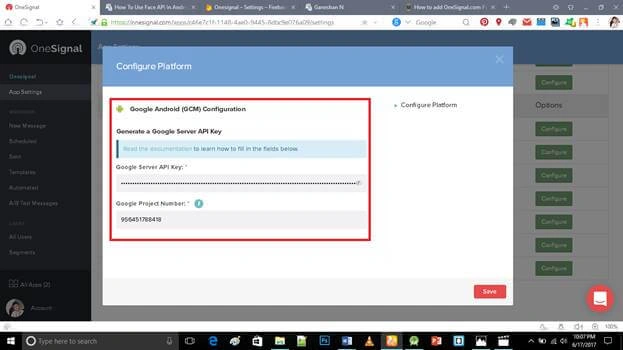
Open your project, go to "App Settings", and click "Configure" in Google Android.
 Step 7
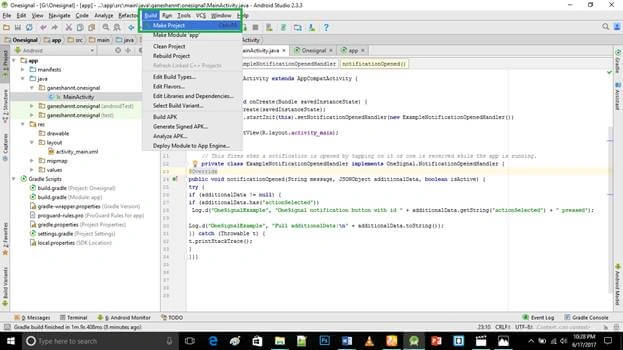
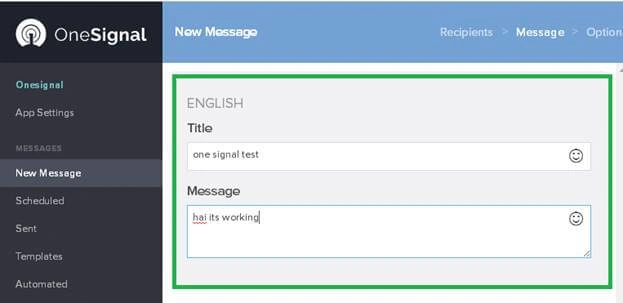
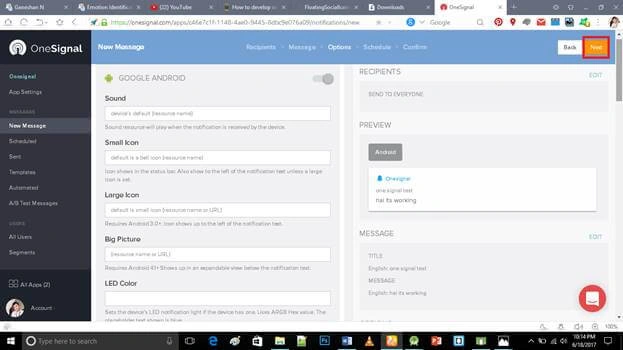
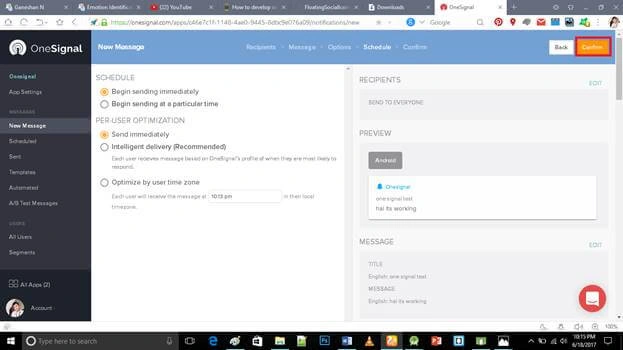
Join the conversation! Your thoughts help the community grow.