

Introduction
From our previous articles, we know how to load data into our Power BI from various data sources. But that exact data is not enough to create our Power BI reports. We need to shape those data, that refine the data, add new columns, rename the columns, and many other improvements to create data models.
Query Editor
What is Query Editor is the first thing that strikes our mind? It’s simple, A Query editor acts as an intermediate data container where we can modify our data by selecting the rows and columns and doing necessary changes. But remember the changes that we make in the Query Editor do not reflect into the original dataset until we apply the changes.
Connecting with Data Source – SQL Server
Now, let us connect our Power BI with our data source SQL Server.
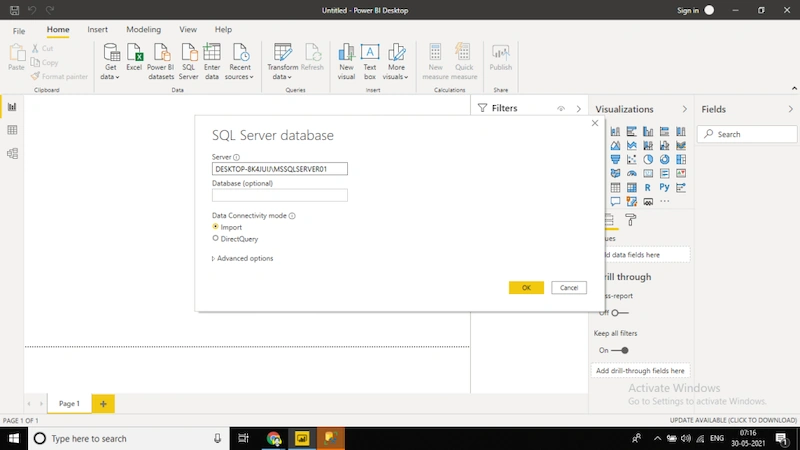
Fig. 1 Connecting Power BI with SQL Server Data Source
Once after connected, it will open a new window to choose the database and to choose the table. As an example, I am choosing PracticalWorks as my data and Detail.Employees as our table for preparing the dataset.
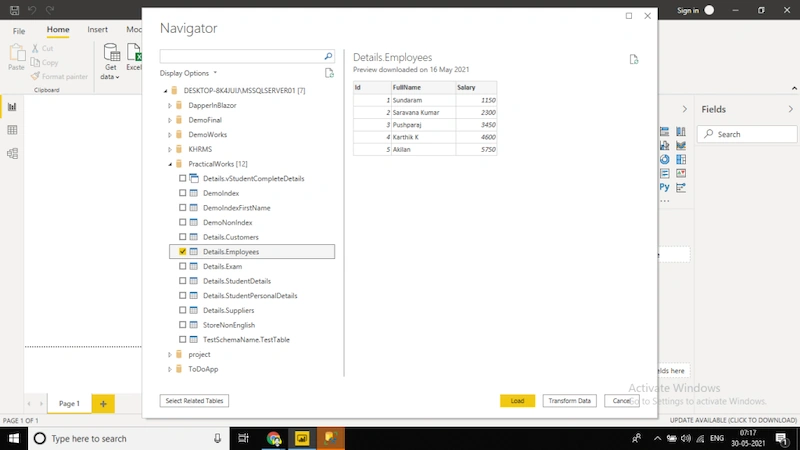
Fig.2 Choosing Tables to prepare Dataset
If we look into the screen, we have three options as Load, Transform Data, and Cancel. As we know from our previous articles, Load is used to load the data into the Power BI report. We can still use this option if we confided that there is no need of refining the data. That is from the source itself we are choosing the refined data.
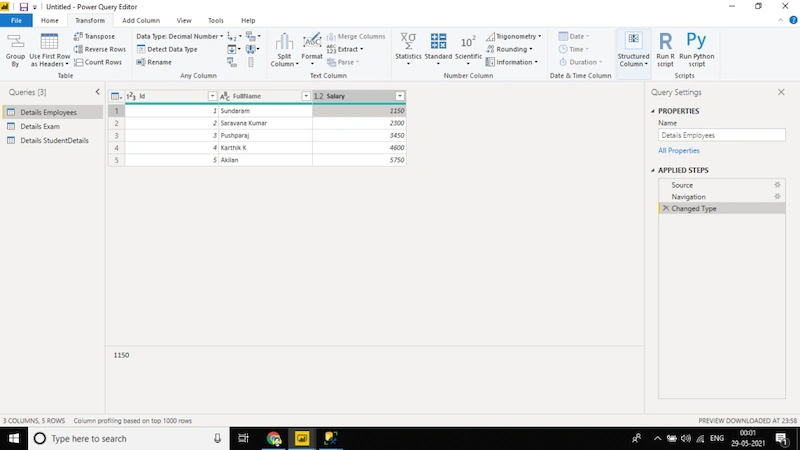
The next option is Transform Data, when we choose this option, from the source, the data will be loaded into the new window which is our Query Editor. Now I choose Transform Data as my choice and a new query editor window is opened as shown below.
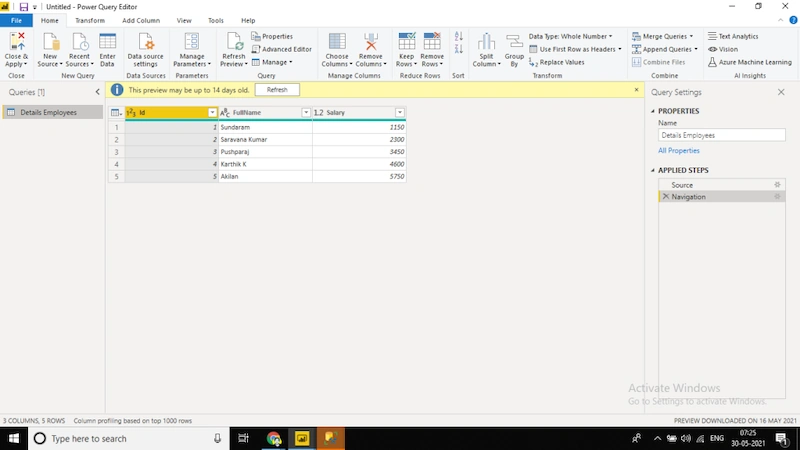
Fig.3 First look of Query Editor
The interface of the Power Query Editor
On the top left of the editor, we can see Untitled – Power Query Window. Once we save the Query Editor, then that name will be displayed over here.

Fig. 4 Untitled Power Query Editor
Just below this, we have a Ribbon tool with options as File, Home, Transform, Add Column, View, Tools, Help. We will explore one by one. The data that we have connected to our Power BI using Transform Data Option is visible under the Query Section (left side of the query editor). It will show the list of files that we are connected to from our data sources.
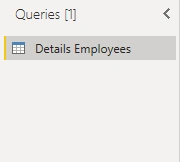
Fig. 5 Query Section
Now on the right side of the editor, We can see Query Settings.
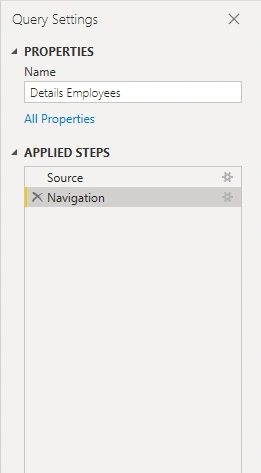
Fig. 6 Query Settings
From the Name field, we can change the name of the file which is loaded from the data source. Applied Steps shows whatever changes we do in the dataset will appear here as a Step. We cannot do CTRL+Z in the Query Editor, so to go back to the previous stage, we have to click the cross icon in the steps which is in the Applied Steps.
Example
Manage Columns – Remove Columns
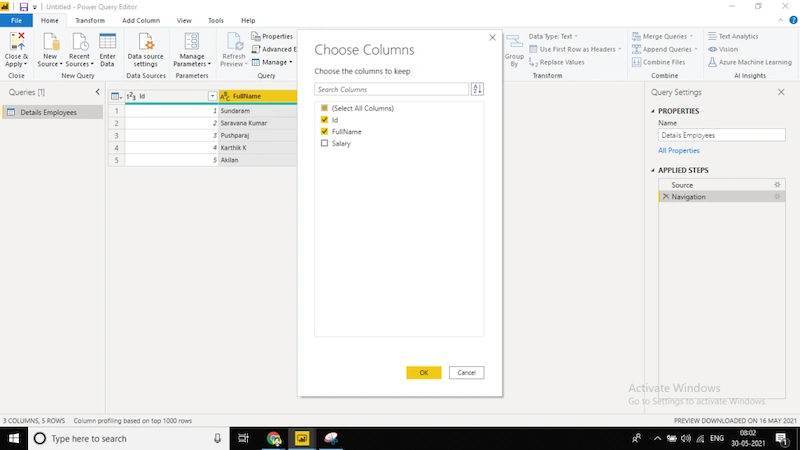
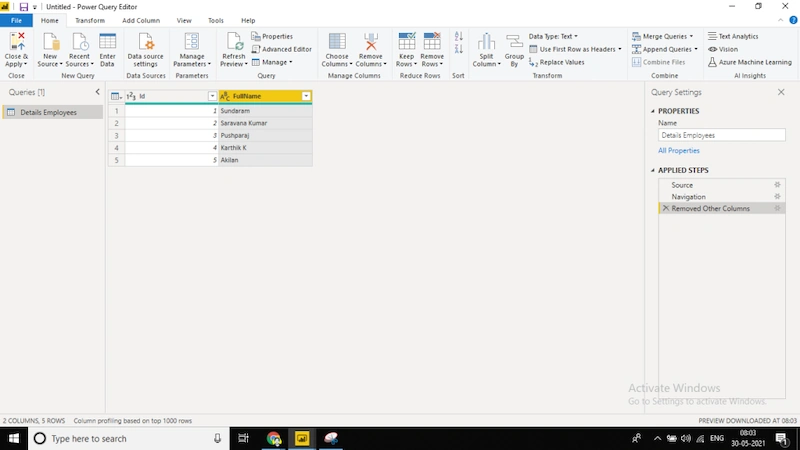
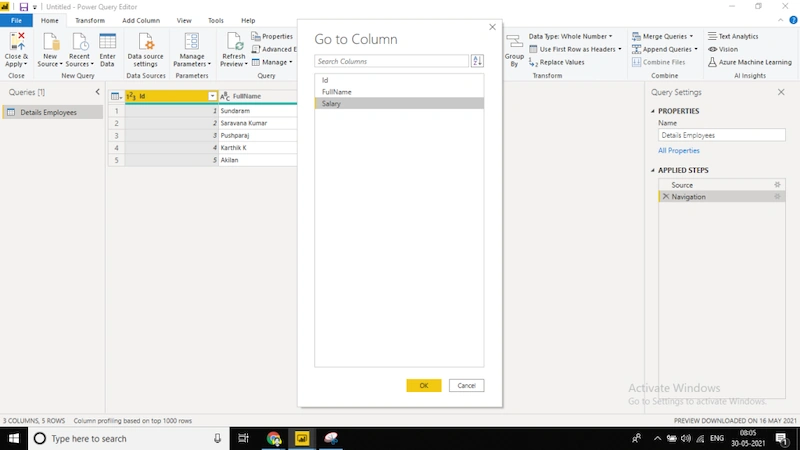
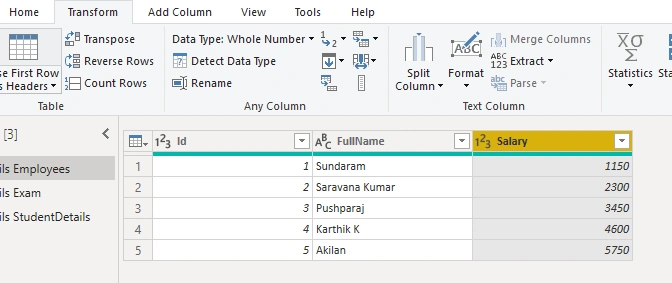
Now let’s remove the Salary column in the Editor. To remove the column, we can do it by selecting the Home tab, under the home tab, we have two options as Choose Columns and Remove Columns in the Manage Columns Section. Now select Remove Columns, and there are options as Remove Columns and Remove Other Columns. Remove Columns will remove the selected columns and Remove Other Columns will remove the other than the selected columns.
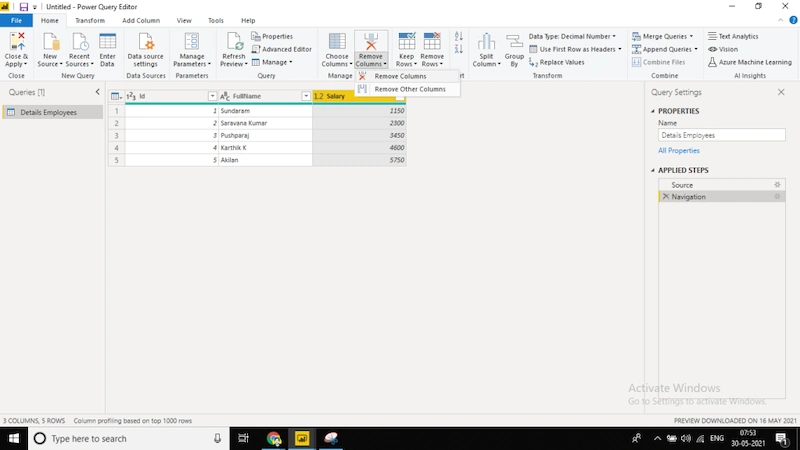
Fig. 7 Remove Columns in Power Query Editor
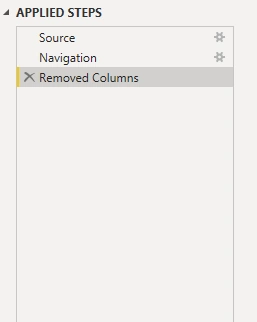
Now let’s choose Remove Column and Salary column is removed. If we look into the Applied Step on the right side of the screen, a new step is added.
Join the conversation! Your thoughts help the community grow.