

Subreports help in splitting a report into multiple parts and allow us to control the amount of information a page can contain.
In my previous post, I wrote about creating an RDLC report using C# and WPF. You can check it out through this link.
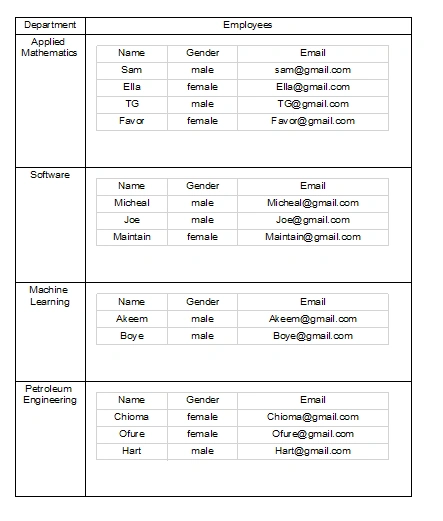
In this article, I will be creating a project that uses SubReport to display the information of employees based on the department of each employee.
- Create a new WPF project called SubReportDemo.
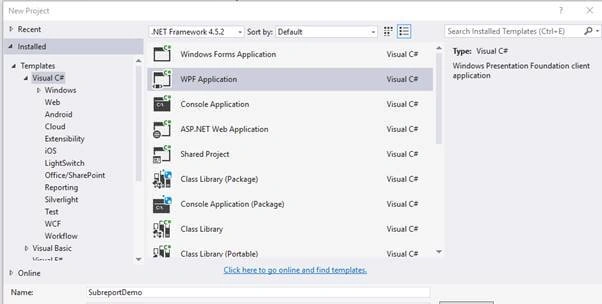
- Create a new class called Employee and add the following code to it.
- namespace SubreportDemo
- {
- public class Employee
- {
- public int ID { get; set; }
- public string Name { get; set; }
- public string Email { get; set; }
- public string Gender { get; set; }
- }
- }
- Create another class called Department and add the following code to it.
- namespace SubreportDemo
- {
- public class Department
- {
- public string Name { get; set; }
- public int ID { get; set; }
- }
- }
- Rebuild the project.
- Add a new report item and name it MainReport.RDLC. Drag and drop a table into the report and set the data source to the Department model. Name the dataset "Department_DS".
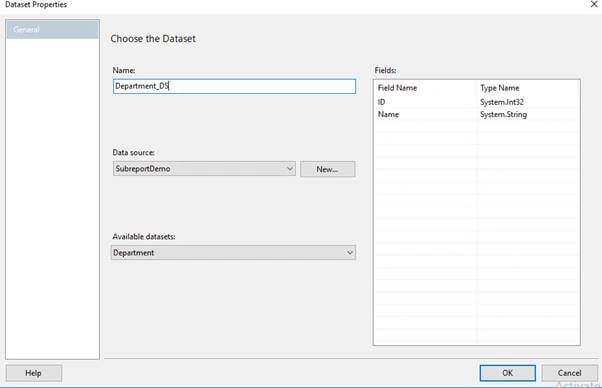
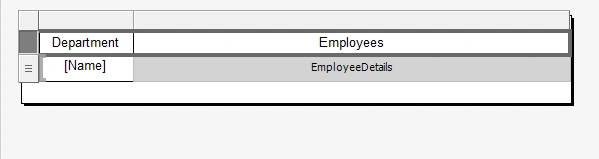
- Design the table as shown below. Map the Name property to the Department column and add a SubReport to the Employees column.

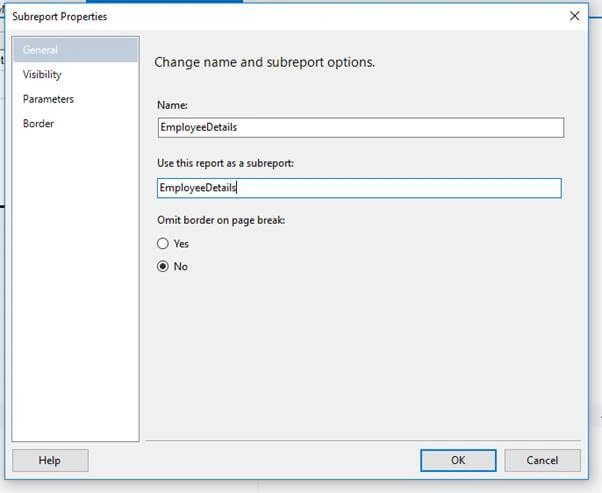
- Right-click on the Subreport and select Properties. Set the Subreport name as EmployeeDetails, as shown below.
 Go to Parameters and set the Name field as ID and select the ID from the dropdown in the Value field.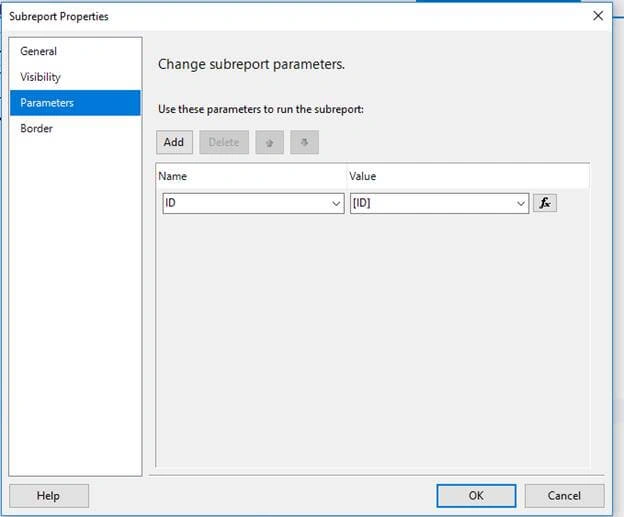
- Add another report file and name it Rdlc. This is the file that will be used as the Subreport. Always make sure that the name of the Subreport is same as the FileName of the Subreport without the rdlc extension.
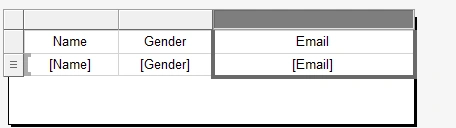
- Add a table to the rdlc file, select the Employee Model as Datasource, and set the name of the dataset as Employee_DS.
Map the columns of the table to the corresponding properties of the dataset.
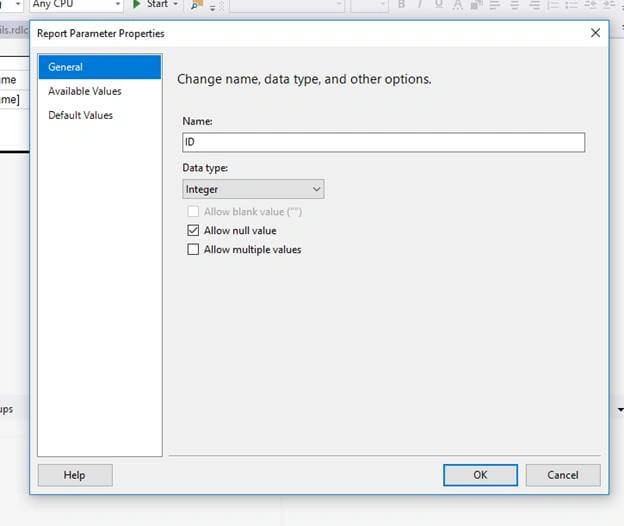
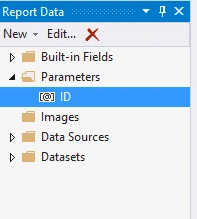
- Right-click on Parameters from the "Report Data Tool" window, add a parameter, and set its name as ID.
The name should always be the same as the name of parameter given to the Subreport initially.
ID is an int type so set the Datatype as Integer.
Cristiano MonegattoPosted Mar 3, 2020, 11:36 AM
Hi Gloria. I liked to much this article. But I?m facing an issue. Can you help me to solve it, please? Severity Code Description Project File LineError The name "ReportViewer" does not exist in the namespace "clr- namespace:Microsoft.Reporting.WinForms;assembly=Microsoft.ReportViewer.WinForms". SubreportDemo c:\temp\SubreportDemo\SubreportDemo\MainWindow.xaml 12
Juan SimonPosted Sep 5, 2019, 5:14 PM
Hi Gloria. Excellent post. Just a question, is it possible to add a 3rd table inside of each Employee row ?