

Overview
This article is about receipt processing using AI Builder. During this session, we will cover how we can process receipts with the Power Apps Receipt Processing AI model.
During this session, we will cover the following things,
- What is the Receipt Processing AI Model?
- Real life use cases and examples
- Key considerations before we proceed for receipt processing model
- Best practices
- Building Power Apps to scan the receipts and store the useful information to SharePoint lists
So, now let’s get started!
Overview of Receipt Processing AI Model
- Receipt Processing is the Pre-Build model of AI Builder.
- Receipt Processing uses the OCR (Optical Character Reading) technique to detect printed and handwritten text from receipts.
Real life use cases where we can use the Receipt Processing Model
Consider an example of an “Employee Expense” tracking system where we are keeping track of each employee's expenses throughout the year. The employee can simply upload the receipt through the Power Apps interface and all the information will be pre-populated in the SharePoint form. Then, Employees can submit their expenses with a single click for the next approval. All the information from the receipt will be detected automatically.
Consider the below example
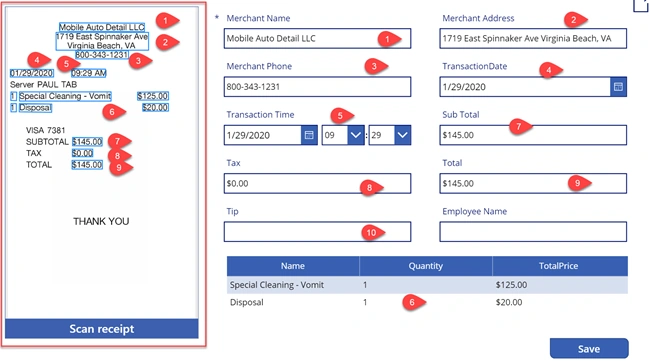
Here, with the easy interface of Power Apps, we can scan receipts and pre-populate information in the grid. From there, employees can submit the form for the next approval.
Key Considerations before proceeding
We need to consider the following things before we proceed for receipt processing AI Builder
- Supported image format: JPEG, PNG, or PDF.
- File size: < 20 MB.
- Image dimensions must be between 50 x 50 pixels and 10000 x 10000 pixels.
- PDF dimensions must be at most 17 x 17 inches, which is the equivalent of the Legal or A3 paper sizes or smaller. PDF
- For PDF documents, only the first 200 pages are processed.
Best Practices
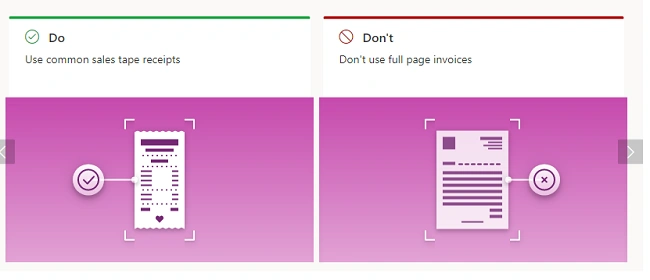
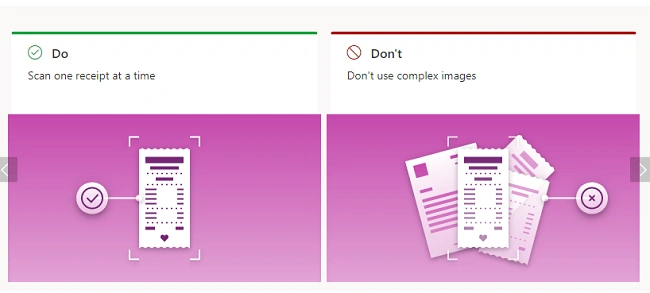
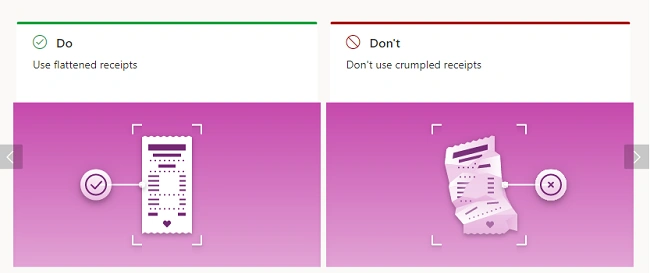
Let’s get started!
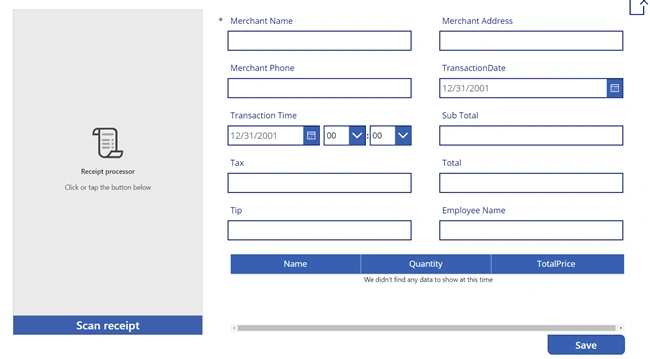
At the end of this article series, we will be able to create the app like the following.
Users can upload the receipts using Power Apps.
Once the image is processed, it will autodetect all fields.
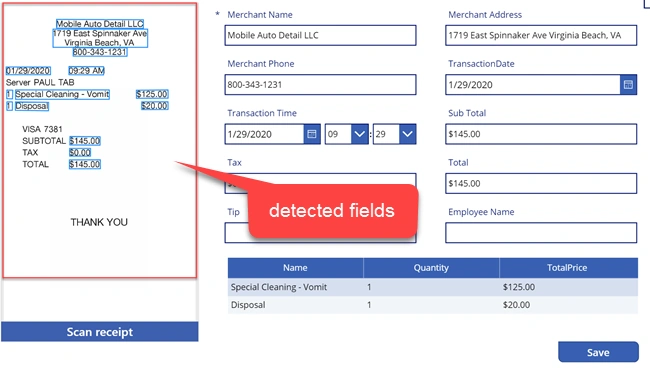
The data will be stored in SharePoint list at last
Download Code Files: You can download the files from my GitHub Account.
So, now let’s get started!
Build List Schema
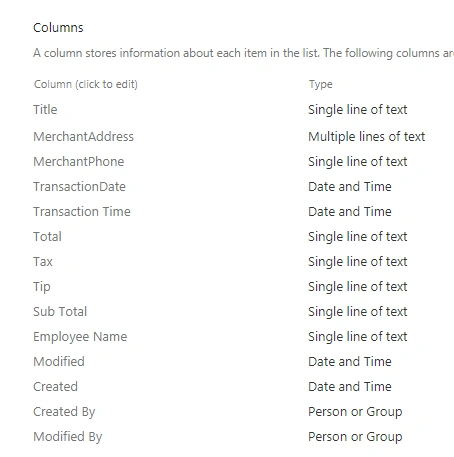
Consider the following list schema.
We have two SharePoint lists.
Employee receipts
Purchased Items
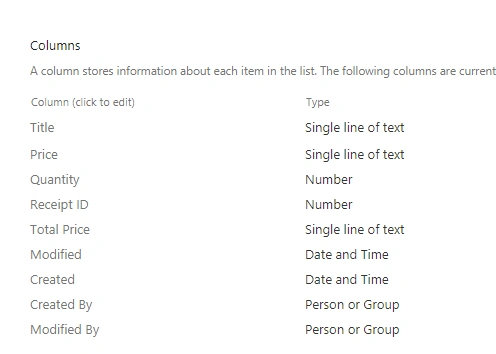
Basic information is stored in the Employee receipts list. Purchased items will be stored in the “Purchased Items” section.
Build Power Apps
There are two ways to create Power Apps.
From AI Builder Section,
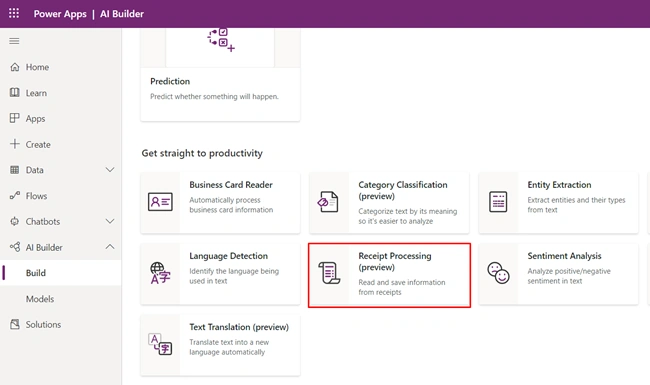
Click on Receipt Processing from AI Builder
Click on Use in App option.
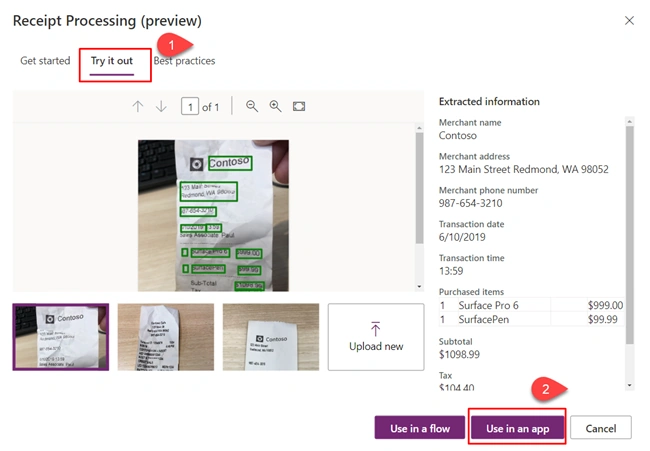
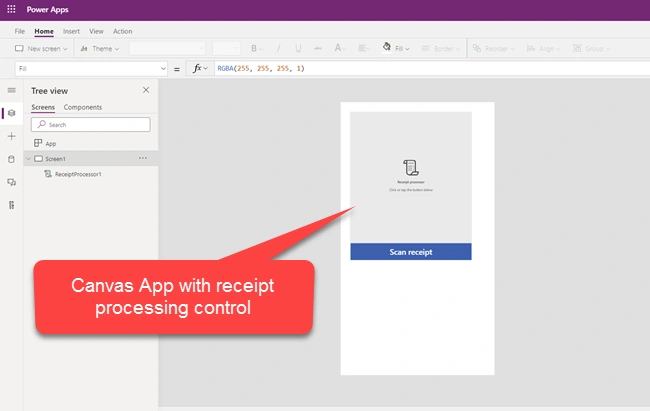
This will create new Power Apps with Phone Layout.
Directly Using Canvas App
We can also create Power Apps using the Canvas App option.
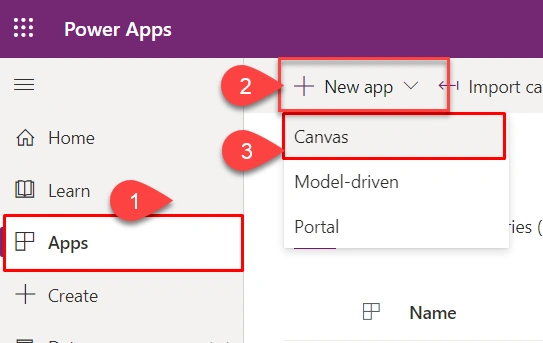
Select Tablet Layout
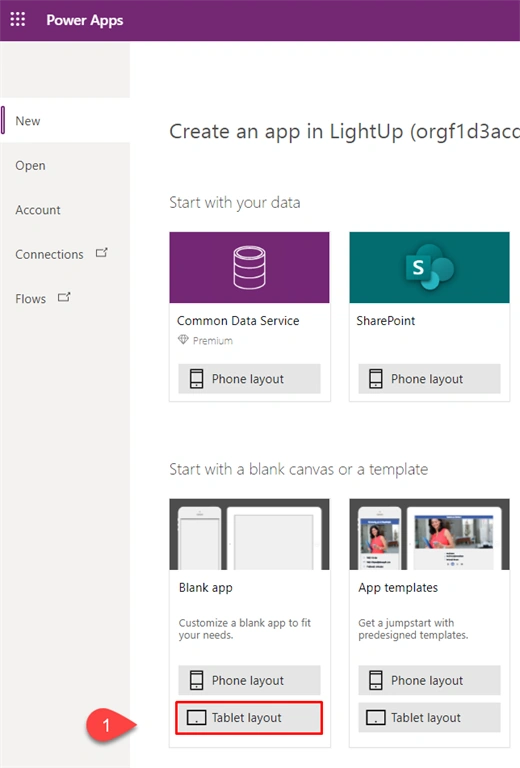
This will create a blank Power Apps.
We will create Power Apps using the second option for Tablet layout.
Step 1
Make a data source connection with two SharePoint lists.
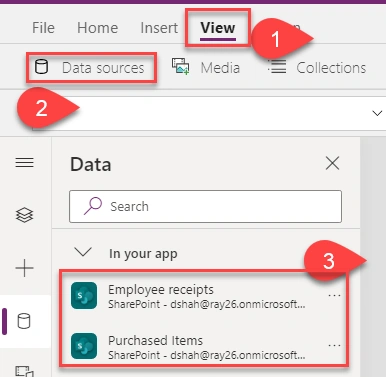
Step 2
Add Receipt Processor AI Builder control in Power Apps.

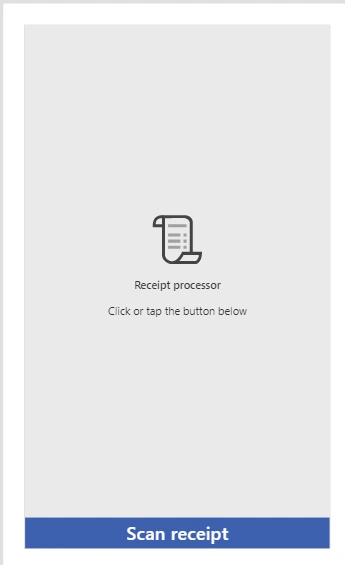
Step 3
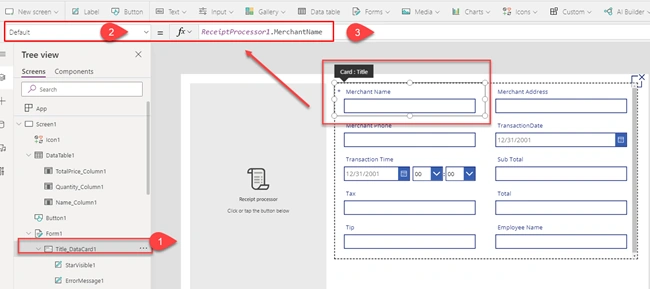
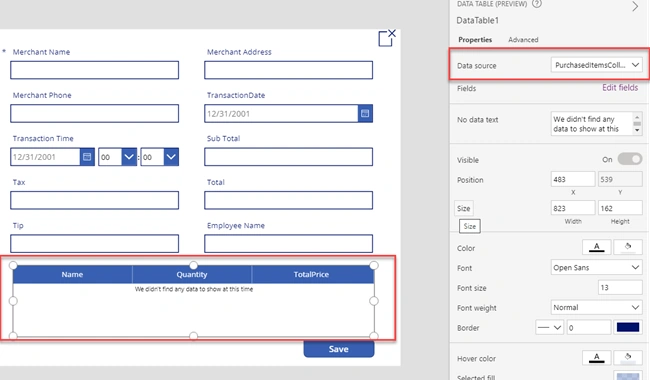
Add SharePoint OOTB form for the Employee Receipt list.
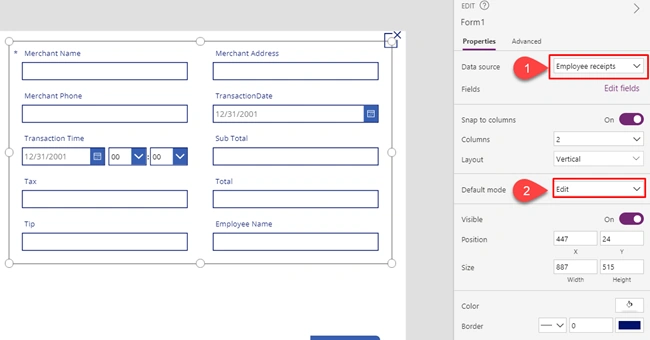
Once we add form, this will look like below.
Step 4
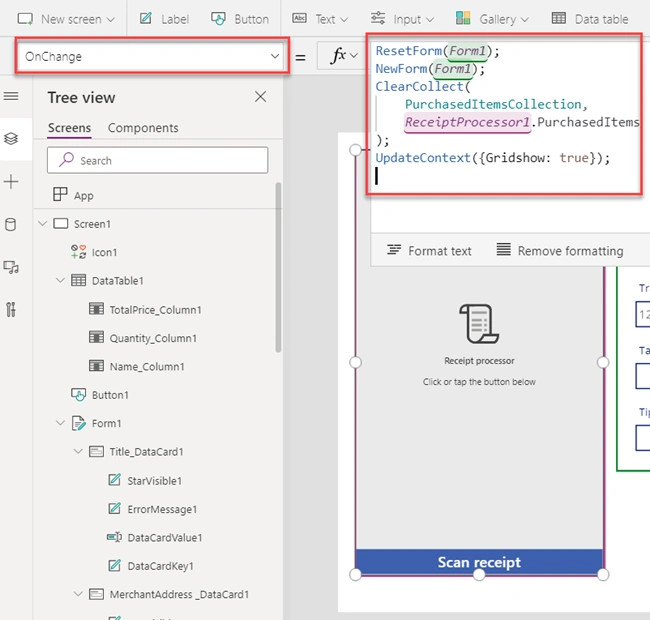
Now, Add the following code on change event of event builder.
- ResetForm(Form1);
- NewForm(Form1);
- ClearCollect(
- PurchasedItemsCollection,
- ReceiptProcessor1.PurchasedItems
- );
- UpdateContext({Gridshow: true});
Pablo BautistaPosted Mar 9, 2022, 11:42 PM
I have a problem in Step 4, when I want to enter the code in the "onselect" section I get an error in each ";" please help me, very good thread.
Chandresh PansuriyaPosted Aug 7, 2020, 5:41 AM
Hi Dhruvin, Nice article and well described. Thank you!