

This article has been
excerpted from book "Graphics Programming with GDI+".
When we're writing Windows applications with drawing functionality, it becomes
important to understand the roles of regions, client areas, and nonclient areas.
This section will describe an exciting and wonderful use of regions.
Figure 6.18 shows a typical rectangular form. As you can see, the title bar area
usually contains the title of the form, as well as minimizes, maximize, and
close buttons. This is the nonclient area; the rest of the form is the client
area. Graphics object can be drawn only in the client area. The combination of
both client and nonclient areas is the default region of a form.
What exactly is a region? A region is a collection of pixels that represents
parts of a control. GDI+ is responsible only for drawing the region associated
with a window (a form or control). The default region of a window includes both
client and nonclient areas, so GDI+ draws the entire window.
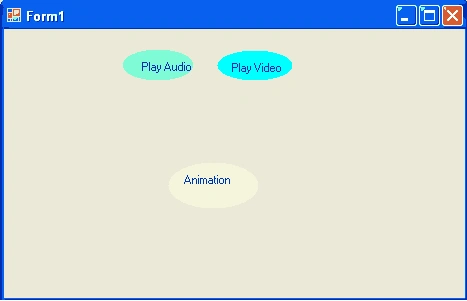
FIGURE 6.18: Client
and nonclient areas of a form.
However, you can force the operating system to display only part of a window.
This is where regions are useful.
The Application
This section will show you the importance of regions and how you can use them in
real-world applications.
Have you ever thought about writing nonrectangular forms or controls? How about
writing circular, triangular, or polygonal forms, buttons, labels, or text
boxes? Our example is a Windows application in which the user can select the
shape of the form. The user will have options to change the default rectangular
form to a circular, triangular, or polygonal form. You will also learn how to
create nonrectangular controls such as buttons.
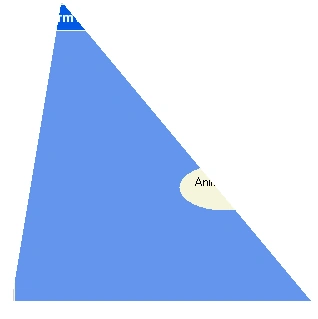
How can we write nonrectangular forms and controls? GDI+ draws only the regions
associated with a form or a control. But setting a nonrectangular region should
do the trick. This is what we will do in our application. One of the
nonrectangular forms of the final application might look like Figure 6.19. As
you can see, this technique can be used to build cool looking Windows
applications.
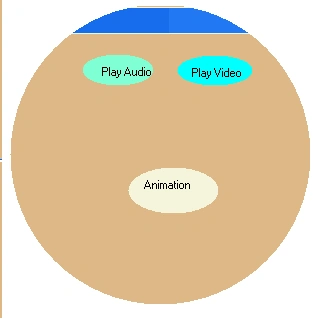
FIGURE 6.19: A
nonrectangular form and controls
Coding
In Windows Forms, every control, including a form, is derived from the Control
class. The Region property of the control class represents the region of
control. If you set the Region property of a control, only the area covered by
that region will be visible to the user. Sections 6.5.2.1 through 6.5.2.6
describe the steps involved in writing code for nonrectangular shapes.
Step1: Create the
Application
We create a Windows application, put the three controls on the form, and change
the Text properties of the buttons. We also add a context menu and four menu
items, as Figure 6.20 shows. In addition, we add menu and button click event
handlers.
Step2: Add the Shape
Class
Now we add a class to the project. Our class name is Shape, as Listing 6.15
shows. We add two methods to this class: GetPolyRegion and GetRectRegion. Both
of these methods return a Region object. The GetPolyRegion method takes an array
of Point objects as its only argument. We create a graphics path from the points
by calling AddPolygon. After that we create a region from the path and return
it. Similarly, we create a region from a rectangle in the GetRectRegion method.
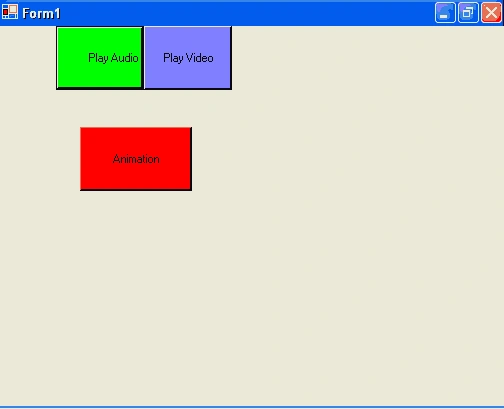
FIGURE 6.20: The
nonrectangular forms application
LISTING 6.15: The
Shape class
using System;
using
System.Collections.Generic;
using
System.ComponentModel;
using System.Data;
using
System.Drawing;
using System.Linq;
using System.Text;
using
System.Windows.Forms;
using
System.Drawing.Drawing2D;
namespace
WindowsFormsApplication2
{
public partial
class Form1 :
Form
{
public Form1()
{
InitializeComponent();
}
//The Shape class contains the functionality
of shaped controls
public
class Shape
{
public Shape()
{
}
public
Region GetPolyRegion(Point[] pts)
{
//Create a graphics path
GraphicsPath path =
new GraphicsPath(FillMode.Alternate);
path.AddPolygon(pts);
//Create a Region object from the path
and set it as the form's region
Region rgn =
new Region(path);
return rgn;
}
public
Region GetRectRegion(Rectangle rct)
{
//Create a graphics path
GraphicsPath path =
new GraphicsPath(FillMode.Alternate);
path.AddEllipse(rct);
//Create a Region object from the path
and set it as the form's region
Region rgn =
new Region(path);
return rgn;
}
}
}
}
Step 3: Load the Context Menu
Join the conversation! Your thoughts help the community grow.