

In the following article I am going to share my experience of using ReportViewer
Control with WPF.
First of all let's have a small discussion on ReportViewer
Control.
ReportViewer
ReportViewer is a freely redistributable control that enables embedding reports
in applications developed using the .NET Framework. We can easily design the
reports with drag-n-drop simply using Report Designer included in Visual Studio
2010.
The benefits that are offered by ReportViewer Control:
- The reporting engine built into ReportViewer can perform operations such as filtering, sorting, grouping and aggregation. And hence processes data efficiently
- To present data it supports a variety of ways. So that the data can be present as lists, tables, charts and matrices (also known as crosstabs.)
- It adds visual appeal. This means we can specify fonts, colors, border styles, background images etc. to make our report visually appealing.
- Enables interactivity in reports. We can have collapsible sections, document map, bookmarks, interactive sorting etc. in our report.
- Conditional formatting is also supported by report viewer. We can embed expressions in the report to change display style dynamically based on data values.
- Supports printing and print preview.
- Supports export to Excel, Word and PDF formats.
Generally we follow the usage of the Report
Viewer in Windows Form programs. But here we are going to use this in WPF
application.
Step by step creation of report using ReportViewer Control in WPF application
1. Very first step is to open a new project of WPF Application project type and
name it to "ReportViewerWPF".
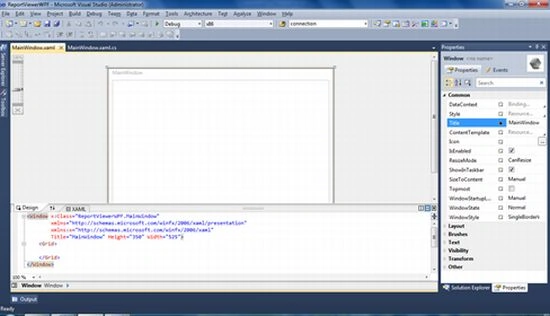
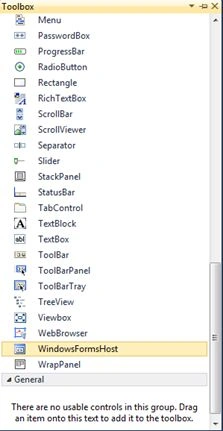
2. Secondly, click on the Toolbox, and drag a "WindowsFormsHost" control
onto the design surface for MainWindow.xaml. This also adds the assemblies that
are needed by WindowsFormstHost to our project.
Code
<WindowsFormsHost
Height="100"
Width="100"
Name="windowsFormsHost1"/>
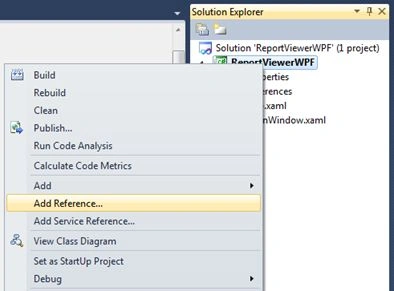
3. Now, in Solution Explorer, right-click on the project and select Add
Reference.
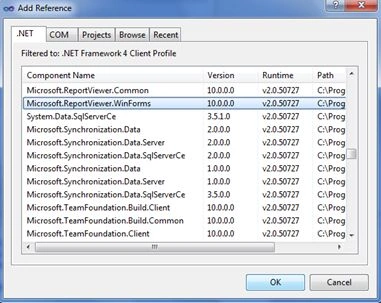
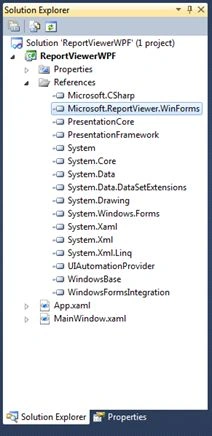
4. In the .NET tab of the Add Reference dialog log, select the
Microsoft.ReportViewer.WinForms assembly, and click OK. After adding
successfully it shows in the solution explorer pane under the head "Refrences".
5. Also add the highlighted lines to your code:
<Window
x:Class="ReportViewerWPF.MainWindow"
xmlns="http://schemas.microsoft.com/winfx/2006/xaml/presentation"
xmlns:x="http://schemas.microsoft.com/winfx/2006/xaml"
xmlns:rv="clr-namespace:Microsoft.Reporting.WinForms;
assembly=Microsoft.ReportViewer.WinForms"
Title="MainWindow"
Height="300"
Width="400">
<Grid>
<WindowsFormsHost
Name="windowsFormsHost1">
<rv:ReportViewer
x:Name="_reportViewer"/>
</WindowsFormsHost>
</Grid>
</Window>
This creates an instance of ReportViewer named _reportViewer in the XAML page.
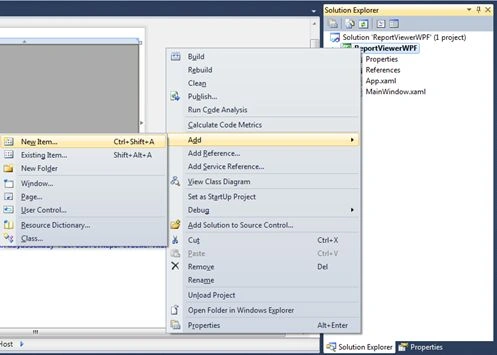
6. Now let's create an RDLC report that you will display in the ReportViewer
control. And for this, In Solution Explorer, right-click your project, point to
Add, and select New Item.
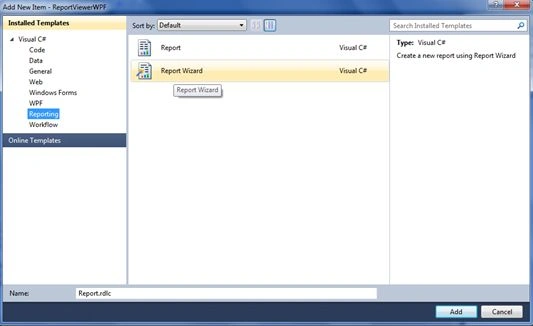
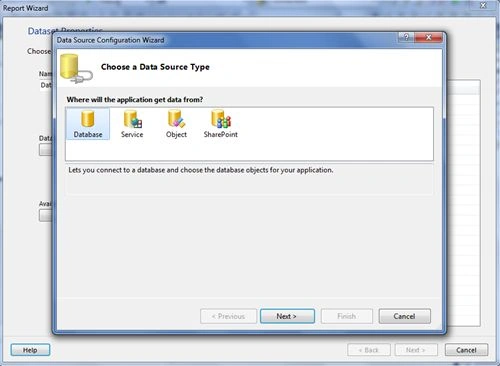
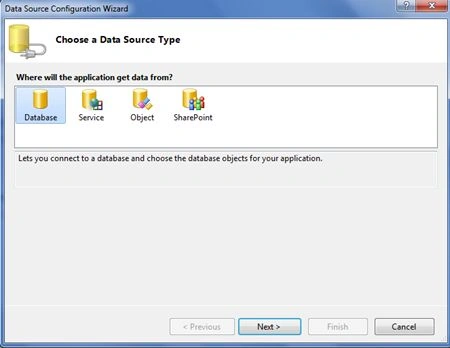
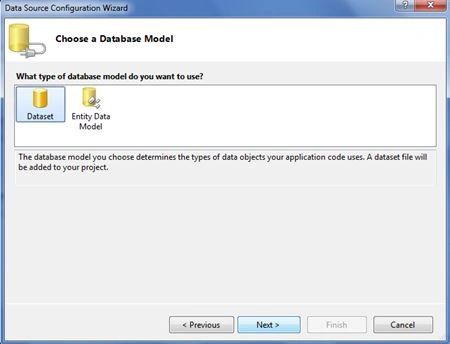
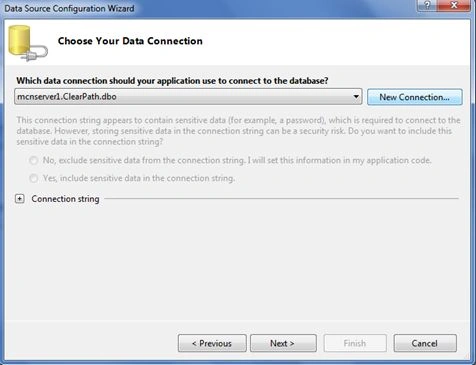
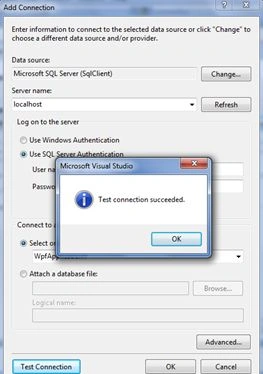
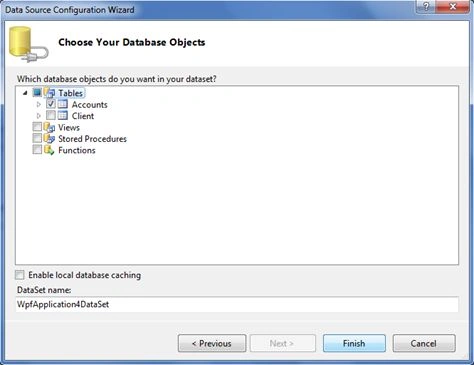
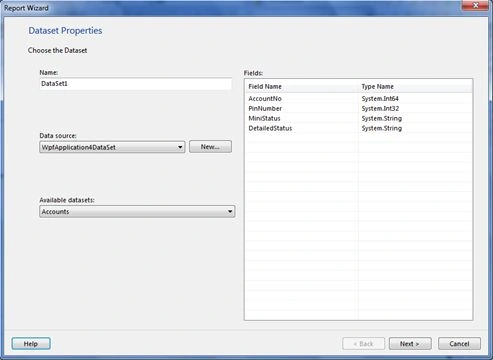
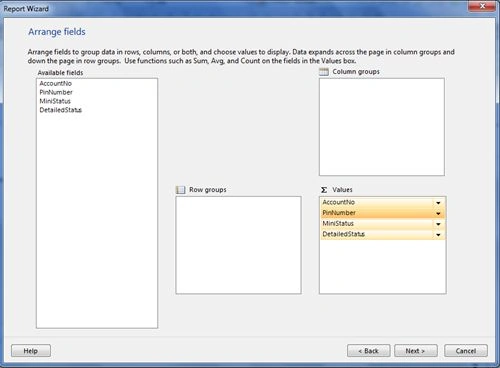
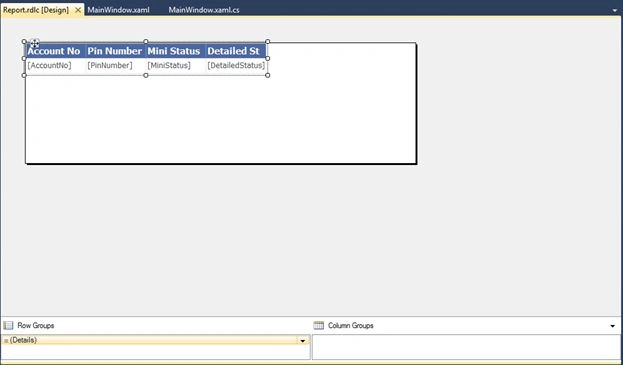
7. In the Add New Item dialog box, select Report Wizard which is in Reporting
template, and click Add. This will open the Report Wizard with the Data Source
Configuration Wizard like this:
Dipenjit DasPosted Sep 1, 2017, 7:45 AM
The code is working properly. thanks..
Gurbet SevinPosted Feb 5, 2015, 8:40 AM
how to use width and height telerik reporting table in c sharp programming ?help me please
shiva kumarPosted Aug 8, 2013, 1:24 AM
Thank you.. can we use stored procedure instead of taking table directly to create report.
Nicky KiborPosted May 26, 2013, 1:37 PM
Thank you for this life-saver article!
Mahesh ChandPosted Mar 27, 2013, 12:48 PM
This is not for server reports. This is good when used within an application.
Eugene AduPosted Mar 13, 2013, 4:40 AM
How can i use this to view server reports...Please help me
Saurabh AgrawalPosted Feb 11, 2013, 5:43 AM
Thanks a lot ..
Saurabh AgrawalPosted Feb 11, 2013, 5:43 AM
Thanks a lot ..
moonshine moonshineeditedPosted Jan 21, 2013, 3:09 PMEdited Jan 23, 2013, 7:05 PM
thanks for your topic
TAN WhoAMIPosted Jul 18, 2012, 9:42 PM
this is useful for me. Question1: How can we control the width of each individual column? Presently, each column is fixed to equal width. Question2; How do we change the font size of the contents? thanks.
khalid alrfadyPosted Jun 26, 2012, 3:51 AM
sorry DataSetTableAdapters where add the option thanks
Sunny DhimanPosted May 29, 2012, 8:19 AM
Hi Nipun, I want to set dataset dynamically using parameterized stored procedure.Can you provide any idea for this in WPF.
Mahesh ChandPosted Dec 22, 2011, 9:52 AM
Good work Nipun. We needed this article.
Alten ChingumbraPosted Dec 22, 2011, 4:23 AM
Thank u for beautiful Artice N Tomar
Aaron CronjePosted Dec 22, 2011, 1:05 AM
Good Work......
Akash AhlawatPosted Dec 22, 2011, 12:58 AM
Really a complete article..good explanation,use of images provides better insight of the topic...great
Arjun PanwarPosted Dec 22, 2011, 12:55 AM
Thanks for sharing