

Users in Microsoft 365 may encounter a cryptic error when trying to apply sensitivity labels to emails or Office files. The error appears as:
"Failed to get template. Template: [GUID]. Exception encountered: RmException"
This article explains why labels stop working, what the error means, and how administrators can fix it permanently.

Scenario 1 – Labeling an Email in Outlook
When a user assigns a sensitivity label to an email and tries to send it, Outlook gives NDR mentioning the email got blocked.
Scenario 2 – Labeling a File (Word, Excel, PowerPoint)
When a user clicks a sensitivity label in an Office desktop app (e.g., Word), nothing happens — or the label appears to select briefly but then unselects itself. Sometimes an error pop‑up appears:
Screenshot description (typical error):
"Something went wrong. We couldn't apply the label. Please try again or contact your support team."
Or the label simply does not stick – it looks like it was clicked but reverts to "No label" or a different label.
The file remains unlabeled or labeled incorrectly, and encryption/protection never applies.
Root Cause
Both scenarios share the exact same underlying cause:
The sensitivity label references an Azure Rights Management (Azure RMS) template that is in
Archivedstatus — but Microsoft 365 still tries to use it.
When a user applies a label:
Outlook or Office calls Azure RMS to fetch the encryption template
If the template is
Archived, the service returns: "Failed to get template"The label application fails silently or with a generic error
Why Does a Label Reference an Archived Template?
| Cause | Explanation |
|---|---|
| Label was retired but not removed from user policies | The label is still published to users, but its backend template was archived |
| Template manually archived via PowerShell | An admin ran Set-AipServiceTemplateProperty -Status Archived |
| Label migrated incorrectly | During tenant migration or label recreation, the template ID changed or was orphaned |
| Microsoft Purview sync delay | A label was edited, but the Azure RMS template wasn't updated properly |
How to Fix It
For IT Admins – Permanent Resolution
Step 1: Connect to Azure Information Protection Service
Open PowerShell as administrator and run:
Install-Module -Name AIPService -Force -AllowClobberConnect-AipServiceStep 2: Find the Archived Template
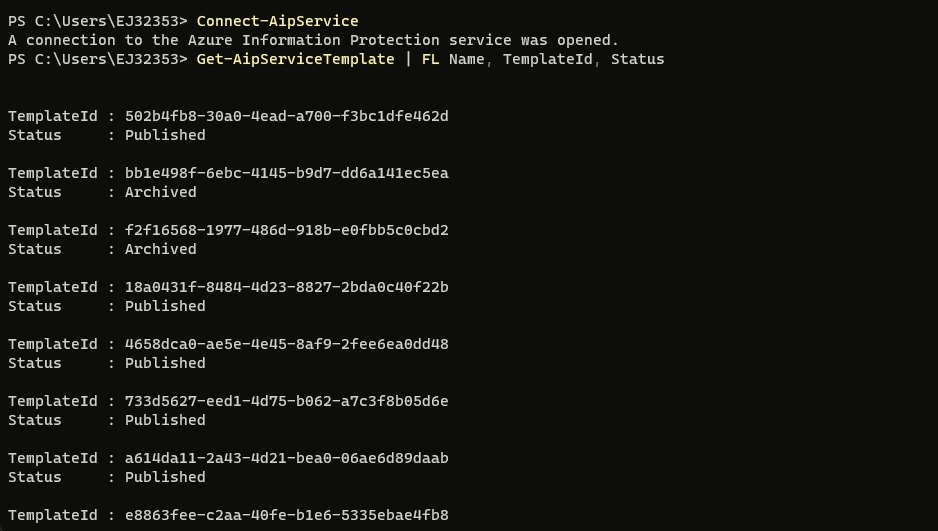
List all templates and locate the one with Status : Archived that matches the GUID in your error:
Get-AipServiceTemplate | FL Name, TemplateId, StatusLook for your problematic TemplateId (e.g., aa017b4b-18a0-41d1-8a13-5ddd651d6c40).
Step 3: Publish the Archived Template
Set-AipServiceTemplateProperty -TemplateID "aa017b4b-18a0-41d1-8a13-5ddd651d6c40" -Status Published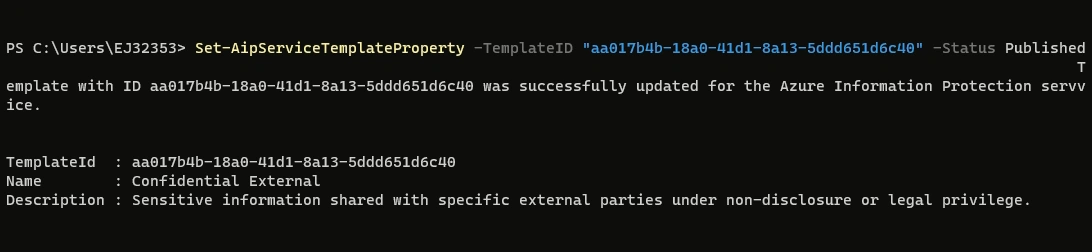
Step 4: Verify the Change
Get-AipServiceTemplate -TemplateID "aa017b4b-18a0-41d1-8a13-5ddd651d6c40" | FL Name, StatusYou should now see Status : Published.
Step 5: Wait for Replication
Changes take 1–2 hours to sync across all Microsoft 365 services. After that:
Ask users to restart Outlook and Office apps
Test applying the label to an email and a file again
Conclusion
The "Failed to get template" error (NDR 550 5.7.162 in email, or unresponsive label clicks in Office files) is caused by an archived Azure RMS template that a sensitivity label still depends on. Publishing the template via the Set-AipServiceTemplateProperty PowerShell cmdlet resolves the issue for both Outlook and Office desktop apps within 1–2 hours. Regular auditing of template status prevents recurrence.
Rajat SahayPosted Jul 8, 2026, 7:39 PM
Thank you, It helped me resolve my issue. One thing I would like to add is that, It gave me error on Powershell 7.X but worked well on Powershell 5.X