

Introduction
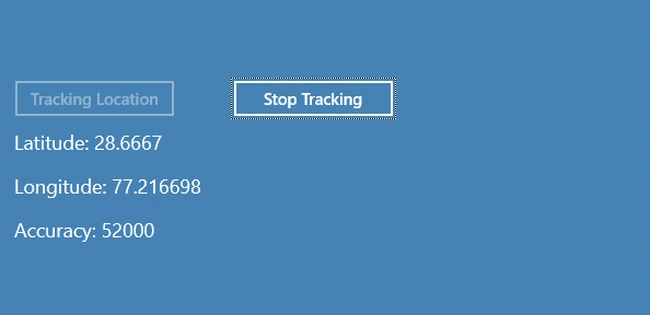
Today we explain how to respond to location updates from location changes in Windows Store apps using C# and XAML. The example in this article demonstrates how to use the Geolocation API to get the geographic location of the user's PC. An app can use the Geolocation API to get the location once or it can continuously track the location. This example demonstrates both ways of using the Geolocation API.
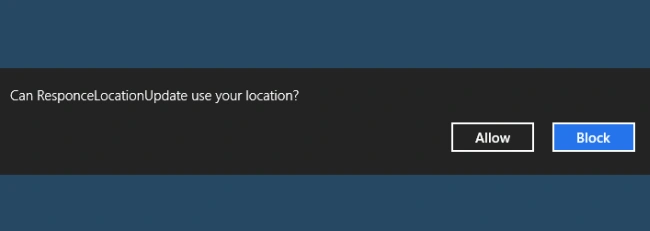
In this example we are using the two namespaces "Windows.Devices.Geolocation" and "Windows.UI.Core" for tracking user location information. When you run the app the first time, you'll get a prompt that asks if the app can use your location. Choose the Allow option. Click the Get Location button to get the current location.
Step 1
Open Visual Studio 2012 and start a new Windows Store apps project.
Step 2
Go to the Solution Explorer and open "Package.appxmanifest".

Step 3
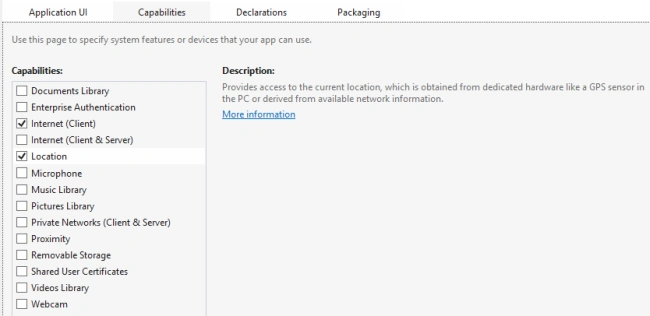
In "Package.appxmanifest" go to the "Capability" tab and enable the "Location" option.
Step 4
Go to the "MainPage.xaml" page and replace all code with the following code.
<Page
x:Class="ResponceLocationUpdate.MainPage"
xmlns="http://schemas.microsoft.com/winfx/2006/xaml/presentation"
xmlns:x="http://schemas.microsoft.com/winfx/2006/xaml"
xmlns:local="using:ResponceLocationUpdate"
xmlns:d="http://schemas.microsoft.com/expression/blend/2008"
xmlns:mc="http://schemas.openxmlformats.org/markup-compatibility/2006"
mc:Ignorable="d">
<Grid x:Name="LayoutRoot" Background="SteelBlue">
<Button Content="Tracking Location" x:Name="TracLoc"
HorizontalAlignment="Left" Margin="12,180,0,0"
VerticalAlignment="Top" Width="151" Click="TracLoc_Click" />
<Button Content="Stop Tracking"
x:Name="StopTrac" HorizontalAlignment="Left" Margin="212,180,0,0"
VerticalAlignment="Top" Width="151" Click="StopTrac_Click" />
<TextBlock Margin="14,230,0,0" FontSize="18" Text="Latitude" Name="textLatitude" />
<TextBlock Margin="14,270,0,0" FontSize="18" Text="Longitude" Name="textLongitude" />
<TextBlock Margin="14,310,0,0" FontSize="18" Text="Accuracy" Name="textAccuracy" />
</Grid>
</Page>
Step 5
Your "MainPage.xaml.cs" is as the following code.
using System;
using System.Collections.Generic;
using System.IO;
using System.Linq;
using Windows.Foundation;
using Windows.Foundation.Collections;
using Windows.UI.Xaml;
using Windows.UI.Xaml.Controls;
using Windows.UI.Xaml.Controls.Primitives;
using Windows.UI.Xaml.Data;
using Windows.UI.Xaml.Input;
Join the conversation! Your thoughts help the community grow.