

Rotating Circle Animation in HTML5
This article describes 2-D transformations, especially translation and rotation.
Step 1
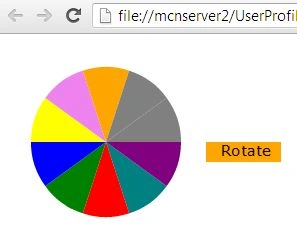
The first step is to define the parameters of the circle. Keep in mind that the preceding circle is not one single arc drawn as a circle, but 10 sectors drawn around the center to make a circle. So each sector will subtend an angle of 36 degrees.
- var centreX = 100; var centreY = 100;
- var radius = 75;
- var rotateAngle = 36 * Math.PI / 180;
- var startAngle = 0 * Math.PI / 180;
- var endAngle = 36 * Math.PI / 180;
Step 2
We create an array of colors to fill each sector of a circle.
var colors = ["teal", "red", "green", "blue", "yellow", "violet", "orange", "grey", "navy blue", "purple"];
Step 3
Since 10 sectors make up the circle, we will draw them using a "for loop". Before drawing each sector, we will:
- Rotate the canvas about the center of the circle.
- Assign a color for the sector from the array "colors".
- function drawWheel() {
- var canvas = document.getElementById("canvas");
- if (canvas.getContext) {
- var ctx = canvas.getContext("2d");
- for (i = 0; i < 10; i++) {
- ctx.fillStyle = colours[i];
- ctx.translate(centreX, centreY);
- ctx.rotate(rotateAngle);
- ctx.translate(-centreX, -centreY);
- ctx.beginPath();
- ctx.moveTo(centreX, centreY);
- ctx.lineTo(centreX + radius, centreY);
- ctx.arc(centreX, centreY, radius, startAngle, endAngle, false);
- ctx.closePath();
- ctx.fill();
- }
- }
- }
Step 4
To rotate the circle we first define a rotating angle, using the following:
var rotateAngle = 36 * Math.PI / 180;
Step 5
Rotate the canvas about the centre of the circle.
- ctx.translate(centreX,centreY);
- ctx.rotate(rotateAngle);
- ctx.translate(-centreX,-centreY);
Step 6
Draw the circle again, with the rotated canvas.
drawWheel();
Step 7
A counter keeps track of the number of times the canvas is rotated. When the number of rotations desired is done, stop the animation using the clearInterval() method.
- counter++;
- if (counter > rnd) {
- counter = 0;
- clearInterval(animFlag);
- }
Step 8
Draw the "Rotate" button. Use the addEventListener() method to detect a mouse click. If the mouse is clicked inside the "Rotate" button, then call the rotateWheel() function.
- function mouseClick(event) {
- var x = event.clientX;
- var y = event.clientY;
- var rnd = Math.ceil(Math.random() * 100);
- if ((x > 200) && (x < 275) && (y > 100) && (y < 120))
- animFlag = setInterval(function () { rotateWheel(rnd) }, 25);
- }
- window.addEventListener("click", mouseClick, false);
Example
Praveen BPosted Apr 8, 2017, 12:41 AM
Hi,This is Praveen,I need to rotate canvas image and it will stop at what I gave the time, possible please info me as soon as.
Sagar MahagaonkarPosted Nov 24, 2016, 1:03 PM
I need to display the numbers from 1-10 on circle. I tried to use fillText but its not working. I just getting problem that its not viewing digit '1'. All are showing but not '1'. Help in it pls. Thanks in advance..!
Sam HobbsPosted Apr 6, 2013, 3:49 PM
That is interesting and pretty and useful. Note that if I comment out the getElementById then it still works so is there a good reason to use getElementById anyway? The line I commented out (in two places) is: var canvas = document.getElementById("canvas");