

Introduction
This article explains how to run Windows Store apps as a different user from the Start screen. In Windows 7 we could simply press the Shift key and right-click on an application to run it as a different user. But it works a little differently in Windows 8.
How to enable the option for running as a different user?
Step 1
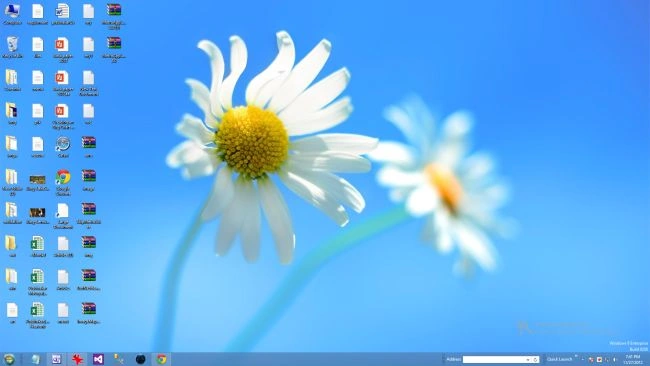
First of all, we have to move to the Windows 8 Desktop.
Step 2
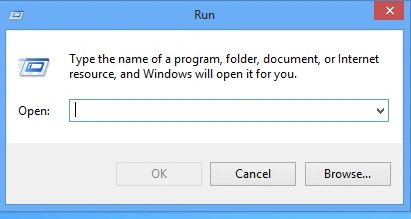
Then we press the Win + R key, then we see a run box.
Step 3
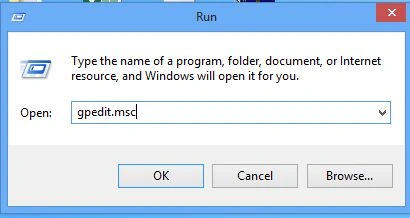
In the run box, type gpedit.msc and hit Enter.
Step 4
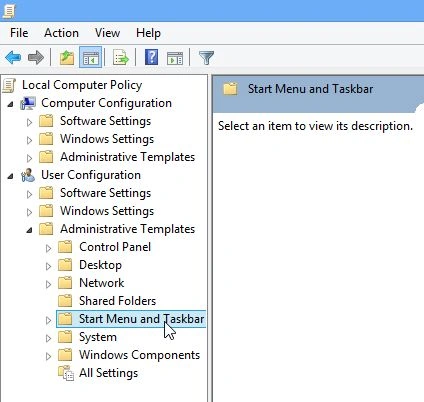
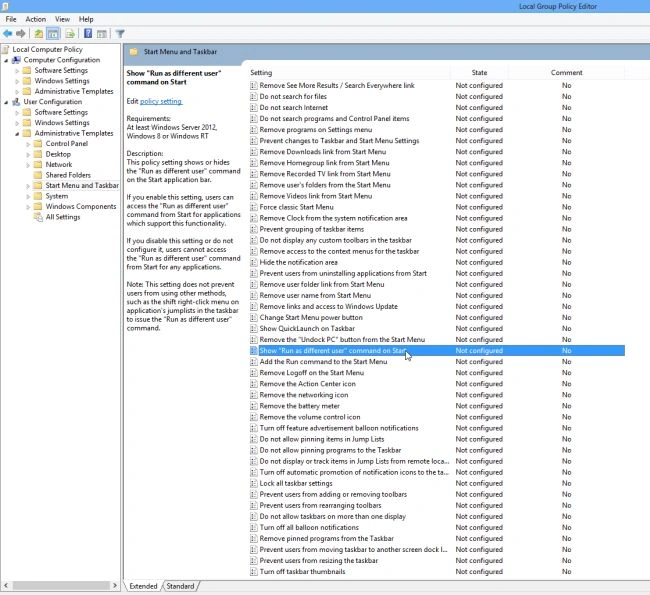
After this process we will need to drill down into:
User Configuration\Administrative Templates\Start Menu and Taskbar
Step 5
On the right-hand side (in "Start Menu and Taskbar") we be "Run as different user", double-click on it.
Step 6
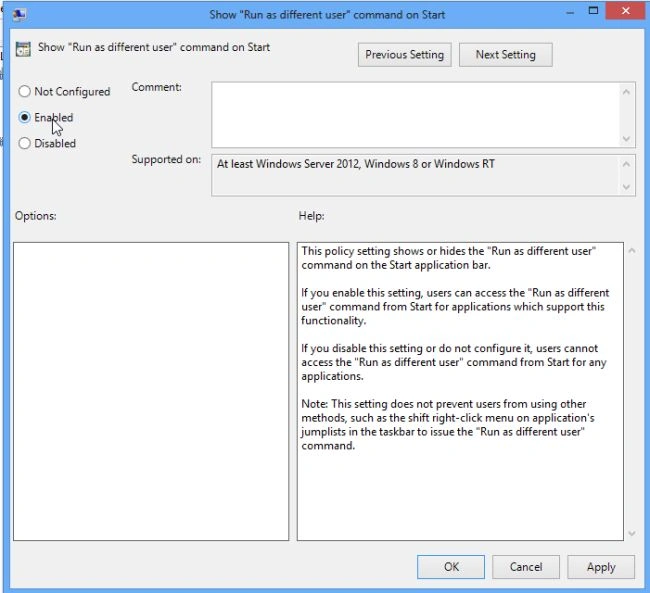
Then change the radio buttons from "Not Configured" to "Enabled", then click on the OK button.
Step 7
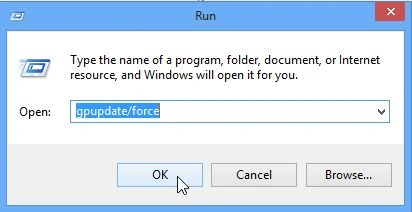
To do this process we press the Win + R key.
When the run box opens enter the following then hit enter: gpupdate /force
Step 8
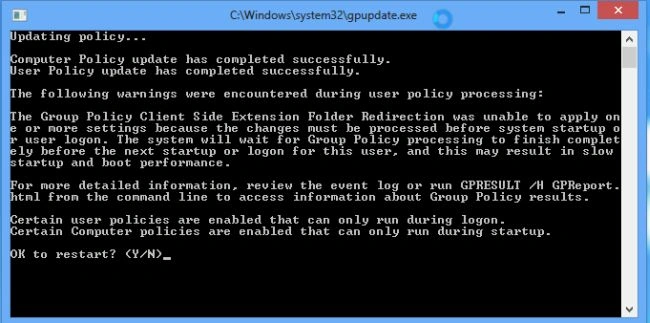
Then we see a command prompt window and it shows updating policy.
Step 9
That is all there is to it. Now you can easily run applications as a different user from the Start Screen.

Summary
In this article, we learned about Run Windows 8 Apps as a Different User From Start Screen.
Join the conversation! Your thoughts help the community grow.