

The Day My Laptop Said: "Main Yahan Hoon"
Let me tell you a story. A few weeks ago, a student from my Docker workshop messaged me on LinkedIn. He had just got a brand new MacBook Pro with the M4 chip — the one with the fancy Apple Silicon that everyone is raving about. He wanted to run an AI model locally. Not on some server, not on AWS, not on any cloud. Locally. On his own machine.
His exact words were: "Bhai, mujhe AI apne laptop mein chahiye. Koi subscription nahi, koi data leak nahi, bas mera laptop aur meri AI."
(Translation: "Bro, I want AI on my laptop. No subscription, no data leaks, just my laptop and my AI.")
Honestly? Same, bhai. Same.
That conversation is what inspired this article. If you have ever wondered how to run a Claude-compatible AI model locally — fully isolated, inside Docker, without touching your production environment — this guide is for you. We are going to do it step by step, command by command, and I am going to explain why each step matters.
What Are We Actually Building?
Before we dive in, let me paint a clear picture. By the end of this guide, you will have:
Docker Model Runner running on your Mac — Docker's built-in way to run AI models locally
A Claude-compatible open-source model downloaded and ready (like Qwen3-Coder or GPT-OSS)
Claude Code installed on your Mac, connected to your local model
A fully isolated sandbox — if something breaks or you want to stop, one command brings your Mac back to normal
Think of it like this: you are setting up a parallel universe inside your laptop. In that universe, an AI model runs freely. In your normal universe — your projects, your work, your production code — nothing changes. The two never mix unless you want them to.
Important: Anthropic's Claude (the one on claude.ai) is proprietary and cannot be downloaded or run locally. What we are running here is Claude Code — Anthropic's coding agent — connected to open-source models that behave similarly. The experience is remarkably close.
Before You Begin — What You Need
A MacBook with Apple Silicon (M1, M2, M3, or M4 chip)
At least 16GB RAM — 32GB is better for larger models
Docker Desktop installed and running (download from docker.com)
A decent internet connection for the initial model download (models are 10–17GB)
Basic familiarity with Terminal — nothing advanced, just knowing how to open it
That is it. No Anthropic API key, no AWS account, no cloud subscription needed.
Step 1 — Enable Docker Model Runner
Open your Terminal and run:
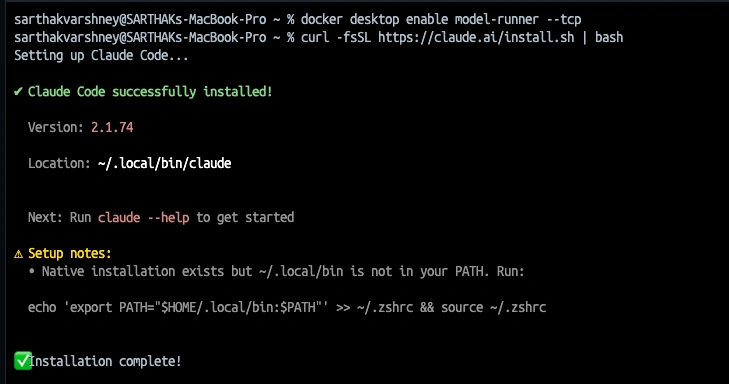
docker desktop enable model-runner --tcpThis one command activates Docker's built-in model runner with TCP support. Your local AI model will be accessible via a standard HTTP API — just like calling any REST API. You can even query it with curl later.
Think of it like switching on a power socket in your wall. Nothing runs yet, but the infrastructure is ready.
Pro tip: Make sure Docker Desktop is updated to the latest version before running this. Older versions may not have the model-runner feature. Go to Docker Desktop → Check for Updates.
Step 2 — Install Claude Code
Run this in your Terminal:
curl -fsSL https://claude.ai/install.sh | bash```When it finishes, you will see:
```
✔ Claude Code successfully installed!Version: 2.1.74
Location: ~/.local/bin/claude
Now fix your PATH so the claude command works anywhere:
echo 'export PATH="$HOME/.local/bin:$PATH"' >> ~/.zshrc && source ~/.zshrcThink of this like adding a new contact to your phone — now you can dial Claude directly from any folder in Terminal.
Step 3 — Pull Your AI Model
Start with a small model to confirm everything works:
docker model pull ai/smollm2SmolLM2 is only 270MB and downloads in seconds. Once that succeeds, go for the main model:
docker model pull ai/qwen3-coderQwen3-Coder is about 17.67GB — one of the best coding-focused open-source models available right now. On an M4 Mac, it runs fast thanks to Apple's unified memory architecture.
Go make chai. Come back. It will be ready.
If your download fails midway (you will see an "unexpected EOF" error), do not panic. This is just a network interruption. Run the same
docker model pullcommand again — Docker resumes from where it left off, it does not restart from scratch.

Join the conversation! Your thoughts help the community grow.