

Introduction
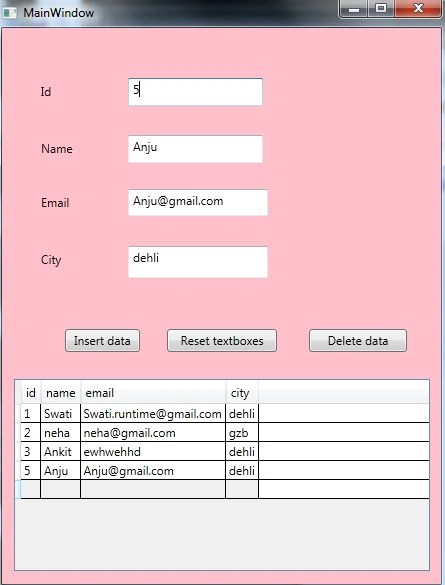
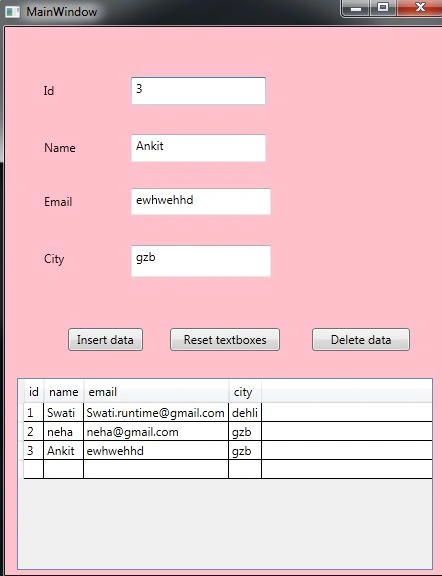
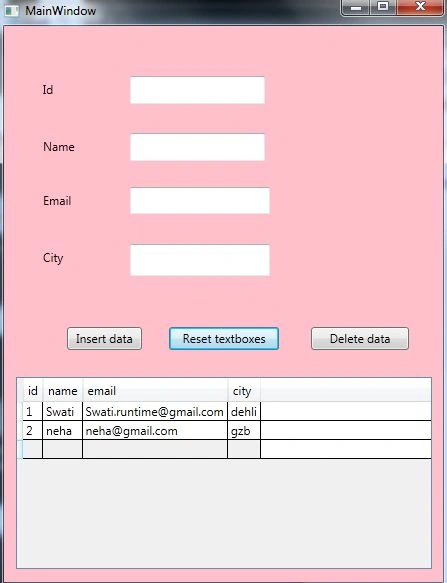
This article describes runtime table creation in WPF and shows some basic data operations, such as inserting and deleting records using C# and XAML. The DataGridView control is the most popular control for display data in tabular format in Windows Forms but in WPF we use a DataGrid to display data.
DataGrid is a data shaping component that allows the end user to manage the data and also display the data on the screen. It provides a feature called AutoGenerateColumns that automatically generates columns.
In Visual Studio 2010 DataGrid supports Drag and Drop from a toolbox but in Visual Studio 2008 you need to install the WPF toolkit.
Step 1
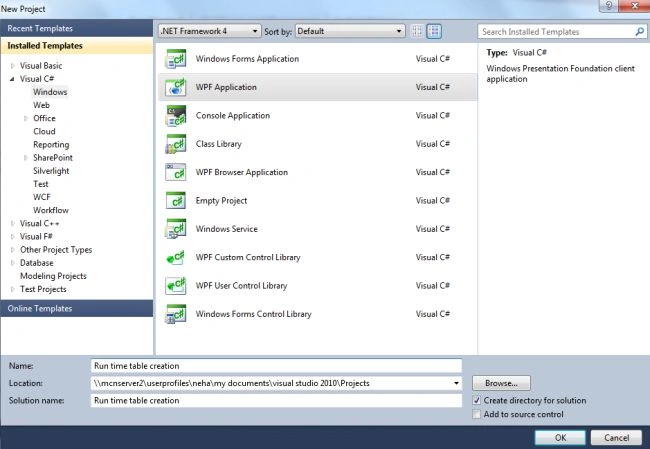
First we create a WPF application using the following procedure:
- Start the Visual Studio.
- Select "New Project".
- Select the C# language and "WPF Application".
- Name the project as "Run time table creation"
- Click the "OK" button.
Step 2
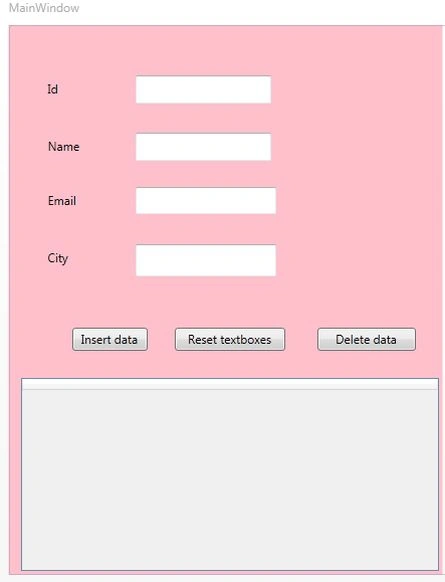
Now start designing the window using the following procedure:
- Go to "View" -> "Toolbox".
- Drag and Drop the 4 text boxes, 4 labels, 3 buttons and 1 DataGird onto the window.
- Select the label and press F4.
- Then set the content of the labels as Id, Name, Email and City .
- Similarly set the content of the buttons as insert, delete and reset text box.
Step 3
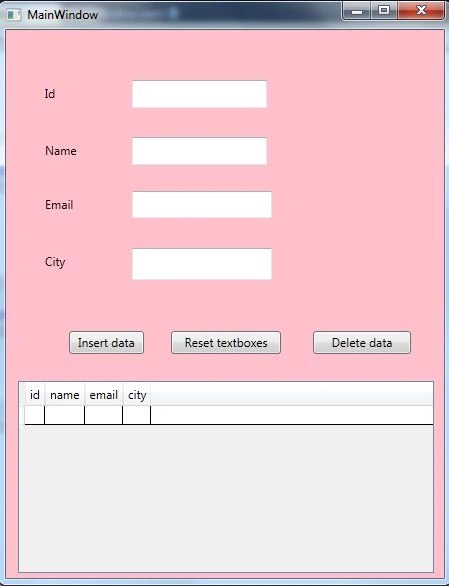
After setting , the final source code of the MainWindow.XAML is given below.
<Window x:Class="Runtime_table_creation.MainWindow"
xmlns="http://schemas.microsoft.com/winfx/2006/xaml/presentation"
xmlns:x="http://schemas.microsoft.com/winfx/2006/xaml"
Title="MainWindow" Height="602" Width="525" Loaded="Window_Loaded" Background="Pink">
<Grid Width="477">
<Label Content="Id" Height="28" HorizontalAlignment="Left" Margin="34,50,0,0" Name="label1" VerticalAlignment="Top" />
<Label Content="Name" Height="28" HorizontalAlignment="Left" Margin="34,107,0,0" Name="label2" VerticalAlignment="Top" />
<Label Content="Email" Height="28" HorizontalAlignment="Left" Margin="34,161,0,0" Name="label3" VerticalAlignment="Top" />
<Label Content="City" Height="32" HorizontalAlignment="Left" Margin="34,218,0,0" Name="label4" VerticalAlignment="Top" Width="42" />
<TextBox Height="28" HorizontalAlignment="Left" Margin="126,50,0,0" Name="textBox1" VerticalAlignment="Top" Width="135" />
<TextBox Height="28" HorizontalAlignment="Left" Margin="126,107,0,0" Name="textBox2" VerticalAlignment="Top" Width="135"/>
<TextBox Height="27" HorizontalAlignment="Left" Margin="126,161,0,0" Name="textBox3" VerticalAlignment="Top" Width="140" />
<Button Content="Insert data" Height="23" HorizontalAlignment="Left" Margin="63,301,0,0" Name="button1" VerticalAlignment="Top" Width="75" Click="button1_Click" />
<DataGrid AutoGenerateColumns="True" Height="192" HorizontalAlignment="Left" Margin="12,351,0,0" Name="dataGrid1" VerticalAlignment="Top" Width="416" />
<TextBox Height="32" HorizontalAlignment="Left" Margin="126,218,0,0" Name="textBox4" VerticalAlignment="Top" Width="140" />
Saurabh MishraPosted Sep 2, 2019, 5:33 AM
How to show data in multiple pages