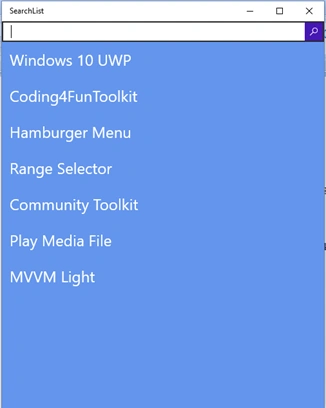
I am going to implement an article search that contains the list of articles and which is able to search on the list. While typing in the search box, it will automatically search the item by the article name.
Let’s see the steps.
Create new windows 10 UWP blank app. Then add the search and list box control using the following XAML code.
- <StackPanel>
- <SearchBox x:Name="search" QueryChanged="search_QueryChanged"></SearchBox>
- <ListBox Background="CornflowerBlue" x:Name="SearchlistBox" FontSize="26">
- <ListBox.ItemTemplate>
- <DataTemplate>
- <StackPanel Orientation="Horizontal">
- <TextBlock Foreground="White" Text="{Binding Name}" FontSize="24" /> </StackPanel>
- </DataTemplate>
- </ListBox.ItemTemplate>
- </ListBox>
- </StackPanel>
Adding data to the List Box Go to the code at the back-end file and declare a List type of articles. An article is a class, which contains Name property, and adds the articles to the list box, using the code, given below.
- List < Articles > ArticlerList = new List < Articles > ();
- private void MainPage_Loaded(object sender, RoutedEventArgs e)
- {
- ArticlerList.Add(new Articles()
- {
- Name = "Windows 10 UWP"
- });
- ArticlerList.Add(new Articles() {
- Name = "Coding4FunToolkit"
- });
- ArticlerList.Add(new Articles() {
- Name = "Hamburger Menu"
- });
- ArticlerList.Add(new Articles() {
- Name = "Range Selector"
- });
- ArticlerList.Add(new Articles() {
- Name = "Community Toolkit"
- });
- ArticlerList.Add(new Articles() {
- Name = "Play Media File"
- });
- ArticlerList.Add(new Articles() {
- Name = "MVVM Light"
- });
- SearchlistBox.ItemsSource = ArticlerList;
- }
- class Articles
- {
- public string Name
- {
- get;
- set;
- }
- }
Here, I am adding data to the list on the page loaded event.
Next, we need to implement search item on search box query changed event.
- private void search_QueryChanged(SearchBox sender, SearchBoxQueryChangedEventArgs args)
- {
- if (ArticlerList != null) {
- SearchlistBox.ItemsSource = ArticlerList.Where(a => a.Name.ToUpper().Contains(search.QueryText.ToUpper()));
- }
- }
I am using LINQ query to search the article item. Here, I am just checking the search text, which is included in the article list. You can customize your search query.
Now, run the Application and enter any text into the search box. The output looks, as shown below.



Join the conversation! Your thoughts help the community grow.