Introduction
In this article I explain how to select the date and time in a Metro style application using JavaScript. For this use the following steps.
Step 1 : First open the Visual Studio 2012 RC and then click File -> New -> Project then select Window Metro Style inside the JavaScript at the left pane and select Blank app from the middle pane and then click ok.
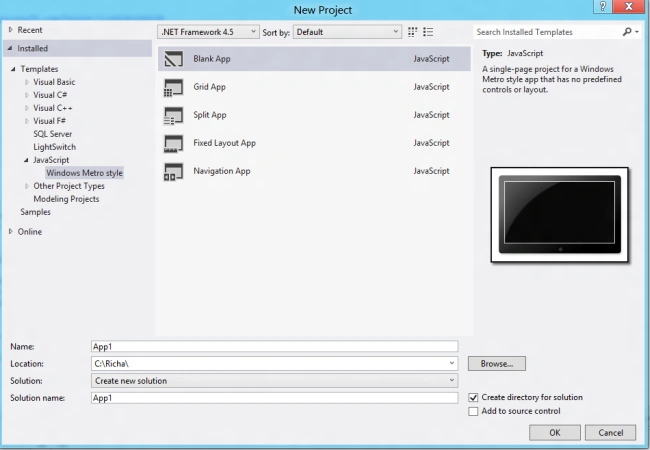
Step 2 : Now in the default.html file add the following code:
<!DOCTYPE html>
<html>
<head>
<meta charset="utf-8" />
<title>App3</title>
<!-- WinJS references -->
<link href="//Microsoft.WinJS.1.0.RC/css/ui-dark.css" rel="stylesheet" />
<link href="//Microsoft.WinJS.1.0.RC/css/ui-light.css" rel="stylesheet" />
<script src="//Microsoft.WinJS.1.0.RC/js/base.js"></script>
<script src="//Microsoft.WinJS.1.0.RC/js/ui.js"></script>
<!-- App3 references -->
<link href="/css/default.css" rel="stylesheet" />
<script src="/js/default.js"></script>
</head>
<body>
<p class="headercontent">Select Time</p>
<div class="mainContent" id="timepicker" data-win-control="WinJS.UI.TimePicker"
data-win-options="{current: '10:29 am'}">
</div>
<p class="headercontent">Select Date</p>
<div class="mainContent" id="Datepicker" data-win-control="WinJS.UI.DatePicker"
data-win-options="{current: '10-06-2012'}">
</div>
</body>
</html>
Step 3 : Add the following code in the default.js file:
// For an introduction to the Blank template, see the following documentation:
// http://go.microsoft.com/fwlink/?LinkId=232509
(function () {
"use strict";
var app = WinJS.Application;
var activation = Windows.ApplicationModel.Activation;
WinJS.strictProcessing();
app.onactivated = function (args) {
if (args.detail.kind === activation.ActivationKind.launch) {
if (args.detail.previousExecutionState !== activation.ApplicationExecutionState.terminated) {
// TODO: This application has been newly launched. Initialize
// your application here.
} else {
// TODO: This application has been reactivated from suspension.
// Restore application state here.
}
args.setPromise(WinJS.UI.processAll());
}
};
app.oncheckpoint = function (args) {
};
app.start();
})();
Step 4 : Now add some style in the defalt.css file, the file will look like:
body {
}
.mainContent {
margin-top: 31px;
margin-left: 120px;
margin-bottom: 50px;
}
.headercontent {
margin-top: 45px;
margin-left: 120px;
}
Step 5 : Now run the application by pressing F5. The output will look like:
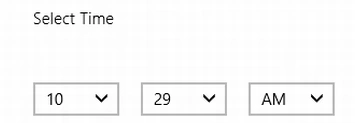
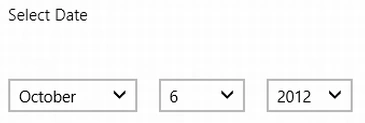
From this we can select the date and time that we want to select.
Summary
In this article I explained how to select date and time in a Metro style app using JavaScript.

Join the conversation! Your thoughts help the community grow.