

Introduction
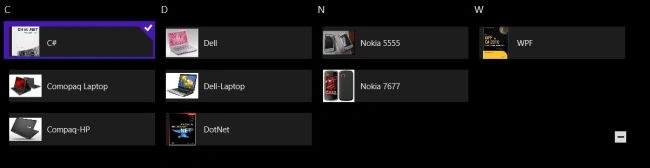
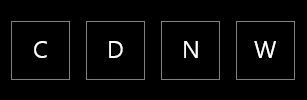
Today I am going to explian how to use the SemanticZoom control in Windows Store apps. How this control works is that, as one GridView shows items by their first letter, when we switch it, all the letters are placed in another GridView. For designing the SemanticZoom control we can use either a ListView or a GridView. If we use a ListView then set its property as:
<ListView ScrollViewer.IsVerticleScrollChainingEnabled="False">
If a GridView is used then sets GridView property as:
<GridView ScrollViewer.IsHorizontalScrollChainingEnabled="False">
In this article I use a GridView.
To see how its works let's use the following steps.
Step 1
Open Visual Studio 2012 and click on File -> New -> Project. A window is shown; in it select Windows Store inside Visual C# from the left side pane and BlankPage from the center pane, then give the name of your application and click ok.
Step 2
Add a class by right-clicking on the project in the Solution Explorer and click Add->Class. A window is opened. In this give the name of your class and and click ok. I give ItemSource.cs as a name of the class.
Step 3
Now add some parameters in this class as:
public class ItemSource
{
public string Title { get; set; }
public string Image { get; set; }
public string Category { get; set; }
public string Description { get; set; }
}
Step 4
Assign the values of these parameters as:
public class StoreData
{
public StoreData()
{
ItemSource item;
item = new ItemSource()
{ Title = "C#",Image = "Books/c-sharp.jpg",Category = "Books",Description = "Multi Paradigm Programming Language" };
collection.Add(item);
item = new ItemSource() { Title = "DotNet Framework", Image = "Books/Dotnet_framework.jpg", Category = "Books", Description = "This Book defines Dotnet Framework" };
collection.Add(item);
item = new ItemSource() { Title = "Dell-Laptop", Image = "Laptops/Laptop1.jpg", Category = "Laptop", Description = "Windows 7 enabled" };
collection.Add(item);
item = new ItemSource() { Title = "Comopaq Laptop", Image = "Laptops/Laptop2.jpg", Category = "Laptop", Description = "Windows Vista Enabled" };
collection.Add(item);
item = new ItemSource() { Title = "Nokia 5555", Image = "Mobile/Mobile1.jpg", Category = "Mobile", Description = "Cheapest Mobile Set" };
collection.Add(item);
item = new ItemSource() { Title = "Nokia 7677", Image = "Mobile/Mobile2.jpg", Category = "Mobile", Description = "Mostly Used Nokia set" };
collection.Add(item);
item = new ItemSource() { Title = "DotNet", Image = "Books/net.jpg", Category = "Books", Description = "Very Useful for all beggineer" };
collection.Add(item);
item = new ItemSource() { Title = "Dotnet Technology", Image = "Books/net_technology.jpg", Category = "Books", Description = "Technology related to dotnet" };
collection.Add(item);
item = new ItemSource() { Title = "Dell", Image = "Laptops/Laptop3.jpg", Category = "Laptop", Description = "Best Operating System" };
collection.Add(item);
item = new ItemSource() { Title = "Compaq-HP", Image = "Laptops/Laptop4.jpg", Category = "Laptop", Description = "Most Used and very popular" };
collection.Add(item);
item = new ItemSource() { Title = "WPF", Image = "Books/wpf.jpg", Category = "Books", Description = "WPF Designing" };
collection.Add(item);
}
private ItemCollection collection = new ItemCollection();
}
Step 5
Create a class for the ItemCollection as:
namespace SemanticZoom_Example
{
class ItemCollection: IEnumerable<Object>
{
private System.Collections.ObjectModel.ObservableCollection<ItemSource> itemCollection = new System.Collections.ObjectModel.ObservableCollection<ItemSource>();
public IEnumerator<Object> GetEnumerator()
{
return itemCollection.GetEnumerator();
}
System.Collections.IEnumerator System.Collections.IEnumerable.GetEnumerator()
{
return GetEnumerator();
}
public void Add(ItemSource item)
{
itemCollection.Add(item);
}
}
}
In this a namespace System.Collections.ObjectModel.ObservableCollection is used which is used for representing a dynamic data collection that provides notification when the items are added, removed or when the whole list is refreshed.
Step 6
Write a LINQ query for dividing all the items (with text as well as images) by their first letter of the title, as:
internal List<GroupInfoList<object>> GetGroupsByLetters()
{
List<GroupInfoList<object>> groups = new List<GroupInfoList<object>>();
var query = from item in collection
orderby ((ItemSource)item).Title
group item by ((ItemSource)item).Title[0] into g
select new { GroupName = g.Key, Items = g };
foreach (var g in query)
{
GroupInfoList<object> info = new GroupInfoList<object>();
info.Key = g.GroupName;
foreach (var item in g.Items)
{
info.Add(item);
}
groups.Add(info);
}
return groups;
}
Step 7
The definition of GroupListInfo is as:
public class GroupInfoList<T> : List<object>
{
public object Key { get; set; }
public new IEnumerator<object> GetEnumerator()
{
return (System.Collections.Generic.IEnumerator<object>)base.GetEnumerator();
}
}
Step 8
The structure of SemanticZoom control is as:
<SemanticZoom>
<SemanticZoom.ZoomedOutView>
<!--Code For Semantic Zoomed Outview-->
</SemanticZoom.ZoomedOutView>
<SemanticZoom.ZoomedInView>
<!--Code For Semantic Zoomed Inview-->
Join the conversation! Your thoughts help the community grow.