

In this article we will see the complete information about Server Certificates in IIS.
Certificates are part of Secure Sockets Layer (SSL) encryption. Server certificates enable users to confirm the identity of a Web server before they transmit sensitive data, such as a credit card number. Server certificates also contain the server's public key information so that data can be encrypted and sent back to the server.
To learn how to use this feature use the following procedure.
- Open the Internet Information Services (IIS) Manager. You can open IIS from the Start Screen by searching for the inetmgr command in the search box or writing the same in the Run window.
- Click on the Server node.
- From the features pane (center pane), double-click on the "Server Certificates" that is under the IIS features section.
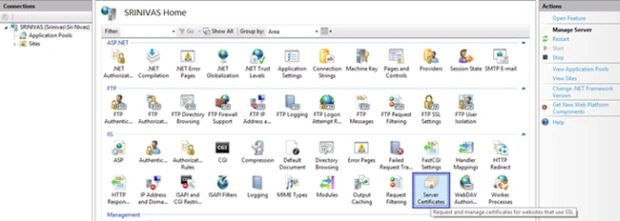
- After opening the server certificates, you will be able to see some elements in the Actions Pane and Features Pane.

Actions pane elements
Actions pane elements are used in the process of creating the certificate request and competing it. Let's have a deeper look into the Action pane elements.
Create Certificate Request
- The first step in creating the server certificate is to generate a certificate request. This request can be submitted to a CA, which will, in turn, generate a certificate that can be installed on the server.
- Certificate requests can only be configured at a server level. Once a certificate has been installed, it can then be configured for use at a website level.
- For creating the Certificate Request, click on the Create Certificate Request in the actions pane to begin the process.
- Enter the details in the opened dialog box.
- Common name property should be filled in with the server name upon which the website will be answering requests. The remaining fields should be filled in depending on the legal status of your organization. Depending on both the CA you submit this request to and the type of certificate you are requesting, the CA may verify these details before issuing you a certificate. See the following image if you need any help filling that in.
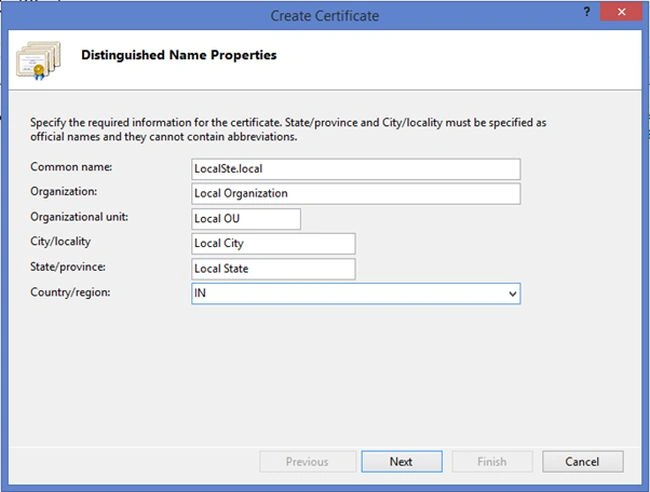
After filling in the details, click on Next to continue.
- Select the cryptographic provider and bit length that you want to use for this certificate. At the time of writing, 2,048-bit key lengths are considered secure for the foreseeable future. Longer key lengths can be chosen to provide additional security, however selecting a longer key length puts additional load on both the client and server when doing the SSL/TLS handshake. See the following image if you need any help filling that in.
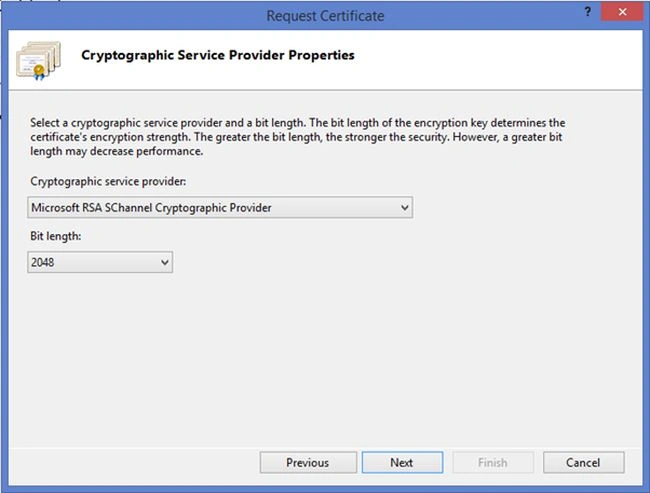
Click on Next to continue.
- Choose a file name to save the certificate request to, as shown in the following image and click Finish to close the wizard.
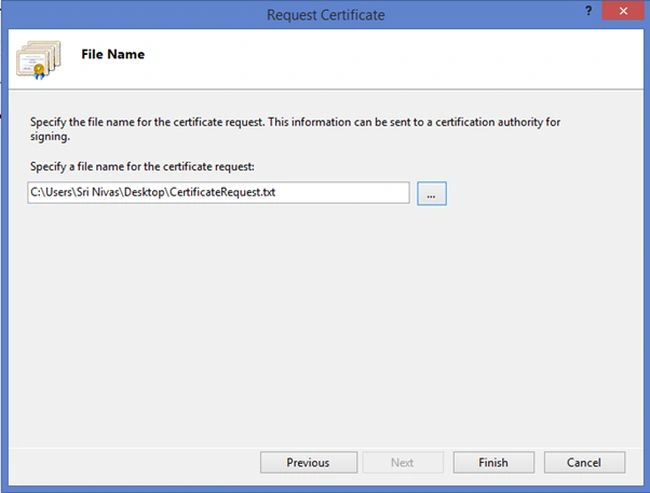
Note: If you didn't specify the file name with path, then it will be saved in <Rootfolder>/Windows/System32 directory (C:/Windows/System32).
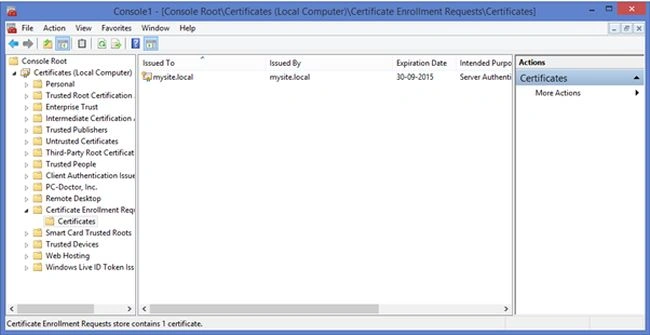
To view the Certificate Enrollment Request:
- In the Windows Start Screen, type mmc.exe and press Enter or type the same in Run window.
- Select File and then Add/Remove Snap in.
- Select the Certificates snap-in and click Add. Click OK to exit all the dialogs.
- Expand the Certificate Enrollment Requests node to see all pending requests.
The generated certificate request file is now submitted to a CA that generates a signed certificate. The higher-assurance certificates (that tend to cost more money) involve additional due diligence by the CA.
Complete Certificate Request
- Once you receive the certificate from the CA, click on Complete Certificate Request that is in the Actions pane.This will open the Complete Certificate Request wizard.
- Enter the details in that wizard.
File name containing the certificate authority's response: File location on your local machine.
Friendly name: Enter the friendly name with which you can easily recognize the certificate.
Certificate Store: You will be able to see two options in that named Personal and Web store. The Web Hosting store works like the Personal store, so all of the existing tools work in the same way. The main difference between the Web Hosting store and Personal store is that the Web Hosting store is designed to scale to higher numbers of certificates.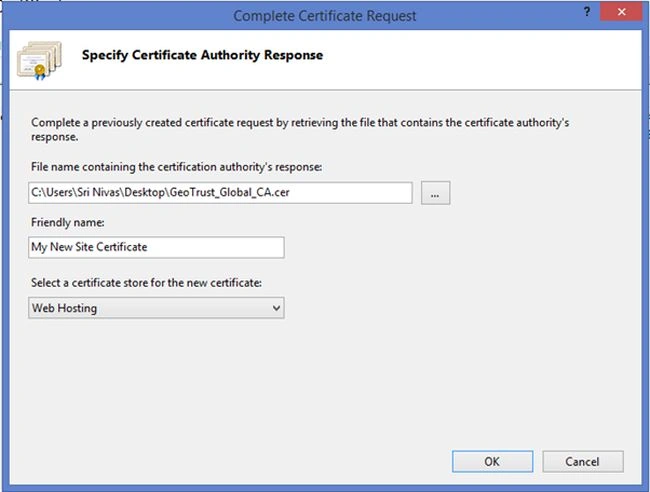
Click on OK to install the certificate.
Create Domain Certificate
A domain certificate is an internal certificate that does not need to be issued by an external certification authority (CA). If your Windows domain has a server that acts as a CA, you can create a domain certificate. This approach helps you reduce the cost of issuing certificates and eases certificate deployment.
To request and install a certificate using the Domain Certificate Request, use the following procedure.
- Click on the Create Domain Certificate to begin the certificate request generation process.
- This will open a new wizard like the wizard opened for the Create Certificate Request. Fill in the details in that wizard and click on Next to continue the process.
- Enter your CA address in the Online certificate Authority text box. The CA name takes the form of the Common Name entered when installing Active Directory Certificate Services (by default, <domain name>-<server name>-CA), followed by the FQDN and enter the friendly name with which you can recognize the certificate easily.
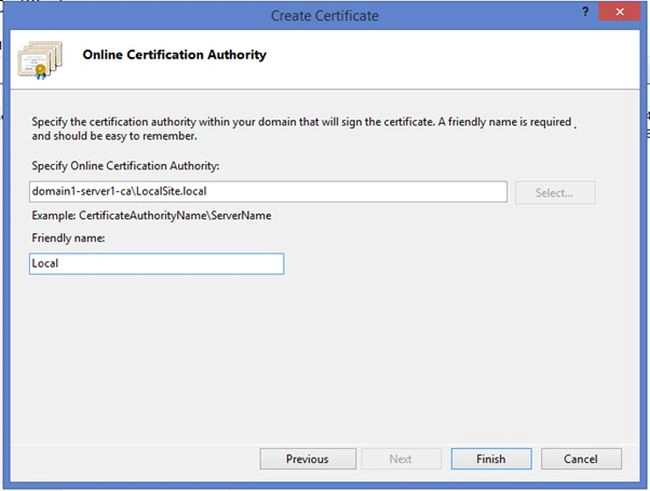
- Click on Finish to complete the wizard and submit the request to the designated CA. The certificate will automatically be issued by the CA and installed into the local machine certificate store on the IIS 8.0 server.
Create Self-Signed Certificate
When a CA is not available, a self-signed certificate may be all that is required. This is particularly true in development environments where a developer may simply wish to test that his or her application works over SSL/TLS. A self-signed certificate is one where the server signs its own certificate. Because no machine, other than the server, trusts it as a CA, any remote machine accessing the site will result in a warning being displayed to the user. To create a self-signed certificate use the following procedure.
- Click on the Create Self-Signed Certificate to begin the self-signed certificate generation process.
- This will open a new wizard. Enter the friendly name in the provided text box and select the certificate store.

- Click on OK to create the self-signed certificate.
Enable/Disable Automatic Rebind of Renewed Certificate
Automatically rebind a renewed certificate using Certificate Rebind.
View
To view the server certificate installed on your server use the following procedure.
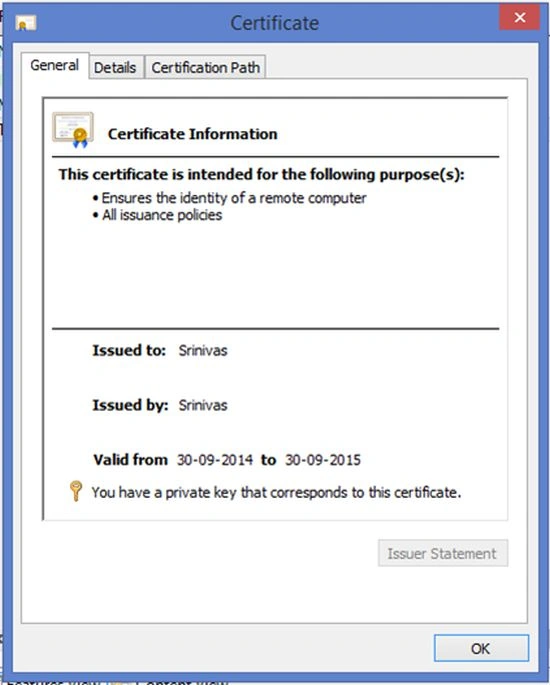
- Click on any certificate in the feature pane, then you will be able to see the View option in the action pane.

- Click on the View to see the certificate. On clicking it will open up a dialog box that shows the certificate details.
Export
To export any certificate that is installed on your server use the following procedure.
- Click on any certificate in the feature pane, then you will be able to see the View option in the action pane.
- Click on the Export to take the backup of the certificate. On clicking that will open a wizard. Fill in the details in that wizard.
- Export to will be the path where to save that certificate and password is required to secure the certificate and is also used at the time of importing it.

- After entering the details click on OK to export the certificate.
Import
This option provides the facility to restore the certificate on the server. There are some situations where you can use this option.
- When you need to restore the certificate that you received the from any user or Certification Authority (CA).
- When the certificate that you restored previously got damaged or lost on the server.
When Import in the actions page is clicked a dialog box will opened; enter the certificate details in that dialog box.
Certificate file: File location on your local machine.
Password: Enter the password that you entered when taking the backup.
Certificate Store: You will be able to see two options in that named Personal and Web store. The Web Hosting store works like the Personal store, so all of the existing tools work in the same way. The main difference between Web Hosting store and Personal store is that Web Hosting store is designed to scale to higher numbers of certificates.
Check the check box Allow this certificate to be exported, if you want to export this certificate in the future.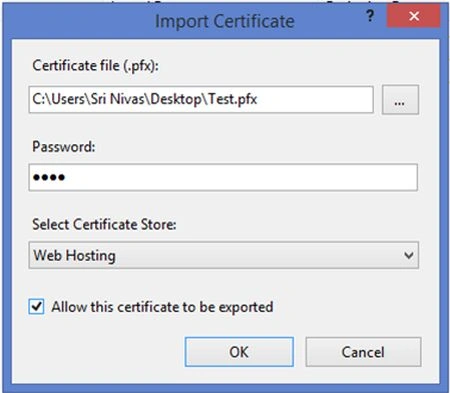
Once all the details have been entered click OK to import the certificate.
Remove
To remove any certificate installed on your server use the following procedure:
- Click on any certificate in the feature pane, then you will be able to see the Remove option in the action pane.
- Click on the Remove, to remove that specific certificate.
- On clicking Remove, it will show an alert as follows.
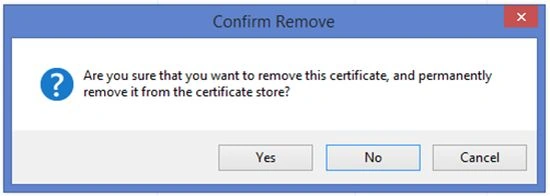
Click on Yes to remove the certificate.
These elements show the details of the certificates that are installed in the current machine.
Name: This displays the name of the certificates that have been issued to clients that are running on either Internet or intranet hosts.
Issued To: This displays the FQDNs (Fully Qualified Domain Name) of either the internet or intranet hosts to which certificates have been issued.
Issued By: This displays the FQDNs of servers that have issued certificates to clients that are running on either Internet or intranet hosts.
Expiration Date: This displays the expiration date the certificate.
Certificate Hash: This displays binary data produced by using a hashing algorithm that we selected during the certificate generation. Although this data uniquely identifies a certificate, the hash data cannot be used to trace a certificate because hashing is a one-way process.
Certificate Store: This displays the name of the provider that stores the certificate.
Reference
Book: Professional Microsoft IIS 8 by Ken Schaefer, Jeff Cochran, Scott Forsyth, Dennis Glendenning and Benjamin Perkins
Site: http://technet.microsoft.com/en-us/library/cc732385.aspx
Saillesh PawarPosted Apr 21, 2016, 1:44 AM
Nice Article really Helpful
Guest UserPosted Oct 8, 2014, 1:38 AM
welcome Srinivasulu!
Dinesh BeniwalPosted Oct 7, 2014, 2:04 AM
Good start Srinivasulu, welcome to the C# Corner.